Free Shipping on Domestic Orders $75+

Google Pixel 3 Motherboard Replacement

What you need

  1. Google Pixel 3 Motherboard Replacement, Weaken the back cover's adhesive: step 1, image 1 of 1
    Ask FixBot

    Add Comment

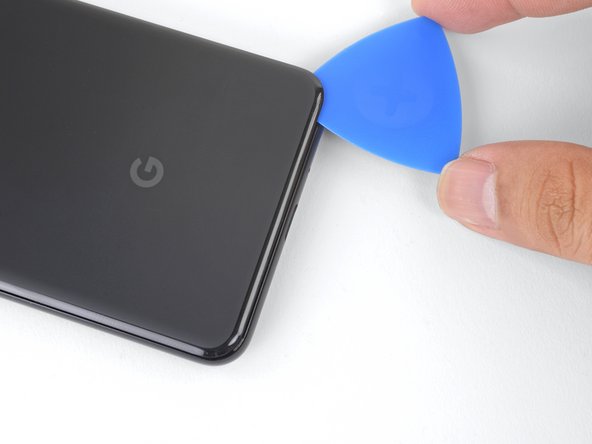
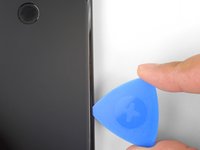
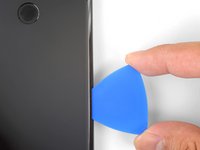
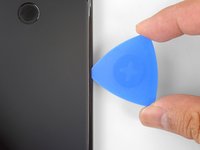
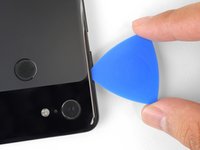
  2. Google Pixel 3 Motherboard Replacement, Create a gap in the seam: step 2, image 1 of 3 Google Pixel 3 Motherboard Replacement, Create a gap in the seam: step 2, image 2 of 3 Google Pixel 3 Motherboard Replacement, Create a gap in the seam: step 2, image 3 of 3
    • Apply a suction cup to the heated bottom edge of the back cover.

    • Make sure you did not mistake the screen side for the back cover side.

    • If your back cover is badly cracked, covering it with a layer of clear packing tape may allow the suction cup to adhere.

    • Lift on the suction cup with strong, steady force to create a gap.

    • Depending on how aged your phone is, this may take significant force. If you are having trouble, apply more heat and try again.

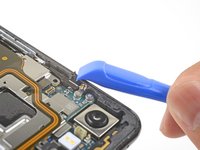
    • Insert an opening pick into the gap.

    • Don't use metal tools to pry, or you'll mar or shatter the glass back cover. If the panel won't budge, apply more heat, either with a hair dryer or heat gun.

    Ask FixBot

    Add Comment

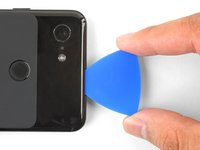
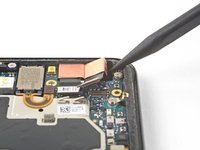
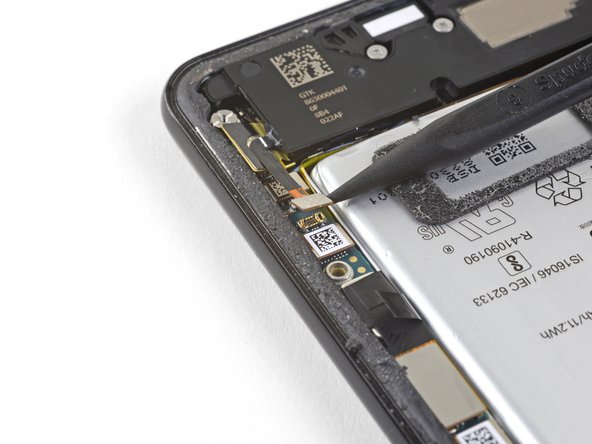
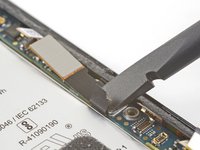
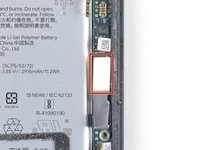
  3. Google Pixel 3 Motherboard Replacement, Fingerprint cable information: step 3, image 1 of 1
    • When inserting an opening pick above the power button, be careful not to insert the pick too deeply, or you will damage the fingerprint sensor cable.

    Ask FixBot

    Add Comment

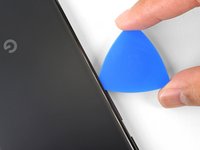
  4. Google Pixel 3 Motherboard Replacement, Cut through the adhesive: step 4, image 1 of 3 Google Pixel 3 Motherboard Replacement, Cut through the adhesive: step 4, image 2 of 3 Google Pixel 3 Motherboard Replacement, Cut through the adhesive: step 4, image 3 of 3
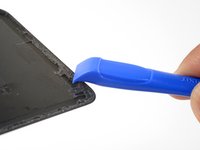
    • Slice the adhesive along the bottom edge of the phone and around the right corner.

    • Leave a pick in the bottom edge to prevent the adhesive from re-sealing.

    Ask FixBot

    Add Comment

  5. Google Pixel 3 Motherboard Replacement: step 5, image 1 of 3 Google Pixel 3 Motherboard Replacement: step 5, image 2 of 3 Google Pixel 3 Motherboard Replacement: step 5, image 3 of 3
    • Heat the right edge with an iOpener and continue slicing the adhesive with an opening pick.

    • The adhesive can be very gummy. Push the pick in and out in a sawing motion to help with slicing.

    Ask FixBot

    Add Comment

  6. Google Pixel 3 Motherboard Replacement: step 6, image 1 of 3 Google Pixel 3 Motherboard Replacement: step 6, image 2 of 3 Google Pixel 3 Motherboard Replacement: step 6, image 3 of 3
    • Continue heating and slicing through the rest of the phone perimeter. Leave a pick in each edge to prevent the adhesive from resealing.

    • When slicing above the power button, do not insert the pick more than halfway in to avoid damaging the fingerprint sensor cable.

    Ask FixBot

    Add Comment

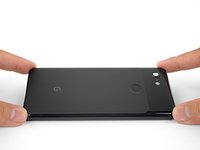
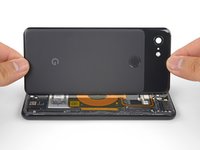
  7. Google Pixel 3 Motherboard Replacement, Lift the left edge of the back cover: step 7, image 1 of 3 Google Pixel 3 Motherboard Replacement, Lift the left edge of the back cover: step 7, image 2 of 3 Google Pixel 3 Motherboard Replacement, Lift the left edge of the back cover: step 7, image 3 of 3
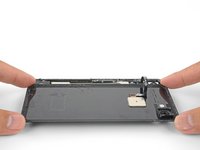
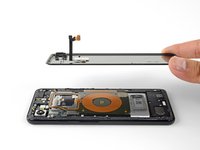
    • Once you have sliced around the perimeter of the phone, carefully lift the left edge of the back cover.

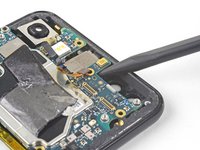
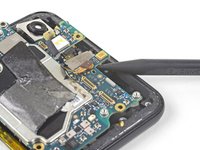
    • Do not attempt to remove the back cover. It is still attached to the phone by the fingerprint sensor cable.

    • Flip the back cover along its long axis and rest it so that the fingerprint sensor cable is not strained.

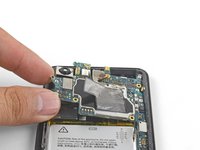
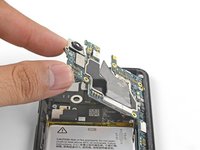
    Ask FixBot

    Add Comment

  8. Google Pixel 3 Motherboard Replacement, Remove the screws: step 8, image 1 of 1
    Tool used on this step:
    Magnetic Project Mat
    $19.95
    Buy
    • Remove the two 4.1 mm-long Phillips screws securing the fingerprint connector bracket.

    • Throughout this repair, keep track of each screw and make sure it goes back exactly where it came from.

    • During reassembly, be careful not to over-tighten these screws, or you may damage your display.

    Ask FixBot

    Add Comment

  9. Google Pixel 3 Motherboard Replacement, Remove the fingerprint connector bracket: step 9, image 1 of 3 Google Pixel 3 Motherboard Replacement, Remove the fingerprint connector bracket: step 9, image 2 of 3 Google Pixel 3 Motherboard Replacement, Remove the fingerprint connector bracket: step 9, image 3 of 3
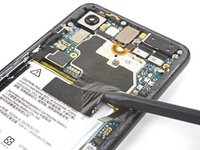
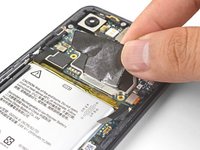
    • Use the point of a spudger to slide the fingerprint connector bracket out from under the NFC coil.

    • Remove the fingerprint connector bracket.

    Ask FixBot

    Add Comment

  10. Google Pixel 3 Motherboard Replacement, Disconnect the fingerprint connector: step 10, image 1 of 2 Google Pixel 3 Motherboard Replacement, Disconnect the fingerprint connector: step 10, image 2 of 2
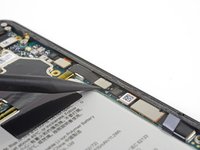
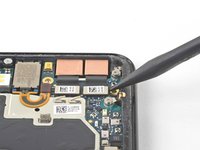
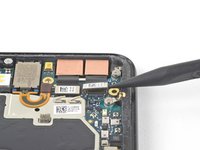
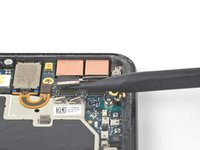
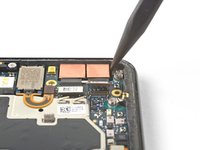
    • Use the point of a spudger to pry up and disconnect the fingerprint connector from its socket.

    • When you disconnect connectors like these, be careful not to dislodge the small surface-mounted components surrounding the socket.

    • To re-attach press connectors like this one, carefully align and press down on one side until it clicks into place, then repeat on the other side. Do not press down on the middle. If the connector is misaligned, the pins can bend, causing permanent damage.

    Ask FixBot

    Add Comment

  11. Google Pixel 3 Motherboard Replacement, Remove the back cover: step 11, image 1 of 3 Google Pixel 3 Motherboard Replacement, Remove the back cover: step 11, image 2 of 3 Google Pixel 3 Motherboard Replacement, Remove the back cover: step 11, image 3 of 3
    • Remove the back cover.

    • Before you install a replacement back cover, be sure to remove all adhesive residue from the phone frame. Use an opening tool to scrape and high concentration isopropyl alcohol to clean the surface.

    • If you are re-using the back cover, be sure to clean off any adhesive, and apply new back cover adhesive.

    • If you are installing a replacement back cover, be sure to compare it with the original part. Transfer any remaining parts (such as the flash diffuser) over to your replacement part.

    • Follow this guide to correctly apply new back cover adhesive.

    Ask FixBot

    Add Comment

  12. Google Pixel 3 Motherboard Replacement, Remove the screws: step 12, image 1 of 1
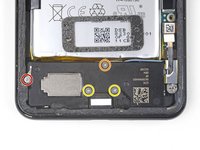
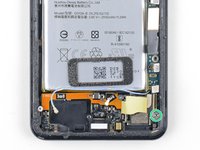
    • Remove the five Phillips screws securing the wireless charging coil:

    • Two 1.9 mm screws

    • Two 4.2 mm screws

    • One 4.3 mm screw

    Ask FixBot

    Add Comment

  13. Google Pixel 3 Motherboard Replacement, Remove the charging coil: step 13, image 1 of 1
    • Lift up and remove the wireless charging coil.

    Ask FixBot

    Add Comment

  14. Google Pixel 3 Motherboard Replacement, Disconnect the battery cable: step 14, image 1 of 2 Google Pixel 3 Motherboard Replacement, Disconnect the battery cable: step 14, image 2 of 2
    • Use the point of a spudger to pry up and disconnect the battery press connector from its socket near the right edge of the phone.

    Ask FixBot

    Add Comment

  15. Google Pixel 3 Motherboard Replacement, Remove the screws: step 15, image 1 of 2 Google Pixel 3 Motherboard Replacement, Remove the screws: step 15, image 2 of 2
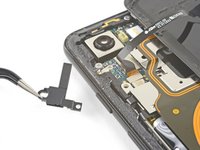
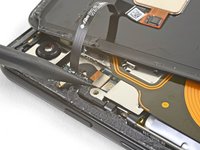
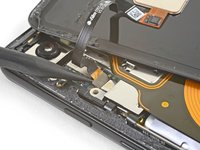
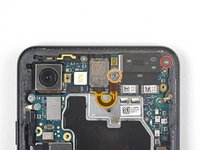
    • Remove the two screws securing the camera bracket:

    • One 4.1 mm Phillips screw

    • One 4 mm standoff screw

    • Standoff screws are best removed using a standoff bit. In a pinch, a small flathead screwdriver will do the job—but use extra caution to ensure it doesn't slip and damage surrounding components.

    • Remove the camera bracket.

    Ask FixBot

    Add Comment

  16. Google Pixel 3 Motherboard Replacement, Identify the cameras: step 16, image 1 of 1
    • If you are replacing front-facing cameras, determine which one you need to replace:

    • Normal view camera

    • Wide-angle camera

    • If you are doing the motherboard removal procedure, you will need to remove both cameras.

    Ask FixBot

    Add Comment

  17. Google Pixel 3 Motherboard Replacement, Disconnect the camera(s): step 17, image 1 of 3 Google Pixel 3 Motherboard Replacement, Disconnect the camera(s): step 17, image 2 of 3 Google Pixel 3 Motherboard Replacement, Disconnect the camera(s): step 17, image 3 of 3
    • Use the point of a spudger to pry up and disconnect the connector for the camera(s) you are replacing.

    Ask FixBot

    Add Comment

  18. Google Pixel 3 Motherboard Replacement, Loosen the camera(s): step 18, image 1 of 2 Google Pixel 3 Motherboard Replacement, Loosen the camera(s): step 18, image 2 of 2
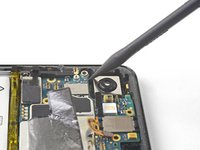
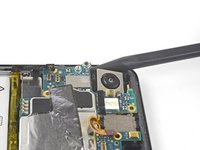
    • The cameras are held in place with adhesive.

    • Insert the point of a spudger behind the edge of the camera module and pry up to loosen it from the frame.

    Ask FixBot

    Add Comment

  19. Google Pixel 3 Motherboard Replacement, Remove the camera(s): step 19, image 1 of 1
    Tool used on this step:
    Tesa 61395 Tape
    $8.95
    Buy
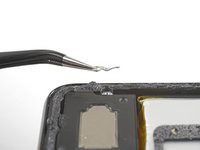
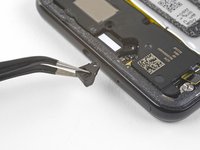
    • Use a pair of blunt nose tweezers to remove the camera(s).

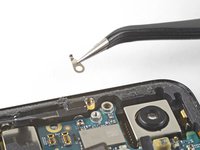
    • If the adhesive holding the camera module is in good condition, you can re-use the adhesive. Otherwise, replace the adhesive with double-sided Tesa tape.

    • When installing a replacement camera module, make sure that the phone frame lens are free of adhesive residue or debris.

    Ask FixBot

    Add Comment

  20. Google Pixel 3 Motherboard Replacement, Disconnect the loudspeaker: step 20, image 1 of 2 Google Pixel 3 Motherboard Replacement, Disconnect the loudspeaker: step 20, image 2 of 2
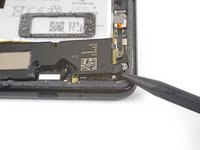
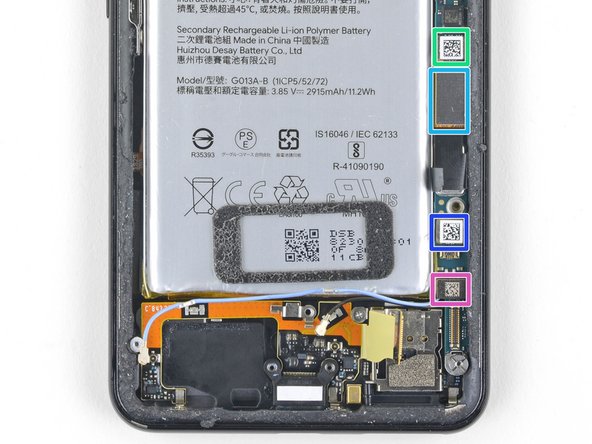
    • Use the point of a spudger to pry up and disconnect the loudspeaker connector from its motherboard socket near the right edge of the phone.

    • Be careful not to puncture the battery with the spudger.

    Ask FixBot

    Add Comment

  21. Google Pixel 3 Motherboard Replacement, Remove the screws: step 21, image 1 of 3 Google Pixel 3 Motherboard Replacement, Remove the screws: step 21, image 2 of 3 Google Pixel 3 Motherboard Replacement, Remove the screws: step 21, image 3 of 3
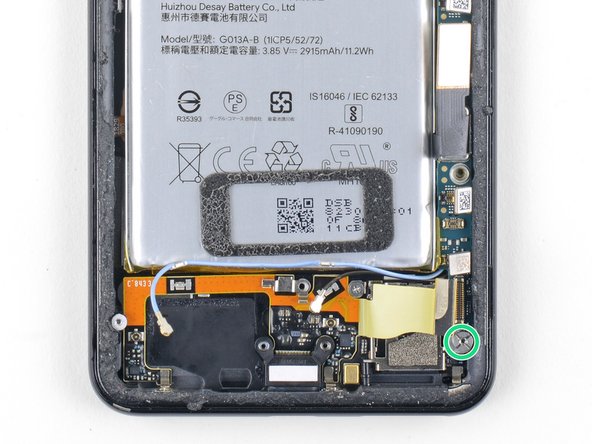
    • Remove the following four Phillips screws:

    • One 1.9 mm screw

    • One 4.3 mm screw

    • Two 4.3 mm screws with thinner shanks

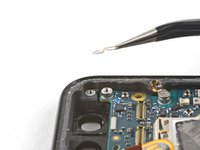
    • Remove the tiny grounding clip from the left screw hole. Be careful not to lose it.

    • The grounding clip installs such that the contoured edge faces the left side of the phone.

    • Remove the small plastic insert from the right side of the USB-C port.

    • Be sure to reinstall this insert before you screw down the daughterboard.

    Ask FixBot

    Add Comment

  22. Google Pixel 3 Motherboard Replacement, Loosen the loudspeaker: step 22, image 1 of 2 Google Pixel 3 Motherboard Replacement, Loosen the loudspeaker: step 22, image 2 of 2
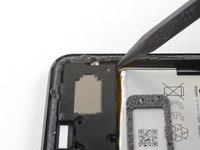
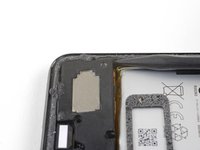
    • The loudspeaker is still held in place by a strong adhesive gasket. Before attempting to remove it, pry it up in a few different places to break the adhesive seal.

    • Insert the point of a spudger under the bottom right corner of the loudspeaker.

    • Pry up to loosen the loudspeaker from the phone.

    Ask FixBot

    Add Comment

  23. Google Pixel 3 Motherboard Replacement: step 23, image 1 of 2 Google Pixel 3 Motherboard Replacement: step 23, image 2 of 2
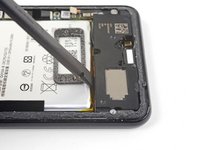
    • Insert the point of a spudger under the top left corner of the loudspeaker.

    • Be careful not to puncture the battery with the spudger.

    • Pry up to loosen the loudspeaker.

    Ask FixBot

    Add Comment

  24. Google Pixel 3 Motherboard Replacement: step 24, image 1 of 2 Google Pixel 3 Motherboard Replacement: step 24, image 2 of 2
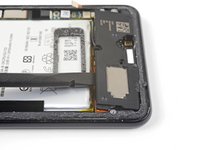
    • Insert the flat end of the spudger under the top edge of the loudspeaker, towards the left edge.

    • Pry up to loosen the loudspeaker.

    Ask FixBot

    Add Comment

  25. Google Pixel 3 Motherboard Replacement, Remove the loudspeaker: step 25, image 1 of 2 Google Pixel 3 Motherboard Replacement, Remove the loudspeaker: step 25, image 2 of 2
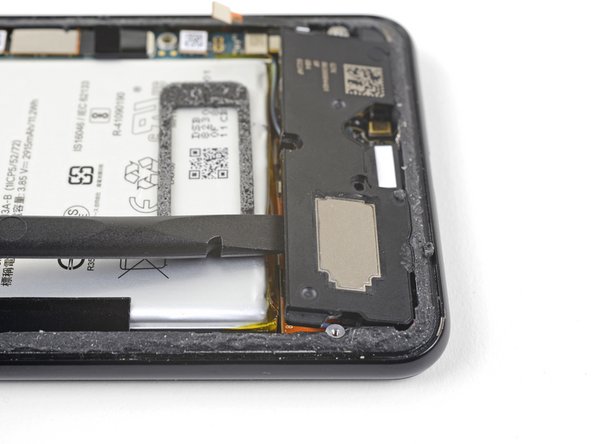
    • Remove the loudspeaker.

    • Before you install a replacement loudspeaker, check the adhesive gasket.

    • If it is in good condition, you can re-use the gasket. Make sure that the gasket does not cover the exit hole.

    • If the gasket is pulled out of place, remove it and replace the adhesive with a pre-cut strip or Tesa tape.

    Ask FixBot

    Add Comment

  26. Google Pixel 3 Motherboard Replacement, Disconnect the blue antenna cable: step 26, image 1 of 2 Google Pixel 3 Motherboard Replacement, Disconnect the blue antenna cable: step 26, image 2 of 2
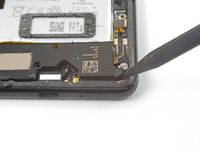
    • Use the point of a spudger to pry up and disconnect the blue antenna cable from its socket on the charging assembly.

    Ask FixBot

    Add Comment

  27. Google Pixel 3 Motherboard Replacement: step 27, image 1 of 2 Google Pixel 3 Motherboard Replacement: step 27, image 2 of 2
    • Use the point of a spudger to carefully pry up and release the blue antenna cable from its grounding clips.

    • The cable is fragile and prone to breaking. If it feels like the wire is firmly clamped in place, use the point of a spudger to push the clip open slightly, then try again.

    Ask FixBot

    Add Comment

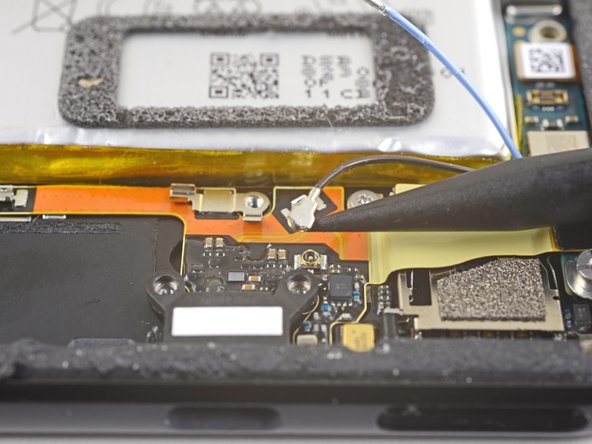
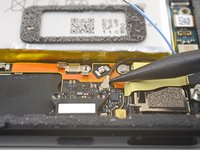
  28. Google Pixel 3 Motherboard Replacement, Disconnect the black antenna cable: step 28, image 1 of 2 Google Pixel 3 Motherboard Replacement, Disconnect the black antenna cable: step 28, image 2 of 2
    • Use the point of a spudger to pry up and disconnect the black antenna cable from its socket near the USB-C port.

    Ask FixBot

    Add Comment

  29. Google Pixel 3 Motherboard Replacement, De-route the antenna cables: step 29, image 1 of 1
    • Carefully de-route both antenna cables and move them away from the charging assembly.

    Ask FixBot

    Add Comment

  30. Google Pixel 3 Motherboard Replacement: step 30, image 1 of 3 Google Pixel 3 Motherboard Replacement: step 30, image 2 of 3 Google Pixel 3 Motherboard Replacement: step 30, image 3 of 3
    • Use the point of a spudger to pry up and disconnect the charging assembly's connector from its motherboard socket, near the right edge of the phone.

    • Carefully peel the flex cable from the top of the SIM card reader.

    Ask FixBot

    Add Comment

  31. Google Pixel 3 Motherboard Replacement, Disconnect the display connector: step 31, image 1 of 2 Google Pixel 3 Motherboard Replacement, Disconnect the display connector: step 31, image 2 of 2
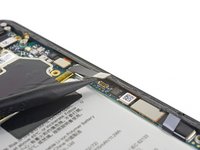
    • Use the flat end of a spudger to carefully pry up the black tape holding the display flex cable in place, near the right edge of the phone.

    • Do not use metal tools to pry, or you may damage the flex cable.

    • Use the flat end of a spudger to pry up and disconnect the display connector from the motherboard.

    Ask FixBot

    Add Comment

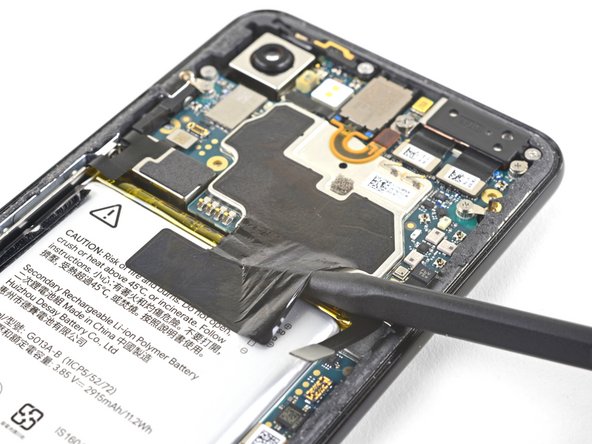
  32. Google Pixel 3 Motherboard Replacement, Peel the black tape away from the battery: step 32, image 1 of 3 Google Pixel 3 Motherboard Replacement, Peel the black tape away from the battery: step 32, image 2 of 3 Google Pixel 3 Motherboard Replacement, Peel the black tape away from the battery: step 32, image 3 of 3
    • Whenever you use the spudger near the battery, be very careful not to puncture the battery.

    • Slide the point of a spudger in the crevice underneath the black tape bridging across the battery and the motherboard.

    • Slide the spudger along the crevice to pry up the tape from the battery side.

    • Carefully peel the tape from the battery and fold it out of the way.

    Ask FixBot

    Add Comment

  33. Google Pixel 3 Motherboard Replacement, Disconnect the press connectors: step 33, image 1 of 2 Google Pixel 3 Motherboard Replacement, Disconnect the press connectors: step 33, image 2 of 2
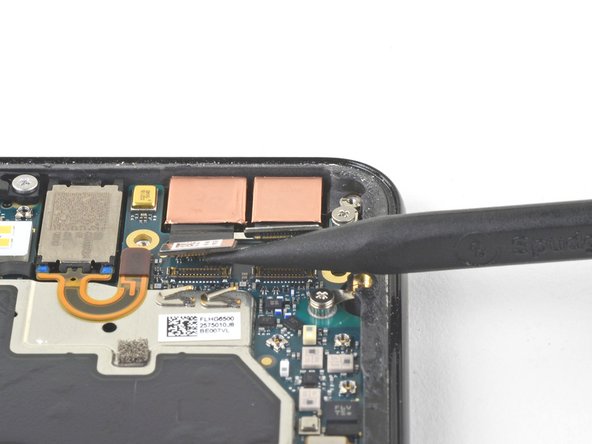
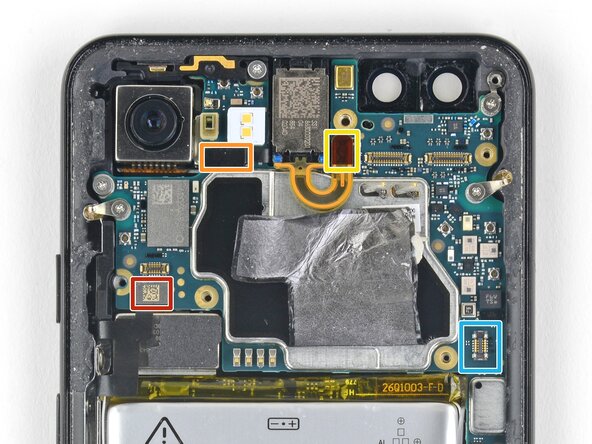
    • Use a spudger to pry up and disconnect the following seven press-fit connectors from their motherboard sockets:

    • External buttons connector

    • Top microphone connector

    • Earpiece connector

    • Left squeeze sensor connector

    • Touchscreen (first picture) and OLED display (second picture) connectors

    • Right squeeze sensor connector

    • SIM tray connector

    Ask FixBot

    Add Comment

  34. Google Pixel 3 Motherboard Replacement, Move the earpiece speaker cable away from the motherboard: step 34, image 1 of 1
    • Use the flat of a spudger to carefully pry up and bend the earpiece speaker's flex cable upwards, out of the way of the motherboard.

    Ask FixBot

    Add Comment

  35. Google Pixel 3 Motherboard Replacement, Remove the screws: step 35, image 1 of 2 Google Pixel 3 Motherboard Replacement, Remove the screws: step 35, image 2 of 2
    • Some of these screws hold very small grounding clips in place. Be careful not to lose these clips as you remove the screws.

    • Remove the six screws securing the motherboard in place:

    • One 4.2 mm Phillips screw

    • Three 1.9 mm Phillips screws

    • One 4.3 mm Phillips screw

    • One 3.83 mm standoff screw

    • Standoff screws are best removed using a standoff bit. In a pinch, a small flathead screwdriver will do the job—but use extra caution to ensure it doesn't slip and damage surrounding components.

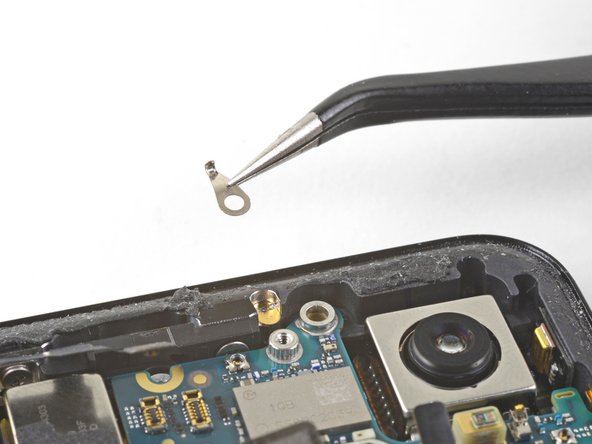
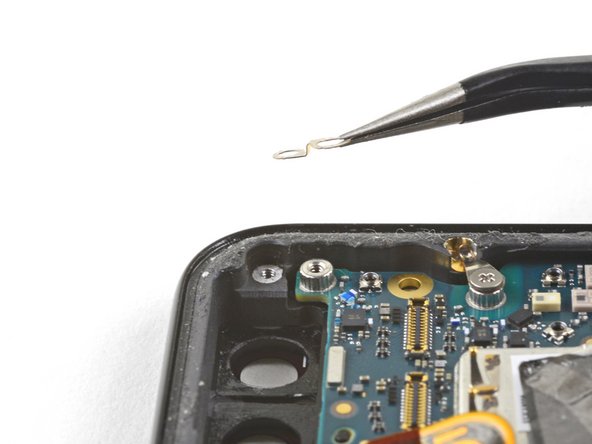
    • Remove and retain the three small metal grounding clips.

    Ask FixBot

    Add Comment

  36. Google Pixel 3 Motherboard Replacement, Remove the antenna bracket: step 36, image 1 of 3 Google Pixel 3 Motherboard Replacement, Remove the antenna bracket: step 36, image 2 of 3 Google Pixel 3 Motherboard Replacement, Remove the antenna bracket: step 36, image 3 of 3
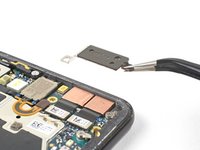
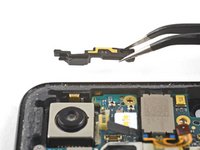
    • Carefully remove the antenna bracket from the top left edge of the phone.

    • To reinstall the small metal grounding clips:

    • Orient the clips such that the silver side is facing upwards.

    • The teardrop shaped clips should have their points facing towards the phone edge.

    • The double-holed clip dips downwards towards the frame's top-right screw hole.

    Ask FixBot

    Add Comment

  37. Google Pixel 3 Motherboard Replacement, Check the motherboard: step 37, image 1 of 2 Google Pixel 3 Motherboard Replacement, Check the motherboard: step 37, image 2 of 2
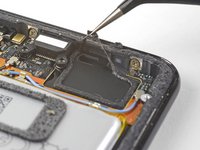
    • Insert the point of a spudger near the top left corner of the motherboard, right below the rear-facing camera.

    • Pry up gently to loosen the motherboard, bending all flex cables away to accommodate for the movement.

    • If the motherboard feels firmly seated, check for any flex cables or screws that may still be connected.

    Ask FixBot

    Add Comment

  38. Google Pixel 3 Motherboard Replacement, Loosen the motherboard: step 38, image 1 of 2 Google Pixel 3 Motherboard Replacement, Loosen the motherboard: step 38, image 2 of 2
    • Insert the spudger underneath the top edge of the motherboard and carefully pry up to loosen the motherboard.

    • The earpiece speaker's flex cable will press tightly against the motherboard. Take your time and carefully guide the motherboard around the flex cable.

    Ask FixBot

    Add Comment

  39. Google Pixel 3 Motherboard Replacement, Start removing the motherboard: step 39, image 1 of 2 Google Pixel 3 Motherboard Replacement, Start removing the motherboard: step 39, image 2 of 2
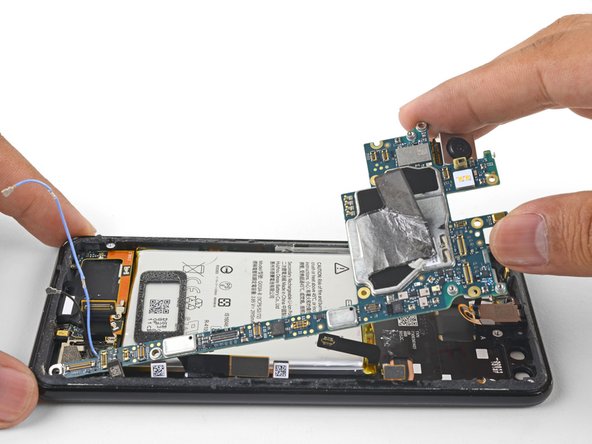
    • Lift the left edge of the motherboard and carefully swing it upwards towards the right. Carefully push any press connectors snagging the motherboard out of the way.

    Ask FixBot

    Add Comment

  40. Google Pixel 3 Motherboard Replacement, Remove the motherboard: step 40, image 1 of 3 Google Pixel 3 Motherboard Replacement, Remove the motherboard: step 40, image 2 of 3 Google Pixel 3 Motherboard Replacement, Remove the motherboard: step 40, image 3 of 3
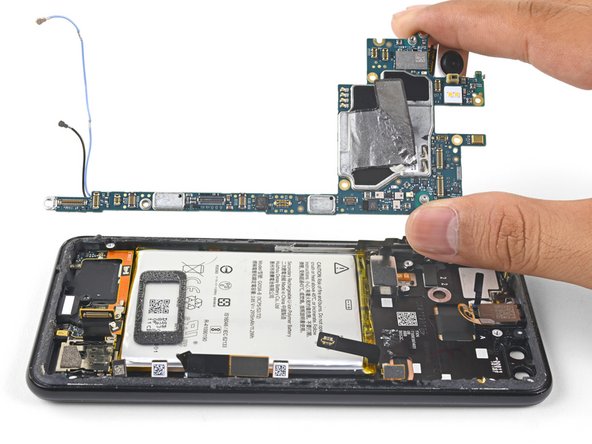
    • Carefully lift the top end of the motherboard away from the frame.

    • Remove the motherboard.

    • When you reinstall the motherboard, be careful not to trap any flex cable connectors underneath it.

    • It may be difficult to reposition the motherboard around the earpiece flex cable. You can gently pry up the earpiece speaker, install the motherboard, and reinstall the earpiece speaker.

    Ask FixBot

    Add Comment

Conclusion

To reassemble your device, follow these instructions in reverse order.

Take your e-waste to an R2 or e-Stewards certified recycler.

Repair didn’t go as planned? Check out our Google Pixel 3 Answers community for troubleshooting help.

Cancel: I did not complete this guide.

14 other people completed this guide.

Arthur Shi

Member since: 01/03/18

337,997 Reputation

851 Guides authored

Team

iFixit Member of iFixit

Staff

122 Members

26,593 Guides authored

7 Guide Comments

Hallo,

wo bekomme ich denn ein neues Mainboard her? Ich komme nicht mehr ins recovery und vermute Mainboarddefekt.

Helge - Reply Share
I followed your instructions to the letter. Got it all put back together, but before affixing the back glass, I powered up the Pixel 3 to make sure all features are working. The touch screen does not work, now, but it did before. Any advice?

Philip Wickstrom - Reply Share
Hi Philip,

Does the screen light up? If it doesn’t, I would suggest disconnecting the battery connector and double-checking the display connector to make sure it is properly seated. As I looked into your question, I noticed that the step was missing a disconnection procedure—so thank you! I’ve amended that step.

Arthur Shi - Reply Share
Hi, I met the same issue as you, the touch didn't work after replacing the mother board. Do you know why? And have you fixed the problem?

notreally - Reply Share
Where can I buy the motherboard? Is the 128 GB motherboard different from the 64 GB?

Orlando Terte - Reply Share

Add Comment

View Statistics:

Past 24 Hours: 3

Past 7 Days: 50

Past 30 Days: 205

All Time: 21,077