Student-Contributed Wiki
An awesome team of students from our education program made this wiki.
Printer Does Not Turn On
The printer is not responding when the power button is pressed.
Power Source Not Connected
Make sure the power cord is connected to the plug port located behind the printer and to a power outlet. If a power strip is used for the power source, make sure the power strip is plugged in and the switch is in the on position. Some wall power outlets may be operated by a light switch on the same wall, so check to see if that switch is on. The power outlet can also be checked by plugging in another working electronic, such as a phone charger, and seeing if that is working.
Broken Power Button
If the power button does not click and/or feels stuck when pressed, it may need to be replaced. For instructions on how to replace power button follow this replacement guide.
Faulty Power Plug Port
The power plug port may be warped and/or damaged. One indication of this can be the plug not fitting into the port. For instructions on how to replace the power plug port follow this replacement guide.
Paper Keeps Jamming
The printer will not follow through with printing because the paper is stuck.
Paper Misalignment
Make sure the paper in the paper tray is stacked neatly and place the stack carefully into the paper tray.
Too Much Paper in Paper Tray
If the paper tray is difficult to close after neatly stacked paper is inserted, there are too many sheets of paper in the stack. Remove sheets of paper from the stack and try reinserting until the paper tray easily closes.
Paper Type Not Supported
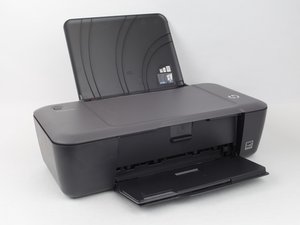
Make sure the correct paper type is being used. The HP Deskjet 1000 supports the following types of paper: U.S. Letter, U.S. Legal, Executive, A4, A5, 5 x 7 inch, 8 x 10 inch.
Paper Not Feeding Through
The printer does not feed any paper through when trying to begin printing a document.
Broken Paper Roller Motor
The paper roller motor may need to be replaced. For instructions on how to replace the paper roller motor follow this replacement guide.
Broken Paper Control Sensor
When the paper is not being detected, the printer will not feed the paper through. The paper control sensor board may need to be replaced. For instructions on how to replace the paper control sensor board follow this replacement guide.
Poor Printing Quality
The ink is showing up faded, smeared, in the wrong spot, or not at all.
Low or No Ink
When the ink is showing up faded or not showing up at all, check to see if any of the ink cartridges are empty. If any ink cartridges are empty replace them.
Uneven Printing
The printed content is showing up on one side of the printed page, or is not completely showing up.
Paper Misalignment
When the paper is not inserted evenly, the ink will show up crooked on the printed page. Reinsert paper into the paper tray evenly, in one straight stack.
Ink Dispenser Not Moving Correctly
If the ink is located on only one side of the printed page, in error, the motor for the ink carriage is not working correctly. Also, if the ink is distributed unevenly on the printed page, this problem can be related to a broken/malfunctioning motor. For instructions on how to replace the ink carriage motor see this replacement guide.

Team

USF Tampa, Team S5-G3, Passmore Spring 2018 Member of USF Tampa, Team S5-G3, Passmore Spring 2018
USFT-PASSMORE-S18S5G3
4 Members
72 Guides authored

5 Comments
My printer connect power cable and printer cable don't print work and then power bulb is not working
lakmal mat - Reply Share
Printer / prints only 1/4 page
frednjoy - Reply Share
cant get to print
Gregory Tilton - Reply Share
Printer not responding
Ann & Norm Christ - Reply Share
My printer picks the paper then stops, then I see a message on computer 'the printer can't print doxx....."
Kudu Emmanuel - Reply Share