15% Off Selected iFixit Tools — Limited Time
Free Shipping on Domestic Orders $75+

iMac 2009-2010 SSD Replacement

Prerequisite Only
This is a prerequisite-only guide! This guide is part of another procedure and isn’t meant to be used alone.

What you need

  1. iMac 2009-2010 SSD Replacement, Replace the hard drive with an SSD: step 1, image 1 of 3 iMac 2009-2010 SSD Replacement, Replace the hard drive with an SSD: step 1, image 2 of 3 iMac 2009-2010 SSD Replacement, Replace the hard drive with an SSD: step 1, image 3 of 3
    • Follow the next steps if you are replacing your hard drive with an SSD kit.

    • If your SSD enclosure looks like the first image, follow this guide instead.

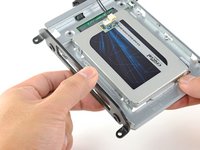
    • Line up the SSD connectors with the metal enclosure's sockets.

    • Press the drive against the enclosure sockets until the SSD is firmly seated.

    • The SSD connects with the enclosure in only one direction. If the connectors don't line up, rotate the SSD and try again.

    Ask FixBot

    Add Comment

  2. iMac 2009-2010 SSD Replacement: step 2, image 1 of 3 iMac 2009-2010 SSD Replacement: step 2, image 2 of 3 iMac 2009-2010 SSD Replacement: step 2, image 3 of 3
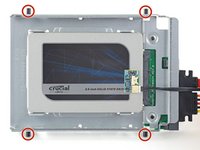
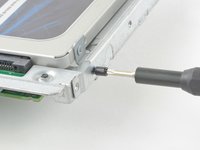
    • Use a Phillips screwdriver to install the four silver screws (two on each side) along the edges of the SSD to secure it to the enclosure.

    Ask FixBot

    Add Comment

  3. iMac 2009-2010 SSD Replacement: step 3, image 1 of 2 iMac 2009-2010 SSD Replacement: step 3, image 2 of 2
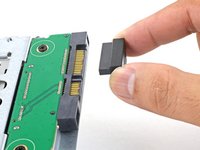
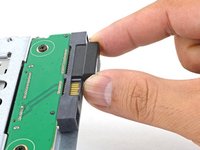
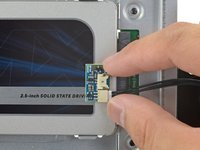
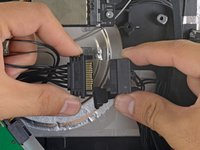
    • Plug the included sensor-enabled SATA power cable into the enclosure's port.

    • The cable is keyed to connect in only one orientation. If you can't connect the cable, rotate it 180° and try again.

    Ask FixBot

    Add Comment

  4. iMac 2009-2010 SSD Replacement: step 4, image 1 of 3 iMac 2009-2010 SSD Replacement: step 4, image 2 of 3 iMac 2009-2010 SSD Replacement: step 4, image 3 of 3
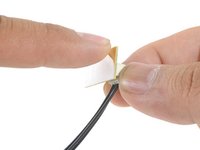
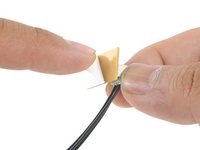
    • Peel the white liner off the back of the small temperature sensor board in order to expose the adhesive.

    • Adhere the temperature sensor board to an exposed, metal surface of the SSD, close to the SATA connector.

    • Fold the excess temperature sensor wires so that they are out of the way while you install the enclosure.

    Ask FixBot

    Add Comment

  5. iMac 2009-2010 SSD Replacement: step 5, image 1 of 2 iMac 2009-2010 SSD Replacement: step 5, image 2 of 2
    • Use a T8 driver to install the mounting pins from the old hard drive onto the sides of the enclosure.

    Ask FixBot

    Add Comment

  6. iMac 2009-2010 SSD Replacement: step 6, image 1 of 2 iMac 2009-2010 SSD Replacement: step 6, image 2 of 2
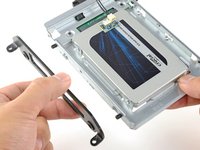
    • Attach any mounting brackets removed from the old hard drive onto the enclosure.

    Ask FixBot

    Add Comment

  7. iMac 2009-2010 SSD Replacement: step 7, image 1 of 2 iMac 2009-2010 SSD Replacement: step 7, image 2 of 2
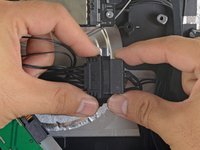
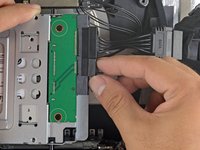
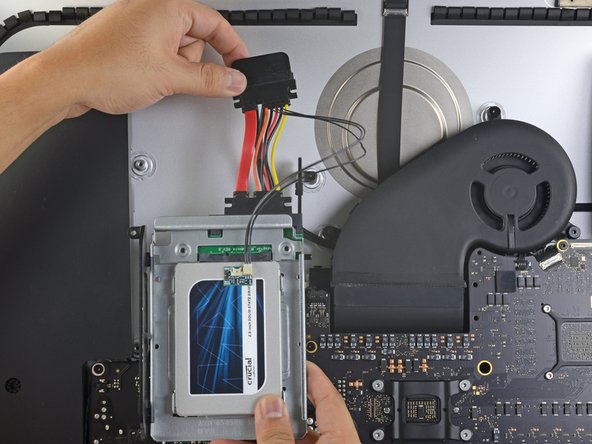
    • Connect the iMac's SATA power cable to the other end of the new sensor-enabled SATA cable.

    Ask FixBot

    Add Comment

  8. iMac 2009-2010 SSD Replacement: step 8, image 1 of 2 iMac 2009-2010 SSD Replacement: step 8, image 2 of 2
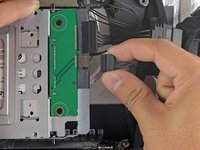
    • Connect the iMac's SATA data cable to the enclosure's socket.

    Ask FixBot

    Add Comment

  9. iMac 2009-2010 SSD Replacement: step 9, image 1 of 3 iMac 2009-2010 SSD Replacement: step 9, image 2 of 3 iMac 2009-2010 SSD Replacement: step 9, image 3 of 3
    • The images used in this step come from a 2017 iMac. Your cables may look slightly different, but the procedure remains the same.

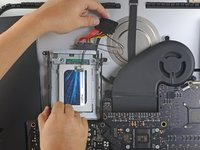
    • Slide the SSD enclosure into the space previously occupied by the hard drive.

    • Route the SATA cables so that they will not interfere with any other components.

    • Try to keep the cables free from any sharp bends, and route them such that they are not pinched.

    Ask FixBot

    Add Comment

  10. iMac 2009-2010 SSD Replacement: step 10, image 1 of 3 iMac 2009-2010 SSD Replacement: step 10, image 2 of 3 iMac 2009-2010 SSD Replacement: step 10, image 3 of 3
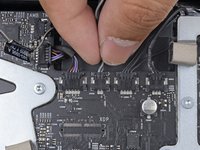
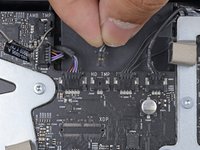
    • If your motherboard has a socket for a hard drive temperature sensor, follow this step to plug the sensor wires in.

    • Find the connector on the motherboard labeled HD TMP or HDD TEMP.

    • If you have trouble locating it, trace the two-wire temperature cable you disconnected from the old hard drive.

    • If the previous temperature cable is still connected to the board here, disconnect and remove it. You will no longer need it.

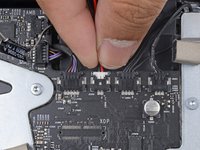
    • Connect the temperature sensor's two-wire red-black cable to the motherboard plug labeled HD TMP or HDD TEMP.

    • The connector is keyed to fit in only one orientation. If it doesn't fit one way, rotate it 180° and try again.

    • Route the excess wire so it does not interfere with any other components.

    Ask FixBot

    Add Comment

Conclusion

To reassemble your device, follow these instructions in reverse order.

Cancel: I did not complete this guide.

4 other people completed this guide.

Arthur Shi

Member since: 01/03/18

337,429 Reputation

849 Guides authored

Team

iFixit Member of iFixit

Staff

122 Members

26,460 Guides authored

0 Guide Comments

Add Comment

View Statistics:

Past 24 Hours: 6

Past 7 Days: 21

Past 30 Days: 98

All Time: 8,062