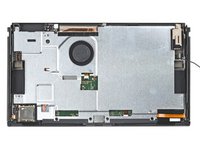
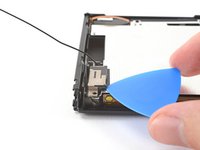
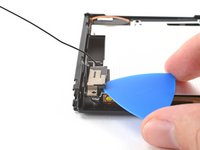
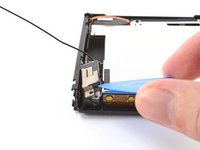
Free Shipping on Domestic Orders $75+

Nintendo Switch OLED Model Screen OLED Assembly Replacement

What you need

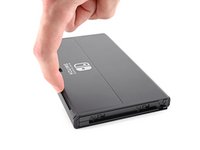
  1. Nintendo Switch OLED Model Screen OLED Assembly Replacement, Release the Joy Con controller locking tabs: step 1, image 1 of 3 Nintendo Switch OLED Model Screen OLED Assembly Replacement, Release the Joy Con controller locking tabs: step 1, image 2 of 3 Nintendo Switch OLED Model Screen OLED Assembly Replacement, Release the Joy Con controller locking tabs: step 1, image 3 of 3
    • Before you begin this repair, make sure the device is completely powered off.

    • Press and hold down the small round button on the back of the Joy Con controller.

    • While you hold down the button, slide the controller upward.

    Ask FixBot

    Add Comment

  2. Nintendo Switch OLED Model Screen OLED Assembly Replacement, Remove the Joy Con controllers: step 2, image 1 of 3 Nintendo Switch OLED Model Screen OLED Assembly Replacement, Remove the Joy Con controllers: step 2, image 2 of 3 Nintendo Switch OLED Model Screen OLED Assembly Replacement, Remove the Joy Con controllers: step 2, image 3 of 3
    • Continue sliding the Joy Con upward until it's completely removed from the console.

    • Repeat this same process for the other Joy Con.

    Ask FixBot

    Add Comment

  3. Nintendo Switch OLED Model Screen OLED Assembly Replacement, Remove the top screw: step 3, image 1 of 2 Nintendo Switch OLED Model Screen OLED Assembly Replacement, Remove the top screw: step 3, image 2 of 2
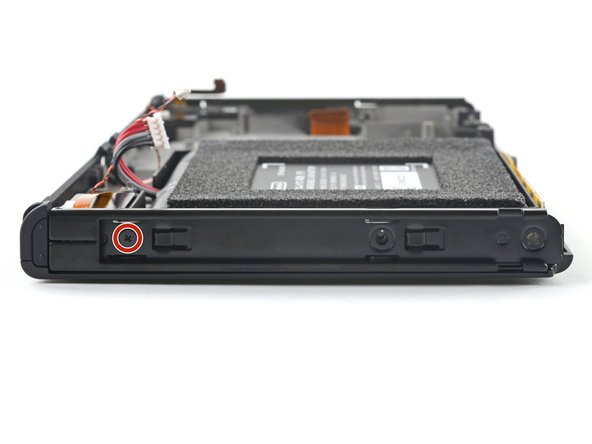
    • Use a Phillips driver, or a JIS driver, to remove the 2 mm-long screw securing the top of the rear case to the frame.

    • To prevent these tight screws from stripping, apply firm downward force, work slowly, and try another JIS or Phillips driver if the screws won't come out.

    Ask FixBot

    Add Comment

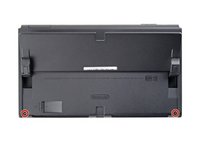
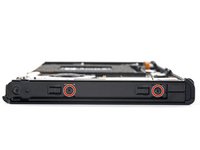
  4. Nintendo Switch OLED Model Screen OLED Assembly Replacement, Remove the bottom screws: step 4, image 1 of 2 Nintendo Switch OLED Model Screen OLED Assembly Replacement, Remove the bottom screws: step 4, image 2 of 2
    • Use a Phillips driver to remove the two 2 mm-long screws securing the bottom of the rear case to the frame.

    Ask FixBot

    Add Comment

  5. Nintendo Switch OLED Model Screen OLED Assembly Replacement, Remove the right screw: step 5, image 1 of 2 Nintendo Switch OLED Model Screen OLED Assembly Replacement, Remove the right screw: step 5, image 2 of 2
    • Use a Phillips driver to remove the 3.8 mm screw securing the right Joy-Con sensor rail to the rear case.

    • To prevent these tight screws from stripping, apply firm downward force, work slowly and try another JIS 000 or PH 000 driver if the screws won't come out.

    Ask FixBot

    Add Comment

  6. Nintendo Switch OLED Model Screen OLED Assembly Replacement, Remove the left screw: step 6, image 1 of 2 Nintendo Switch OLED Model Screen OLED Assembly Replacement, Remove the left screw: step 6, image 2 of 2
    • Use a Phillips driver to remove the 3.8 mm screw securing the left Joy-Con sensor rail to the rear case.

    Ask FixBot

    Add Comment

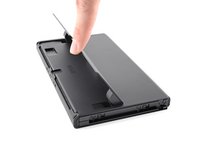
  7. Nintendo Switch OLED Model Screen OLED Assembly Replacement, Open the kickstand: step 7, image 1 of 2 Nintendo Switch OLED Model Screen OLED Assembly Replacement, Open the kickstand: step 7, image 2 of 2
    • Use your finger to flip up the kickstand on the back of the device.

    • If there's a microSD card in the microSD card slot, remove it now before you continue to the next step.

    Ask FixBot

    Add Comment

  8. Nintendo Switch OLED Model Screen OLED Assembly Replacement, Remove the back-side screws: step 8, image 1 of 2 Nintendo Switch OLED Model Screen OLED Assembly Replacement, Remove the back-side screws: step 8, image 2 of 2
    • Use a Y00 screwdriver to remove the two 4.3 mm screws securing the rear case to the frame.

    Ask FixBot

    Add Comment

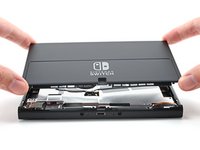
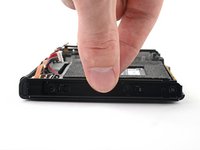
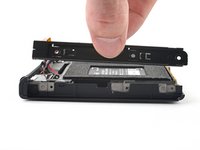
  9. Nintendo Switch OLED Model Screen OLED Assembly Replacement, Remove the rear case: step 9, image 1 of 3 Nintendo Switch OLED Model Screen OLED Assembly Replacement, Remove the rear case: step 9, image 2 of 3 Nintendo Switch OLED Model Screen OLED Assembly Replacement, Remove the rear case: step 9, image 3 of 3
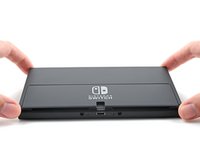
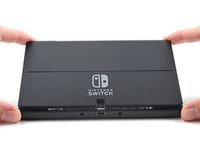
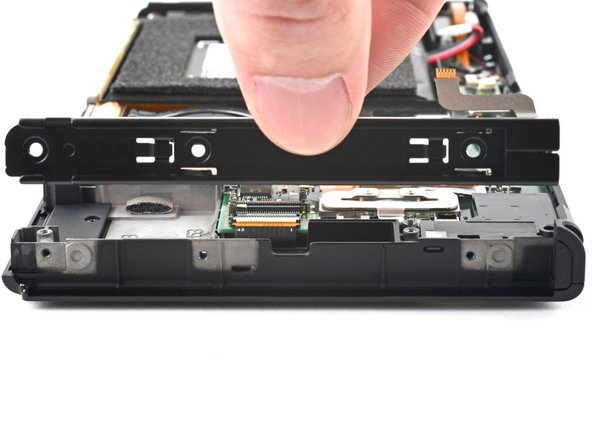
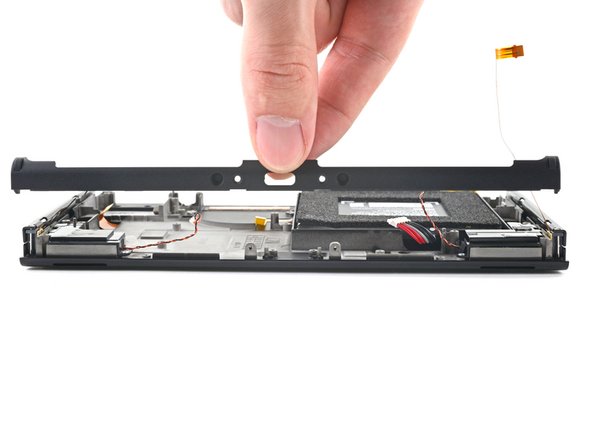
    • Lift the rear case up from the top of the device and remove it.

    • If you're having trouble removing the case, use an opening pick to pry up the plastic clips.

    Ask FixBot

    Add Comment

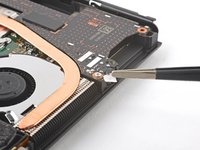
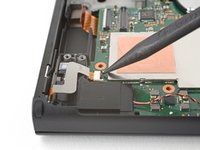
  10. Nintendo Switch OLED Model Screen OLED Assembly Replacement, Remove the shield plate's tape: step 10, image 1 of 2 Nintendo Switch OLED Model Screen OLED Assembly Replacement, Remove the shield plate's tape: step 10, image 2 of 2
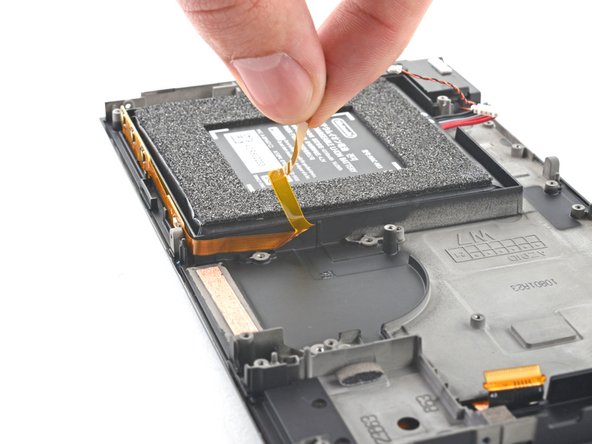
    • Use the flat end of a spudger to separate a corner of the tape from the shield plate.

    Ask FixBot

    Add Comment

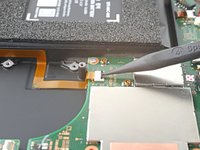
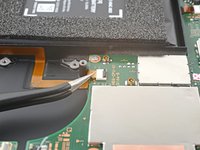
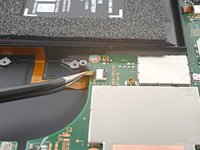
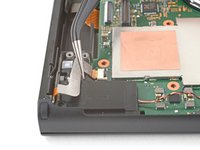
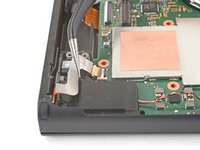
  11. Nintendo Switch OLED Model Screen OLED Assembly Replacement: step 11, image 1 of 3 Nintendo Switch OLED Model Screen OLED Assembly Replacement: step 11, image 2 of 3 Nintendo Switch OLED Model Screen OLED Assembly Replacement: step 11, image 3 of 3
    Tool used on this step:
    Tweezers
    $4.99
    Buy
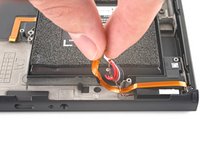
    • Use tweezers, or your fingers, to peel back and remove the tape.

    • Store the tape in a clean space for reinstallation.

    Ask FixBot

    Add Comment

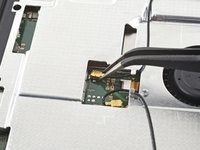
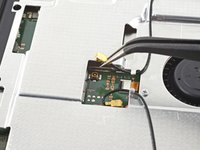
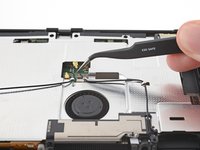
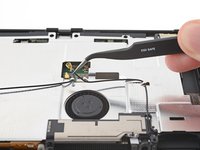
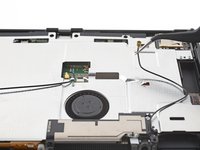
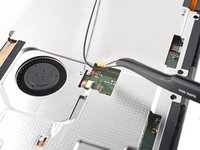
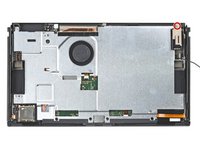
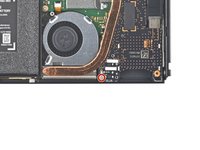
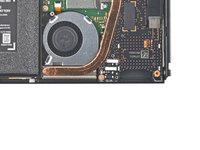
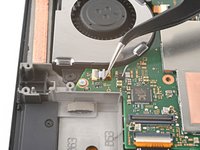
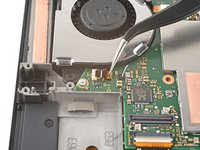
  12. Nintendo Switch OLED Model Screen OLED Assembly Replacement, Disconnect the primary Wi-Fi antenna: step 12, image 1 of 2 Nintendo Switch OLED Model Screen OLED Assembly Replacement, Disconnect the primary Wi-Fi antenna: step 12, image 2 of 2
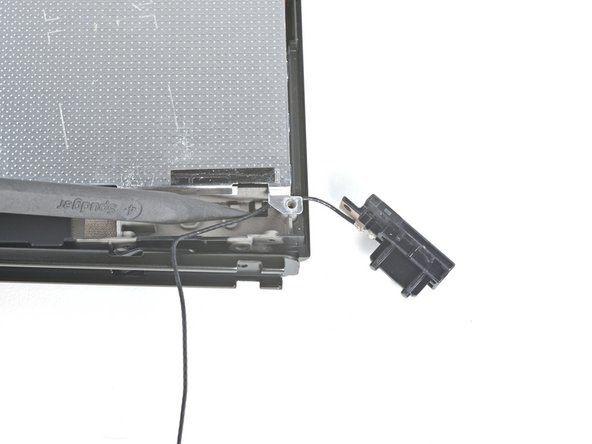
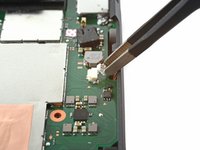
    • Use tweezers, or your fingers, to pull up and disconnect the primary Wi-Fi antenna's coaxial cable.

    • During reassembly, these can be tricky to reconnect. One at a time, hold each connector in place over its socket and press down with the flat end of a spudger. The connector should snap into place.

    Ask FixBot

    Add Comment

  13. Nintendo Switch OLED Model Screen OLED Assembly Replacement, Reroute the primary antenna's coaxial cable: step 13, image 1 of 3 Nintendo Switch OLED Model Screen OLED Assembly Replacement, Reroute the primary antenna's coaxial cable: step 13, image 2 of 3 Nintendo Switch OLED Model Screen OLED Assembly Replacement, Reroute the primary antenna's coaxial cable: step 13, image 3 of 3
    • Use tweezers, or your fingers, to reroute the primary antenna's coaxial cable out of its slots in the shield plate.

    Ask FixBot

    Add Comment

  14. Nintendo Switch OLED Model Screen OLED Assembly Replacement, Unfasten the primary Wi-Fi antenna: step 14, image 1 of 2 Nintendo Switch OLED Model Screen OLED Assembly Replacement, Unfasten the primary Wi-Fi antenna: step 14, image 2 of 2
    • Use a Phillips driver to remove the two 4.4 mm screws securing the primary Wi-Fi antenna to the shield plate.

    Ask FixBot

    Add Comment

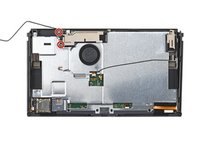
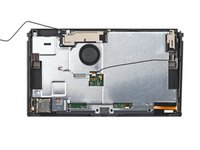
  15. Nintendo Switch OLED Model Screen OLED Assembly Replacement, Remove the primary Wi-Fi antenna: step 15, image 1 of 3 Nintendo Switch OLED Model Screen OLED Assembly Replacement, Remove the primary Wi-Fi antenna: step 15, image 2 of 3 Nintendo Switch OLED Model Screen OLED Assembly Replacement, Remove the primary Wi-Fi antenna: step 15, image 3 of 3
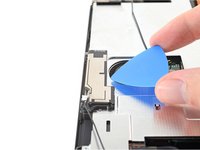
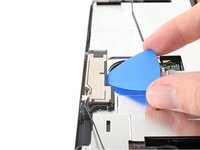
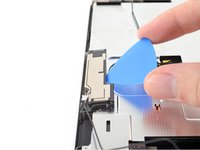
    • Insert an opening pick between the primary Wi-Fi antenna and the shield plate.

    • Pry up with the pick to separate the primary Wi-Fi antenna from the shield plate.

    Ask FixBot

    Add Comment

  16. Nintendo Switch OLED Model Screen OLED Assembly Replacement: step 16, image 1 of 2 Nintendo Switch OLED Model Screen OLED Assembly Replacement: step 16, image 2 of 2
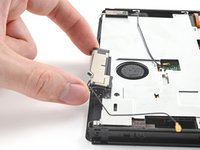
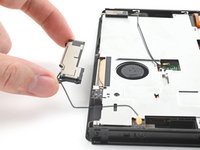
    • Remove the primary Wi-Fi antenna.

    Ask FixBot

    Add Comment

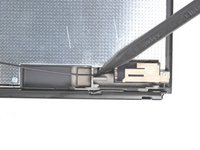
  17. Nintendo Switch OLED Model Screen OLED Assembly Replacement, Disconnect the secondary Wi-Fi antenna: step 17, image 1 of 2 Nintendo Switch OLED Model Screen OLED Assembly Replacement, Disconnect the secondary Wi-Fi antenna: step 17, image 2 of 2
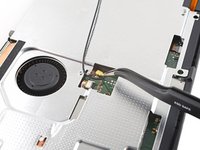
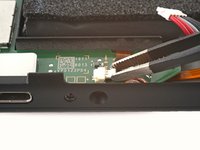
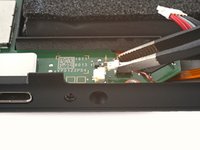
    • Use tweezers, or your fingers, to pull up and disconnect the secondary Wi-Fi antenna's coaxial cable.

    Ask FixBot

    Add Comment

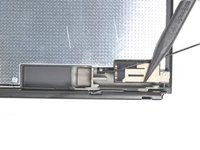
  18. Nintendo Switch OLED Model Screen OLED Assembly Replacement, Reroute the secondary Wi-Fi antenna's coaxial cable: step 18, image 1 of 2 Nintendo Switch OLED Model Screen OLED Assembly Replacement, Reroute the secondary Wi-Fi antenna's coaxial cable: step 18, image 2 of 2
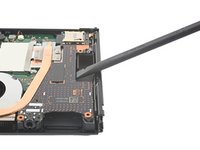
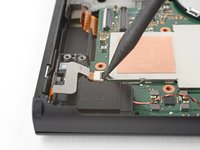
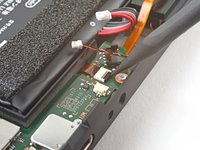
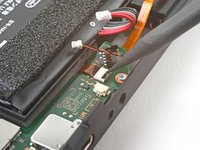
    • Use the point of a spudger to reroute the secondary Wi-Fi antenna's coaxial cable from its slot in the frame.

    Ask FixBot

    Add Comment

  19. Nintendo Switch OLED Model Screen OLED Assembly Replacement, Unfasten the secondary Wi-Fi antenna: step 19, image 1 of 2 Nintendo Switch OLED Model Screen OLED Assembly Replacement, Unfasten the secondary Wi-Fi antenna: step 19, image 2 of 2
    • Use a Phillips driver to remove the 4.4 mm screw securing the secondary Wi-Fi antenna to the shield plate.

    Ask FixBot

    Add Comment

  20. Nintendo Switch OLED Model Screen OLED Assembly Replacement, Remove the secondary Wi-Fi antenna: step 20, image 1 of 3 Nintendo Switch OLED Model Screen OLED Assembly Replacement, Remove the secondary Wi-Fi antenna: step 20, image 2 of 3 Nintendo Switch OLED Model Screen OLED Assembly Replacement, Remove the secondary Wi-Fi antenna: step 20, image 3 of 3
    • Insert an opening pick between the secondary Wi-Fi antenna and the shield plate.

    • Pry up with the pick to separate the secondary Wi-Fi antenna from the shield plate.

    • Don't attempt to completely remove the antenna yet, as its coaxial cable is still routed through the frame.

    Ask FixBot

    Add Comment

  21. Nintendo Switch OLED Model Screen OLED Assembly Replacement: step 21, image 1 of 3 Nintendo Switch OLED Model Screen OLED Assembly Replacement: step 21, image 2 of 3 Nintendo Switch OLED Model Screen OLED Assembly Replacement: step 21, image 3 of 3
    • Use the point of a spudger to reroute the secondary Wi-Fi antenna's coaxial cable out of its slot in the frame.

    • Remove the secondary Wi-Fi antenna.

    Ask FixBot

    Add Comment

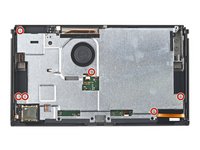
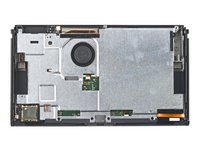
  22. Nintendo Switch OLED Model Screen OLED Assembly Replacement, Unfasten the shield plate: step 22, image 1 of 2 Nintendo Switch OLED Model Screen OLED Assembly Replacement, Unfasten the shield plate: step 22, image 2 of 2
    • Use a Phillips driver to remove the six 4.4 mm screws securing the shield plate to the frame.

    Ask FixBot

    Add Comment

  23. Nintendo Switch OLED Model Screen OLED Assembly Replacement: step 23, image 1 of 2 Nintendo Switch OLED Model Screen OLED Assembly Replacement: step 23, image 2 of 2
    Tool used on this step:
    iFixit Thermal Putty
    $9.95
    Buy
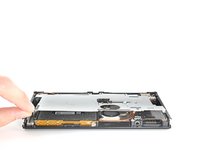
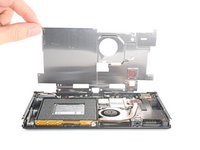
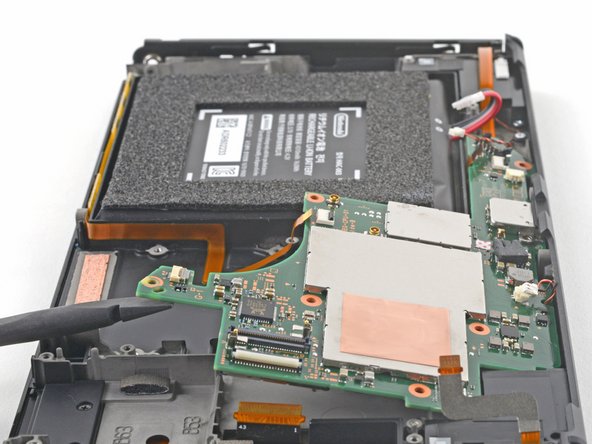
    • Use your fingers to lift the top of the shield plate up and away from the frame.

    • You may feel a bit of resistance. This is normal, since the shield plate is slightly bonded to the heat sink with thermal paste.

    • Remove the shield plate.

    • A thick pink thermal compound bridges the gap between the shield plate and the copper heat sink underneath. Whenever the shield plate is removed, refer to our thermal paste guide to remove the old thermal compound and replace it with an appropriate compound, such as thermal putty or K5 Pro, during reassembly.

    Ask FixBot

    Add Comment

  24. Nintendo Switch OLED Model Screen OLED Assembly Replacement, Disconnect the battery: step 24, image 1 of 2 Nintendo Switch OLED Model Screen OLED Assembly Replacement, Disconnect the battery: step 24, image 2 of 2
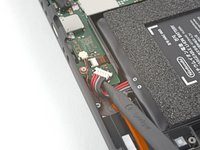
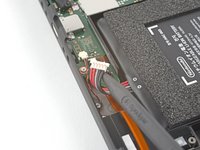
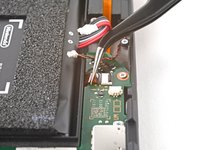
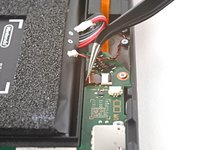
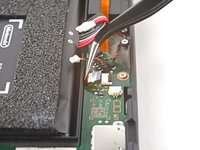
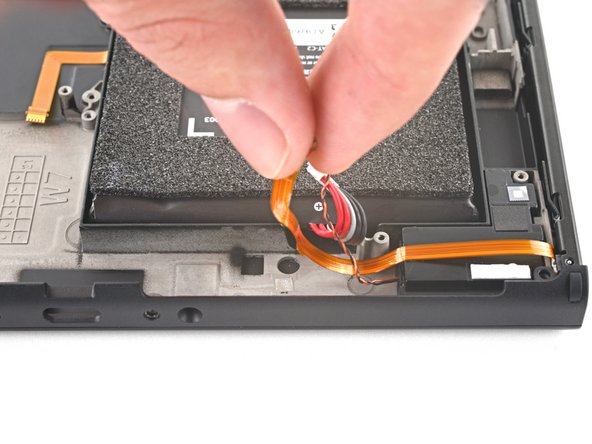
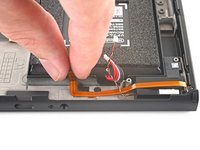
    • Use the point of a spudger to pry up and disconnect the battery.

    Ask FixBot

    Add Comment

  25. Nintendo Switch OLED Model Screen OLED Assembly Replacement, Remove the tape: step 25, image 1 of 3 Nintendo Switch OLED Model Screen OLED Assembly Replacement, Remove the tape: step 25, image 2 of 3 Nintendo Switch OLED Model Screen OLED Assembly Replacement, Remove the tape: step 25, image 3 of 3
    Tool used on this step:
    Tweezers
    $4.99
    Buy
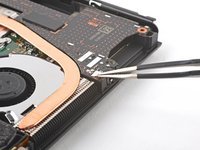
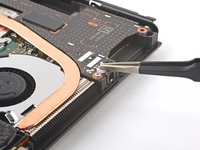
    • Use tweezers, or your fingers, to remove the piece of tape obscuring the daughterboard's screw.

    Ask FixBot

    Add Comment

  26. Nintendo Switch OLED Model Screen OLED Assembly Replacement, Unfasten the daughterboard: step 26, image 1 of 2 Nintendo Switch OLED Model Screen OLED Assembly Replacement, Unfasten the daughterboard: step 26, image 2 of 2
    • Use a Phillips driver to remove the 4 mm screw securing the daughterboard to the frame.

    Ask FixBot

    Add Comment

  27. Nintendo Switch OLED Model Screen OLED Assembly Replacement, Remove the daughterboard: step 27, image 1 of 3 Nintendo Switch OLED Model Screen OLED Assembly Replacement, Remove the daughterboard: step 27, image 2 of 3 Nintendo Switch OLED Model Screen OLED Assembly Replacement, Remove the daughterboard: step 27, image 3 of 3
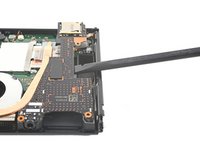
    • The bottom of the daughterboard is connected to the motherboard via a press connector.

    • Insert a spudger between the edge of the daughterboard and the motherboard.

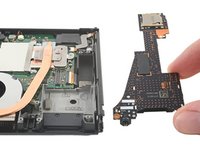
    • Pry up with the spudger to disconnect the press connector and separate the daughterboard from the frame.

    • Remove the daughterboard.

    • To re-attach press connectors like this one, carefully align and press down on one side until it clicks into place, then repeat on the other side. Do not press down on the middle. If the connector is misaligned, the pins can bend, causing permanent damage.

    Ask FixBot

    Add Comment

  28. Nintendo Switch OLED Model Screen OLED Assembly Replacement, Unfasten the heat sink: step 28, image 1 of 2 Nintendo Switch OLED Model Screen OLED Assembly Replacement, Unfasten the heat sink: step 28, image 2 of 2
    • Use a Phillips driver to remove the three 3 mm screws securing the heat sink to the motherboard.

    Ask FixBot

    Add Comment

  29. Nintendo Switch OLED Model Screen OLED Assembly Replacement, Remove the heat sink: step 29, image 1 of 2 Nintendo Switch OLED Model Screen OLED Assembly Replacement, Remove the heat sink: step 29, image 2 of 2
    • Insert a spudger between the heat sink's bracket and the motherboard.

    • Pry up with the spudger to separate the heat sink from the motherboard.

    • You may feel a bit of resistance. This is normal, since the heat sink is slightly bonded to the CPU with thermal paste.

    Ask FixBot

    Add Comment

  30. Nintendo Switch OLED Model Screen OLED Assembly Replacement: step 30, image 1 of 3 Nintendo Switch OLED Model Screen OLED Assembly Replacement: step 30, image 2 of 3 Nintendo Switch OLED Model Screen OLED Assembly Replacement: step 30, image 3 of 3
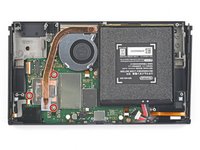
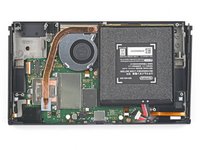
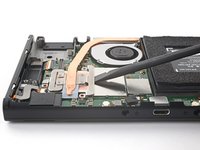
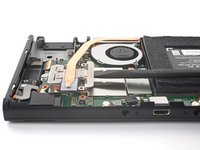
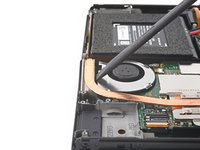
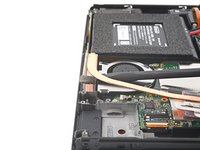
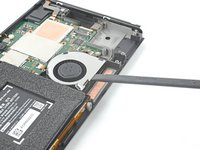
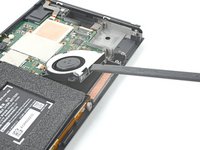
    • Insert a spudger in the gap between the fan and the heat sink.

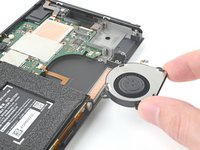
    • Pry up with the spudger to separate the heat sink from the adhesive beneath it.

    • Remove the heat sink.

    • Clean off the old thermal paste from the heat sink and CPU using high-concentration (90% or higher) isopropyl alcohol and a microfiber cloth. Apply new thermal paste to the CPU before reassembly.

    Ask FixBot

    Add Comment

  31. Nintendo Switch OLED Model Screen OLED Assembly Replacement, Disconnect the fan's ZIF connector: step 31, image 1 of 2 Nintendo Switch OLED Model Screen OLED Assembly Replacement, Disconnect the fan's ZIF connector: step 31, image 2 of 2
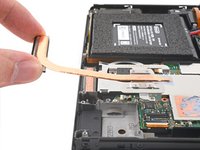
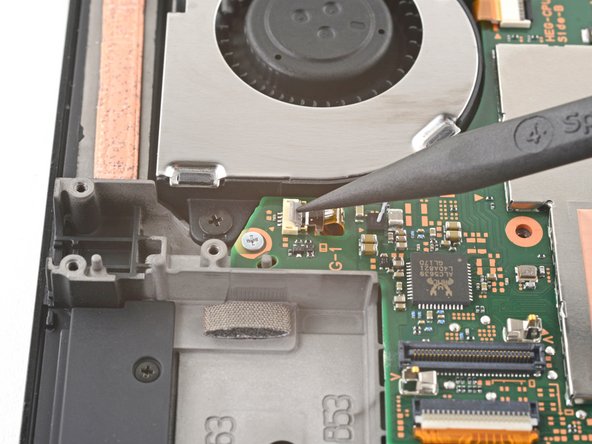
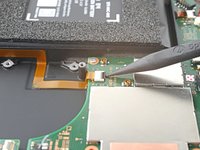
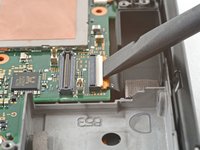
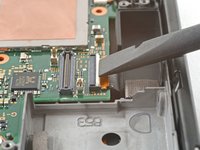
    • Use the tip of a spudger, an opening tool, or your fingernail to flip up the small, hinged locking flap on the fan cable's ZIF connector.

    Ask FixBot

    Add Comment

  32. Nintendo Switch OLED Model Screen OLED Assembly Replacement: step 32, image 1 of 2 Nintendo Switch OLED Model Screen OLED Assembly Replacement: step 32, image 2 of 2
    Tool used on this step:
    Tweezers
    $4.99
    Buy
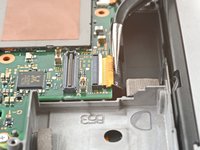
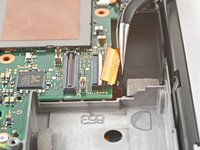
    • Use a pair of tweezers to pull the fan cable straight out of its connector on the motherboard.

    Ask FixBot

    Add Comment

  33. Nintendo Switch OLED Model Screen OLED Assembly Replacement, Unfasten the fan: step 33, image 1 of 2 Nintendo Switch OLED Model Screen OLED Assembly Replacement, Unfasten the fan: step 33, image 2 of 2
    • Use a Phillips driver to remove the three 3 mm screws securing the fan to the frame.

    Ask FixBot

    Add Comment

  34. Nintendo Switch OLED Model Screen OLED Assembly Replacement, Remove the fan: step 34, image 1 of 3 Nintendo Switch OLED Model Screen OLED Assembly Replacement, Remove the fan: step 34, image 2 of 3 Nintendo Switch OLED Model Screen OLED Assembly Replacement, Remove the fan: step 34, image 3 of 3
    • Use a spudger to lift the fan out straight out of the frame.

    • Remove the fan.

    Ask FixBot

    Add Comment

  35. Nintendo Switch OLED Model Screen OLED Assembly Replacement, Disconnect the power button board's ZIF connector: step 35, image 1 of 2 Nintendo Switch OLED Model Screen OLED Assembly Replacement, Disconnect the power button board's ZIF connector: step 35, image 2 of 2
    • Use an opening tool, spudger, or your fingernail to flip up the small, hinged locking flap on the power button board's ZIF connector.

    Ask FixBot

    Add Comment

  36. Nintendo Switch OLED Model Screen OLED Assembly Replacement: step 36, image 1 of 2 Nintendo Switch OLED Model Screen OLED Assembly Replacement: step 36, image 2 of 2
    Tool used on this step:
    Tweezers
    $4.99
    Buy
    • Use a pair of tweezers to pull the power button board cable straight out of its connector on the motherboard.

    Ask FixBot

    Add Comment

  37. Nintendo Switch OLED Model Screen OLED Assembly Replacement, Disconnect the right Joy-Con sensor rail's ZIF connector: step 37, image 1 of 2 Nintendo Switch OLED Model Screen OLED Assembly Replacement, Disconnect the right Joy-Con sensor rail's ZIF connector: step 37, image 2 of 2
    • Use an opening tool, spudger, or your fingernail to flip up the small, hinged locking flap on the right Joy-Con sensor rail's ZIF connector.

    Ask FixBot

    Add Comment

  38. Nintendo Switch OLED Model Screen OLED Assembly Replacement: step 38, image 1 of 2 Nintendo Switch OLED Model Screen OLED Assembly Replacement: step 38, image 2 of 2
    • Use a pair of tweezers to pull the right Joy-Con sensor rail's cable straight out of its connector on the motherboard.

    Ask FixBot

    Add Comment

  39. Nintendo Switch OLED Model Screen OLED Assembly Replacement, Unfasten the right Joy-Con sensor rail: step 39, image 1 of 2 Nintendo Switch OLED Model Screen OLED Assembly Replacement, Unfasten the right Joy-Con sensor rail: step 39, image 2 of 2
    • Use a Phillips driver to remove the two 3.8 mm screws securing the left Joy-Con sensor rail to the frame.

    Ask FixBot

    Add Comment

  40. Nintendo Switch OLED Model Screen OLED Assembly Replacement, Remove the right Joy-Con sensor rail: step 40, image 1 of 2 Nintendo Switch OLED Model Screen OLED Assembly Replacement, Remove the right Joy-Con sensor rail: step 40, image 2 of 2
    • Remove the right Joy-Con sensor rail.

    Ask FixBot

    Add Comment

  41. Nintendo Switch OLED Model Screen OLED Assembly Replacement, Disconnect the display's ZIF connector: step 41, image 1 of 2 Nintendo Switch OLED Model Screen OLED Assembly Replacement, Disconnect the display's ZIF connector: step 41, image 2 of 2
    • Use an opening tool, spudger, or your fingernail to flip up the hinged locking flap on the display's ZIF connector.

    Ask FixBot

    Add Comment

  42. Nintendo Switch OLED Model Screen OLED Assembly Replacement: step 42, image 1 of 2 Nintendo Switch OLED Model Screen OLED Assembly Replacement: step 42, image 2 of 2
    • Use a pair of tweezers to pull the display cable straight out of its connector on the motherboard.

    Ask FixBot

    Add Comment

  43. Nintendo Switch OLED Model Screen OLED Assembly Replacement, Disconnect the right speaker: step 43, image 1 of 3 Nintendo Switch OLED Model Screen OLED Assembly Replacement, Disconnect the right speaker: step 43, image 2 of 3 Nintendo Switch OLED Model Screen OLED Assembly Replacement, Disconnect the right speaker: step 43, image 3 of 3
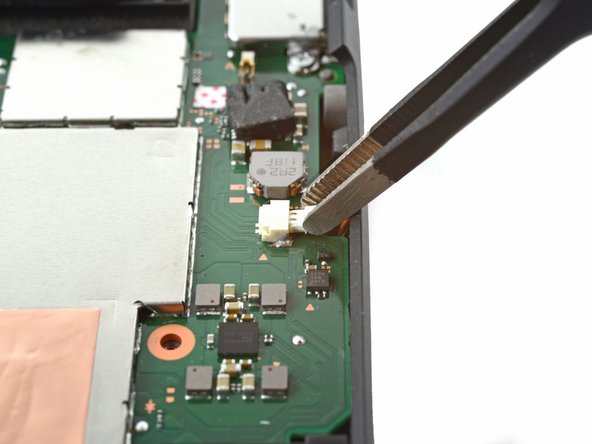
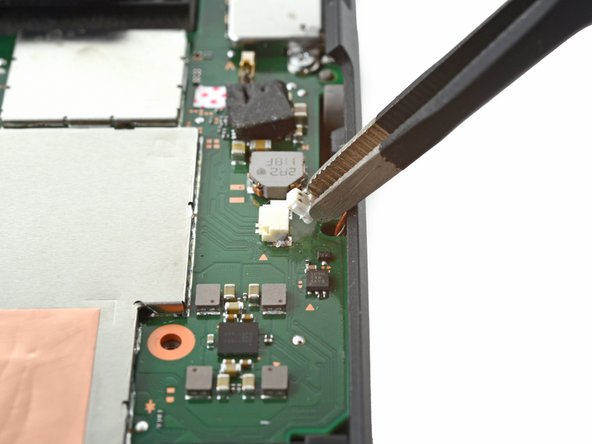
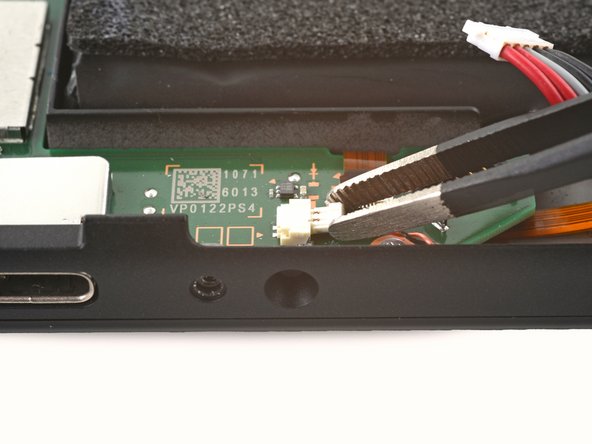
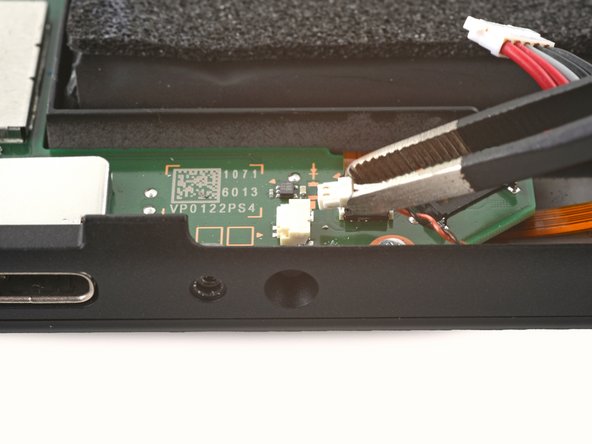
    • Use tweezers, or your fingers, to pull the left speaker's JST connector out of its socket.

    Ask FixBot

    Add Comment

  44. Nintendo Switch OLED Model Screen OLED Assembly Replacement, Disconnect the left speaker: step 44, image 1 of 3 Nintendo Switch OLED Model Screen OLED Assembly Replacement, Disconnect the left speaker: step 44, image 2 of 3 Nintendo Switch OLED Model Screen OLED Assembly Replacement, Disconnect the left speaker: step 44, image 3 of 3
    • Use tweezers, or your fingers, to pull the right speaker's JST connector out of its socket.

    Ask FixBot

    Add Comment

  45. Nintendo Switch OLED Model Screen OLED Assembly Replacement, Disconnect the left Joy-Con sensor rail's ZIF connector: step 45, image 1 of 2 Nintendo Switch OLED Model Screen OLED Assembly Replacement, Disconnect the left Joy-Con sensor rail's ZIF connector: step 45, image 2 of 2
    • Use an opening tool, spudger, or your fingernail to flip up the small, hinged locking flap on the right Joy-Con sensor rail's ZIF connector.

    Ask FixBot

    Add Comment

  46. Nintendo Switch OLED Model Screen OLED Assembly Replacement: step 46, image 1 of 3 Nintendo Switch OLED Model Screen OLED Assembly Replacement: step 46, image 2 of 3 Nintendo Switch OLED Model Screen OLED Assembly Replacement: step 46, image 3 of 3
    • Use a pair of tweezers to pull the right Joy-Con sensor rail's cable straight out of its connector on the motherboard.

    Ask FixBot

    Add Comment

  47. Nintendo Switch OLED Model Screen OLED Assembly Replacement, Unfasten the motherboard: step 47, image 1 of 2 Nintendo Switch OLED Model Screen OLED Assembly Replacement, Unfasten the motherboard: step 47, image 2 of 2
    • Use a Phillips driver to remove the five screws securing the midframe to the frame:

    • Three 3 mm screws

    • Two 4.4 mm screws

    Ask FixBot

    Add Comment

  48. Nintendo Switch OLED Model Screen OLED Assembly Replacement, Remove the motherboard: step 48, image 1 of 3 Nintendo Switch OLED Model Screen OLED Assembly Replacement, Remove the motherboard: step 48, image 2 of 3 Nintendo Switch OLED Model Screen OLED Assembly Replacement, Remove the motherboard: step 48, image 3 of 3
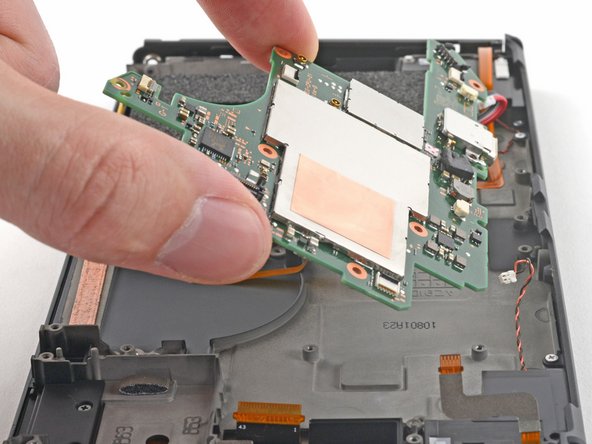
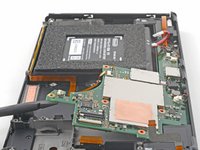
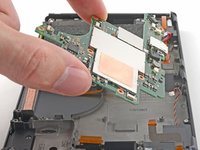
    • Insert a spudger between the motherboard and the frame.

    • Pry up with the spudger to separate the motherboard from the frame.

    • Remove the motherboard.

    Ask FixBot

    Add Comment

  49. Nintendo Switch OLED Model Screen OLED Assembly Replacement, Left Joy-Con Sensor Rail: step 49, image 1 of 2 Nintendo Switch OLED Model Screen OLED Assembly Replacement, Left Joy-Con Sensor Rail: step 49, image 2 of 2
    • Use your fingers to gently peel back the left Joy-Con sensor rail's cable from the frame.

    Ask FixBot

    Add Comment

  50. Nintendo Switch OLED Model Screen OLED Assembly Replacement, Unfasten the left Joy-Con sensor rail: step 50, image 1 of 2 Nintendo Switch OLED Model Screen OLED Assembly Replacement, Unfasten the left Joy-Con sensor rail: step 50, image 2 of 2
    • Use a Phillips driver to remove the 3.8 mm screw securing the left Joy-Con sensor rail to the frame.

    Ask FixBot

    Add Comment

  51. Nintendo Switch OLED Model Screen OLED Assembly Replacement, Remove the left Joy-Con sensor rail: step 51, image 1 of 2 Nintendo Switch OLED Model Screen OLED Assembly Replacement, Remove the left Joy-Con sensor rail: step 51, image 2 of 2
    • Remove the left Joy-Con sensor rail.

    Ask FixBot

    Add Comment

  52. Nintendo Switch OLED Model Screen OLED Assembly Replacement, Unfasten the bottom rail: step 52, image 1 of 2 Nintendo Switch OLED Model Screen OLED Assembly Replacement, Unfasten the bottom rail: step 52, image 2 of 2
    • Use a Phillips driver to remove the two 3 mm screws securing the bottom rail to the frame.

    Ask FixBot

    Add Comment

  53. Nintendo Switch OLED Model Screen OLED Assembly Replacement, Remove the bottom rail: step 53, image 1 of 2 Nintendo Switch OLED Model Screen OLED Assembly Replacement, Remove the bottom rail: step 53, image 2 of 2
    • Remove the bottom rail.

    Ask FixBot

    Add Comment

  54. Nintendo Switch OLED Model Screen OLED Assembly Replacement, Separate the power board button's adhesive: step 54, image 1 of 3 Nintendo Switch OLED Model Screen OLED Assembly Replacement, Separate the power board button's adhesive: step 54, image 2 of 3 Nintendo Switch OLED Model Screen OLED Assembly Replacement, Separate the power board button's adhesive: step 54, image 3 of 3
    • Use your fingers to gently peel back the power board button's cable from the frame.

    Ask FixBot

    Add Comment

  55. Nintendo Switch OLED Model Screen OLED Assembly Replacement, Remove the power button board: step 55, image 1 of 3 Nintendo Switch OLED Model Screen OLED Assembly Replacement, Remove the power button board: step 55, image 2 of 3 Nintendo Switch OLED Model Screen OLED Assembly Replacement, Remove the power button board: step 55, image 3 of 3
    • Use your fingers to pull the power button board out from its plastic slots in the frame.

    • Remove the power button board.

    Ask FixBot

    Add Comment

  56. Nintendo Switch OLED Model Screen OLED Assembly Replacement, Apply isopropyl alcohol: step 56, image 1 of 2 Nintendo Switch OLED Model Screen OLED Assembly Replacement, Apply isopropyl alcohol: step 56, image 2 of 2
    Tool used on this step:
    iFixit Adhesive Remover
    $19.99
    Buy
    Ask FixBot

    Add Comment

  57. Nintendo Switch OLED Model Screen OLED Assembly Replacement: step 57, image 1 of 2 Nintendo Switch OLED Model Screen OLED Assembly Replacement: step 57, image 2 of 2
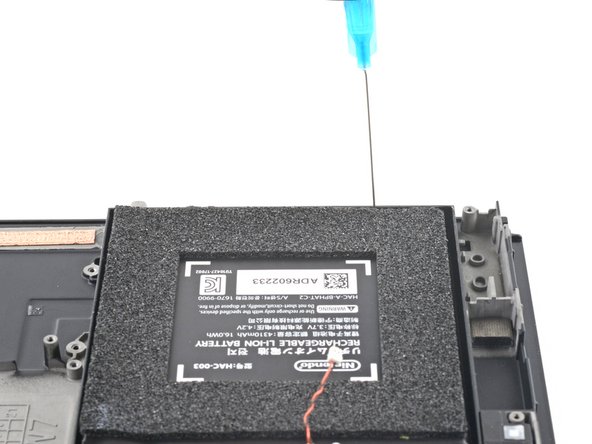
    • Tilt the top edge of the device upward to allow the isopropyl alcohol to work its way underneath the battery.

    • Hold for 1-2 minutes to allow time for the isopropyl alcohol to weaken the adhesive.

    Ask FixBot

    Add Comment

  58. Nintendo Switch OLED Model Screen OLED Assembly Replacement, Separate the battery's adhesive: step 58, image 1 of 3 Nintendo Switch OLED Model Screen OLED Assembly Replacement, Separate the battery's adhesive: step 58, image 2 of 3 Nintendo Switch OLED Model Screen OLED Assembly Replacement, Separate the battery's adhesive: step 58, image 3 of 3
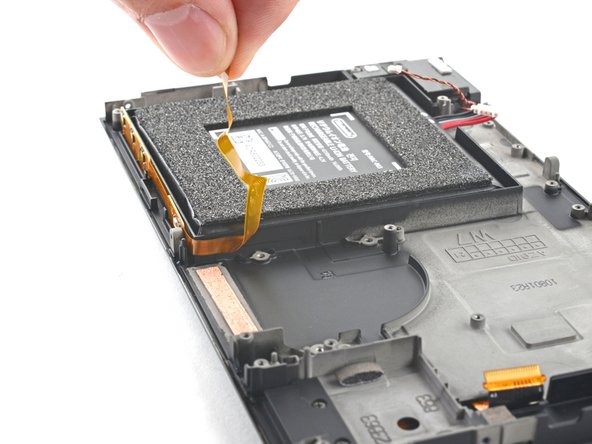
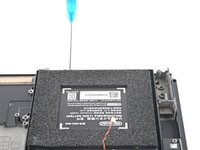
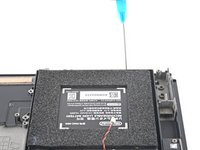
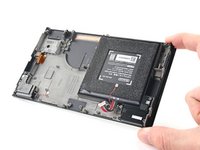
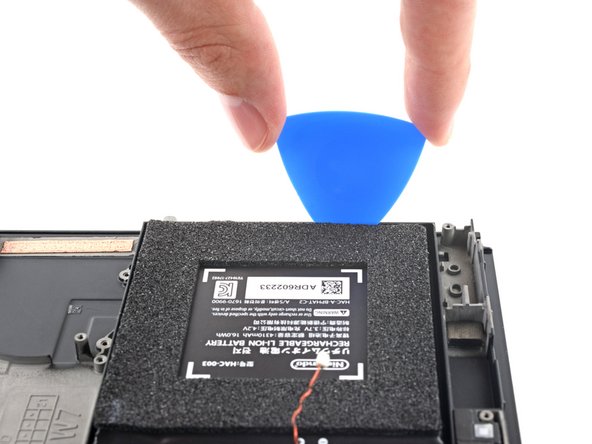
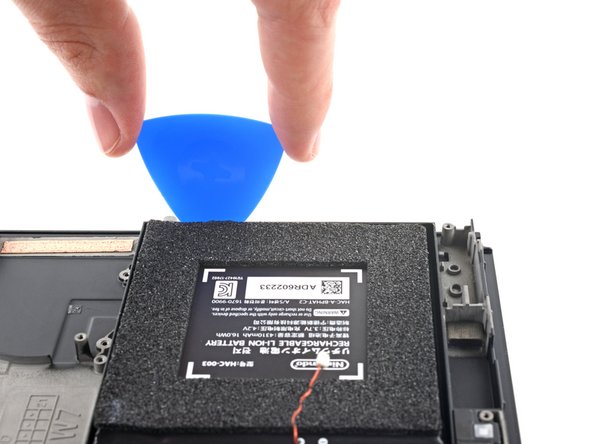
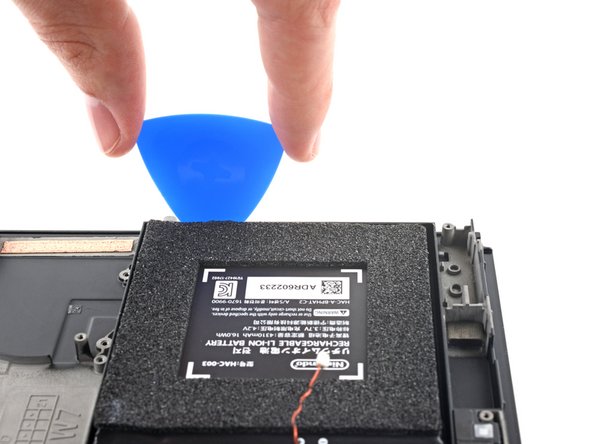
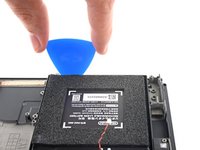
    • Insert an opening pick into the gap between the battery and the wall of the battery well.

    • Carefully dig the tip of the opening pick underneath the battery and slide it along the edge to begin slicing the adhesive.

    • Take care not to puncture or bend the battery with your tool—a punctured or bent battery may leak dangerous chemicals or cause a fire.

    Ask FixBot

    Add Comment

  59. Nintendo Switch OLED Model Screen OLED Assembly Replacement: step 59, image 1 of 1
    • Leave the opening pick in place and apply a few more drops of adhesive remover or isopropyl alcohol inside the battery well.

    • Tilt the top edge of the device upward and wait 1-2 minutes for the isopropyl alcohol to weaken the adhesive.

    Ask FixBot

    Add Comment

  60. Nintendo Switch OLED Model Screen OLED Assembly Replacement: step 60, image 1 of 2 Nintendo Switch OLED Model Screen OLED Assembly Replacement: step 60, image 2 of 2
    • Continue sliding the opening pick deeper along the top edge of the battery, slicing more of the adhesive underneath.

    Ask FixBot

    Add Comment

  61. Nintendo Switch OLED Model Screen OLED Assembly Replacement: step 61, image 1 of 3 Nintendo Switch OLED Model Screen OLED Assembly Replacement: step 61, image 2 of 3 Nintendo Switch OLED Model Screen OLED Assembly Replacement: step 61, image 3 of 3
    Tool used on this step:
    Plastic Cards
    $2.99
    Buy
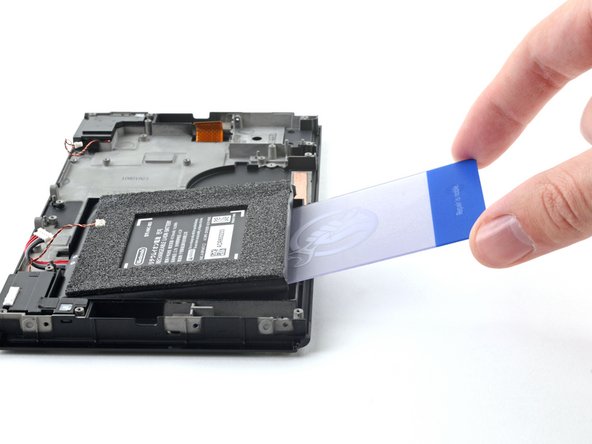
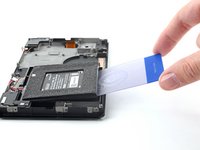
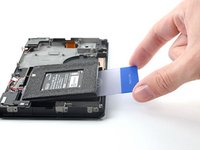
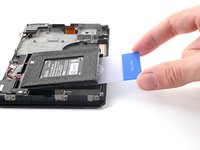
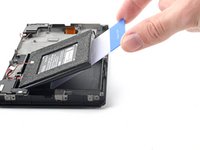
    • Once there's enough room, insert a plastic card underneath the battery and slowly pry the battery up.

    • Apply more isopropyl alcohol if you have difficulty prying.

    • Be careful not to bend the battery as you pry.

    Ask FixBot

    Add Comment

  62. Nintendo Switch OLED Model Screen OLED Assembly Replacement, Remove the battery: step 62, image 1 of 3 Nintendo Switch OLED Model Screen OLED Assembly Replacement, Remove the battery: step 62, image 2 of 3 Nintendo Switch OLED Model Screen OLED Assembly Replacement, Remove the battery: step 62, image 3 of 3
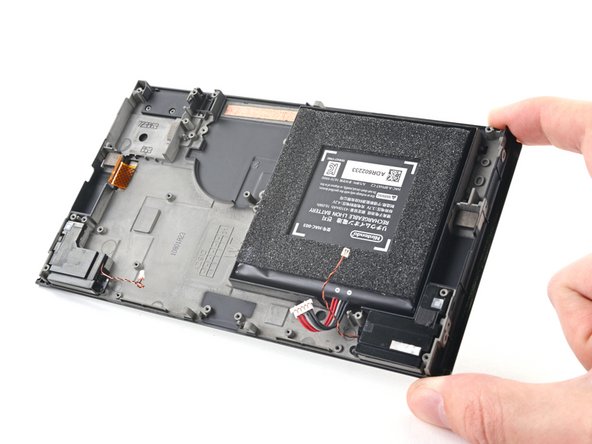
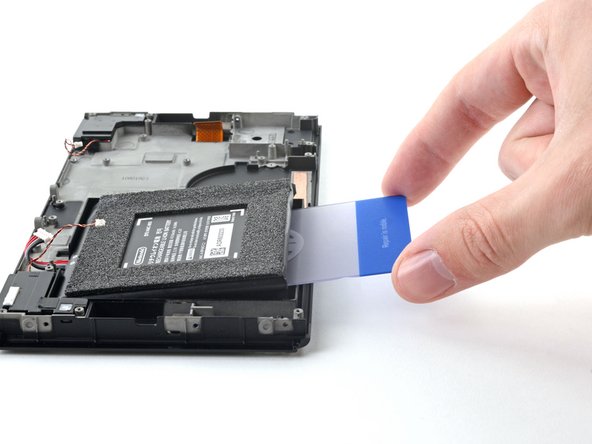
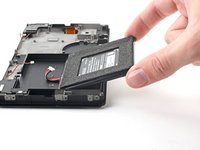
    • Pry up with the plastic card to completely separate the battery's adhesive.

    • Remove the battery.

    • Use adhesive remover or isopropyl alcohol and a microfiber cloth to clean up any remaining adhesive left behind in the battery well before you install the new battery.

    • If your new battery does not come with pre-installed adhesive, follow this guide to install pre-cut adhesive on the bottom of the battery.

    • Do not reuse the battery after it has been removed, as doing so is a potential safety hazard. Replace it with a new battery.

    Ask FixBot

    Add Comment

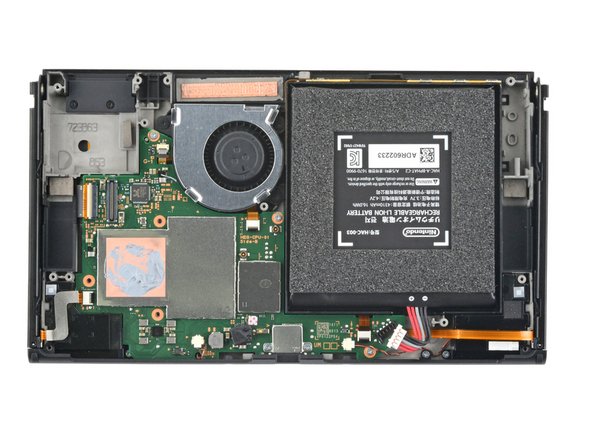
  63. Nintendo Switch OLED Model Screen OLED Assembly Replacement, Only the screen OLED assembly remains: step 63, image 1 of 1
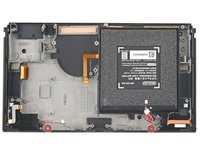
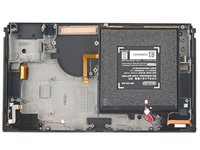
    • You're now left with the Screen OLED Assembly.

    Ask FixBot

    Add Comment

Conclusion

To reassemble your device, follow these instructions in reverse order.

For optimal performance, calibrate your newly installed battery after completing this guide.

Compare your new replacement part to the original part—you may need to transfer remaining components or remove adhesive backings from the new part before you install it.

Take your e-waste to an R2 or e-Stewards certified recycler.

Repair didn’t go as planned? Try some basic troubleshooting, or ask our Nintendo Switch OLED Answers community for help.

Cancel: I did not complete this guide.

One other person completed this guide.

Alex Diaz-Kokaisl

Member since: 01/16/22

240,958 Reputation

1,180 Guides authored

Team

iFixit Member of iFixit

Staff

122 Members

26,593 Guides authored

2 Guide Comments

Hi Alex (or anyone who knows and wants to answer), why do you indicate in point 61 to replace the battery and not reuse it after removal? Should it be replaced even if the console is practically new and has only been used for a few weeks?

Mario Rega - Reply Share

you could've punctured it, severed the wires, or bent it during removal. even if none of that happened, it would certainly be soaked in isopropyl alcohol since dissolving the strong glue underneath requires it. If you reuse the old battery, then it might light your house up while you're docking or charging it. I'd certainly not want to use a console with a battery soaked with alcohol.

Leooooo1061 - Reply Share

Add Comment

View Statistics:

Past 24 Hours: 17

Past 7 Days: 155

Past 30 Days: 416

All Time: 17,249