Free Shipping on Domestic Orders $75+

Microsoft Surface Pro 2 Camera Replacement

What you need

    1. Microsoft Surface Pro 2 Camera Replacement, LCD Display: step 1, image 1 of 2 Microsoft Surface Pro 2 Camera Replacement, LCD Display: step 1, image 2 of 2
      • To avoid electrical shocks, unplug and turn off your Surface Pro 2 before proceeding.

      Ask FixBot

      Add Comment

    2. Microsoft Surface Pro 2 Camera Replacement: step 2, image 1 of 1
      • Avoid any skin or eye contact with the heating pad or heating gun because they may cause bodily harm.

      • Using a heating pad or heating gun, heat the edges of the screen to soften the glue. This area extends roughly one inch from the edge of the device.

      • The glue is under the darker border of the device display.

      Ask FixBot

      Add Comment

    3. Microsoft Surface Pro 2 Camera Replacement: step 3, image 1 of 1
      • Using a plastic opening tool and a suction cup as needed for leverage, gently insert one edge of the opening tool under the corner of the screen.

      • If the tool does not easily slide under the screen, return to heating before proceeding.

      • Slowly work the tool around the entire edge of the screen.

      Ask FixBot
      Add Comment

    4. Microsoft Surface Pro 2 Camera Replacement: step 4, image 1 of 3 Microsoft Surface Pro 2 Camera Replacement: step 4, image 2 of 3 Microsoft Surface Pro 2 Camera Replacement: step 4, image 3 of 3
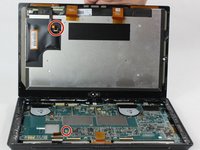
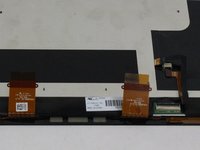
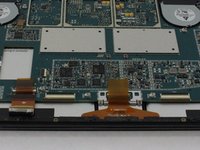
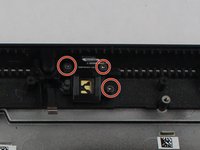
      • Detach the orange cables that connect the screen to the motherboard by pulling on the small tabs. Using the nylon spudger, release these cables.

      • Please note the third small connector in red.

      • Allow the glue to cool before letting it come into contact with any other surface.

      Ask FixBot
      Add Comment

    1. Microsoft Surface Pro 2 Camera Replacement, Motherboard: step 5, image 1 of 3 Microsoft Surface Pro 2 Camera Replacement, Motherboard: step 5, image 2 of 3 Microsoft Surface Pro 2 Camera Replacement, Motherboard: step 5, image 3 of 3
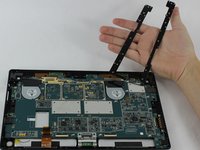
      • Make sure that the front-facing camera is completely disconnected, and then remove the plastic bracket.

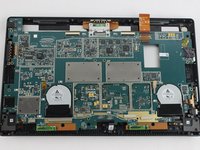
      • Remove the 22 screws on the bezel.

      • Remove the left and right brackets; the left has 16 screws and the right has 15 screws.

      • The three different torx screws used are T3, T4, and T5.

      Ask FixBot

      Add Comment

    2. Microsoft Surface Pro 2 Camera Replacement: step 6, image 1 of 3 Microsoft Surface Pro 2 Camera Replacement: step 6, image 2 of 3 Microsoft Surface Pro 2 Camera Replacement: step 6, image 3 of 3
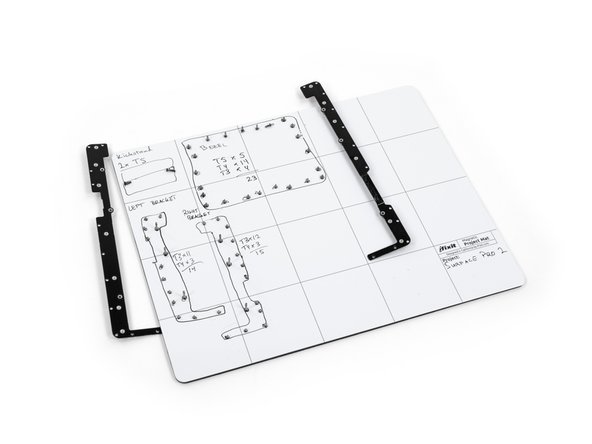
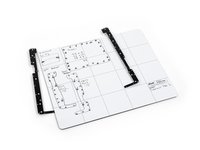
      • Once the brackets are removed, set them aside.

      • The motherboard itself also has screws.

      • Remove the 25 screws of varying sizes that attach the motherboard to the back plate.

      • View the attached photo of a screw diagram to help keep track of your screws.

      Ask FixBot

      Add Comment

    3. Microsoft Surface Pro 2 Camera Replacement: step 7, image 1 of 3 Microsoft Surface Pro 2 Camera Replacement: step 7, image 2 of 3 Microsoft Surface Pro 2 Camera Replacement: step 7, image 3 of 3
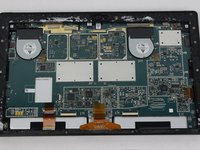
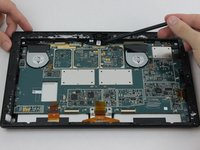
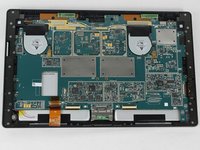
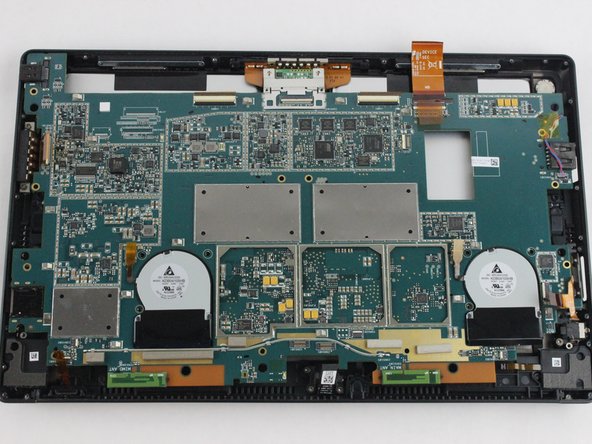
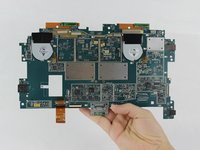
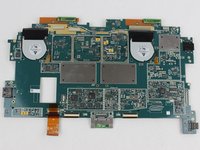
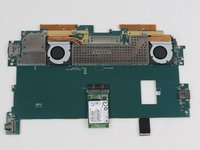
      • You have now completely removed the motherboard, and it should look like the pictures shown.

      • Be sure to be cautious with all the connections with the cables on the motherboard.

      Ask FixBot

      Add Comment

    1. Microsoft Surface Pro 2 Camera Replacement, Camera: step 8, image 1 of 1
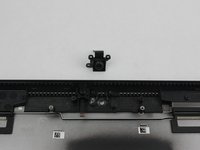
      • Remove the ribbon that the spudger is touching in the picture.

      • Remove the front-facing camera.

      Ask FixBot

      Add Comment

    2. Microsoft Surface Pro 2 Camera Replacement: step 9, image 1 of 1
      Ask FixBot

      Add Comment

    3. Microsoft Surface Pro 2 Camera Replacement: step 10, image 1 of 2 Microsoft Surface Pro 2 Camera Replacement: step 10, image 2 of 2
      Ask FixBot

      Add Comment

Conclusion

To reassemble your device, follow these instructions in reverse order.

Cancel: I did not complete this guide.

abdulhameeda

Member since: 09/07/16

108 Reputation

1 Guide authored

Team

USF Tampa, Team 6-2, Remmell Fall 2016 Member of USF Tampa, Team 6-2, Remmell Fall 2016

USFT-REMMELL-F16S6G2

4 Members

23 Guides authored

0 Guide Comments

Add Comment

View Statistics:

Past 24 Hours: 2

Past 7 Days: 11

Past 30 Days: 59

All Time: 1,415