Introduction
Use this guide to replace the top cover on your MNT Pocket Reform laptop.
If the top cover of your Pocket Reform is scratched or damaged, you may want to replace it. You can find specs to make your own bottom cover on MNT's documentation page.
Note: The top cover is made of PCB material and acts as the heat sink. Your replacement top cover must have similar thermal properties to ensure the laptop's heat is managed properly.
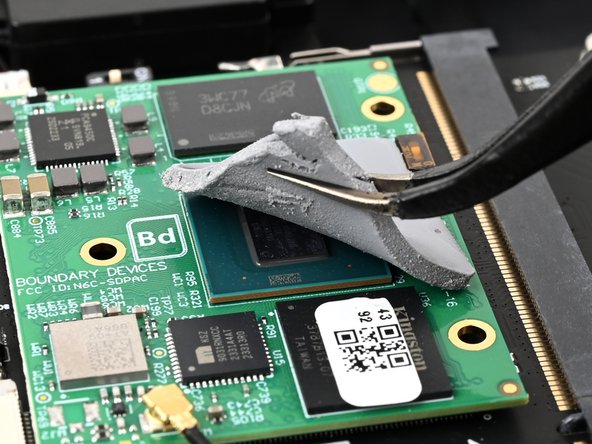
The top cover must also be thermally connected to the processor. Therefore, you will need to apply a thermal pad to the new top cover. You can either apply a new thermal pad or transfer the old thermal pad if it's in good condition.
What you need
-
-
-
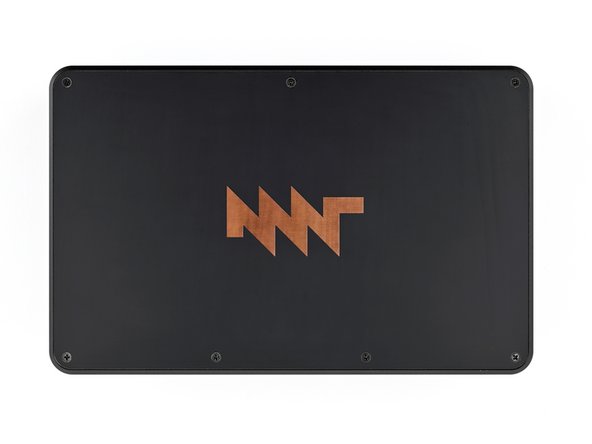
Place the laptop on your work surface so the top cover with the MNT logo is facing up.
-
Use a Phillips screwdriver to remove the seven 4.8 mm‑long screws securing the top cover.
 Ask FixBot
-
-
-
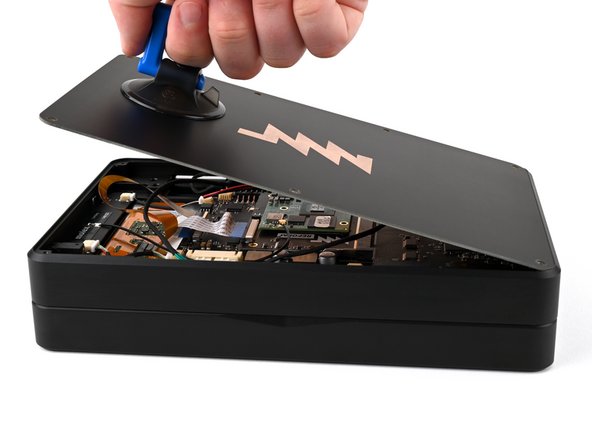
Apply a suction handle to the top cover.
-
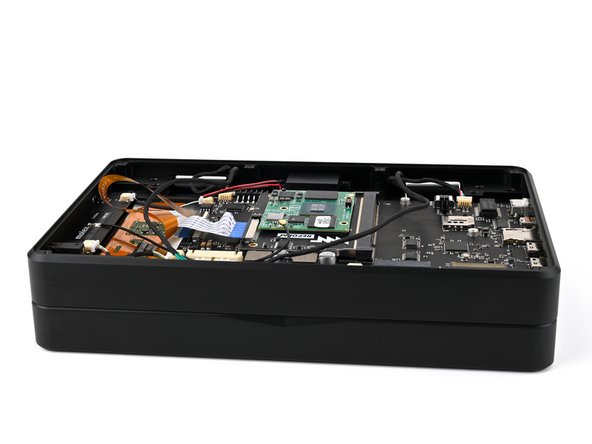
Use the suction handle to lift the top cover off of the laptop.
-
-
-
-
-
-
Use a pair of tweezers or your fingers to carefully peel the thermal pad off of the old cover.
-
-
-
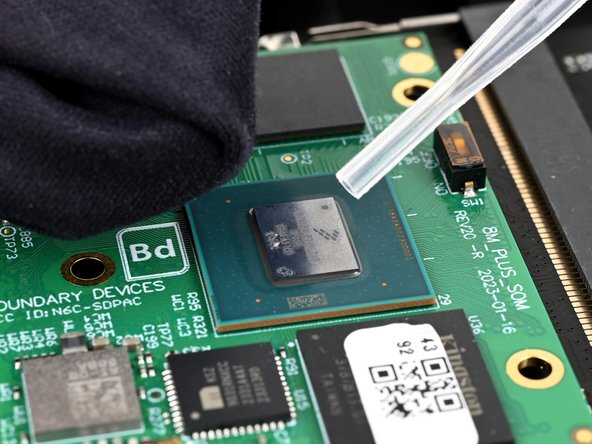
Use high concentration (greater than 90%) isopropyl alcohol and a coffee filter or lint-free cloth to clean the processor and the area of the new cover that will contact the thermal pad.
-
Use a pair of tweezers or your fingers to apply the thermal pad to the processor.
-
-







To reassemble your device, follow these instructions in reverse order.
Repair didn’t go as planned? Try some basic troubleshooting, or ask our Answers community for help.


