
Apple Watch Series 5 Battery Replacement

Dominik Schnabelrauch and 4 other contributors
Last updated on May 27, 2026
Views: 168K
View statistics:
- Past 24 Hours:
- 89
- Past 7 Days:
- 592
- Past 30 Days:
- 2,763
- All Time:
- 168,251
Comments: 20
11 comments on steps, 9 guide comments.
Go to guide commentsCompleted: 46 47
46 people have marked this guide "completed." Will you be next?
47 people have marked this guide "completed." Including you — great job!
Favorites: 10 11
10 people have favorited (and subscribed to) this guide. Will you be next?
11 people have favorited (and subscribed to) this guide — including you!
Featured Guide
This guide has been found to be exceptionally cool by the iFixit staff.
Introduction
Go to step 1 ↓Use this guide to replace a worn-out or dead battery in your Apple Watch Series 5.
This guide shows the procedure on the cellular/LTE version of the watch, but the GPS-only version is similar.
If your battery is swollen, take appropriate precautions. For your safety, discharge your battery below 25% before disassembling your watch. This reduces the risk of a dangerous thermal event if the battery is accidentally damaged during the repair.
During the display opening procedure of the Apple Watch you might damage the force touch gasket. If you separate the gasket layers or cut the cable, you'll also need to replace the Force Touch gasket itself.
You’ll need replacement adhesive to reattach components when reassembling the device.
What you need


-
-
-
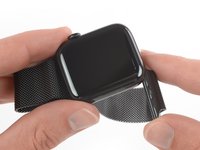
Before starting repairs, take your watch off the charger and power it down.
-
If your touchscreen is broken and you can't power off the watch, use this alternate method to power it down.
 Ask FixBot
-
-
-
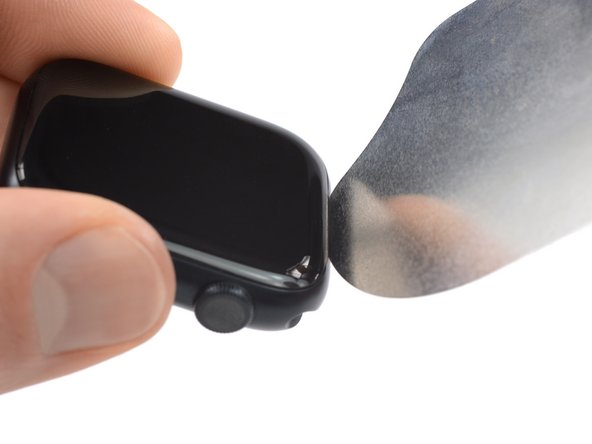
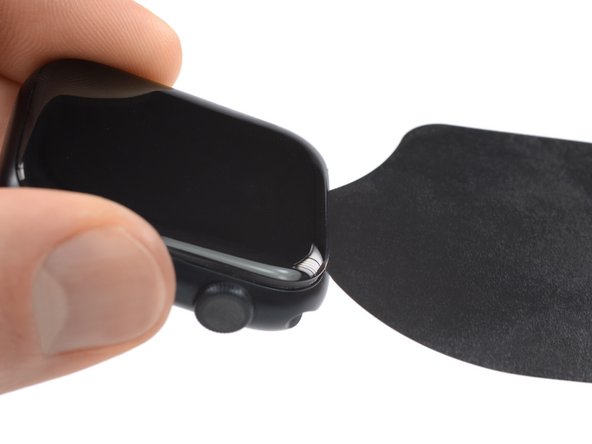
Because the gap between the screen and watch body is so thin, a sharp blade is needed to separate the two. Read the following warnings carefully before proceeding.
-
-
-
Prepare an iOpener (or use a hair dryer or heat gun) and heat the face of the watch to loosen the display adhesive.
-
Leave the iOpener on the watch for at least two minutes to fully heat the screen and soften the adhesive holding it to the case.
-
-
-
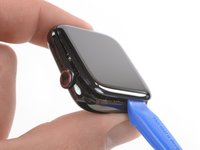
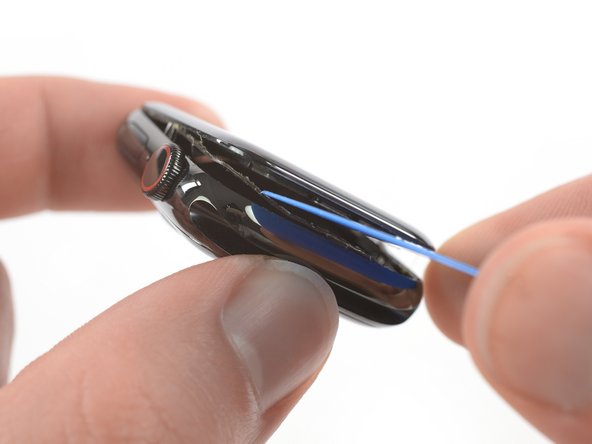
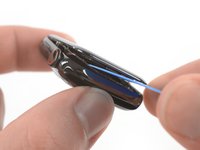
Insert the iFlex into the thin gap between the display and frame at the edge adjacent to the digital crown.
-
Tilt the iFlex down to pry the display open slightly and create a gap between the screen and the watch body.
-
-
-
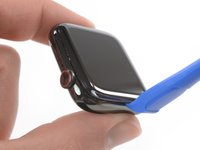
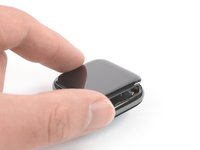
Once you've opened a small gap with the curved blade, remove the blade and insert the thinner edge of an opening tool into the gap.
-
Push the opening tool into the gap, using your thumb as a pivot to lift the display open a bit farther.
-
-
-
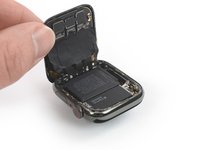
It's likely that the force touch sensor will stick to the display frame instead to the watch's body. In this case, insert an opening pick under the display and carefully separate the Force Touch gasket from the display.
-
Slide the pick around the display to separate the adhesive between the Force Touch gasket and the display.
-
-
-
-
-
Lift the screen until there's enough space to access the battery.
-
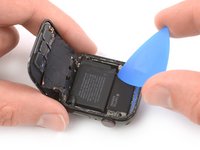
Insert an opening pick between the battery and the Taptic Engine.
-
-
-
Slide the opening pick along the edge of the battery to loosen the adhesive.
-
Use constant, steady pressure to slowly pry the battery up, separating it from the adhesive securing it to the mainboard.
-
-
-
-
Carefully lift the battery to a 75-degree angle.
-
Remove the 1.1 mm-long Y000 screw.
-
-
Tool used on this step:Tweezers$4.99
-
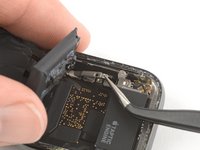
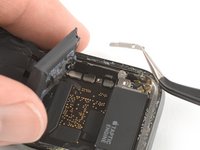
Use a pair of tweezers to remove the metal plate covering the battery connector.
-
-
-
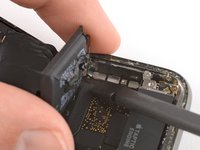
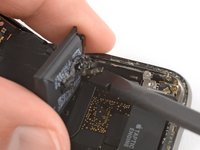
Use the flat end of a spudger to pry up and disconnect the battery flex cable.
-
-
Tool used on this step:Tesa 61395 Tape$8.95
-
Remove the battery.
-
Follow the resealing guide to reseal your watch after reassembly.
-
-














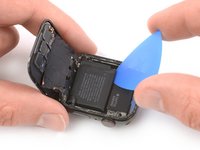


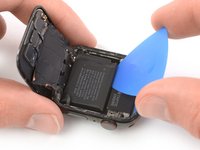
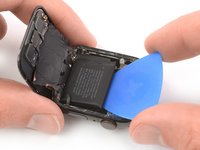
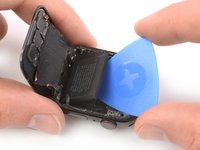





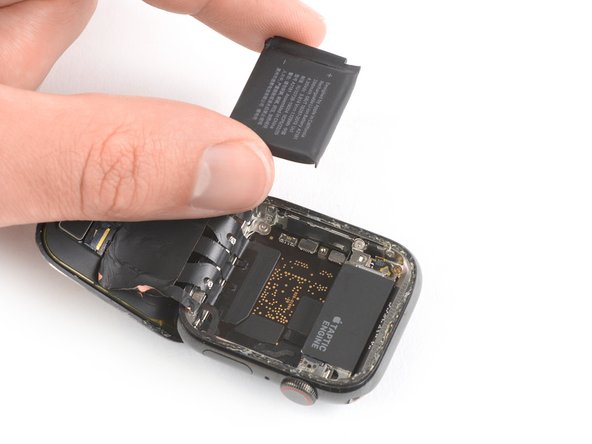

If possible, turn on your device and test your repair before installing new adhesive and resealing.
Secure the new battery with pre-cut adhesive or double-sided adhesive tape. In order to position it correctly, apply the new adhesive into the device at the places where the old adhesive was located, not directly onto the battery. Press the new battery firmly into place.
To reassemble your device, follow these instructions in reverse order. Apply new adhesive where necessary after cleaning the relevant areas with isopropyl alcohol (>90%).
For optimal performance, calibrate your newly installed battery after completing this guide.
Take your e-waste to an R2 or e-Stewards certified recycler.
Repair didn’t go as planned? Try some basic troubleshooting, or ask our Answers community for help.
Cancel: I did not complete this guide.
46 other people completed this guide.


9 Guide Comments
Since WatchOS 7 removed 3D Touch functionality on all Force Touch enabled watches, will damaging or disconnecting the Force Touch gasket affect the functionality of the watch or will the software brick it?
Any tips for applying the adhesive strip without removing the screen? Is removing the screen recommended to seat it properly?
Does the resealing adhesive strip go in between the screen and force touch gasket, or the force touch gasket and the case?
Hi David,
here is a general resealing guide that might help you. Depending on your force touch replacement part you‘ll need one two or no adhesive strips.
If your force touch was never removed you need to place new adhesive on top of it the adhere the screen. If your force touch has adhesive on the bottom side it is the same. Adhere the force touch into the watch frame and place adhesive on top of it to adhere the screen. If there is adhesive on the top of the force touch you need to place the adhesive strip beneath.
If your force touch didn‘t come with any adhesive preinstalled you need adhesive tape below to secure it to the watch frame and on top to secure the screen.
Hi @schnabel , thank you for you reply. I am in the middle of replacing the battery. I managed to save the force touch sensor from getting damaged, but I need to be re-adhere it to both surfaces. Can I use 2 of these adhesive strips on either side?
Apple Watch (44 mm Series 4/5) Screen Adhesive
