Introduction
Thunderbolt Display uses an LG edge LED-lit LCD Display (also 09-11 27" iMacs and 27" Cinema Displays). The LEDs are on the bottom edge of the display. There are 2 bars (left and right). Each bar has many LEDs and a 6-pin connector. Each pin drives several LEDs; thus is the highest current flow/heat junction. The weak lead-free solder gradually fails with thermal expansion/contraction cycling and increases resistance. PSU will compensate up to a point, then when the current is too high, PSU just shuts down the backlight, causing a dark display. I have even seen a connector just fall off as the solder points became completely detached.
Usually, this problem starts manifesting itself with brighter settings only. Can work around by reducing brightness. Eventually, even the lowest brightness won't work anymore.
Another failure mode is when actual LED(s) fail. This requires changing the backlight LED bar.
There are several ways to diagnose this. While the screen is lit, turn on sound level change feedback so that when the screen goes blank, you can use volume change feedback to confirm the Mac is still running. Also, set up a high contrast image (black wallpaper, About This Mac popup) to help view the LCD image when the backlight goes out (works for iMac, not sure about TB Display)
Use an Apple keyboard and set the brightness to the lowest level. Put the Mac to sleep (option+command+eject) and wake (any key). This will restart the inverter board to see if it can drive the backlight for longer before the inverter board detects overvoltage (due to a bad solder joint/failed LED) and shuts off.
Made a PDF long ago to detail this repair. Largely duplicated in this guide, but attached it here (at the end) for additional reference.
What you need
-
-
-
Follow the LCD removal guide. An additional tip is to put fingers over the tip of the T10 driver to prevent it from slipping off. The LCD surface is very soft and will scratch instantly against any metal driver.
-
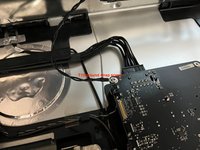
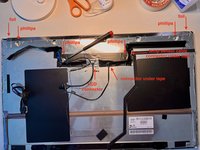
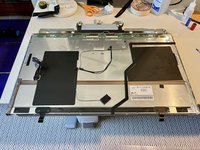
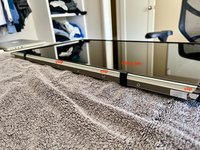
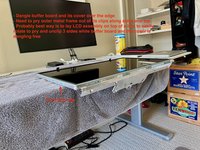
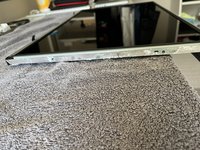
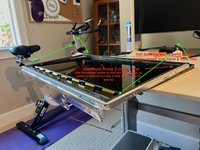
It is good to use a small box to hold up the LCD. Disconnect the 4x LCD cables (power, video, temp sensor, and ground wire). See the pictures for more info.
 Ask FixBot
-
-
-
With the LCD propped up by a box, a small flashlight (a plastic casing would be best) can help see the connectors.
-
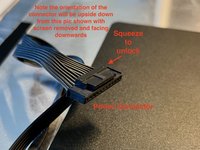
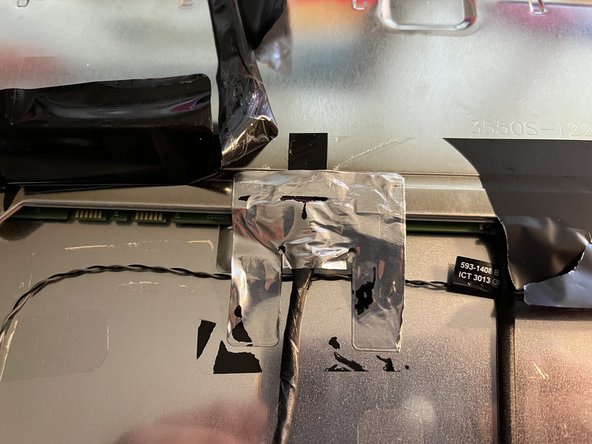
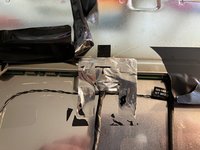
The power connector is the hardest as it's under the main board, so you need to blind disconnect. First, remove the clear tape that holds down the cable. Then feel by finger to find the connector, squeeze the lock, and pull. See picture for reference (note the picture of the connector is removed and shown upside down for clarity).
-
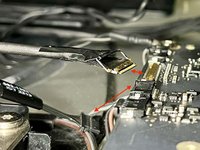
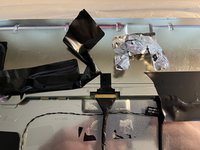
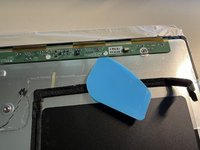
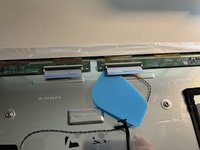
The video connector has a locking latch that must be unclipped. The picture shows a handle tape on this latch. Pull up on the tape and unclip the latch before pulling out the connector.
-
After the power, video, and 6-pin connectors are disconnected, you can tilt the LCD assembly higher (60-70 degrees, nearly vertical) to remove the T-10 ground screw with a screwdriver.
-
-
-
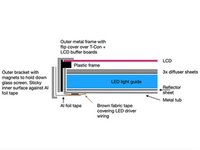
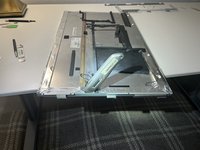
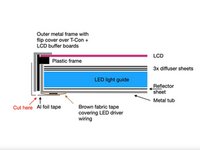
Here are the sandwiched layers of the LCD assembly along the 2 sides of the LCD. It is quite involved and difficult. Consider wearing gloves to continue, as many steps are remaining. You will need to clean the LCD later with a proper cleaning solution.
-
The LED driver wires and brown fabric tape are only present on small sections of the sides
-
-
-
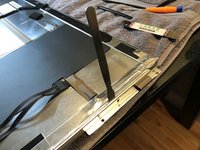
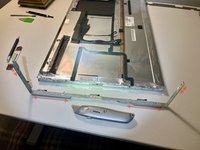
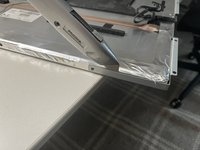
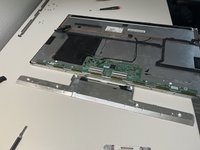
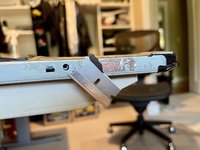
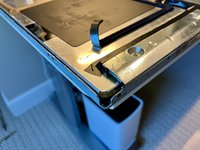
Remove the 2 L-shaped side brackets and the 1 bottom bracket. Each bracket is held in by 4x T10. 2 screws. Side L brackets have sticky surfaces on the inside, making it very difficult to pry off (use a very thin metal spudger). The sticky surface is against the thin foil tape, so it may scrape off some tape, which is perfectly fine.
-
Note that the picture shown with brackets removed has the foil tape already removed
-
A utility knife is better. See the next step on the iMac for reference.
-
-
-
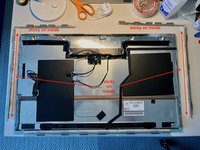
iMacs have 2 brackets. The most sticky portions are in red arrows. Use a utility knife, starting from the less sticky portion to the sticky portion with a gradual sawing motion.
-
Cutting the bracket this way allows them to come out straight and not bent. Easier to put back together later.
-
-
-
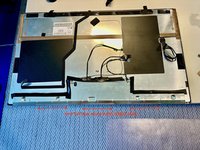
Peel off the black tape surrounding the cover. Be careful around the 3 connector regions (notes below). Peel off the foil tape at the 2 ends of the cover. Remove the 4x Phillips screws.
-
The LCD connector is very difficult. It's a flip latch connector with tape, just like the other end of the cable. The handle tape is covered under 2 different sticky tapes.
-
First, peel off the black tape and carefully separate the LCD connector latch handle tape.
-
Next, peel off the aluminum tape, and the latch handle tape is finally free.
-
-
-
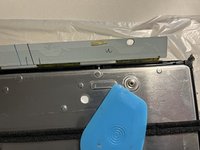
Peel off the tape between the buffer board cover and the metal frame. This allows the cover to come free without bending the clips at the hinge.
-
The cover on the right side may have its edge tucked under the plastic sheet to protect against power supply board shorts. You will need to lift the plastic sheet slightly to free the buffer board cover.
-
-
-
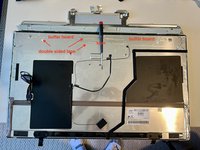
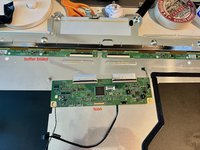
Rotate up T-Con (pivot on the flex cable side) and release it from the sticky tape. Likely difficult the first time to release the tape.
-
Unlatch t-con to buffer board flex on buffer board side. Wiggle the t-con board gently to release flex from the connector (likely difficult on first release)
-
-
-
Flip up the buffer board to release it from the sticky tape. Each side has 2 sticking points. Difficult first time to release the tape. Be gentle to avoid damaging the gold foil flex bonded between the buffer board and the LCD. Unrepairable without pro equipment if this foil flex bond is broken
-
Use a plastic wedge to gently cut/pry up the 2x double-sided tape on both boards.
-
-
-
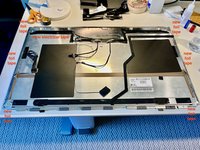
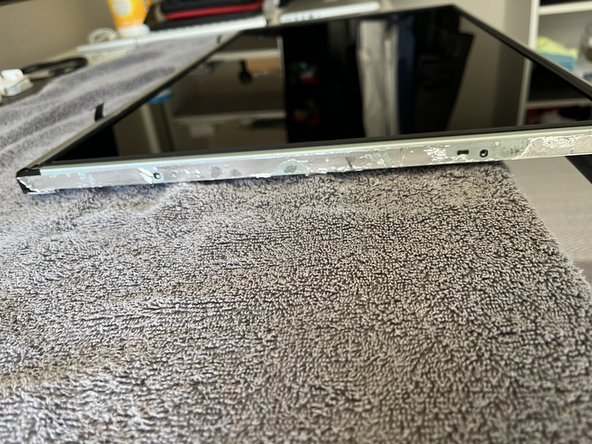
Takes awhile to peel off all the foil tape (where it says new foil tape in the pic) on both sides.
-
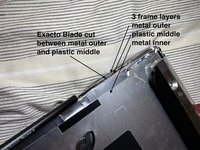
If you are a risk taker, you can use an Xacto knife to cut between the outer metal frame and the plastic frame. When near the brown tape region, be careful not to cut it and the LED wires underneath.
-
-
-
-
Can use a razor blade to help remove tape along the sides. Avoid razor blades near the brown fabric tape region (has LED wires underneath). Fortunately, the aluminum foil comes off pretty easily when over the brown fabric tape.
-
Lift the foam tape in a couple of places to peel off the foil tape underneath.
-
-
-
Peel back 2 black lifting tabs.
-
Peel off the black tape on all 4 corners.
-
-
-
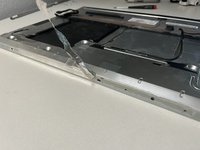
Start lifting the outer metal frame from the side with the lifting tab. This is to avoid any scraping motion over the buffer board gold foil flex cable.
-
The corners on the lift tab side are slightly flexible. Probably need 2 pry tools on each side of the corner to release it. Be gentle, as LCD glass is just under the outer metal frame. Luckily, it sits in a plastic tub (see next steps pics), so it should be safe from any prying tool.
-
-
-
Best to just temporarily remove the small brown fabric tape on the side of the LCD (They always get in the way and get caught in the wrong place during reassembly), and the LCD is completely freed for removal.
-
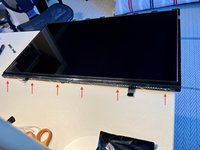
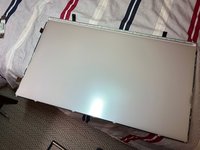
Prepare a clean plastic liner on a flat surface. Suction cup lift LCD off (2 corners away from buffer boards first) and place LCD with its diffuser facing side onto the liner with buffer boards dangling over the edge. Avoid using anything with lint as a liner. The underside of the LCD facing diffusers requires a disassembly to clean out any lint.
-
Remove the suction cups. Leaving suction cups on for long periods can leave a visible mark on the LCD when powered on (eventually heals, but don't take a chance)
-
Always keep the LCD surface facing the diffusers downwards to avoid collecting any airborne dust.
-
-
-
Remove 6x Phillips screws on the lift tab side of the plastic frame.
-
Pry and unclip the plastic frame from its clip points around the perimeter.
-
-
-
I removed the whole stack (3x diffuser sheet, plexiglass-like lightguide, and the white reflect sheet on the bottom). I recall there are corners near the LED bar that can lift the whole stack (will confirm in the future)
-
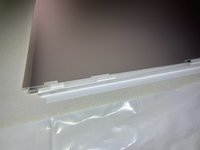
Put the stack down with a white reflector sheet on the bottom on a clean surface. Cover the top diffuser sheet with a lint-free liner.
-
-
-
Do not remove the curved LED silver reflector bar (it is brittle and difficult). There is no need.
-
Do not remove the LED bar. There is thermal transfer tape underneath that will be torn up. Not necessary.
-
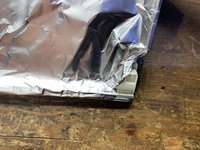
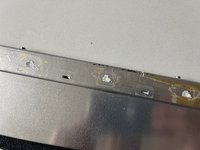
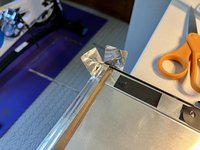
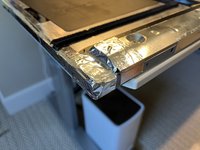
Cover the connector region with Al foil to protect against heat. Wick off old lead-free solder. Reflow with fresh leaded solder.
-
-
-
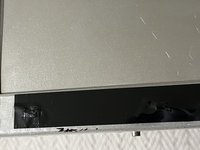
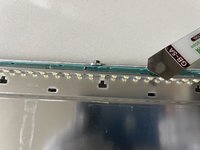
Some LED failures will show with dark spots on the bottom edge. But maybe difficult as the backlight will shut off quickly with increased brightness, making it harder to see. An LED tester can reveal failed LEDs after the LED bar is removed.
-
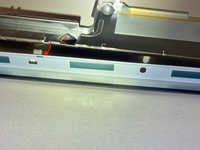
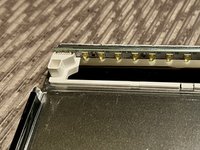
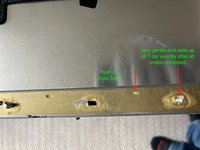
The plastic reflector bar just above the LEDs is very brittle. Peeling back the black tape. Sometimes, an additional ultra-sticky semi-transparent layer is below, breaking all the T-shaped bars on removal. Use an Xacto knife to carefully cut the tape around the tabs to avoid breaking. Use hot glue to help secure broken bars during reassembly.
-
Working the reflector bar is a little tricky. Remove the 2 screws on both ends. Push and unclip all the snaps and gently slide all T bars evenly to the opening to remove. 2 ends with the connector are a little tricky getting out and back in.
-
Gently pull out the connector and use a fine flat blade and magnifying eyewear to release the LED connector.
-
-
-
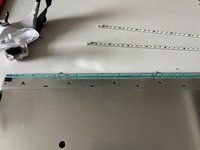
Loosen all screws and gently separate the LED bar from the green heat transfer tape to avoid ripping it and keep it sticky to the tub.
-
Replace the LED bar.
-
If the white plastic reflector bar breaks (very easily). Use tape on the backside to keep it stable during reassembly.
-
If the white plastic reflector has broken T bars. Use hot glue to keep the bar installed firmly against the tub during reassembly.
-
-
-
If you have an LED tester, you can test the LED bar serial circuit.
-
Want to see a stable voltage reading. A failing LED serial circuit will show a variable voltage reading. A failed LED will show a lower voltage reading.
-
Note that the pictured test points do not test from the connector. The connector has each series + - adjacent to each other and is difficult to probe.
-
It is assume 6 pins of the LED connector are reflowed with fresh leaded solder to ensure longevity.
-
-
-
Some LED bar screws have loosened over time, and the display will make random popping, clicking noises. Good time to tighten and quiet them down.
-
-
-
Some displays have smudge marks on the bottom of the screen. This is due to the tape on the plexiglass lifting, presumably due to heat from the LEDs. Example here Just need to remove the lifted tape on plexiglass and clean the area off (I use ISO on QTip)
-
-
-
Each LED has a yellow-covered cap. These are very easy to knock off and produce blue instead of white light. Take great care to insert the hard plexiglass back into the tub to avoid knocking these off.
-
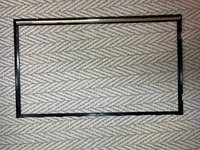
The tub has notches to align all the diffuser sheets. The top sheet is near the top of the notch and easily floats around. Make sure aligned properly before clipping on the plastic frame.
-
Take great care not to crimp any of the diffuser sheets when reclipping on the plastic frame.
-
Make sure the brown fabric tape that will fold over the edge of the LCD is outside of the plastic frame
-
Install the 6x Philips screws. Check the prior picture for the exact hole location. There are other holes for installing the magnetic bracket. If we use these holes, then we can't install the magnetic bracket later, which requires removing the fragile LCD again.
-
-
-
Make sure the diffuser sheet surface is clean and preferably kept clean during disassembly, and no need to touch the surface. If needed, clean, use a mild, proper cleaning solution (30% ISO, 70% distilled water mix) and a microfiber to wipe gently clean. Anything on the surface will be trapped under the LCD.
-
Position everything so that the buffer board is guided over an edge and remains freely movable. Pick up the LCD with the suction cups and install it by first aligning it in the two corners opposite the buffer board. Then carefully place the LCD in the plastic frame, making sure that it is properly seated in the guides.
-
-
-
Insert the buffer board end first. Again, avoid any sliding motion over the gold buffer board to the LCD flex cables.
-
Then clip in the corner opposite the buffer board and clip in all 3 non-buffer board sides.
-
Basically, the reverse of the motion for removal.
-
LCD is now secured in the outer metal frame, and the assembly can be flipped over. Make sure it's on a clean, flat surface when the LCD is facing down. It will not touch the surface. The outer metal frame has a foam bumper around the edge. This foam bumper can easily scrape and cut when rotating the LCD assembly on the edge of the table.
-
-
-
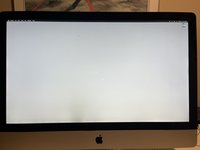
Unfortunately, the only way to confirm no debris, hair, or thread got in between the diffuser and the LCD is after the LCD is installed and the display is powered up. Set a white background and inspect. So do not tape everything backup yet, may need to disassemble one more time to lift the LCD and remove the debris.
-
-
-
Screw holes for the cover are alignment posts for the buffer and t-con board.
-
Insert the buffer board first.
-
Insert the T-Con flex into the buffer board connector. Lock the connector tab. Set T-Con down aligned and onto the sticky tape.
-
Install all 3 cables (video, temperature sensor cable, and the 3rd cable). Close the cover (make sure not to crimp the temp sensor cable). Reinstall cover screws.
-
-
-
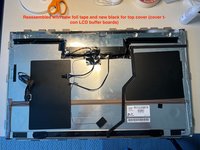
This is an important step to avoid thermally induced popping/clicking noises post-assembly. The metal t-con buffer board cover is quite long, has a seam, and is installed against the metal tub.
-
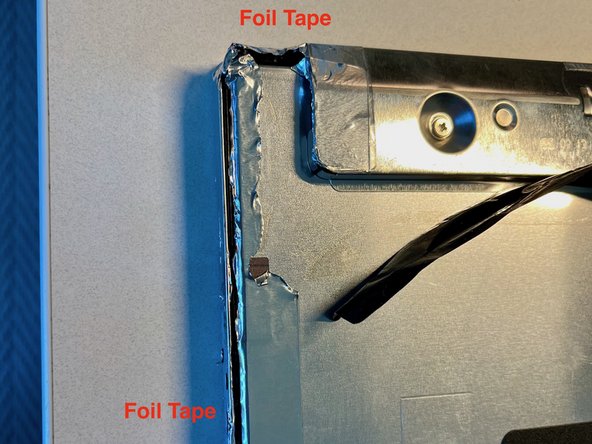
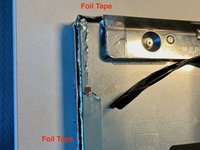
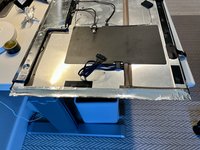
New Al foil tape over the 2 sides, all 4 corners, and both ends of the cover. Preferably, clean off all the old tape.
-
-
-
Remove and install new Al foil tape over the cover seam. Some iMacs have tape over the entire seam rather than the 3 segments shown in this pic.
-
-
-
I use black electrical tape to replace the original black tape.
-
-
-
The 2 L bracket likely got bent during the difficult removal. Bend as necessary to straighten.
-
Facing the LCD glass down on a flat surface. Install brackets to ensure magnets are flush against the flat surface. Install Torx Screws. This is the alignment to ensure the magnetic glass installation will be flush.
-
On the bottom straight bracket, clamp the 2x black lifting tab under the bracket. Tabs can easily break over their folds. Not a problem.
-
-
-
While the screen is out, consider preemptively replacing the 6 or 9x 3.3Mohm resistors. Info here.
-
-








































To reassemble your device, follow these instructions in reverse order.
Cancel: I did not complete this guide.
One other person completed this guide.

