Student-Contributed Wiki
An awesome team of students from our education program made this wiki.
Shuts down after 10-20 minutes of recording
The device overheats after approximately 10-20 minutes of video recording. An error message appears, initiating a shut down in order to cool off.
Panel needs to ventilate
Lift the LCD screen to reveal the warm panel underneath. This will allow the area to cool off. You can peel off the sticker on the panel and open the battery door to help the panel ventilate more easily. If you want to go a step further, another option involves attaching a heat sink with thermal tape to the panel. When you’re recording, the heat sink will absorb the device’s warmth. In addition, turning off the Steady Shot feature will reduce the amount of energy the camera uses.
Camera is overheating
The camera is simply not meant for long periods of video recording, considering that recording requires more energy. Perhaps utilizing a different device will satisfy your needs.
Persistent clicking noises
A frequent clicking noise interferes with audio throughout video recordings.
Camera motions not in sync with video recording
The camera is attempting to adjust itself, generating the clicking noise. The only apparent solution is to contact Sony for a “Performance Improvement” fix.
Gap in the shutter’s metro rail
The clicking is a result of the gap in the rail. The only apparent solution is to contact Sony for a “Performance Improvement” fix.
Foggy LCD screen
Air bubbles develop under the LCD screen, and the screen protector begins peeling at the corners
LCD screen needs to be cleaned
The screen is covered in dust and grime. Take a clean, dry microfiber cloth and gently wipe the screen off. If necessary, sparsely dampen the cloth with water. Do not utilize liquid-based cleaners or solvents, otherwise you can damage the screen.
Screen is scratched/torn/peeling/ contains air bubbles
Your camera is most likely worn, or perhaps faulty. The screen protector unavoidably became tattered over time. Order a new screen protector online and examine the screen protector replacement guide.
Device will not power on
The device fails to turn on after pressing the power button.
Battery is not charged
The battery may hold little if any charge. Find your Sony Alpha NEX-5N charger and charge the battery. Wait approximately 5-10 minutes and turn the power on.
Dead battery
Examine the Sony NEX-5N battery replacement guide to walk you through replacing the battery.
Motherboard is faulty
If all else fails, perhaps something is wrong with the motherboard. Examine the Sony Alpha NEX-5N Motherboard replacement guide for removal. The motherboard may need to be dusted off. If not, take your device and motherboard to a store to receive help with replacement.
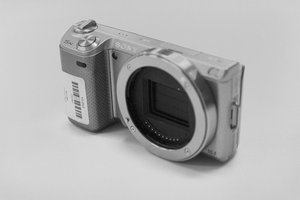
Lens is unable to attach to E-mount
The lens will not attach to the E-mount. The lens falls off or attaches incorrectly.
E-mount button is jammed or broken
Did you drop the device on a hard surface? You may have to replace the E-mount. Examine the E-mount replacement guide.

Team

Eastern Washington University, Team 1-4, Matresse Fall 2015 Member of Eastern Washington University, Team 1-4, Matresse Fall 2015
EWU-MATRESSE-F15S1G4
4 Members
72 Guides authored

3 Comments
Please help me..
How do I apply the thermal tape and the heat sink?
Akanbi 22 - Reply Share
Mine just stopped working. I don’t think it’s the screen because if it were it would still fire the shutter.
There’s still power going around in there, because I can see the aperture constrict and release when powering on and off.
My personal theory is that my girlfriend spilled something on it, or maybe a delayed effect from dropping it a week prior.
Note: the little light next to the battery pack doesn’t blink or turn orange/red when turned on anymore.
Motherboard? About to bust out the precision screwdrivers.
gezell14 - Reply Share
how to fix "unable to display"??
dafa bilhaqi - Reply Share