Student-Contributed Wiki
An awesome team of students from our education program made this wiki.
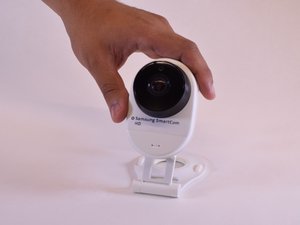
This troubleshooting page will pin point and help solve problems with the Samsung SmartCam HD.
Dark Display
Video display while recording remains dark.
Night Vision
Open General Menu under camera settings to enable the Night Vision option and activate Infrared (IR) lighting. This should deliver a clear black and white video.
NOTE! You WILL experience poor video quality if you disable the Night Vision option at night. The video will NOT switch to black and white mode.
Wide Dynamic Range (WDR)
Open General Menu under camera settings to enable the WDR option to activate the backlight compensation function.
Micro Secure Digital card not recognized
Incompatible microSD card.
Incompatible MicroSD Cards
NOTE! If you are using a microSD card from a different manufacturer please contact our customer service center. The following microSD cards are compatible: SanDisk, Transcend - Storage capacity: up to 128GB - At least Class 6 speed, supports UHS, MLC memory type, FAT 32 file system (NTFS not supported).
MicroSD Card Not Formatted
If the inserted microSD card has been used in another IT device or digital camera it may fail to recognize the microSD card. If this happens, format microSD card first and then try again with a USB reader or SD conversion adapter.
NOTE! Platforms for the SmartCam camera models are not unified. The SmartCam can fail to recognize the microSD card. If this happens, move the data in the microSD card to the PC first, format the microSD card, and then try again.
Interruptions During Recording
Experiencing delays while recording.
Internet Connection is Too Slow
To view in high resolution (1080p), a network connection of at least 3.0 Mbps is required.
Poor WiFi Signal
When the Wi-Fi signal received by the camera from the router is weak, the video may not be interrupted or delayed. Move the camera to a place near the router and check the strength of the Wi-Fi signal in the menu of the camera settings.
Livestream Error Message
Error message "There was a problem retrieving live-streaming" pops up.
Mobile Networking
Check your connection and if required, switch from mobile network to WiFi.
Factory Default
Force restart SmartThings application on mobile device. If the problem still persists, press the white reset button on the back of the Hub in order to hard restart device.

Team

UW Tacoma, Team S1-G1, Liner Summer 2017 Member of UW Tacoma, Team S1-G1, Liner Summer 2017
UWT-LINER-SU17S1G1
4 Members
36 Guides authored

65 Comments
Smartcam will not connect to wifi anymore since yesterday March 21, 2018. The red light is always on. Have tried RESET as well as pressing the WIFI button at the back.
Kim B - Reply Share
I have the very same issue at about the same time is when it started. Can't find anything on the net to fix it.
Nicholas - Reply Share
Same issue here as well. Has anyone found a fix?
Mick - Reply Share
try to remove the memory card..cause if its full the camera will offline… mine now work perfectly..
indra_ssq - Reply Share
Hi Kim B
could you fix your problem?
I just had the same problem with my smartcam (exterior). The red light is always on without any connection.
thank you
ari.neto - Reply Share