Free Shipping on Domestic Orders $75+

why! N131WU/BU/ZU RAM Replacement

What you need

  1. why! N131WU/BU/ZU RAM Replacement, Remove the Screws: step 1, image 1 of 1
    • Remove the case screws (red) and the keyboard screws (green).

    • Be sure not to lose these screws. You will need them to reassemble your laptop.

    Ask FixBot

    Add Comment

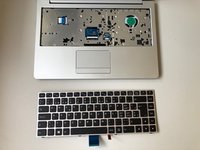
  2. why! N131WU/BU/ZU RAM Replacement, Remove the Keyboard: step 2, image 1 of 3 why! N131WU/BU/ZU RAM Replacement, Remove the Keyboard: step 2, image 2 of 3 why! N131WU/BU/ZU RAM Replacement, Remove the Keyboard: step 2, image 3 of 3
    • Using the hole provided under the case (see picture), push the keyboard out using a thin screwdriver or some other solid object.

    • Hold onto the keyboard as you push the keyboard so as not to damage the two cables still attached.

    Ask FixBot

    Add Comment

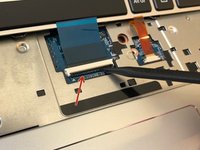
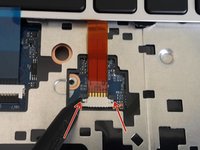
  3. why! N131WU/BU/ZU RAM Replacement, Remove Keyboard Connections: step 3, image 1 of 3 why! N131WU/BU/ZU RAM Replacement, Remove Keyboard Connections: step 3, image 2 of 3 why! N131WU/BU/ZU RAM Replacement, Remove Keyboard Connections: step 3, image 3 of 3
    • (Blue Cable) Push up on the thin black portion on the connector and gently pull out the blue ribbon cable until it comes out.

    • (Orange Cable) Remove the orange cable by sliding the gray part of the connector towards the screen, then gently pull on the ribbon cable.

    Ask FixBot

    Add Comment

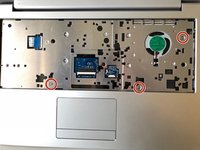
  4. why! N131WU/BU/ZU RAM Replacement, Remove the upper screws: step 4, image 1 of 2 why! N131WU/BU/ZU RAM Replacement, Remove the upper screws: step 4, image 2 of 2
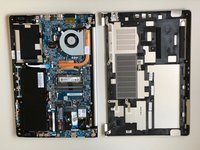
    • Unscrew the three screws that were under the keyboard. Be sure to hold onto these.

    • After these are removed, you can now remove the lower part of the case from the rest of the computer.

    Ask FixBot

    Add Comment

  5. why! N131WU/BU/ZU RAM Replacement, RAM (Memory): step 5, image 1 of 3 why! N131WU/BU/ZU RAM Replacement, RAM (Memory): step 5, image 2 of 3 why! N131WU/BU/ZU RAM Replacement, RAM (Memory): step 5, image 3 of 3
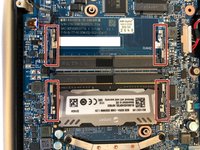
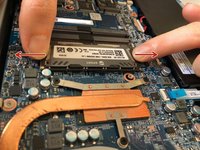
    • Gently pull outwards on the clips to free the RAM stick.

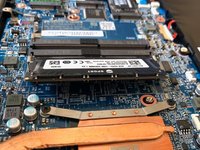
    • Remove the RAM Stick from its slot.

    Ask FixBot

    Add Comment

Conclusion

To reassemble your device, follow the instructions in reverse order.

Cancel: I did not complete this guide.

Special thanks to these translators:

fr en

100%

These translators are helping us fix the world! Want to contribute?
Start translating ›

Felice Suglia

Member since: 06/15/13

33,589 Reputation

283 Guides authored

0 Guide Comments

Add Comment

View Statistics:

Past 24 Hours: 1

Past 7 Days: 2

Past 30 Days: 32

All Time: 709