Free Shipping on Domestic Orders $75+

why! L140/1PU screen replacement

What you need

  1. why! L140/1PU screen replacement, Back cover: step 1, image 1 of 2 why! L140/1PU screen replacement, Back cover: step 1, image 2 of 2
    • Remove the screws.

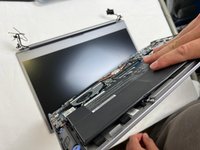
    • Lift the cover.

  2. why! L140/1PU screen replacement, Disconnection: step 2, image 1 of 2 why! L140/1PU screen replacement, Disconnection: step 2, image 2 of 2
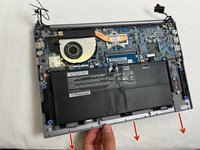
    • For safety reasons, the battery must be disconnected before each intervention.

    • Disconnect the battery your fingers.

    • Other components can now be replaced safely.

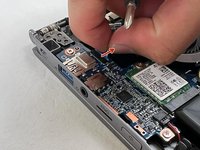
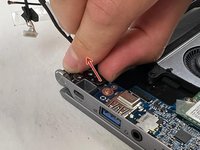
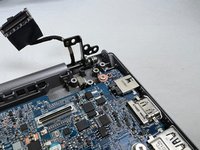
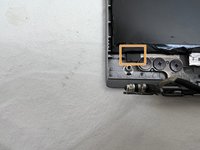
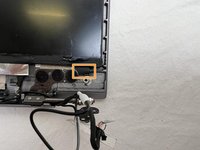
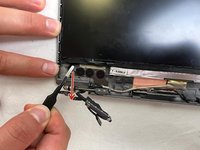
  3. why! L140/1PU screen replacement, Upper frame 1: step 3, image 1 of 3 why! L140/1PU screen replacement, Upper frame 1: step 3, image 2 of 3 why! L140/1PU screen replacement, Upper frame 1: step 3, image 3 of 3
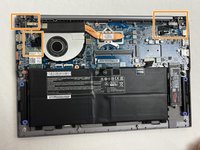
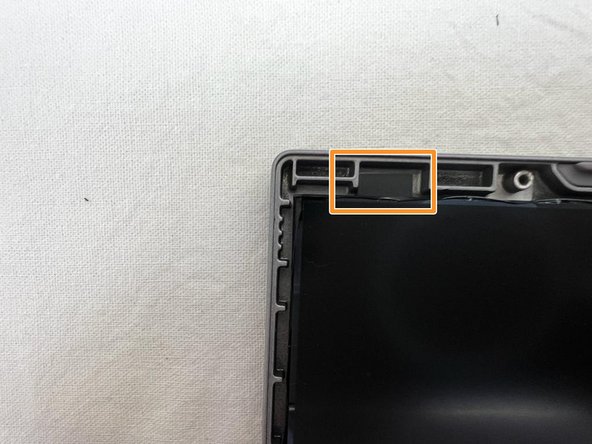
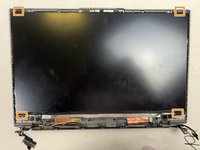
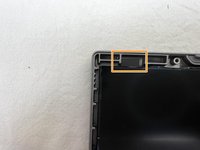
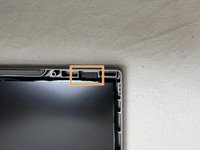
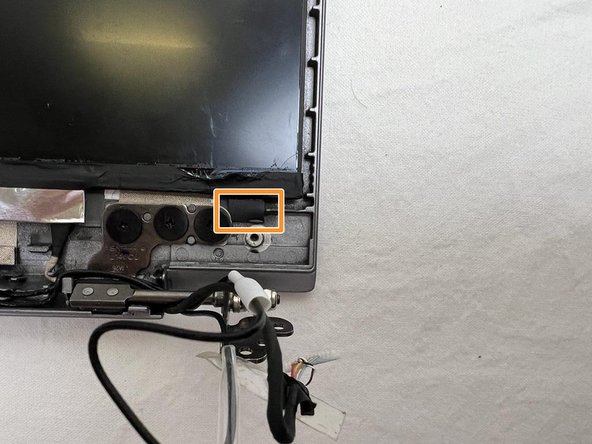
    • The orange squares indicate the zones we will focus on.

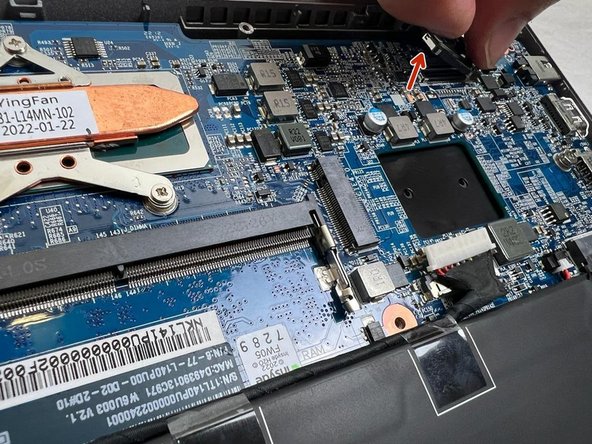
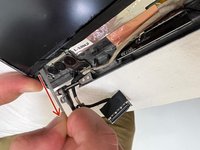
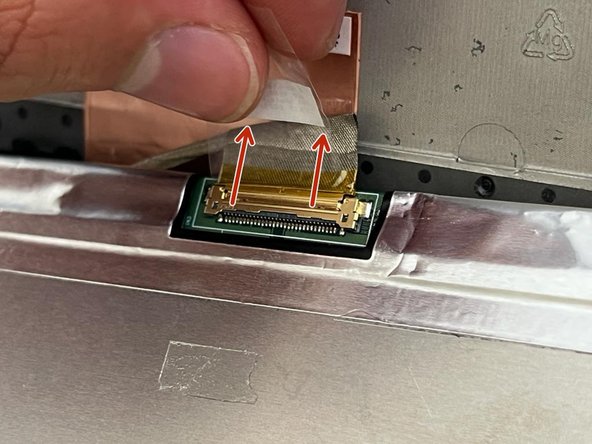
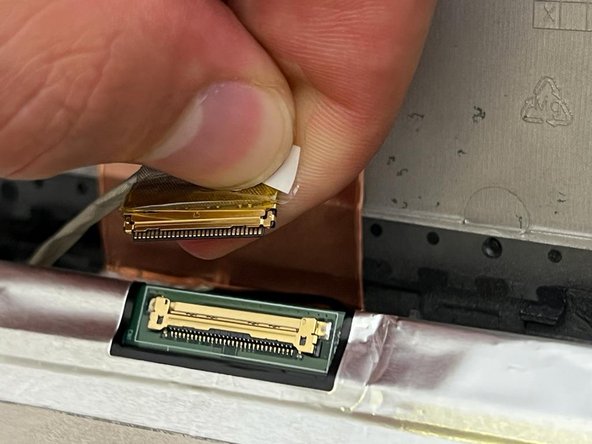
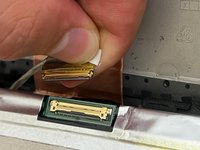
    • Unplug the screen cable.

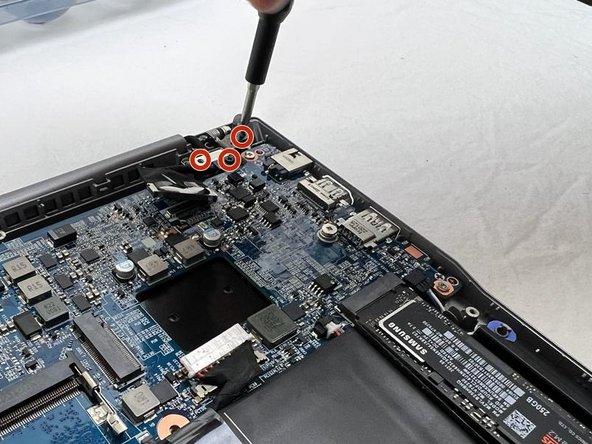
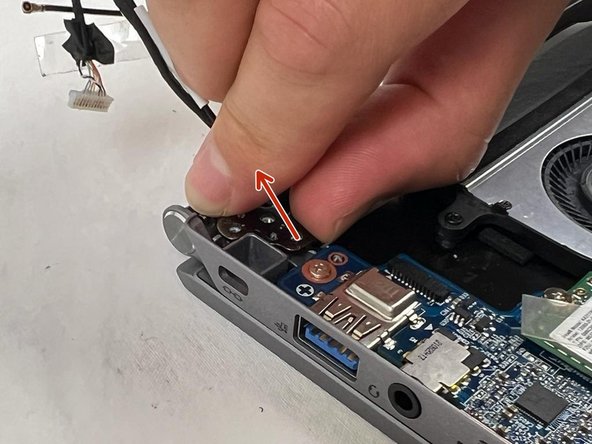
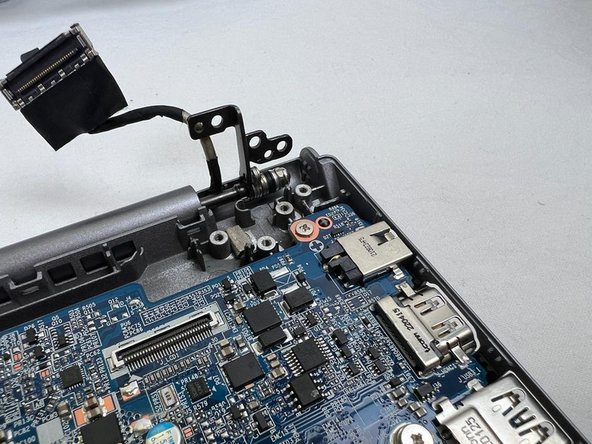
    • Unscrew the screw of the cover and those of the hinge. Remove the cover.

  4. why! L140/1PU screen replacement, Upper frame 2: step 4, image 1 of 3 why! L140/1PU screen replacement, Upper frame 2: step 4, image 2 of 3 why! L140/1PU screen replacement, Upper frame 2: step 4, image 3 of 3
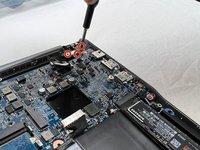
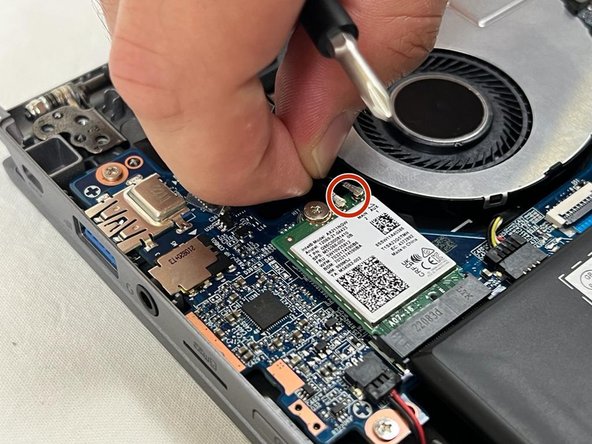
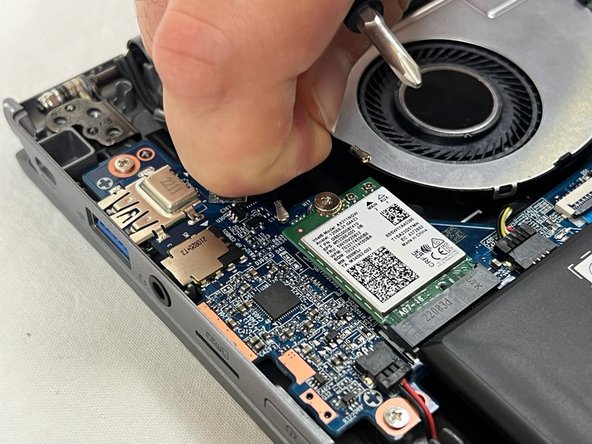
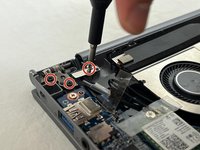
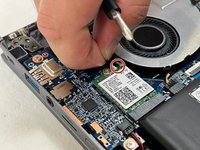
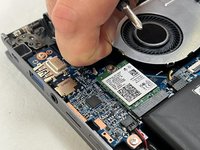
    • Unscrew the screw of the cover, and those of the hinge. Remove the cover.

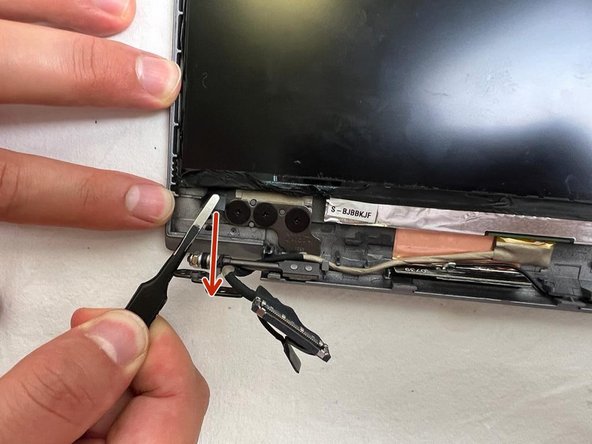
    • Unplug the Wifi cables.

  5. why! L140/1PU screen replacement, Upper frame 3: step 5, image 1 of 3 why! L140/1PU screen replacement, Upper frame 3: step 5, image 2 of 3 why! L140/1PU screen replacement, Upper frame 3: step 5, image 3 of 3
    • Unplug the camera cable.

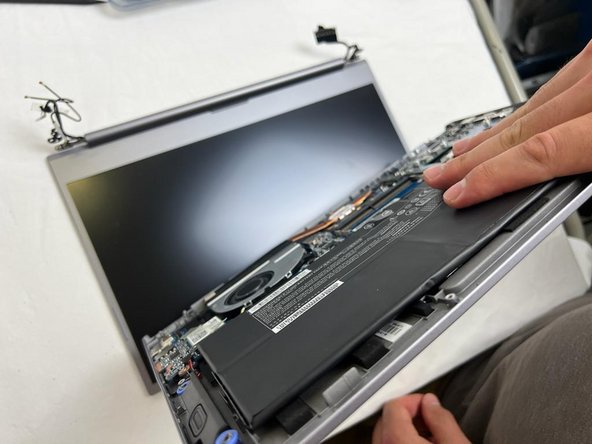
    • Open the two hinges.

  6. why! L140/1PU screen replacement, Upper frame 4: step 6, image 1 of 3 why! L140/1PU screen replacement, Upper frame 4: step 6, image 2 of 3 why! L140/1PU screen replacement, Upper frame 4: step 6, image 3 of 3
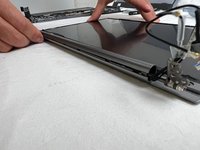
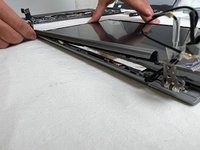
    • Remove the upper case, separating it from the screen.

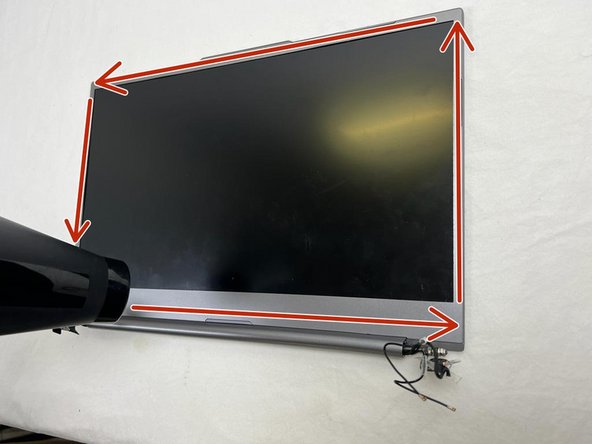
    • Using a hair dryer, blow hot air around the screen to soften the frame's adhesive.
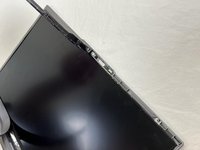
    • In order to avoid damaging components, never keep the hair dryer aimed at the same spot.

  7. why! L140/1PU screen replacement, Upper Frame 5: step 7, image 1 of 3 why! L140/1PU screen replacement, Upper Frame 5: step 7, image 2 of 3 why! L140/1PU screen replacement, Upper Frame 5: step 7, image 3 of 3
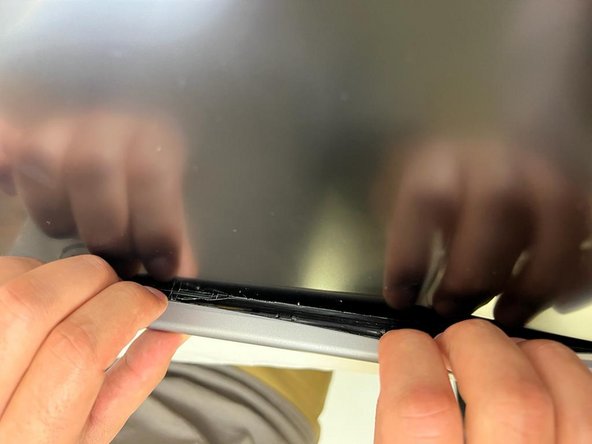
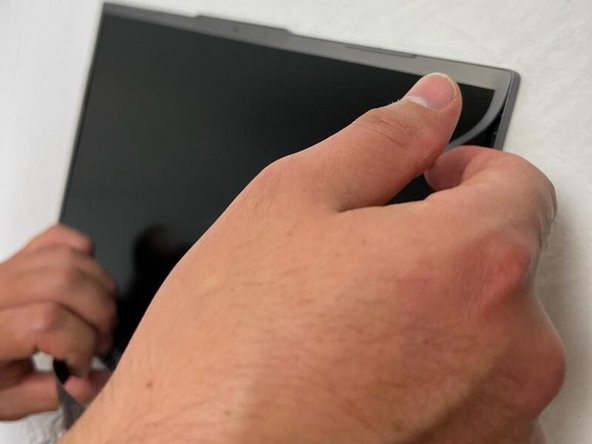
    • Separate the frame.

    • You can use the iFixit opening pick for this, or just your fingernails.

  8. why! L140/1PU screen replacement: step 8, image 1 of 2 why! L140/1PU screen replacement: step 8, image 2 of 2
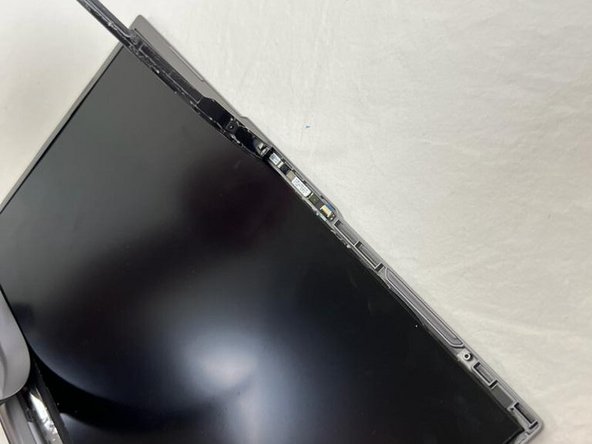
    • Remove the upper frame of the screen.

  9. why! L140/1PU screen replacement, Lower screen 1: step 9, image 1 of 2 why! L140/1PU screen replacement, Lower screen 1: step 9, image 2 of 2
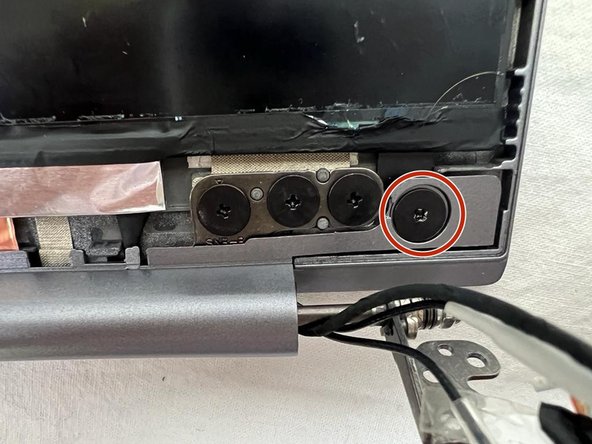
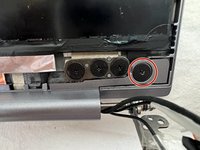
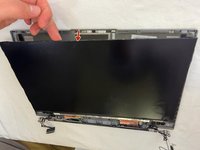
    • Unscrew the two screws circled in red.

  10. why! L140/1PU screen replacement, Lower frame 2: step 10, image 1 of 3 why! L140/1PU screen replacement, Lower frame 2: step 10, image 2 of 3 why! L140/1PU screen replacement, Lower frame 2: step 10, image 3 of 3
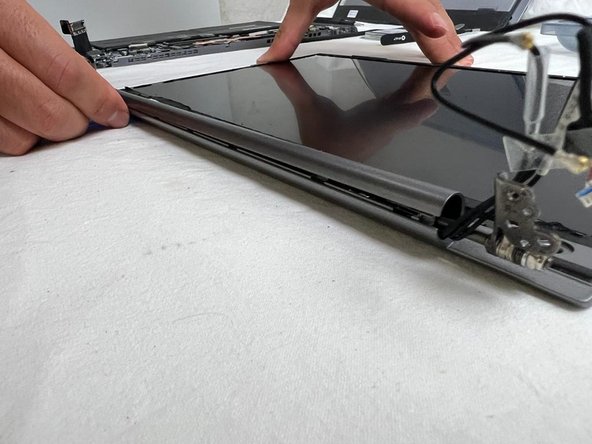
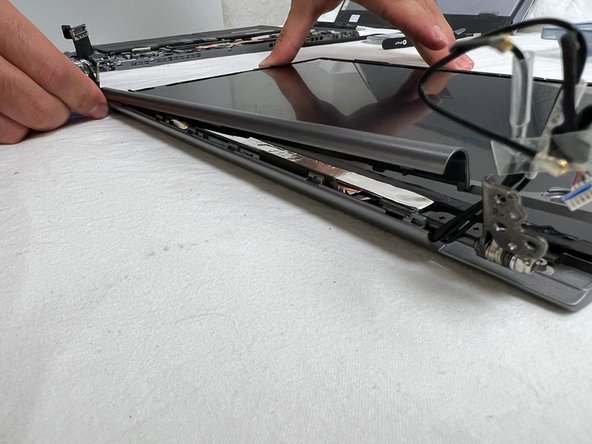
    • Detach the lower frame from the screen.

  11. why! L140/1PU screen replacement, Screen 1: step 11, image 1 of 3 why! L140/1PU screen replacement, Screen 1: step 11, image 2 of 3 why! L140/1PU screen replacement, Screen 1: step 11, image 3 of 3
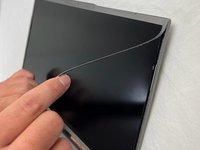
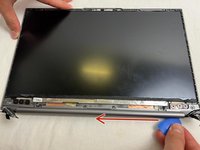
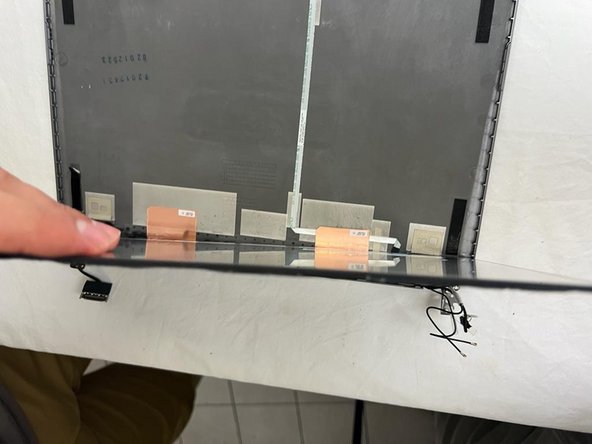
    • Remove the four strips of tape.

  12. why! L140/1PU screen replacement, Screen 2: step 12, image 1 of 3 why! L140/1PU screen replacement, Screen 2: step 12, image 2 of 3 why! L140/1PU screen replacement, Screen 2: step 12, image 3 of 3
    • Using tweezers, grasp and gently pull the tape.

  13. why! L140/1PU screen replacement, Screen 3: step 13, image 1 of 3 why! L140/1PU screen replacement, Screen 3: step 13, image 2 of 3 why! L140/1PU screen replacement, Screen 3: step 13, image 3 of 3
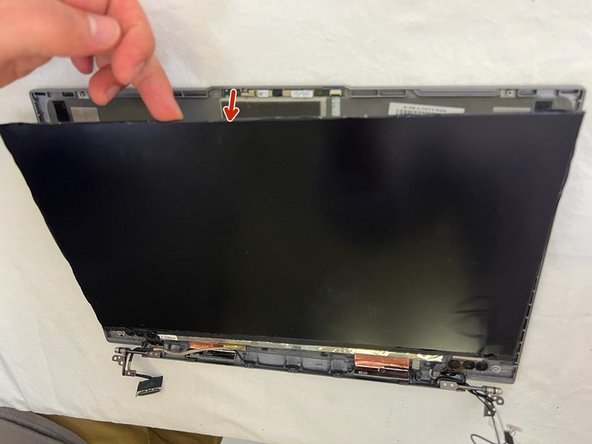
    • Pull the tape until it is freed. Repeat on all 3 other sides.

    • Lift up the screen.

  14. why! L140/1PU screen replacement, Screen 4: step 14, image 1 of 3 why! L140/1PU screen replacement, Screen 4: step 14, image 2 of 3 why! L140/1PU screen replacement, Screen 4: step 14, image 3 of 3
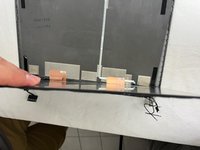
    • Remove the tape.

    • Remove the screen cable.

Conclusion

To reassemble your device, follow the steps in reverse order.

Special thanks to these translators:

fr en

100%

These translators are helping us fix the world! Want to contribute?
Start translating ›

Felice Suglia

Member since: 06/15/13

33,562 Reputation

283 Guides authored

0 Guide Comments

Add Comment

View Statistics:

Past 24 Hours: 2

Past 7 Days: 3

Past 30 Days: 11

All Time: 260