
iRobot Roomba S9 Plus Battery Module Replacement

Jason Chu and 3 other contributors
Last updated on Jun 11, 2020
Views: 8.4K
View statistics:
- Past 24 Hours:
- 5
- Past 7 Days:
- 33
- Past 30 Days:
- 158
- All Time:
- 8,425
Comments: 0
No one has left comments on this guide. Will you be first?
Go to guide commentsCompleted: 7 8
7 people have marked this guide "completed." Will you be next?
8 people have marked this guide "completed." Including you — great job!
Favorites: 0 1
No one has favorited (and subscribed to) this guide. Will you be the first?
1 person has favorited (and subscribed to) this guide — and that's you!
Introduction
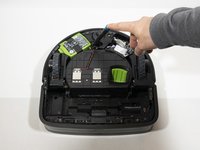
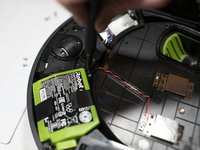
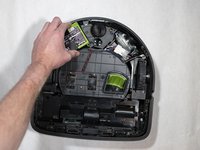
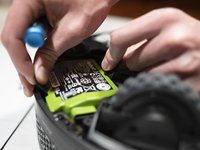
Go to step 1 ↓When the iRobot Roomba S9 Plus does not turn on or dies quickly, the battery will need to be replaced. If your battery module requires replacement, this guide will help you with the process. Check out our troubleshooting guide for other possible causes.
Remember to throw away your broken battery by going to a local tech store or check online to find the proper way to dispose of it.
What you need
Tools

-
-
-
Using a Phillips #2 screwdriver, loosen the four screws in the bottom cover of the vacuum.
 Ask FixBot
-
-
-




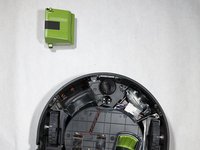
To reassemble your device, follow these instructions in reverse order.
Cancel: I did not complete this guide.
7 other people completed this guide.

Team

Cal Poly, Team S18-G3, White Winter 2020 Member of Cal Poly, Team S18-G3, White Winter 2020
CPSU-WHITE-W20S18G3
4 Members
96 Guides authored
