What you need
-
-
-
Prompt to boot and we see that the current jumps to 1.9 AMPs and hangs out.
-
That is a short circuit.
 Ask FixBot
-
-
-
Diode mode around (red probe on ground) to find the line that is short.
-
Don't fall in love with the cap that you find that shows you the shorted line. It doesn't mean that it is the cause of the shorted line, though it could be.
-
If the line is short anywhere, the line is short everywhere.
-
-
-
-
This line is short, it looks alot like our 3PV0 Nand Power line that drives power for the Nand chip in every phone.
-
That is a common line for shorts.
-
Now determine which of these components on the line are the cause of the short.
-
-
-
Connect with DC power (make note of the connector direction for the 13 on the squid)
-
Prompt to boot and look for heat near the NAND chip.
-
That cap is the cause of the short.
-
-
-
Remove the black coating from the shorted cap.
-
Check the measurement, it is indeed measuring low resistance to ground.
-
Safest way to remove this cap is to use the iPad Rehab Short Killer and pop that cap off.
-
Check the line to make sure the short was removed.
-
-
-
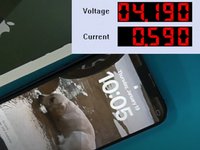
Prompt to boot.
-
DC power looks normal, screen boots with touch.
-
-



To reassemble your device, follow these instructions in reverse order.
Cancel: I did not complete this guide.
6 other people completed this guide.


