
eufy Security SpaceView Monitor Charging Port Replacement

Marcelo Monteiro and one other contributor
Last updated on Dec 29, 2023
Views: 2.2K
View statistics:
- Past 24 Hours:
- 1
- Past 7 Days:
- 15
- Past 30 Days:
- 104
- All Time:
- 2,209
Comments: 0
No one has left comments on this guide. Will you be first?
Go to guide commentsCompleted: 1 2
1 person has marked this guide "completed." Will you be next?
2 people have marked this guide "completed." Including you — great job!
Favorites: 0 1
No one has favorited (and subscribed to) this guide. Will you be the first?
1 person has favorited (and subscribed to) this guide — and that's you!
Student In Progress
This guide is being worked on by hardworking students.
Introduction
Go to step 1 ↓This is a guide on replacing the charging port on your Eufy SpaceView Baby Monitor. This step-by-step guide will take you through the process of the replacement.
What you need
Tools


-
-
-
Use an opening tool to press into the opening notches built into the lower portion of the display.
-
The sides of the display each have two notches, while the top has 3 notches, and the bottom has 4 respectively.
-
Using the given tools, ensure that the tool enters the space of the opening notches, and apply force downwards, prying that specific part up and away from the housing.
-
Repeat for all sides and notches, until the display is completely detached from the rest of the monitor.
 Ask FixBot
-
-
-
-
-
Lay the display face down on a table, to expose the back of the screen.
-
Use Phillips #00 screwdriver to unscrew each of the six screws that hold the display in place.
-
-
-
Gently lift the display housing, and set it aside.
-
The housing is ready to have the new display installed.
-
-
-
Gently disconnect the ribbon connector from the motherboard, taking care not to damage it.
-
-
-
-
-
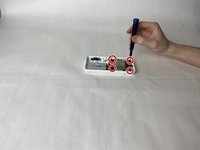
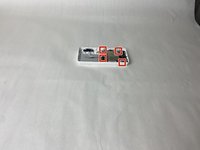
Using a Phillips #00 screwdriver, unscrew the 4 retaining screws in each corner of the motherboard.
-
-
-
-
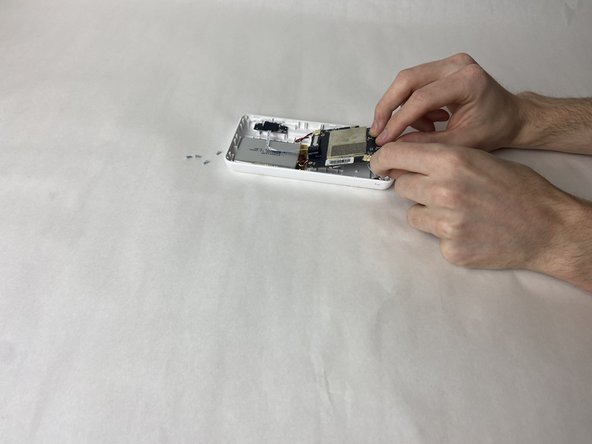
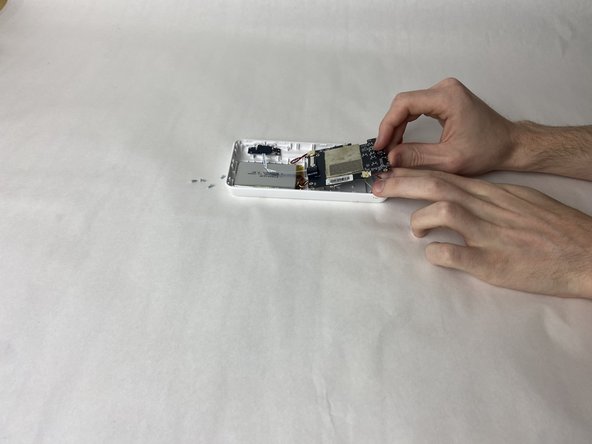
Starting with either red/black wired connector on, gently pull it from its receptor and set it aside.
-
Pull the white ribbon connector from the motherboard, on the side closest to the battery.
-
Lift the motherboard and disconnect the antenna connector from its port.
-
-
-


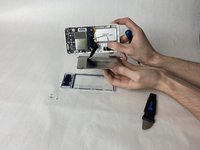
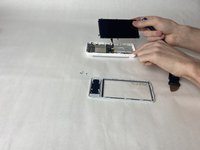


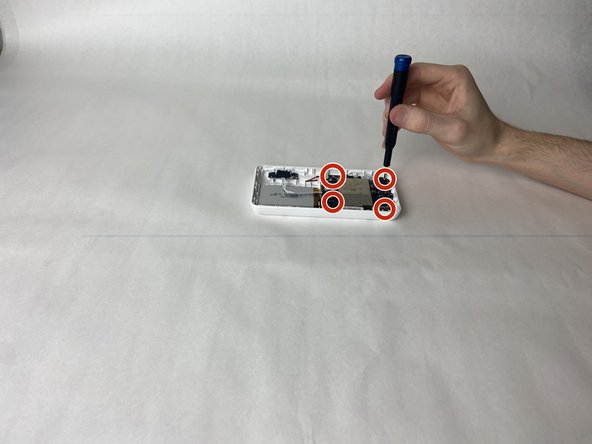

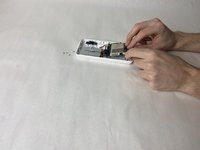
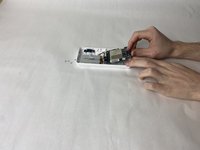

To reassemble your device, follow these instructions in reverse order.
Cancel: I did not complete this guide.
One other person completed this guide.

Team

UMass Dartmouth, Team 2-5, Gulbrandsen Fall 2023 Member of UMass Dartmouth, Team 2-5, Gulbrandsen Fall 2023
UMASSD-GULBRANDSEN-F23S2G5
3 Members
72 Guides authored
