Free Shipping on Domestic Orders $75+

bObi Robotic Vacuum Power Switch Replacement

What you need

  1. bObi Robotic Vacuum Power Switch Replacement, Top Cover: step 1, image 1 of 2 bObi Robotic Vacuum Power Switch Replacement, Top Cover: step 1, image 2 of 2
    • Remove bObi’s front wheel to access one of the screws holding bObi together.

    • Make sure the wheel is turned closer to bObi's front touch sensors. Use your screwdriver for leverage, and the wheel will pop up and out.

    • Uninstall the larger screw that sits deeper in the wheel compartment.

    Ask FixBot

    Add Comment

  2. bObi Robotic Vacuum Power Switch Replacement: step 2, image 1 of 3 bObi Robotic Vacuum Power Switch Replacement: step 2, image 2 of 3 bObi Robotic Vacuum Power Switch Replacement: step 2, image 3 of 3
    • Remove bObi's dustbin.

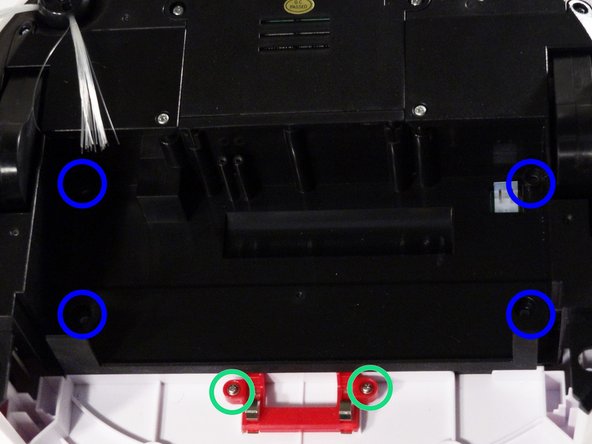
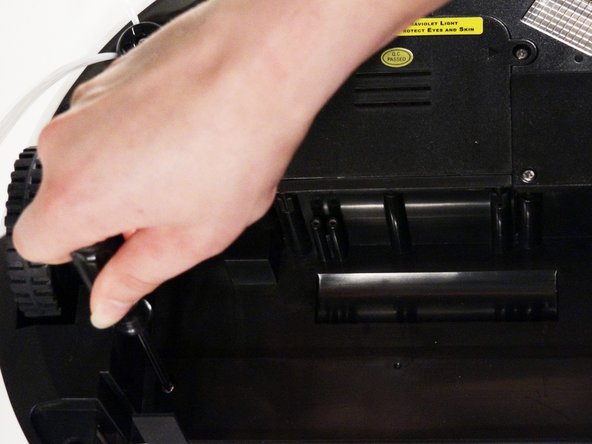
    • Uninstall the 2 screws close to the bin and 2 smaller screws above her main brushes.

    Ask FixBot

    Add Comment

  3. bObi Robotic Vacuum Power Switch Replacement: step 3, image 1 of 3 bObi Robotic Vacuum Power Switch Replacement: step 3, image 2 of 3 bObi Robotic Vacuum Power Switch Replacement: step 3, image 3 of 3
    • Lift the brush holder. To detach completely, unplug it from bObi.

    • Remove the two screws on the dustbin contact point holder inside bObi.

    • There are 4 screws beneath the main brushes. Uninstall these, and open bObi up to expose her main circuit board.

    Ask FixBot

    Add Comment

  4. bObi Robotic Vacuum Power Switch Replacement: step 4, image 1 of 3 bObi Robotic Vacuum Power Switch Replacement: step 4, image 2 of 3 bObi Robotic Vacuum Power Switch Replacement: step 4, image 3 of 3
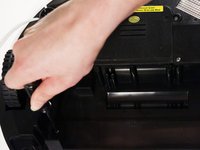
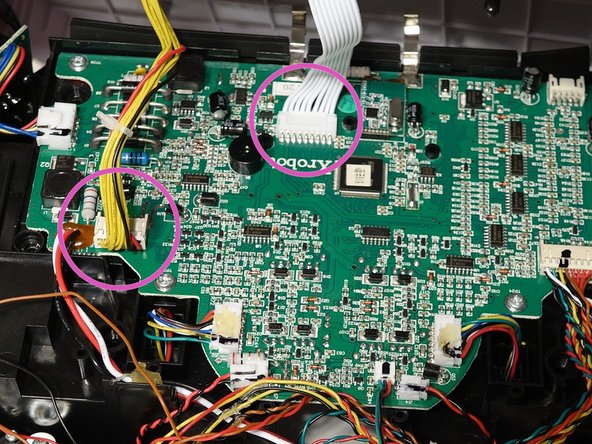
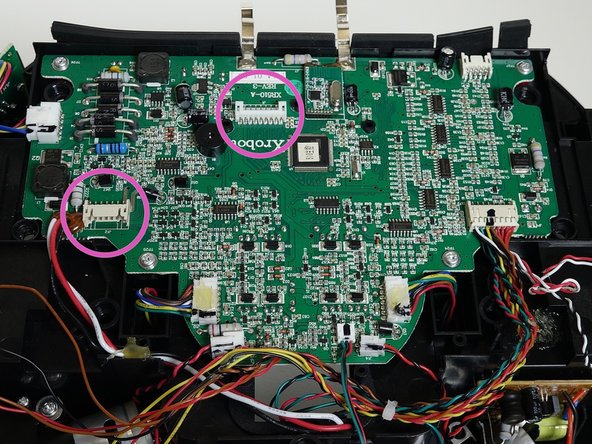
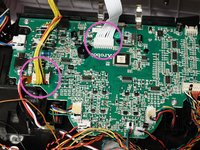
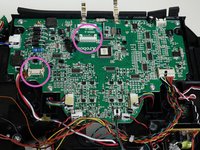
    • Detach the two circuit plugs connecting bObi's cover to the main board and the cover will be completely removed.

    Ask FixBot

    Add Comment

  5. bObi Robotic Vacuum Power Switch Replacement, Power Switch: step 5, image 1 of 3 bObi Robotic Vacuum Power Switch Replacement, Power Switch: step 5, image 2 of 3 bObi Robotic Vacuum Power Switch Replacement, Power Switch: step 5, image 3 of 3
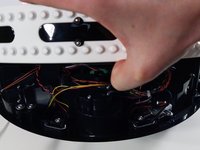
    • Slide the power switch up and out of its holder.

    • Unplug its wires from the main board.

    Ask FixBot

    Add Comment

  6. bObi Robotic Vacuum Power Switch Replacement: step 6, image 1 of 3 bObi Robotic Vacuum Power Switch Replacement: step 6, image 2 of 3 bObi Robotic Vacuum Power Switch Replacement: step 6, image 3 of 3
    • Slide the new power switch into the holders on bObi.

    • Plug it in to the main board and begin closing bObi up. For steps on how to close bObi, see Closing bObi's Cover Post-Repair

    Ask FixBot

    Add Comment

Conclusion

To reassemble your device, follow the guide on closing bObi Closing bObi's Cover Post-Repair

Cancel: I did not complete this guide.

Chelsea

Member since: 09/24/14

2,278 Reputation

31 Guides authored

0 Guide Comments

Add Comment

View Statistics:

Past 24 Hours: 2

Past 7 Days: 6

Past 30 Days: 29

All Time: 544