Free Shipping on Domestic Orders $75+

ZTE ZMAX Z970 Screen Replacement

What you need

  1. ZTE ZMAX Z970 Screen Replacement, Battery: step 1, image 1 of 2 ZTE ZMAX Z970 Screen Replacement, Battery: step 1, image 2 of 2
    • Insert a fine point tool into the hole on the top left side of the phone to remove the SIM and SD card trays.

    • Pull out the trays.

    Ask FixBot

    Add Comment

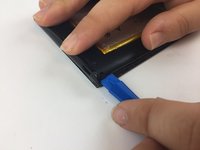
  2. ZTE ZMAX Z970 Screen Replacement: step 2, image 1 of 2 ZTE ZMAX Z970 Screen Replacement: step 2, image 2 of 2
    • Insert a plastic opening tool into the groove between the phone’s back cover and casing.

    • Move the plastic opening tool along the edges of the phone to unclip the two pieces.

    Ask FixBot

    Add Comment

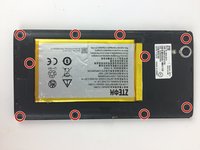
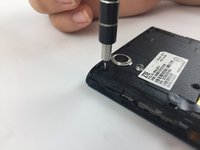
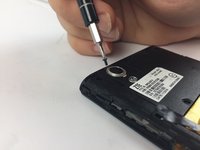
  3. ZTE ZMAX Z970 Screen Replacement: step 3, image 1 of 3 ZTE ZMAX Z970 Screen Replacement: step 3, image 2 of 3 ZTE ZMAX Z970 Screen Replacement: step 3, image 3 of 3
    • Remove the ten 1.2mm screws with a Phillips #000 screwdriver.

    Ask FixBot

    Add Comment

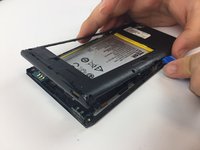
  4. ZTE ZMAX Z970 Screen Replacement: step 4, image 1 of 2 ZTE ZMAX Z970 Screen Replacement: step 4, image 2 of 2
    • Remove the mid frame with the plastic opening tool.

    Ask FixBot

    Add Comment

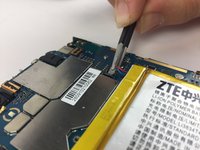
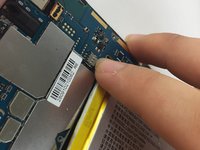
  5. ZTE ZMAX Z970 Screen Replacement: step 5, image 1 of 2 ZTE ZMAX Z970 Screen Replacement: step 5, image 2 of 2
    • Disconnect the battery from the motherboard.

    Ask FixBot

    Add Comment

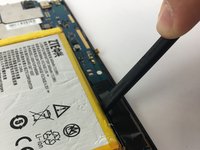
  6. ZTE ZMAX Z970 Screen Replacement: step 6, image 1 of 2 ZTE ZMAX Z970 Screen Replacement: step 6, image 2 of 2
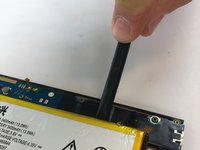
    • Wedge a spudger underneath the battery and gently pry upwards to remove the battery.

    • Once free from the glue, remove from device.

    • The glue holding down the battery is strong so work slow and cautiously to avoid starting a fire.

    Ask FixBot

    Add Comment

  7. ZTE ZMAX Z970 Screen Replacement, Screen: step 7, image 1 of 1
    • Heat up the iOpener for 30 seconds and place on top of the phone for 2 minutes.

    Ask FixBot

    Add Comment

  8. ZTE ZMAX Z970 Screen Replacement: step 8, image 1 of 1
    • Wedge the opening picks into all the corners of the phone and lift until the screen comes off.

    Ask FixBot

    Add Comment

Conclusion

To reassemble your device, follow these instructions in reverse order.

Cancel: I did not complete this guide.

Ismail Jhaveri

Member since: 02/15/18

159 Reputation

1 Guide authored

Team

USF Tampa, Team S17-G3, Boczar Spring 2018 Member of USF Tampa, Team S17-G3, Boczar Spring 2018

USFT-BOCZAR-S18S17G3

3 Members

10 Guides authored

0 Guide Comments

Add Comment

View Statistics:

Past 24 Hours: 1

Past 7 Days: 7

Past 30 Days: 39

All Time: 1,544