
ZTE ZFive G LTE Back Camera Replacement

Julian Mendoza and 3 other contributors
Last updated on May 7, 2024
Views: 673
View statistics:
- Past 24 Hours:
- 1
- Past 7 Days:
- 21
- Past 30 Days:
- 76
- All Time:
- 673
Comments: 0
No one has left comments on this guide. Will you be first?
Go to guide commentsCompleted: 0 1
No one has marked this guide "completed." Will you be the first?
1 person has marked this guide "completed." It's you — great job!
Favorites: 0 1
No one has favorited (and subscribed to) this guide. Will you be the first?
1 person has favorited (and subscribed to) this guide — and that's you!
Introduction
Go to step 1 ↓If the camera seems cracked and/or not functioning, this is a quick guide on how to remove the existing camera.
What you need
Tools


-
-
-
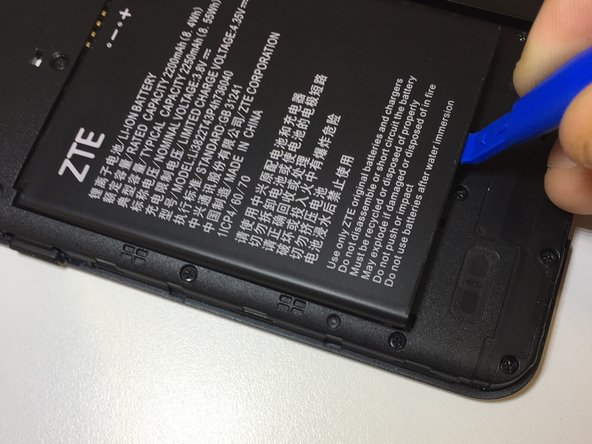
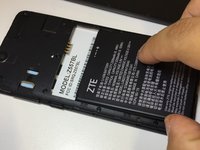
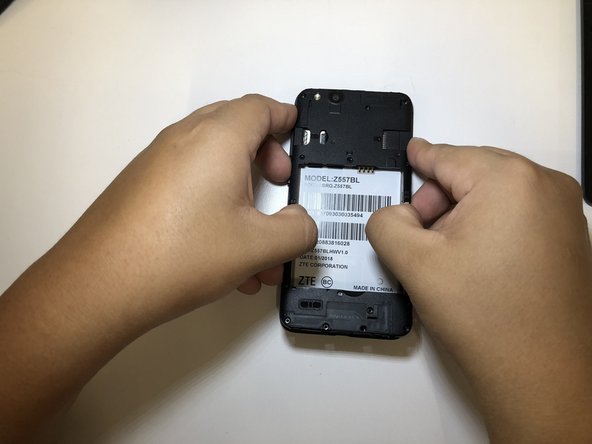
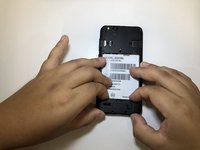
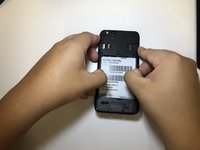
Pry open back cover of the device from the crease at the bottom left corner with an opening tool or fingernail.
 Ask FixBot
-
-
-
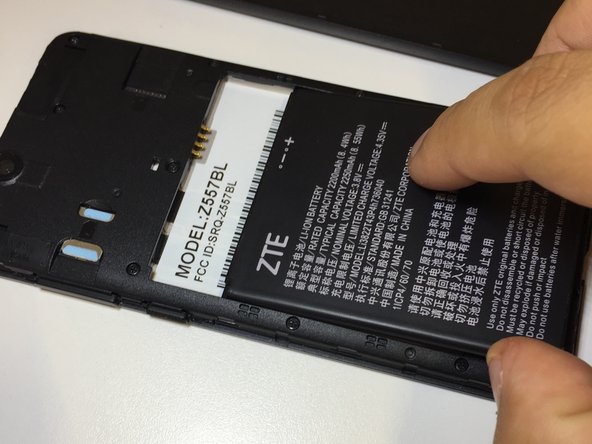
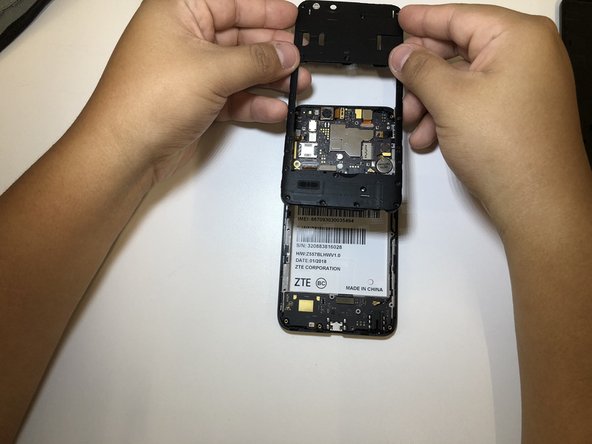
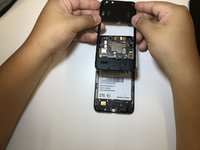
Gently pry open the device body by tugging from the inside out, be sure to pull up and away from device.
-
-
-
-
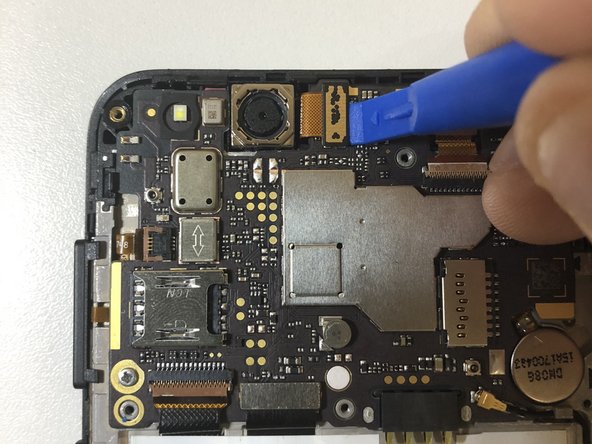
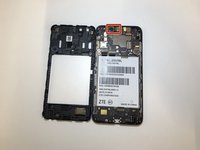
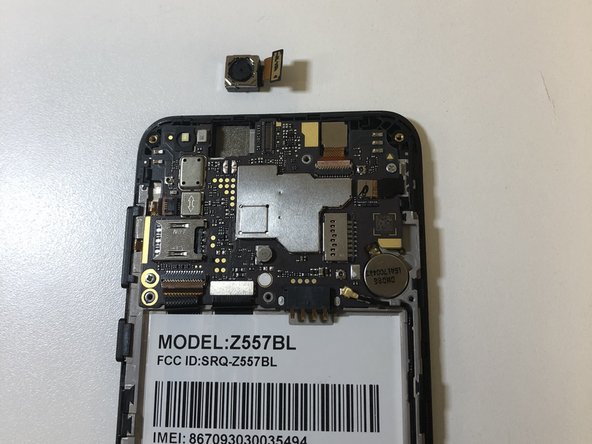
Once body is removed, back-facing camera is placed at the top left corner of device.
-
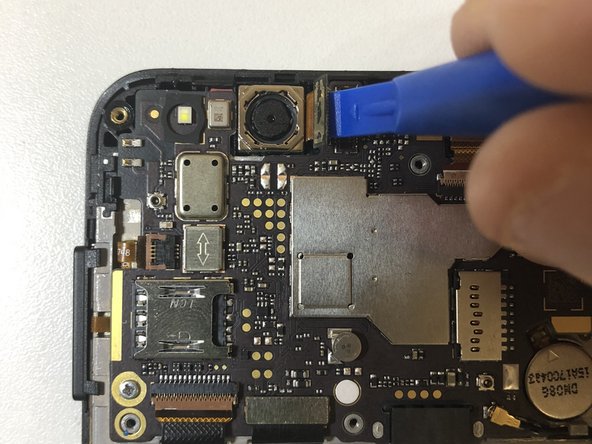
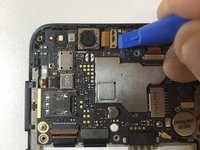
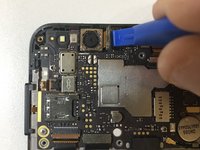
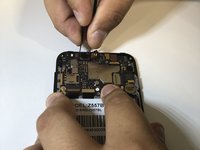
Using an opening tool, pull up the tab of the camera wire ribbon.
-
-
Tool used on this step:Tweezers$4.99
-
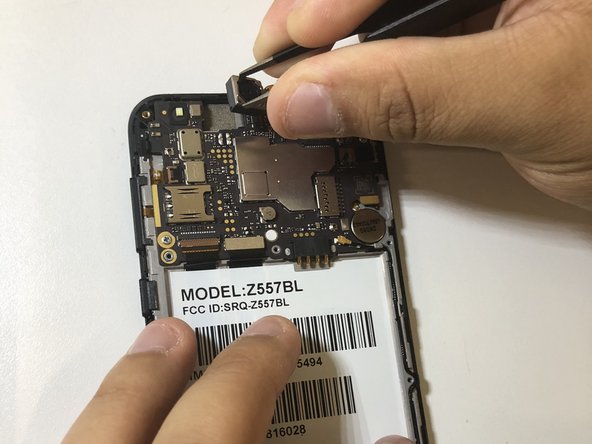
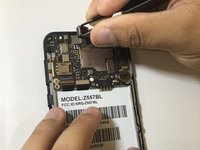
Using the blunt-nose tweezers, tug at the camera gently, switching sides to remove adhesive little by little, pull camera out gently.
-
-






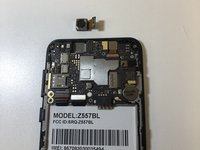
To reassemble your device, follow these instructions in reverse order.

Team

University of North Texas, Team S1-G1, Riccardelli Fall 2018 Member of University of North Texas, Team S1-G1, Riccardelli Fall 2018
UNT-RICCARDELLI-F18S1G1
4 Members
60 Guides authored
