Free Shipping on Domestic Orders $75+

ZTE Lever Rear Camera Replacement

What you need

  1. ZTE Lever Rear Camera Replacement, Battery: step 1, image 1 of 1
    • Remove the SD card and the Sim card from the device.

    • The Sim and SD cards are not shown here as our device did not come with them.

    Ask FixBot

    Add Comment

  2. ZTE Lever Rear Camera Replacement: step 2, image 1 of 2 ZTE Lever Rear Camera Replacement: step 2, image 2 of 2
    • Use an iFixit opening tool to separate the back from the device.

    Ask FixBot

    Add Comment

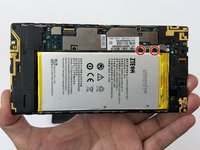
  3. ZTE Lever Rear Camera Replacement: step 3, image 1 of 2 ZTE Lever Rear Camera Replacement: step 3, image 2 of 2
    • Remove the two 1.6mm Phillips #0 screws from the battery plug cover.

    • Remove the cover.

    Ask FixBot

    Add Comment

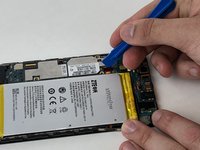
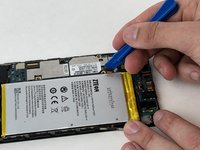
  4. ZTE Lever Rear Camera Replacement: step 4, image 1 of 2 ZTE Lever Rear Camera Replacement: step 4, image 2 of 2
    • Disconnect the battery cable from the motherboard with a plastic opening tool.

    Ask FixBot

    Add Comment

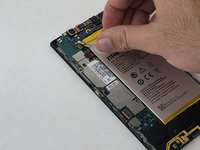
  5. ZTE Lever Rear Camera Replacement: step 5, image 1 of 1
    • Use your hands, or a plastic opening tool, to pry the battery from the phone.

    Ask FixBot

    Add Comment

  6. ZTE Lever Rear Camera Replacement, Rear Camera: step 6, image 1 of 1
    • Remove the three 1.6mm Phillips #0 screws from the plastic cover on the motherboard.

    Ask FixBot

    Add Comment

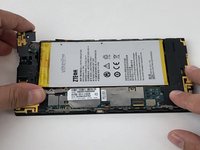
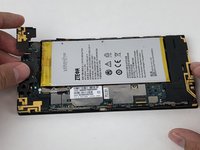
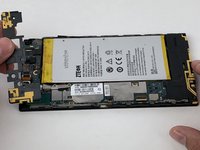
  7. ZTE Lever Rear Camera Replacement: step 7, image 1 of 3 ZTE Lever Rear Camera Replacement: step 7, image 2 of 3 ZTE Lever Rear Camera Replacement: step 7, image 3 of 3
    • Remove the top plastic motherboard cover using a plastic opening tool.

    Ask FixBot

    Add Comment

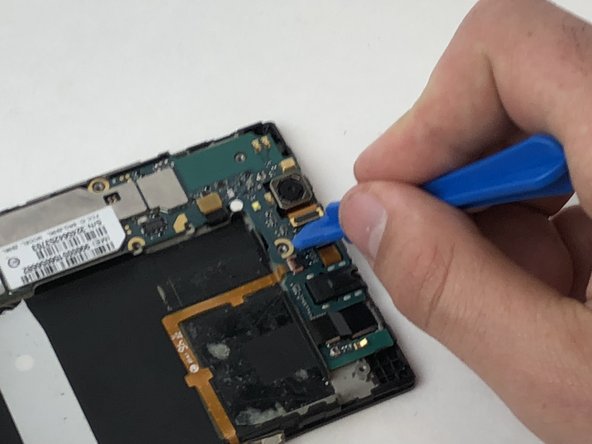
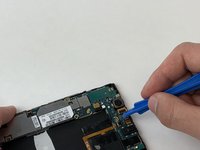
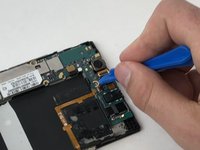
  8. ZTE Lever Rear Camera Replacement: step 8, image 1 of 2 ZTE Lever Rear Camera Replacement: step 8, image 2 of 2
    • Using a plastic opening tool, disconnect the camera from the motherboard.

    Ask FixBot

    Add Comment

  9. ZTE Lever Rear Camera Replacement: step 9, image 1 of 1
    • Remove the camera from the phone.

    Ask FixBot

    Add Comment

Conclusion

To reassemble your device, follow these instructions in reverse order.

Cancel: I did not complete this guide.

Michael Gonzalez

Member since: 01/29/18

501 Reputation

4 Guides authored

Team

USF Tampa, Team S5-G2, Passmore Spring 2018 Member of USF Tampa, Team S5-G2, Passmore Spring 2018

USFT-PASSMORE-S18S5G2

3 Members

12 Guides authored

0 Guide Comments

Add Comment

View Statistics:

Past 24 Hours: 1

Past 7 Days: 7

Past 30 Days: 35

All Time: 352