Free Shipping on Domestic Orders $75+

ZTE Lever Motherboard Replacement

What you need

    1. ZTE Lever Motherboard Replacement, Battery: step 1, image 1 of 1
      • Remove the SD card and the Sim card from the device.

      • The Sim and SD cards are not shown here as our device did not come with them.

      Ask FixBot

      Add Comment

    2. ZTE Lever Motherboard Replacement: step 2, image 1 of 2 ZTE Lever Motherboard Replacement: step 2, image 2 of 2
      • Use an iFixit opening tool to separate the back from the device.

      Ask FixBot

      Add Comment

    3. ZTE Lever Motherboard Replacement: step 3, image 1 of 2 ZTE Lever Motherboard Replacement: step 3, image 2 of 2
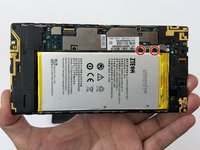
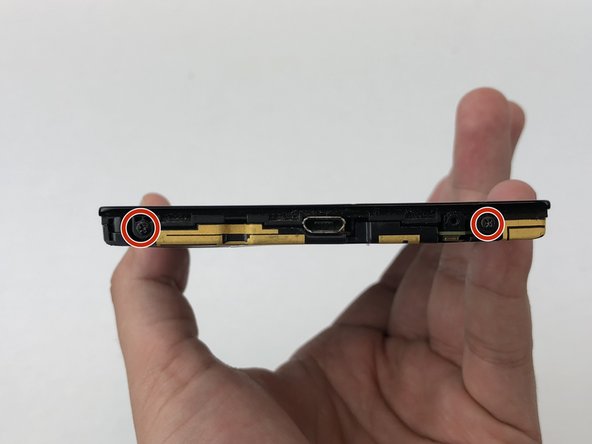
      • Remove the two 1.6mm Phillips #0 screws from the battery plug cover.

      • Remove the cover.

      Ask FixBot

      Add Comment

    4. ZTE Lever Motherboard Replacement: step 4, image 1 of 2 ZTE Lever Motherboard Replacement: step 4, image 2 of 2
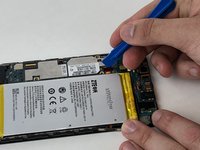
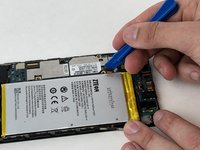
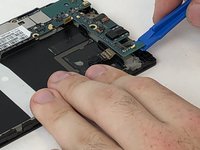
      • Disconnect the battery cable from the motherboard with a plastic opening tool.

      Ask FixBot
      Add Comment

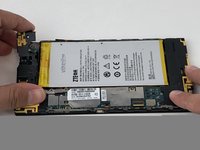
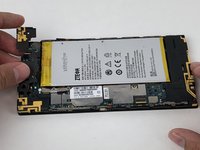
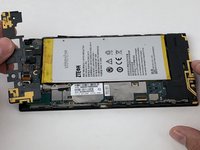
    5. ZTE Lever Motherboard Replacement: step 5, image 1 of 1
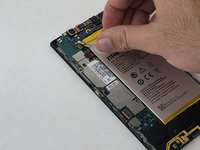
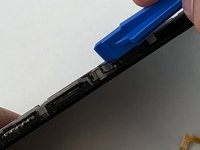
      • Use your hands, or a plastic opening tool, to pry the battery from the phone.

      Ask FixBot
      Add Comment

    1. ZTE Lever Motherboard Replacement, Volume Buttons: step 6, image 1 of 1
      • Remove the three 1.6mm Phillips #0 screws from the plastic cover on the motherboard.

      Ask FixBot

      Add Comment

    2. ZTE Lever Motherboard Replacement: step 7, image 1 of 3 ZTE Lever Motherboard Replacement: step 7, image 2 of 3 ZTE Lever Motherboard Replacement: step 7, image 3 of 3
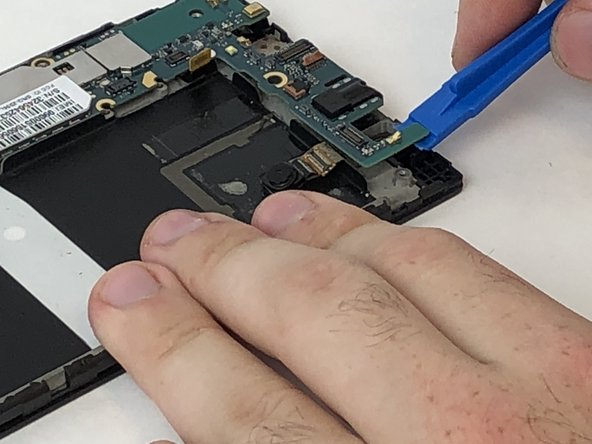
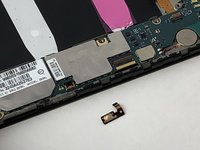
      • Remove the top plastic motherboard cover using a plastic opening tool.

      Ask FixBot
      Add Comment

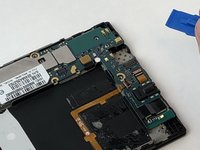
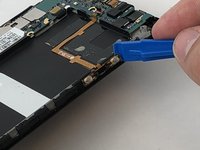
    3. ZTE Lever Motherboard Replacement: step 8, image 1 of 2 ZTE Lever Motherboard Replacement: step 8, image 2 of 2
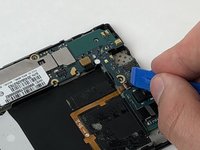
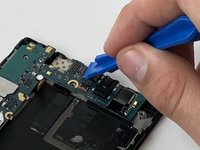
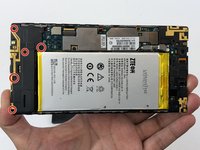
      • Use a plastic opening tool to flip up the retaining flap on the volume ribbon cable ZIF socket.

      Ask FixBot
      Add Comment

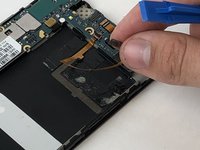
    4. ZTE Lever Motherboard Replacement: step 9, image 1 of 2 ZTE Lever Motherboard Replacement: step 9, image 2 of 2
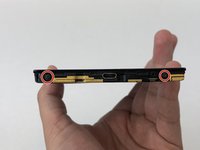
      • Peel up the volume button cable from the phone with hands, or plastic opening tool.

      Ask FixBot
      Add Comment

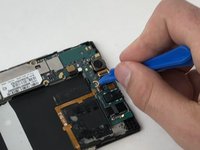
    1. ZTE Lever Motherboard Replacement, Power Button: step 10, image 1 of 1
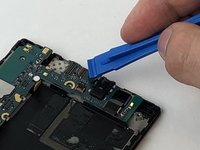
      • Disconnect the power button from the motherboard with a plastic opening tool.

      Ask FixBot

      Add Comment

    2. ZTE Lever Motherboard Replacement: step 11, image 1 of 2 ZTE Lever Motherboard Replacement: step 11, image 2 of 2
      • Peel the power button cable up from the phone with you hands, or a plastic opening tool.

      Ask FixBot

      Add Comment

    1. ZTE Lever Motherboard Replacement, Motherboard: step 12, image 1 of 2 ZTE Lever Motherboard Replacement, Motherboard: step 12, image 2 of 2
      • Remove the seven 1.6mm Phillips #0 screws from the plastic cover on the bottom of the motherboard.

      Ask FixBot

      Add Comment

    2. ZTE Lever Motherboard Replacement: step 13, image 1 of 1
      • Remove the bottom plastic motherboard cover with your fingers

      Ask FixBot

      Add Comment

    3. ZTE Lever Motherboard Replacement: step 14, image 1 of 2 ZTE Lever Motherboard Replacement: step 14, image 2 of 2
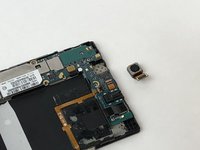
      • Disconnect the camera from the motherboard with a plastic opening tool.

      Ask FixBot

      Add Comment

    4. ZTE Lever Motherboard Replacement: step 15, image 1 of 1
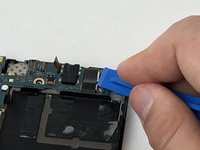
      • Disconnect the display cable from the motherboard with a plastic opening tool.

      Ask FixBot

      Add Comment

    5. ZTE Lever Motherboard Replacement: step 16, image 1 of 3 ZTE Lever Motherboard Replacement: step 16, image 2 of 3 ZTE Lever Motherboard Replacement: step 16, image 3 of 3
      • Disconnect the camera from the motherboard with a plastic opening tool.

      Ask FixBot

      Add Comment

    6. ZTE Lever Motherboard Replacement: step 17, image 1 of 1
      • Disconnect the rear speaker cable from the motherboard with a plastic opening tool.

      Ask FixBot

      Add Comment

    7. ZTE Lever Motherboard Replacement: step 18, image 1 of 1
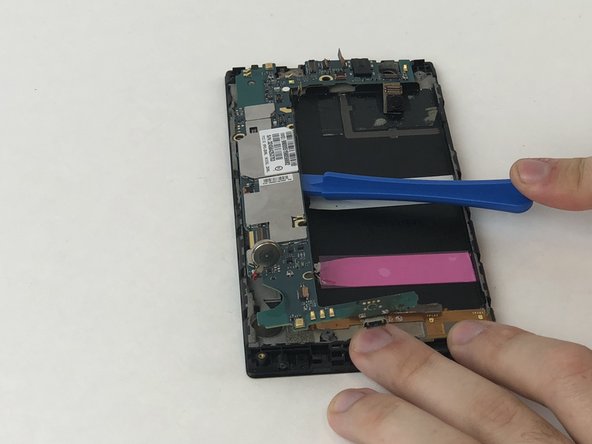
      • Pry the motherboard cell battery from its position on the case of the phone

      Ask FixBot

      Add Comment

    8. ZTE Lever Motherboard Replacement: step 19, image 1 of 3 ZTE Lever Motherboard Replacement: step 19, image 2 of 3 ZTE Lever Motherboard Replacement: step 19, image 3 of 3
      • Using the plastic opening tool, pry the motherboard up, sliding along the edge to separate the pieces.

      Ask FixBot

      Add Comment

    9. ZTE Lever Motherboard Replacement: step 20, image 1 of 1
      • Remove the motherboard with your fingers.

      Ask FixBot

      Add Comment

Conclusion

To reassemble your device, follow these instructions in reverse order.

Cancel: I did not complete this guide.

Luke Kilbourne

Member since: 01/29/18

294 Reputation

2 Guides authored

Team

USF Tampa, Team S5-G2, Passmore Spring 2018 Member of USF Tampa, Team S5-G2, Passmore Spring 2018

USFT-PASSMORE-S18S5G2

3 Members

72 Guides authored

1 Guide Comment

Those are excellent instructions but I need to know where at on the motherboard is the internal memory storage cuz my phone is so screwed up that it won't charge or turn on or anything lol,so I got a different phone n got my SD card out of the ZTE n put in my new phone and there are some pics that I really need,but I was wondering if there was any way possible that I could put the SD card back in the ZTE motherboard and some how move the pics onto my SD card so I can have them on my new phone.This is killing my brain on trying to think of ways to succeed n can't please get back to me,,,thanks.

-ROGER-

Roger Knight - Reply Share

Add Comment

View Statistics:

Past 24 Hours: 0

Past 7 Days: 5

Past 30 Days: 32

All Time: 744