
ZTE Blade Z Max Side Mounted Buttons Replacement

Ronald Weimar and 4 other contributors
Last updated on May 7, 2024
Views: 2.3K
View statistics:
- Past 24 Hours:
- 1
- Past 7 Days:
- 23
- Past 30 Days:
- 76
- All Time:
- 2,344
Comments: 10
7 comments on steps, 3 guide comments.
Go to guide commentsCompleted: 5 6
5 people have marked this guide "completed." Will you be next?
6 people have marked this guide "completed." Including you — great job!
Favorites: 1 2
1 person has favorited (and subscribed to) this guide. Will you be next?
2 people have favorited (and subscribed to) this guide — including you!
Introduction
Go to step 1 ↓The volume and power buttons are connected to the same ribbon cable. If just one of the three buttons fails, you will have to replace all three in order to fix it.
What you need


-
-
-
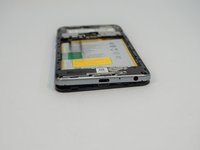
Turn the device on it side with the buttons away from you.
-
Using the SIM Card Eject Tool, insert the narrow end into the ejection hole.
-
Press firmly into the hole until the SIM card tray pops out far enough to grab with your fingers.
 Ask FixBot
-
-
-
-
-
Remove the one T2 screw from the side of the phone near where the SIM card tray was.
-
-
-
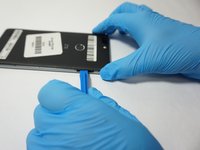
Insert a plastic opening tool into the space where the SIM card tray used to be.
-
Gently pry the back away form the phone frame until you hear and audible click of the back separating.
-
-
-
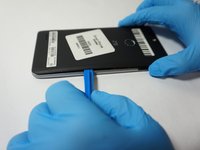
Insert the plastic opening tool into the space you created between the phone back and frame.
-
Slide the plastic opening tool along the outside of the phone, underneath the back, to separate the rest of the clips holding the back onto the frame.
-
-
-
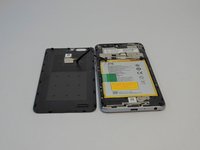
Rotate the back over to the side, being careful not to damage the fingerprint sensor ribbon cable.
-
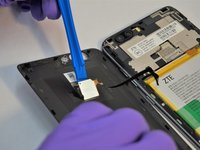
Use a plastic opening tool to separate the fingerprint sensor from the back of the phone.
-
Set the phone back aside.
-
-
-
Remove the 6 silver 2.9mm screws from the back of the phone with a JIS #000 bit.
-
Remove the 11 black 3.5mm screws with the same JIS #000 bit.
-
-
-
Turn the phone over, with the screen up.
-
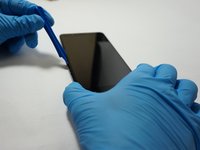
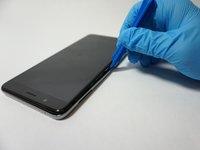
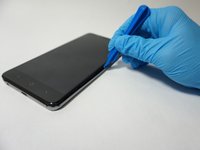
Insert the opening tool between the screen and the silver trim that surrounds it.
-
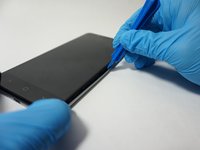
Run the plastic opening tool around the circumference of the phone to separate the clips of that hold the trim to the frame.
-
-
-
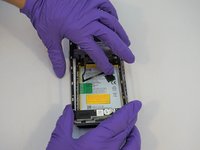
Turn the phone back over, with the screen down.
-
Lift the trim piece off of the phone and set aside.
-
-
-
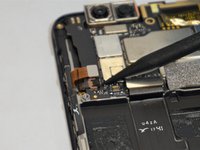
Using a plastic opening tool, separate the fingerprint ribbon connector from the motherboard.
-
-
-
-
-
Tool used on this step:Tweezers$4.99
-
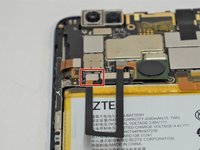
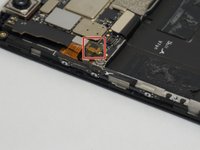
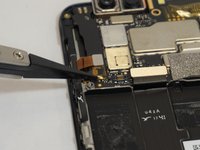
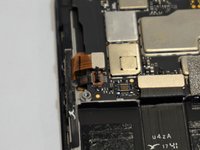
Using a set of tweezers, pull off the small piece of tape on top of the ribbon cable connector on the left side of the motherboard.
-
-
-
Use a plastic opening tool or spudger to scrape the glue away from the ribbon cable.
-
-
-
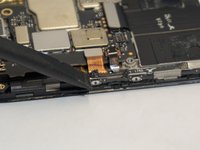
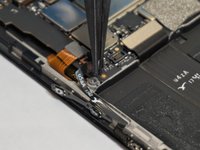
Using a plastic opening tool or spudger, open the zip connection by prying up on the right (black) side of the connector.
-
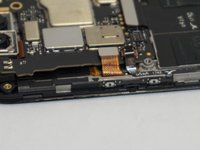
Using the tweezers, carefully pull the the ribbon cable out of the connector.
-
-
-
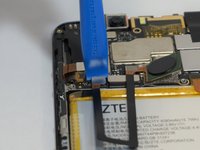
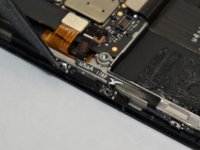
Using a plastic opening tool or tweezers, pry the edge of the button strip away from the phone.
-
Once all of the buttons are free, the whole assembly should simply lift out.
-
-




















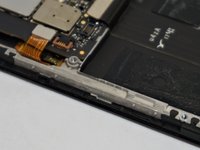
To reassemble your device, follow these instructions in reverse order.
Cancel: I did not complete this guide.
5 other people completed this guide.

Team

The Citadel Military College of South Carolina, Team S3-G7, Eggleston Fall 2018 Member of The Citadel Military College of South Carolina, Team S3-G7, Eggleston Fall 2018
CMCSC-EGGLESTON-F18S3G7
4 Members
72 Guides authored
3 Guide Comments
can you do a videomplz
I need help. When I plug the charger in it would turn on but since the power button was broken I had to buy a new one and today I had received it. Now I did everything correctly however, on step 14 I didn't use tweezers since I didn't have any to remove the ribbon and the ribbon didn't get affected but on top where the ribbon goes in at broke. It should still turn on. So I put everything back and put the charger in and it charges but it doesn't show that it's charging now. And whenever I hold the power button the light twitches but the phone doesn't turn on or even show the percent of the battery which never did that until now. Did I do something wrong? Current trying to redo everything.
I can’t believe I was able to fix this thing! Amazing. Ordered the button, took it apart with my kit and rebuilt it. Not to mention I took apart my Mac ProBook and fixed that too!! Apple Store - It’s hopeless, your data is gone forever. Get a new machine. Best Buy - It’s hopeless, your data is gone forever. Get a new machine.
Nope!
