Free Shipping on Domestic Orders $75+

ZTE Blade X Max LCD Replacement

What you need

  1. ZTE Blade X Max LCD Replacement, Back Cover: step 1, image 1 of 2 ZTE Blade X Max LCD Replacement, Back Cover: step 1, image 2 of 2
    • Use the iOpener or heating pad to heat around the edges of the phone to melt the adhesive.

    • It will take about ten minutes for the adhesive to be heated enough to remove the backing.

    • You will have to reheat the iOpener or heating pad a few times.

    Ask FixBot

    Add Comment

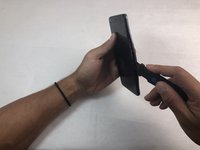
  2. ZTE Blade X Max LCD Replacement: step 2, image 1 of 3 ZTE Blade X Max LCD Replacement: step 2, image 2 of 3 ZTE Blade X Max LCD Replacement: step 2, image 3 of 3
    • Slide the Jimmy along the under backing and lightly push the plastic up.

    • You will hear a snapping sound as you slide the Jimmy along the backing. This is from the closures releasing. There should be seven total closures on either side of the device, and three on the top and bottom.

    Ask FixBot

    Add Comment

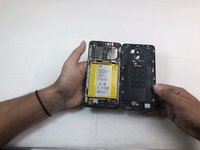
  3. ZTE Blade X Max LCD Replacement: step 3, image 1 of 1
    • Carefully remove the backing from the phone once the closures are released.

    • If you do not open all of the closures on the backing do not attempt to pry it off.

    • Be careful when opening the back of the phone. The fingerprint scanner is connected by a thin film that will tear if pulled too roughly.

    Ask FixBot

    Add Comment

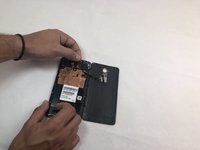
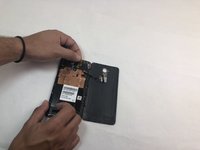
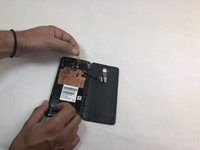
  4. ZTE Blade X Max LCD Replacement: step 4, image 1 of 3 ZTE Blade X Max LCD Replacement: step 4, image 2 of 3 ZTE Blade X Max LCD Replacement: step 4, image 3 of 3
    • Remove the opaque yellow sticker that indicates where the fingerprint scanner is connected to the back of the device.

    Ask FixBot

    Add Comment

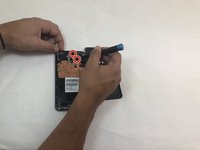
  5. ZTE Blade X Max LCD Replacement: step 5, image 1 of 3 ZTE Blade X Max LCD Replacement: step 5, image 2 of 3 ZTE Blade X Max LCD Replacement: step 5, image 3 of 3
    Tool used on this step:
    Tweezers
    $4.99
    Buy
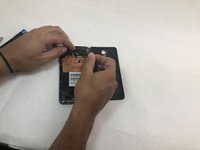
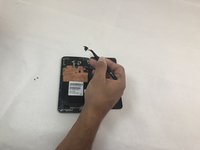
    • Remove the two 1mm Phillips #000 screws on the small panel that was underneath the sticker.

    • Use the tweezers to remove the panel.

    Ask FixBot

    Add Comment

  6. ZTE Blade X Max LCD Replacement: step 6, image 1 of 2 ZTE Blade X Max LCD Replacement: step 6, image 2 of 2
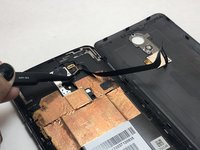
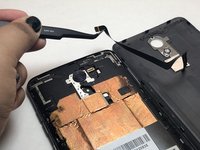
    • Use the tweezers to pull at the base of the film to remove the fingerprint scanner.

    Ask FixBot

    Add Comment

  7. ZTE Blade X Max LCD Replacement, Midframe: step 7, image 1 of 1
    • Remove the SD and SIM cards by pulling out the card tray from the slot on the right side of the device.

    Ask FixBot

    Add Comment

  8. ZTE Blade X Max LCD Replacement: step 8, image 1 of 3 ZTE Blade X Max LCD Replacement: step 8, image 2 of 3 ZTE Blade X Max LCD Replacement: step 8, image 3 of 3
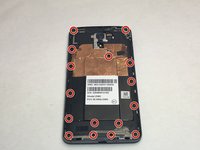
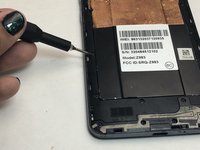
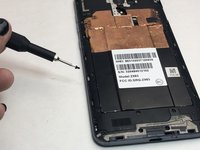
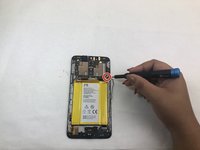
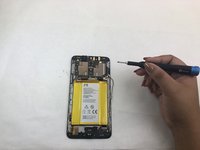
    • Remove the sixteen 1mm Phillips #000 screws from the midframe of the phone.

    Ask FixBot

    Add Comment

  9. ZTE Blade X Max LCD Replacement: step 9, image 1 of 3 ZTE Blade X Max LCD Replacement: step 9, image 2 of 3 ZTE Blade X Max LCD Replacement: step 9, image 3 of 3
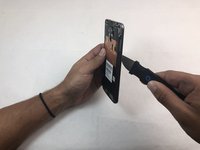
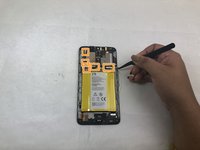
    • Use the Jimmy to remove the midframe from the device.

    Ask FixBot

    Add Comment

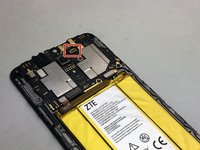
  10. ZTE Blade X Max LCD Replacement, Front Camera: step 10, image 1 of 3 ZTE Blade X Max LCD Replacement, Front Camera: step 10, image 2 of 3 ZTE Blade X Max LCD Replacement, Front Camera: step 10, image 3 of 3
    Tool used on this step:
    Tweezers
    $4.99
    Buy
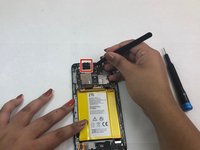
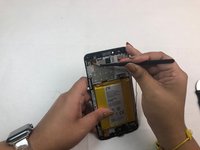
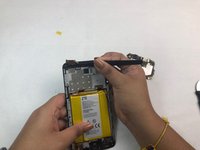
    • Once the motherboard is exposed, locate the front camera connection in the top right corner of the motherboard.

    • Use the tweezers to remove the front camera.

    Ask FixBot

    Add Comment

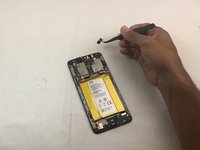
  11. ZTE Blade X Max LCD Replacement, Battery: step 11, image 1 of 1
    • Use the iOpener or heating pad to heat the phone. This will loosen the adhesive below the battery.

    • Do not apply the iOpener directly to the battery. Place the iOpener on the opposite side of the phone to indirectly melt the battery's adhesive.

    Ask FixBot

    Add Comment

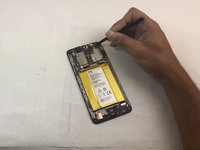
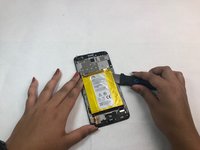
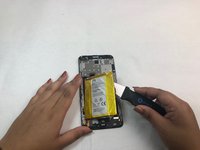
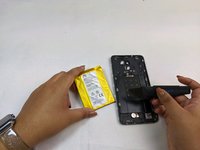
  12. ZTE Blade X Max LCD Replacement: step 12, image 1 of 3 ZTE Blade X Max LCD Replacement: step 12, image 2 of 3 ZTE Blade X Max LCD Replacement: step 12, image 3 of 3
    • Use the spudger to pry the battery out of its slot after it has been thoroughly heated.

    • If the adhesive is still strong, reheat the opposite side of the phone until you can easily remove the battery.

    Ask FixBot

    Add Comment

  13. ZTE Blade X Max LCD Replacement, Motherboard: step 13, image 1 of 3 ZTE Blade X Max LCD Replacement, Motherboard: step 13, image 2 of 3 ZTE Blade X Max LCD Replacement, Motherboard: step 13, image 3 of 3
    • Remove the single 1mm Phillips #000 screw from the motherboard.

    • Detach the five flat connectors.

    Ask FixBot

    Add Comment

  14. ZTE Blade X Max LCD Replacement: step 14, image 1 of 2 ZTE Blade X Max LCD Replacement: step 14, image 2 of 2
    Tool used on this step:
    Tweezers
    $4.99
    Buy
    • Use tweezers to remove the protective foam surrounding the headphone jack at the top left of the device.

    • The foam is attached with a thin layer of adhesive which is easy to remove.

    Ask FixBot

    Add Comment

  15. ZTE Blade X Max LCD Replacement: step 15, image 1 of 3 ZTE Blade X Max LCD Replacement: step 15, image 2 of 3 ZTE Blade X Max LCD Replacement: step 15, image 3 of 3
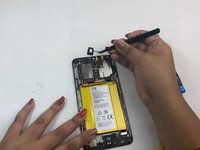
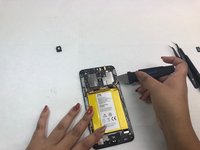
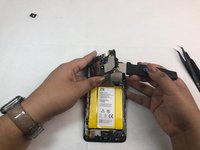
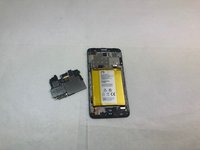
    • Use the Jimmy to pry the motherboard out of the phone.

    Ask FixBot

    Add Comment

  16. ZTE Blade X Max LCD Replacement, LCD: step 16, image 1 of 2 ZTE Blade X Max LCD Replacement, LCD: step 16, image 2 of 2
    Tool used on this step:
    Tweezers
    $4.99
    Buy
    • The LCD cable will be completely exposed once the motherboard is removed.

    • Use the tweezers to remove the protective sticker and the entire component.

    Ask FixBot

    Add Comment

  17. ZTE Blade X Max LCD Replacement: step 17, image 1 of 1
    • The LCD and its frame are now free to be replaced with a new component.

    Ask FixBot

    Add Comment

Conclusion

To reassemble your device, follow these instructions in reverse order.

Cancel: I did not complete this guide.

One other person completed this guide.

0 Guide Comments

Add Comment

View Statistics:

Past 24 Hours: 1

Past 7 Days: 19

Past 30 Days: 42

All Time: 1,143