Free Shipping on Domestic Orders $75+

YCCTEAM YCC-SW4001 Battery Replacement

Views: 734

View statistics:

Past 24 Hours:
1
Past 7 Days:
15
Past 30 Days:
59
All Time:
734
Comments: 2

2 comments on steps.

Completed: 0

No one has marked this guide "completed." Will you be the first?

Favorites: 0

No one has favorited (and subscribed to) this guide. Will you be the first?

Time Required: 30 minutes
Difficulty: Moderate
YCCTEAM YCC-SW4001 Battery Replacement

Introduction

Go to step 1 ↓

If your YCCTEAM YCC-SW4001 is not powering on or not charging, you can follow this guide to replace its battery. This requires removing most components from the back half of the controller, including the adhesive securing it in place.

The battery is important for providing power to the controller while the controller is not plugged in. Without the battery, your controller wont turn on. Before replacing the battery, check and make sure that whatever problem your having is caused by the status of the battery. This is important because the battery is attached to the controller using an adhesive. If you replace the battery, you should also replace the adhesive, as the battery is smaller than its designated compartment.

What you need

Tools

    1. YCCTEAM YCC-SW4001 Battery Replacement, Front Case: step 1, image 1 of 1
      • Use a Phillips screwdriver to remove the eight 9.15 mm screws that secure the rear case.

      Ask FixBot

      Add Comment

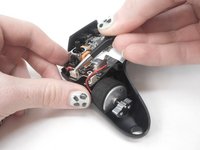
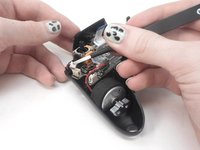
    2. YCCTEAM YCC-SW4001 Battery Replacement: step 2, image 1 of 3 YCCTEAM YCC-SW4001 Battery Replacement: step 2, image 2 of 3 YCCTEAM YCC-SW4001 Battery Replacement: step 2, image 3 of 3
      • Use an opening pick to pry the back cover off of the controller.

      Ask FixBot

      Add Comment

    3. YCCTEAM YCC-SW4001 Battery Replacement: step 3, image 1 of 1
      • Use a Phillips screwdriver to remove the three 9.15 mm screws from the back of the controller.

      Ask FixBot

      Add Comment

    4. YCCTEAM YCC-SW4001 Battery Replacement, Remove two additional screws: step 4, image 1 of 1
      • On some models there are two more Phillips head screws on the sides that need to be removed before the front and back panels can be separated.

      Ask FixBot

      Add Comment

    5. YCCTEAM YCC-SW4001 Battery Replacement: step 5, image 1 of 3 YCCTEAM YCC-SW4001 Battery Replacement: step 5, image 2 of 3 YCCTEAM YCC-SW4001 Battery Replacement: step 5, image 3 of 3
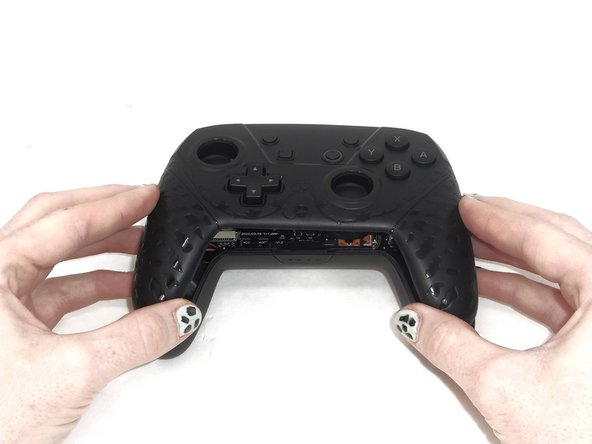
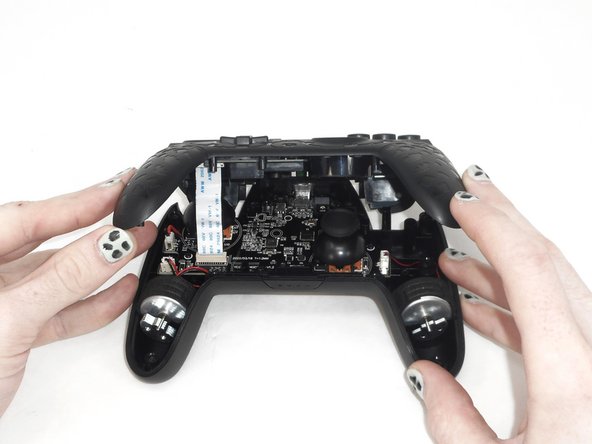
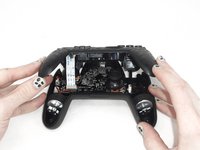
      • Slightly lift the front case.

      • Do not remove the front cover completely; it is still attached to the motherboard by a white ribbon cable.

      Ask FixBot

      Add Comment

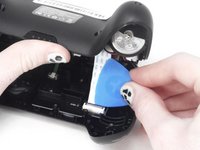
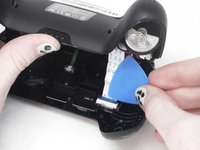
    6. YCCTEAM YCC-SW4001 Battery Replacement: step 6, image 1 of 3 YCCTEAM YCC-SW4001 Battery Replacement: step 6, image 2 of 3 YCCTEAM YCC-SW4001 Battery Replacement: step 6, image 3 of 3
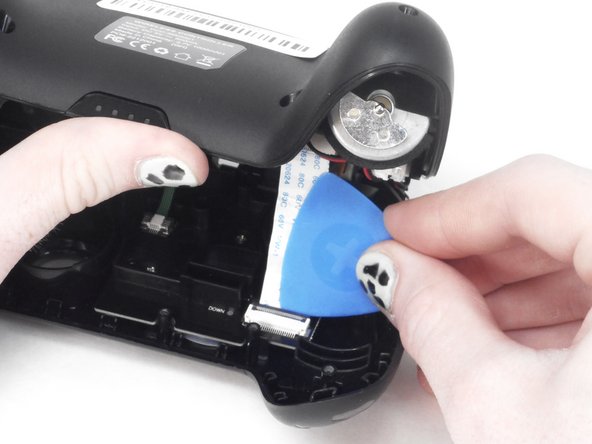
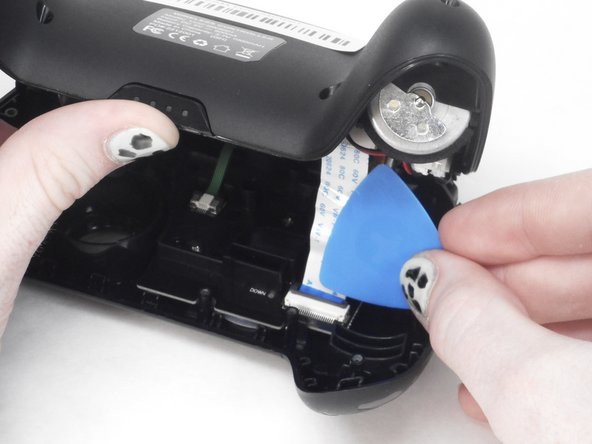
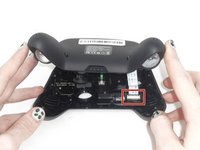
      • Use the tip of the opening pick to flip up the black locking flap of the ZIF connector.

      • The black flap holds the white ribbon cable in place.

      Ask FixBot

      Add Comment

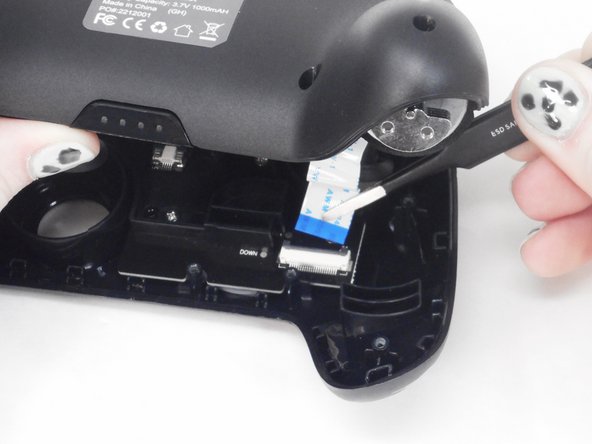
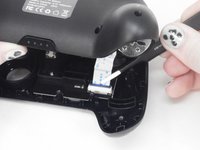
    7. YCCTEAM YCC-SW4001 Battery Replacement: step 7, image 1 of 2 YCCTEAM YCC-SW4001 Battery Replacement: step 7, image 2 of 2
      • Use tweezers to disconnect the white ribbon cable from the ZIF connector.

      Ask FixBot

      Add Comment

    8. YCCTEAM YCC-SW4001 Battery Replacement: step 8, image 1 of 1
      • Remove the front case.

      Ask FixBot

      Add Comment

    1. YCCTEAM YCC-SW4001 Battery Replacement, Battery: step 9, image 1 of 3 YCCTEAM YCC-SW4001 Battery Replacement, Battery: step 9, image 2 of 3 YCCTEAM YCC-SW4001 Battery Replacement, Battery: step 9, image 3 of 3
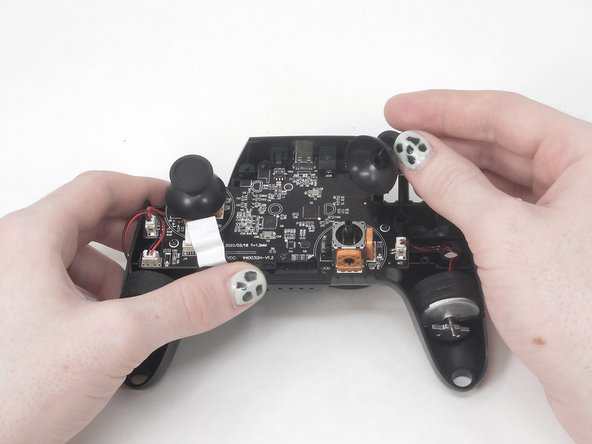
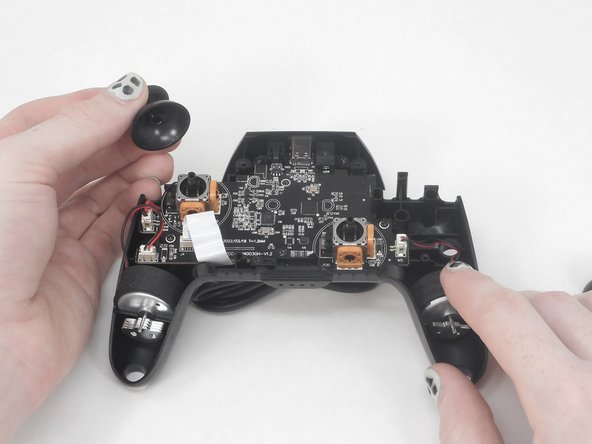
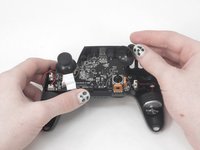
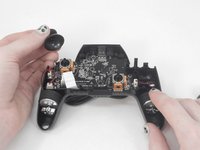
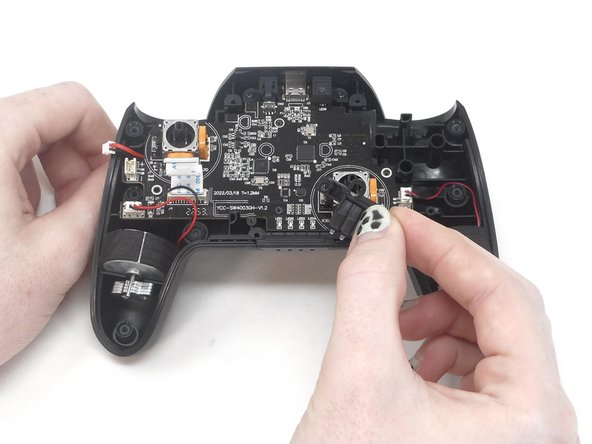
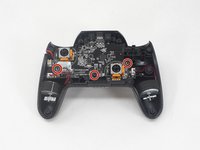
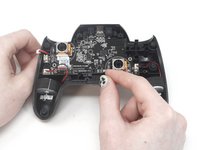
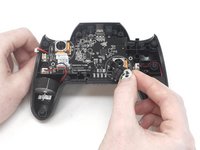
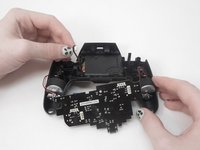
      • Remove the two joystick covers by gripping them and pulling them straight upward with moderate force.

      Ask FixBot

      Add Comment

    2. YCCTEAM YCC-SW4001 Battery Replacement: step 10, image 1 of 3 YCCTEAM YCC-SW4001 Battery Replacement: step 10, image 2 of 3 YCCTEAM YCC-SW4001 Battery Replacement: step 10, image 3 of 3
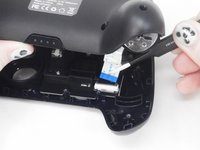
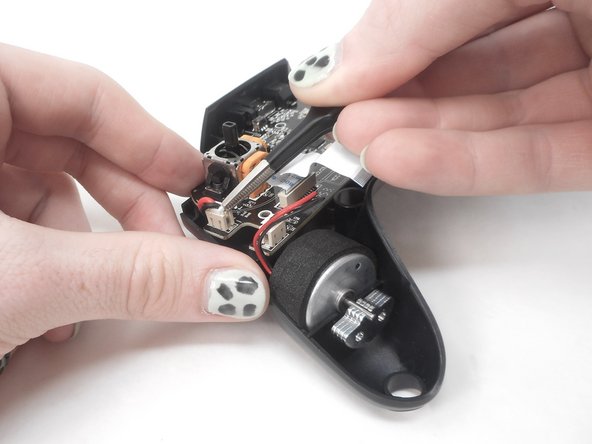
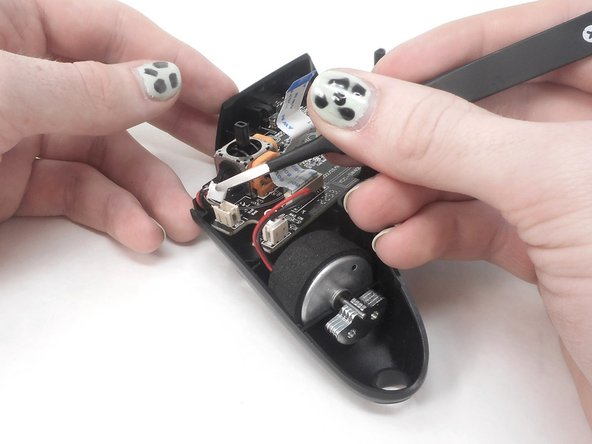
      • Use tweezers to grip the white plastic battery connector. Lift it directly it up and out of its socket.

      • Do not pull on the wires.

      • When replacing the battery, press the plug down into the socket until it snaps into place.

      Ask FixBot

      Add Comment

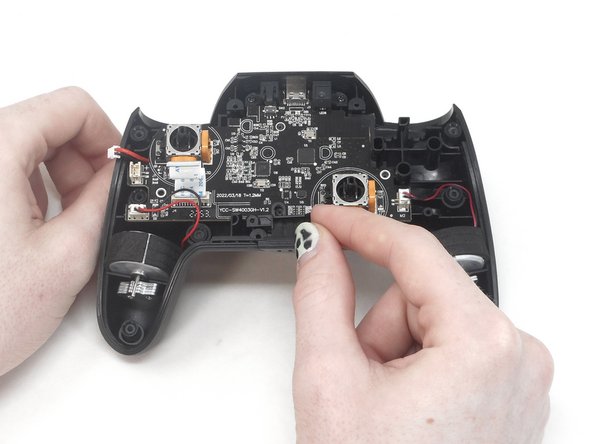
    3. YCCTEAM YCC-SW4001 Battery Replacement: step 11, image 1 of 3 YCCTEAM YCC-SW4001 Battery Replacement: step 11, image 2 of 3 YCCTEAM YCC-SW4001 Battery Replacement: step 11, image 3 of 3
      • Use a Phillips screwdriver to remove the three 7.5 mm screws that secure the motherboard.

      • Remove the player LEDs from the motherboard.

      Ask FixBot

      Add Comment

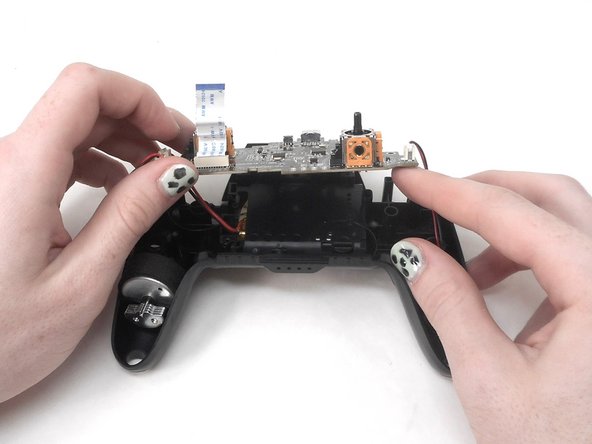
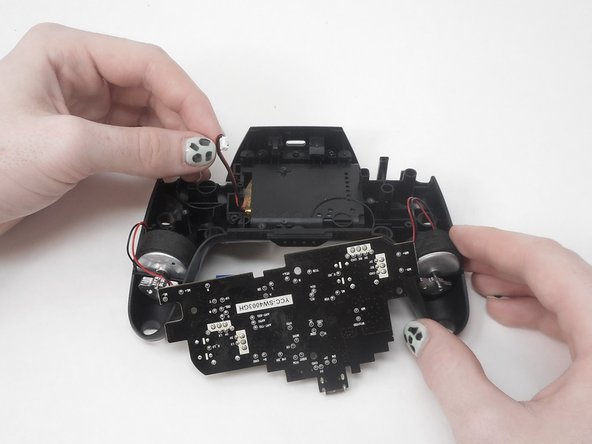
    4. YCCTEAM YCC-SW4001 Battery Replacement: step 12, image 1 of 3 YCCTEAM YCC-SW4001 Battery Replacement: step 12, image 2 of 3 YCCTEAM YCC-SW4001 Battery Replacement: step 12, image 3 of 3
      • Gently lift the motherboard up and out of the controller and set it directly between the grips.

      • Take care not to damage the rumble motor connections.

      Ask FixBot

      Add Comment

    5. YCCTEAM YCC-SW4001 Battery Replacement: step 13, image 1 of 1
      • Use a spudger to gently lever the battery out of the controller.

      • The battery is attached with adhesive, so gently sever the adhesive around the entirety of the battery as you pry.

      • Take care not to puncture or bend the battery.

      • If your new battery does not come with adhesive, apply new adhesive to secure the battery.

      Ask FixBot

      Add Comment

Conclusion

To reassemble your device, follow these instructions in reverse order.

Cancel: I did not complete this guide.

0 Guide Comments

Add Comment

View Statistics:

Past 24 Hours: 1

Past 7 Days: 15

Past 30 Days: 59

All Time: 734