Free Shipping on Domestic Orders $75+

Xelio P900A-BK Power Button Replacement

What you need

  1. Xelio P900A-BK Power Button Replacement, Power Button: step 1, image 1 of 1
    • Using a Philips screwdriver, remove the two 2.44 mm screws from the back plate of the tablet.

    Ask FixBot

    Add Comment

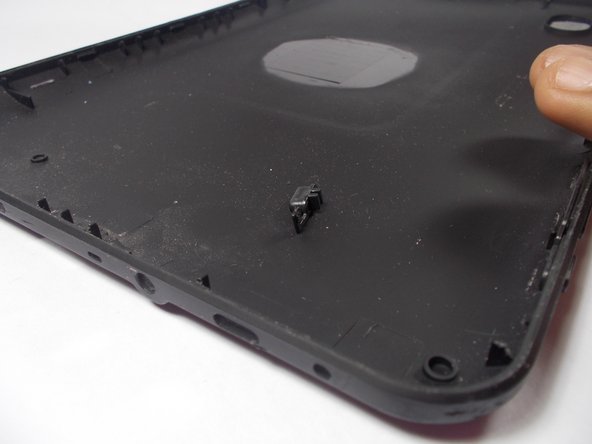
  2. Xelio P900A-BK Power Button Replacement: step 2, image 1 of 3 Xelio P900A-BK Power Button Replacement: step 2, image 2 of 3 Xelio P900A-BK Power Button Replacement: step 2, image 3 of 3
    • Using a plastic opening tool, pry the back cover from the screen.

    • Gently separate the two sides.

    Ask FixBot

    Add Comment

  3. Xelio P900A-BK Power Button Replacement: step 3, image 1 of 2 Xelio P900A-BK Power Button Replacement: step 3, image 2 of 2
    • Push on the old power button to remove it and install the new power button.

    • There are no wires connecting the power button to the device. It should come away easily.

    Ask FixBot

    Add Comment

Conclusion

To reassemble your device, follow these instructions in reverse order.

Cancel: I did not complete this guide.

2 other people completed this guide.

Alisha Soriano

Member since: 03/25/15

287 Reputation

1 Guide authored

Team

0 Guide Comments

Add Comment

View Statistics:

Past 24 Hours: 1

Past 7 Days: 3

Past 30 Days: 24

All Time: 352