
Xbox One Kinect LED Sensor Replacement

Malak Anshassi and 3 other contributors
Last updated on Nov 24, 2017
Views: 1.8K
View statistics:
- Past 24 Hours:
- 2
- Past 7 Days:
- 20
- Past 30 Days:
- 109
- All Time:
- 1,780
Comments: 1
1 comment on steps.
Completed: 0 1
No one has marked this guide "completed." Will you be the first?
1 person has marked this guide "completed." It's you — great job!
Favorites: 1 2
1 person has favorited (and subscribed to) this guide. Will you be next?
2 people have favorited (and subscribed to) this guide — including you!
Introduction
Go to step 1 ↓The LED sensor lights up when the sensor is connected. If the LED is unlit, the sensor module itself may be at fault.
What you need
Tools
-
-
Spudger4.9
-


-
-
-
Remove the sticker on the underside of the device.
-
Remove the four 3.1x23.5 mm T10 screws underneath the sticker.
-
While you're at it, remove the four 3.1x7.5 mm T10 screws beneath the sticker. Make note of the sizes and locations of the screws.
 Ask FixBot
-
-
-
Remove the back panel.
-
Remove the black panels on either side of the Kinect, and remove the 3.1x7.5mm T10 screws underneath them.
-
-
-
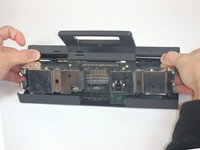
Using your thumbs, press firmly against the outer case on either side of the stand. This will disengage the internal assembly.
-
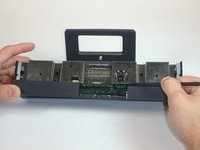
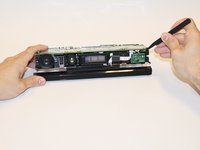
Lift the internal assembly with the spudger.
-
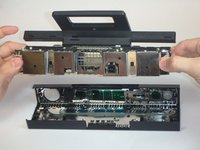
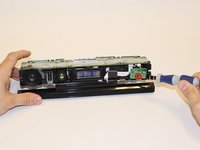
Remove the assembly from the case. You now have access to the inner shell of the kinect, along with the heat sink, microphone, and LED sensor.
-
-
-
-
-
-
Disconnect the ribbon cable between the sensor driver board and the motherboard.
-
Remove the 3.0x7.5 mm T9 screw holding the sensor driver board to the heat sink.
-
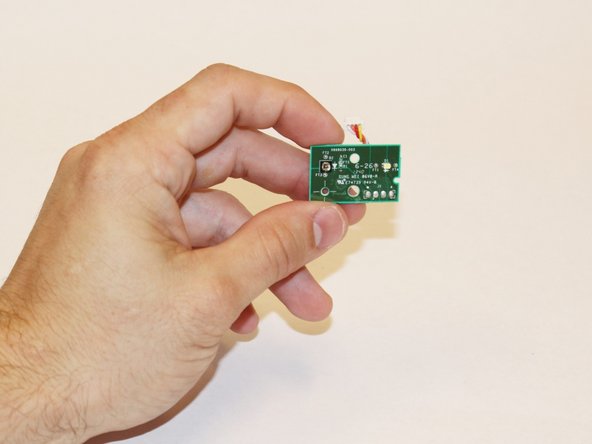
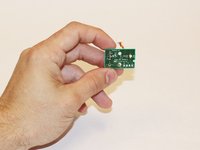
Remove the infrared sensor board for the Kinect.
-
-




To reassemble your device, follow these instructions in reverse order.

Team

USF Tampa, Team 1-3, Hickman Fall 2014 Member of USF Tampa, Team 1-3, Hickman Fall 2014
USFT-HICKMAN-F14S1G3
4 Members
84 Guides authored
