
Xbox One Kinect Infrared Camera Replacement

Laura Gonzalez and 3 other contributors
Last updated on Jan 10, 2015
Views: 2.6K
View statistics:
- Past 24 Hours:
- 2
- Past 7 Days:
- 18
- Past 30 Days:
- 104
- All Time:
- 2,640
Comments: 1
1 guide comment.
Go to guide commentsCompleted: 0 1
No one has marked this guide "completed." Will you be the first?
1 person has marked this guide "completed." It's you — great job!
Favorites: 1 2
1 person has favorited (and subscribed to) this guide. Will you be next?
2 people have favorited (and subscribed to) this guide — including you!
Needs Better Images
Better photos will improve this guide. Help out by taking, editing, or uploading new ones!
Missing Steps
Oops! This guide is currently missing one or more important steps.
Introduction
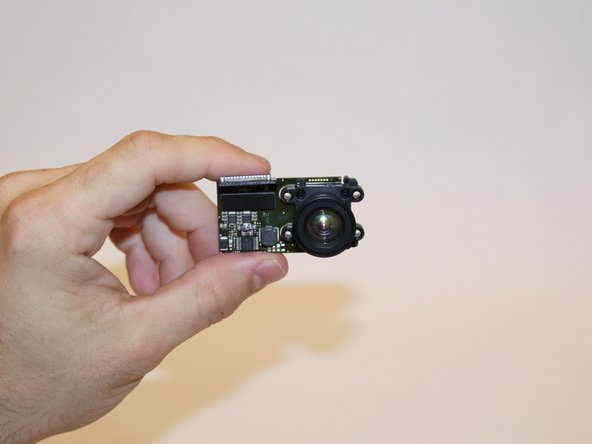
Go to step 1 ↓The infrared camera receives IR signals emitted from the blasters. This permits the Kinect to measure the distance to an object in its vicinity. The IR camera is mounted on the heat sink inside the device.
What you need
Tools
-
Spudger4.9


-
-
-
Remove the sticker on the underside of the device.
-
Remove the four 3.1x23.5 mm T10 screws underneath the sticker.
-
While you're at it, remove the four 3.1x7.5 mm T10 screws beneath the sticker. Make note of the sizes and locations of the screws.
 Ask FixBot
-
-
-
Remove the back panel.
-
Remove the black panels on either side of the Kinect, and remove the 3.1x7.5mm T10 screws underneath them.
-
-
-
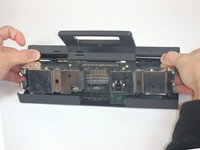
Using your thumbs, press firmly against the outer case on either side of the stand. This will disengage the internal assembly.
-
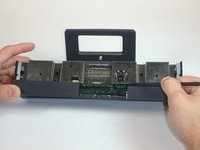
Lift the internal assembly with the spudger.
-
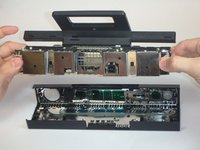
Remove the assembly from the case. You now have access to the inner shell of the kinect, along with the heat sink, microphone, and LED sensor.
-
-
-
-
-
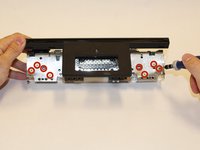
Remove the eight 2.9x7.6 mm T9 screws from the rear of the internal case.
-
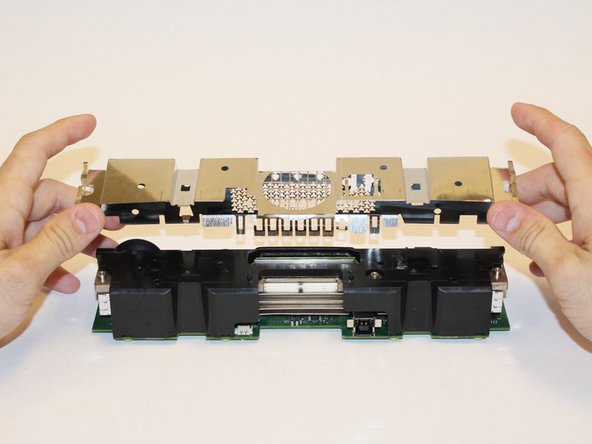
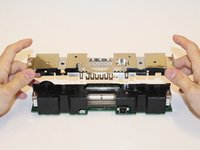
Lift the internal metal case from the plastic shell enclosing the heat sink assembly.
-
-
-
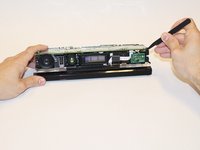
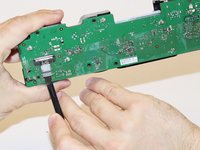
Disconnect the ribbon cable between the sensor driver board and the motherboard.
-
Remove the 3.0x7.5 mm T9 screw holding the sensor driver board to the heat sink.
-
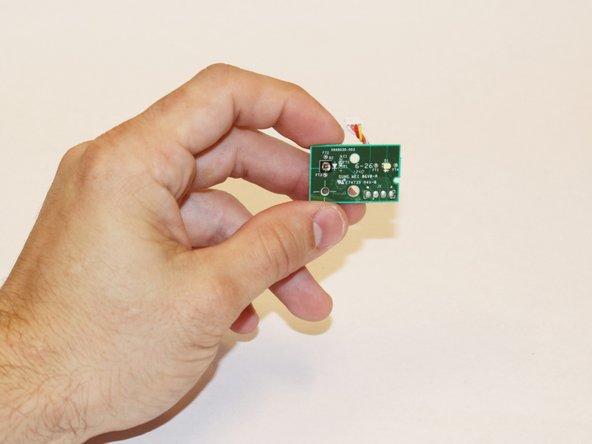
Remove the infrared sensor board for the Kinect.
-
-
Tool used on this step:Tweezers$4.99
-
Detach the ribbon cable leading to the microphone with the tweezers.
-
Remove the four 3.1x7.7 mm T9 screws connecting the microphone to the heat sink assembly.
-
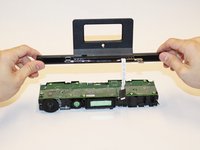
Remove the stand.
-
-
-
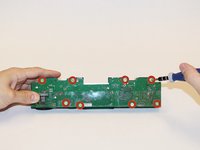
Remove the eight 3.0x7.6 mm T9 screws from the motherboard.
-
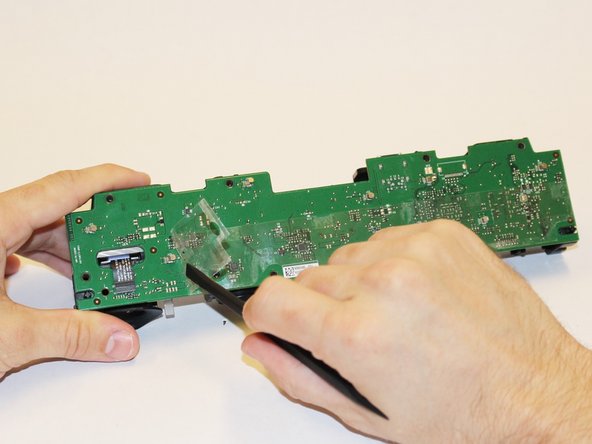
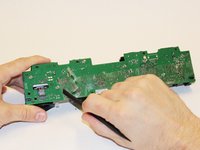
Peel away the plastic film from the motherboard using the spudger.
-
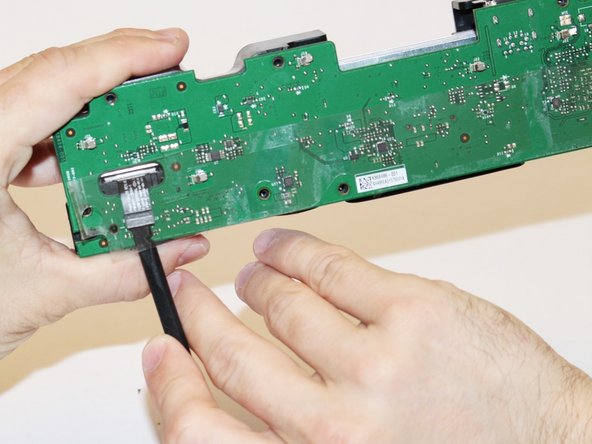
Detach the ribbon cable leading to the color camera using the spudger.
-
-
-
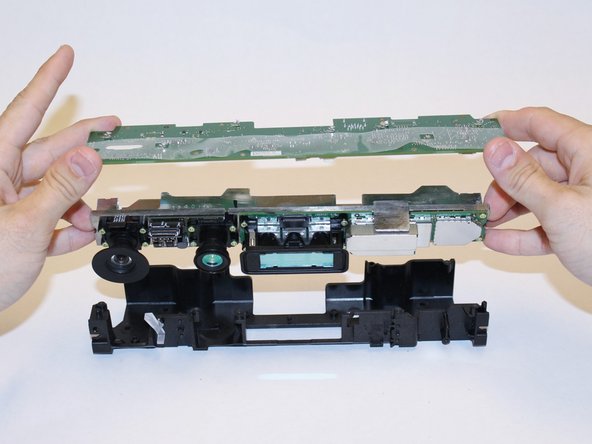
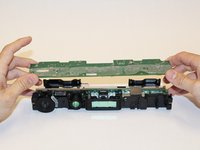
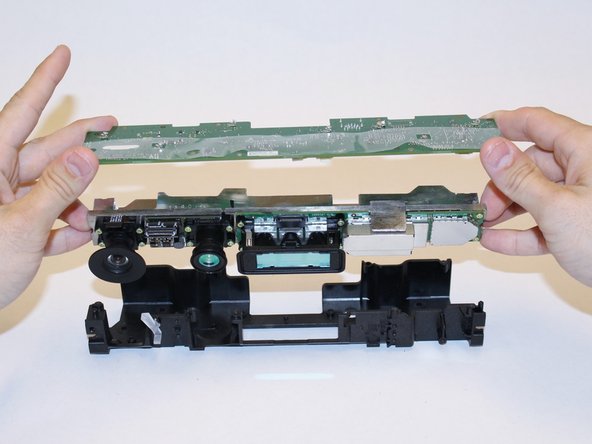
Lift the motherboard and the heat sink assembly from the plastic shell. The components attached to the heat sink are now accessible.
-
-
-
-
-
-
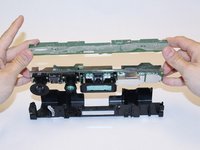
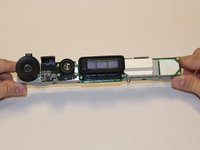
First step is to make sure that the inner compartment containg the camera is separated from the outer casing.
-
-
-
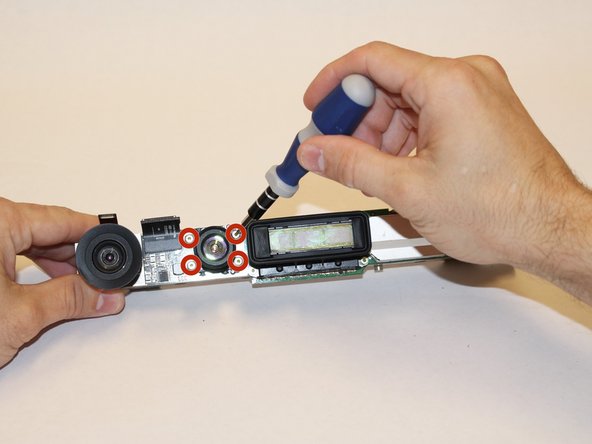
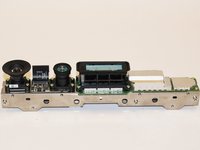
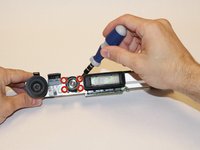
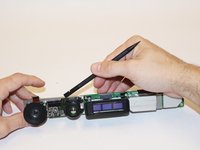
Once the area where the camera is found is uncovered, use the T5 Torx Screwdriver to remove the four 1.9x10.2 mm screws.
-
-





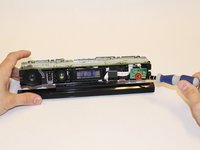
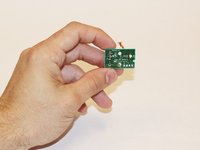


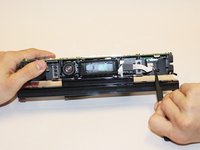
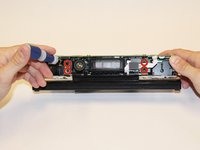



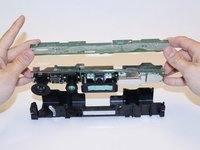
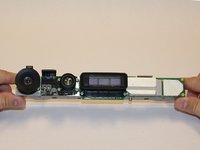


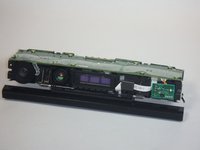


To reassemble your device, follow these instructions in reverse order.

Team

USF Tampa, Team 1-3, Hickman Fall 2014 Member of USF Tampa, Team 1-3, Hickman Fall 2014
USFT-HICKMAN-F14S1G3
4 Members
84 Guides authored
1 Guide Comment
I have the new Infrared Camera ,1080p HD wide-angle camera,motherboard, IR projectors board.If you need please contact me.
