Free Shipping on Domestic Orders $75+

This translation was generated by a machine and has not been reviewed by a person yet. Speak this language? Review it.

Xbotgo Chameleon Teardown/Battery Replacement

Views: 428

View statistics:

Past 24 Hours:
12
Past 7 Days:
34
Past 30 Days:
145
All Time:
428
Comments: 0

No one has left comments on this guide. Will you be first?

Go to guide comments
Completed: 0

No one has marked this guide "completed." Will you be the first?

Favorites: 0

No one has favorited (and subscribed to) this guide. Will you be the first?

Time Required: 40 minutes
Difficulty: Moderate
Bullets!

Better coordination with markups and the color/type of bullets will help make this guide more clear!

Community-Contributed Guide

An awesome member of our community made this guide. It was not created by iFixit staff.

Better Introduction

Improve this guide by completing or revising its introduction.

Xbotgo Chameleon Teardown/Battery Replacement

What you need

Tools

    1. Xbotgo Chameleon Teardown/Battery Replacement, Opening the 1st cap: step 1, image 1 of 1
      • Heat the black plastic with the writing. Insert an iOpener between the plastic with the Xbotgo writing and the colored plastic of the frame, and pry slightly.

      • Use some isopropyl alcohol if the adhesive offers too much resistance.

      Ask FixBot

      Add Comment

    2. Xbotgo Chameleon Teardown/Battery Replacement, Lift the cap: step 2, image 1 of 1
      • Gently lift the cap and remove it.

      Ask FixBot

      Add Comment

    3. Xbotgo Chameleon Teardown/Battery Replacement, Remove the second cap: step 3, image 1 of 1
      • Follow step 1 and step 2 for the second cap.

      Ask FixBot

      Add Comment

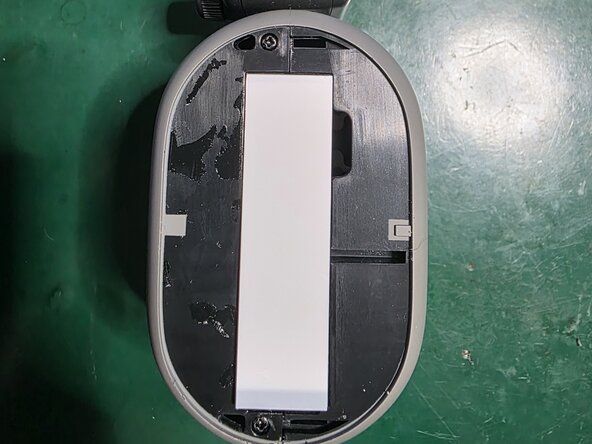
    4. Xbotgo Chameleon Teardown/Battery Replacement, Cleaning adhesive residue from parts: step 4, image 1 of 2 Xbotgo Chameleon Teardown/Battery Replacement, Cleaning adhesive residue from parts: step 4, image 2 of 2
      • Now that you have removed the caps, clean off the adhesive residue and locate the screws.

      Ask FixBot

      Add Comment

    5. Xbotgo Chameleon Teardown/Battery Replacement, Screw removal: step 5, image 1 of 2 Xbotgo Chameleon Teardown/Battery Replacement, Screw removal: step 5, image 2 of 2
      • Remove the 2 screws on the first side.

      Ask FixBot

      Add Comment

    6. Xbotgo Chameleon Teardown/Battery Replacement, Removing the opposite side screws: step 6, image 1 of 1
      • Remove the 2 screws from the other side.

      Ask FixBot

      Add Comment

    7. Xbotgo Chameleon Teardown/Battery Replacement, Rear Case Removal: step 7, image 1 of 2 Xbotgo Chameleon Teardown/Battery Replacement, Rear Case Removal: step 7, image 2 of 2
      • Lift the rear case from the bottom, where the bearing is housed.

      Ask FixBot

      Add Comment

    8. Xbotgo Chameleon Teardown/Battery Replacement, LED bar removal: step 8, image 1 of 2 Xbotgo Chameleon Teardown/Battery Replacement, LED bar removal: step 8, image 2 of 2
      • Disconnect the 2 LED bars by gently unplugging the connectors at the end of the cables on the board side

      Ask FixBot

      Add Comment

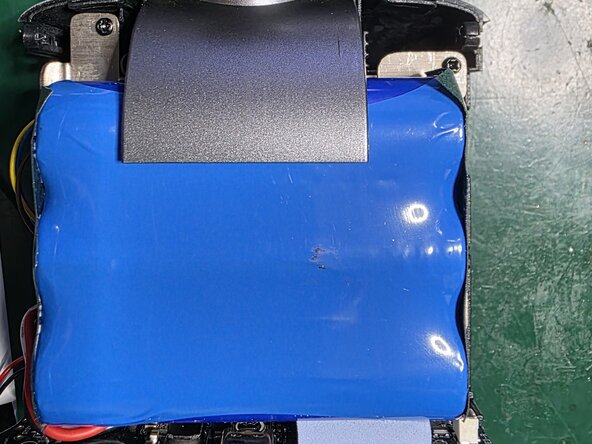
    9. Xbotgo Chameleon Teardown/Battery Replacement, Battery removal: step 9, image 1 of 2 Xbotgo Chameleon Teardown/Battery Replacement, Battery removal: step 9, image 2 of 2
      • Remove the four black Phillips screws located at the corners of the battery and pull it out.

      • Once removed, disconnect the connector by carefully pressing the release tab.

      Ask FixBot

      Add Comment

Conclusion

To reassemble your device, follow these instructions in reverse order.

Cancel: I did not complete this guide.

andreacero

Member since: 01/18/11

722 Reputation

4 Guides authored

0 Guide Comments

Add Comment

View Statistics:

Past 24 Hours: 12

Past 7 Days: 34

Past 30 Days: 145

All Time: 428