Introduction
The Wyze Cam V2 comes with a electret condenser microphone that allows you to converse with people on the other side of the device. If your microphone becomes faulty it makes it hard to have conversations so you might need to get it replaced and this guide will walk you through the steps in doing that.
What you need
-
-
Open up the camera stand to expose the bottom plate of the camera.
-
Remove two 4 mm silver screws using the Phillips #0 screwdriver.
 Ask FixBot
-
-
-
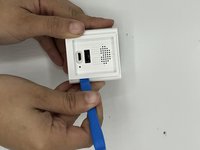
Using the iFixit opening tool, carefully pry open the bottom plate to gain access to the camera's internals.
-
-
-
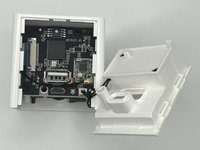
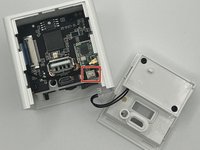
Open up the back panel using the iFixit opening tool and unclip the panel from the rest of the device.
-
-
Tool used on this step:Tweezers$3.99
-
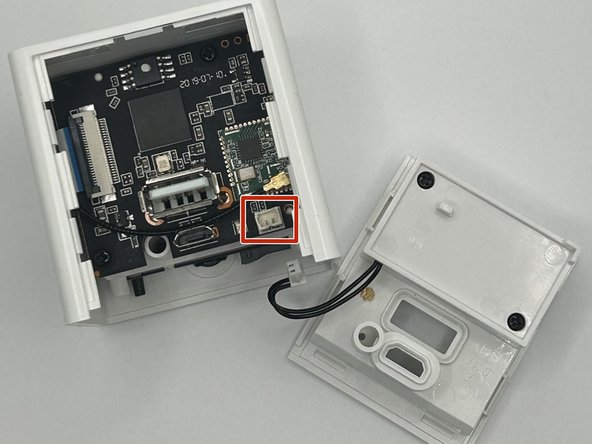
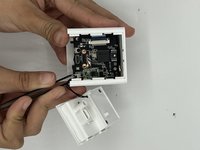
Using the angled slim tweezers, disconnect the cord and pull it gently off of the motherboard.
-
-
-
-
Remove the single 6 mm screw located deep inside the device using a Phillips #000 screwdriver.
-
Carefully remove the motherboard from the device.
-
-
-
Remove the remaining two 6 mm screws from the motherboard with a Phillips #0 screwdriver.
-
-
Tool used on this step:Tweezers$4.99
-
Using the precision tweezers, detach the charging port’s motherboard from the camera’s motherboard.
-






To reassemble your device, follow these instructions in reverse order.

Team

University of North Texas, Team 4-10, Harold Fall 2023 Member of University of North Texas, Team 4-10, Harold Fall 2023
UNT-HAROLD-F23S4G10
3 Members
5 Guides authored
