Introduction
The recommended minimum capacity for USB drives is now 64GB (as of 6/30/2026). This change is due to the lack of name-brand 32GB drives at major retailers like Walmart and the high prevalence of counterfeits online. Many 32GB drives use low-tier B-stock flash that fails during ISO flashing. While 32GB is still viable at specialized shops like Micro Center or Best Buy, sticking to 64GB+ is safer when buying from general retailers.
If you are unsure how to write a Windows 10/11 ISO to a USB flash drive, this guide shows how to use the Microsoft Media Creation Tool (MCT). This focuses on making a bootable USB drive, the most common method as most PCs no longer include optical drives.
Note: If you need to bypass MSA or CPU/TPM checks, the MCT requires an autounattend file added after writing the drive.
Choosing a USB Drive
TL;DR: Stick with name-brand USB 3.0 64GB+ drives* (e.g., SanDisk) and avoid Amazon. You rarely save more than $1–$2 by choosing generic or smaller drives. USB 2.0 works but is slow; use it only for older PCs with USB 3.0 boot issues.
*32GB drives will work but due to counterfeit issues are no longer recommended unless you bought it prior to 64GB being a commodity size or use a niche drive like Teamgroup with a low counterfeit risk
Thin Budget? Reuse an old 8–16GB name-brand drive rather than buying no-name junk. Your drive must be at least 8GB to be detected.
Note on using 8GB drives: These work but leave little room for drivers or installers. Modern 8GB drives often use failed 16GB chips with the bad half disabled, making them less reliable than higher-capacity versions.
Preparation (Optional): Erase used drives before using the MCT. While the MCT does this, pre-formatting (NTFS/exFAT/FAT32) makes detection more reliable.
Amazon Purchase Warning
If a drive bought on Amazon has issues out of the box, it is likely counterfeit. If it was sold by a third party (even via FBA), test it with H2TestW FIRST!
Windows 11 Spec Check Bypass Warning
WARNING: Bypassing requirements makes your PC unsupported by Microsoft. Feature updates must be force-installed. If using Rufus tweaks, limit them to these "proven safe" CPUs:
- AMD: Zen 1 / Zen+
- Intel: 7th-gen
Older CPUs face higher risks of stability issues. You are on your own in the eyes of Microsoft.
Minimum Hardware Floor:
- CPU: Must support SSE 4.2 and PopCnt (Population Count).
- RAM: 4GB absolute minimum; 8–16GB recommended.
What you need
-
-
-
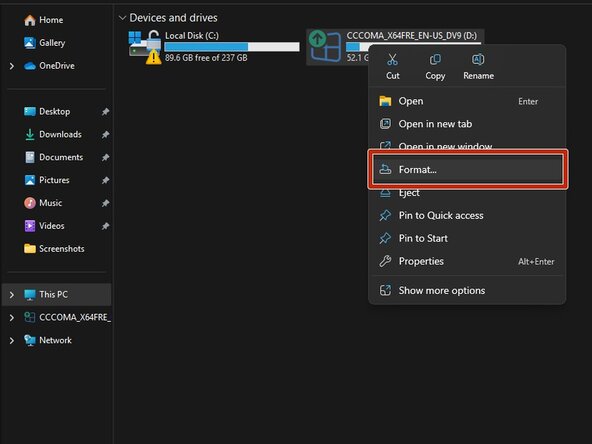
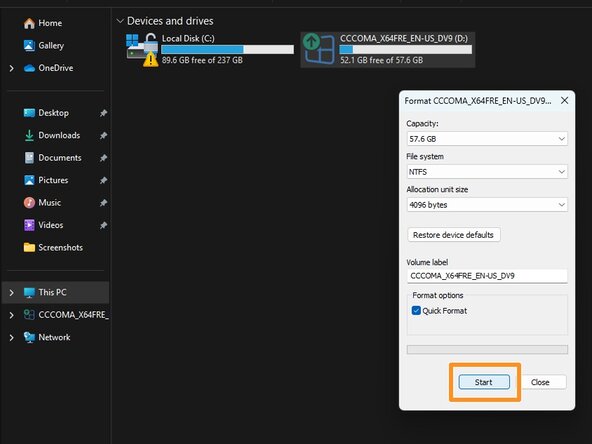
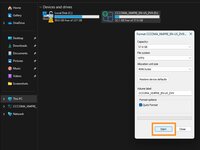
With the USB drive plugged into the computer, go into Windows Explorer, right click Format. For all intents and purposes format type used here does not matter as the MCT will reformat it again before writing the drive image. However, it can be picky and not see the drive if there are hidden issues.
-
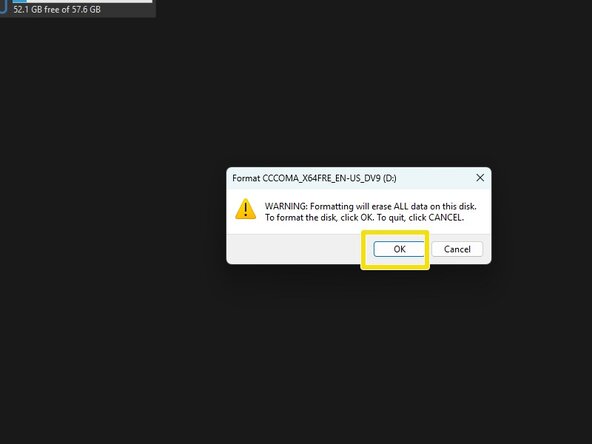
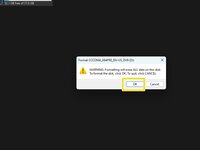
Click on Format and click OK on the data loss warning. Once done the drive is ready to be imaged with the MCT.
 Ask FixBot
-
-
-
Download a Windows 10 or 11 ISO from Microsoft - do not use other sources unless you trust it.
-
Windows 11: https://www.microsoft.com/en-us/software...
-
Windows 10: https://www.microsoft.com/en-us/software...
-
-
-
After downloading the tool you need with the Step 1 links, open it from your browser or Downloads folder.
-
Open the MCT application and then follow the prompts.
-
Select the version you want. If you intend to use an external tool for things like Legacy MBR support, use ISO file. For a modern PC, either option will suffice.
-
Click Next and then follow the prompts bassed on the option you selected.
-
-
-
-
If you write the image in the MCT, plug your USB drive in first.
-
Unplug any drives you do not want to erase, then select the one you want to write to. After this is done, click Next.
-
You will see this window, let it download. If you have a slow internet connection give this time or borrow a fast connection. Once this is done, you will see the next screen show the writing screen.
-
-
-
After going through the initial steps to open the MCT, select ISO Image. Click Next.
-
This is where the MCT is located by default. Modern Windows defaults to the Downloads folder.
-
Select a file location, then let the ISO download.
-
-
-
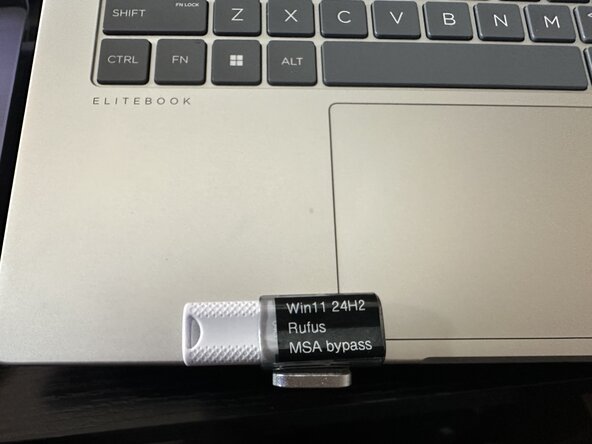
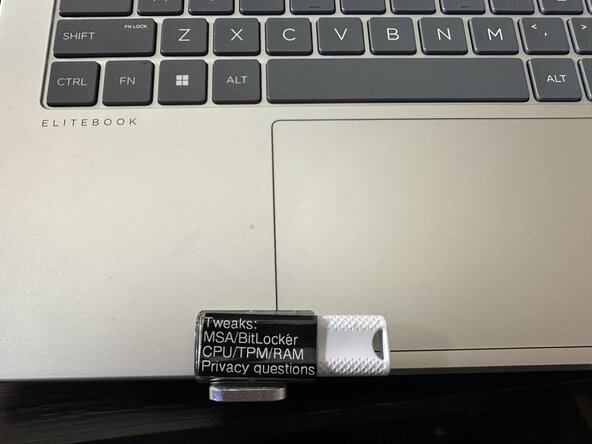
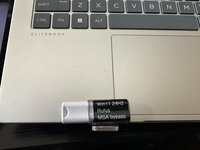
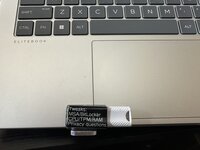
How you do this is up to you, but depending on the drive size -- you might find yourself with little room - in these cases, choose carefully what you put on the drive. If you have a larger drive like this one, you can have a more "full" label.
-
-
-
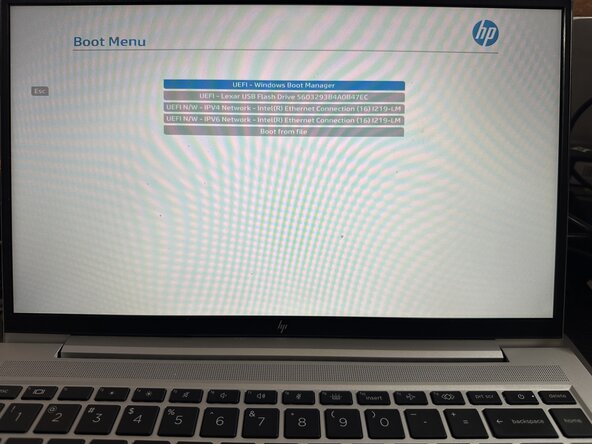
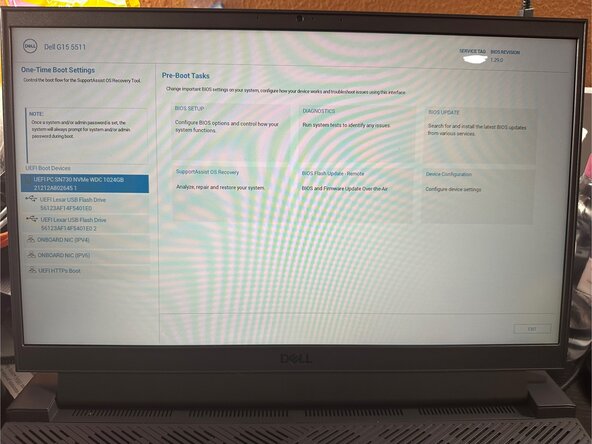
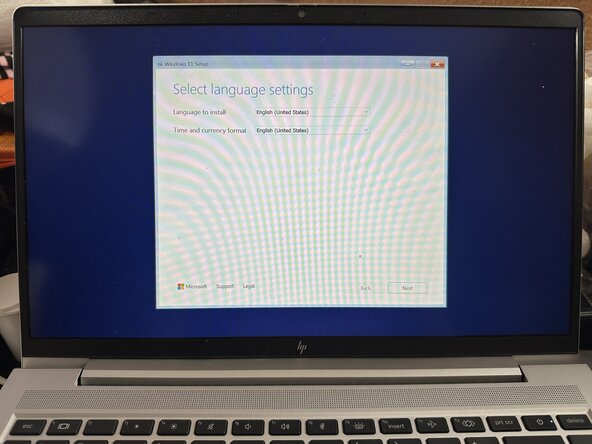
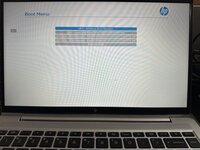
After selecting the drive from the BIOS startup menu, follow the prompts to install Windows 10/11 on your PC.
-
-