
Windows 10 Migration to Linux - Supplement

Simon G and one other contributor
Last updated on Jul 10, 2026
Views: 274
View statistics:
- Past 24 Hours:
- 2
- Past 7 Days:
- 19
- Past 30 Days:
- 82
- All Time:
- 274
Comments: 0
No one has left comments on this guide. Will you be first?
Go to guide commentsCompleted: 0 1
No one has marked this guide "completed." Will you be the first?
1 person has marked this guide "completed." It's you — great job!
Favorites: 1 2
1 person has favorited (and subscribed to) this guide. Will you be next?
2 people have favorited (and subscribed to) this guide — including you!
Community-Contributed Guide
An awesome member of our community made this guide. It was not created by iFixit staff.
Introduction
Go to step 1 ↓This guide brings together a number of resources on migrating end of life Windows 10 PCs to Linux Mint, along with some real life experience of using Linux instead of Windows 10
-
-
-
Getting Started
-
The base install instructions can be found on the iFixit site at this location. This takes you through the process of installing Linux Mint onto a Windows 10 PC. How to Install Linux Mint on a Windows PC
-
There is also a useful user guide on the Repair Cafe site https://www.repaircafe.org/wp-content/up...
-
-
-
General Linux Tips and Tricks
-
Linux Updates
-
Despite what the Repair Cafe user guide says, updates seem to come through every few days. Check the icon on the toolbar. I would suggest installing updates at least every week or every time you use the PC (if less frequent than weekly). Look out for black/white shield in the toolbar with a red dot on it.
-
You can also set to update automatically. Open Update Manager and go to Edit->Preferences. Set the options as per the picture
-
-
-
Microsoft Office 365
-
Either Google Chrome or Microsoft Edge will work for accessing Office 365. Edge has slightly better integration, so I would recommend this. First of all install Microsoft Edge to access OneDrive files and the Microsoft apps (Word, Excel, PowerPoint, etc).
-
The install isn’t listed in the Software Manager, but you can find it here. Install the Linux (.deb) version.
-
Once Edge is installed, log into Edge using your Microsoft Office 365 credentials.
-
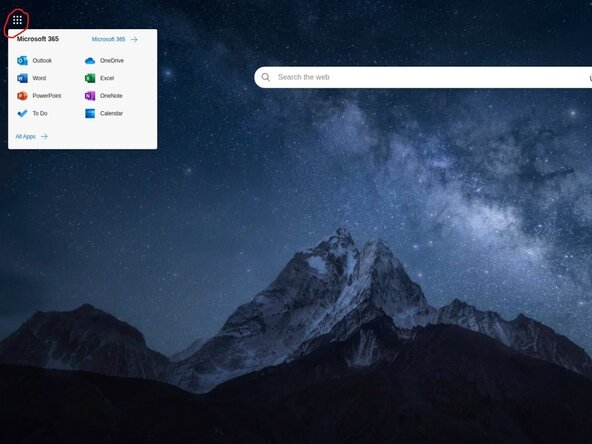
Open a new tab and from the top left click the 9 dots, you can now access your Microsoft apps and OneDrive.
-
For Teams, there is a native app on Linux, just search for Teams from the Start menu. Or go to the Web version of Teams and when prompted to launch/install the app, select yes.
-
There are some serious limitations of the web versions of the apps. Formatting in particular is not accurately retained. There are some features of the desktop versions of the office apps that are not available in the web version. I would recommend using the web apps for a few weeks prior to committing to moving to Linux.
-
Works best when files to edit are kept on OneDrive. More advanced editing, formatting and controls are not available in the web versions. An Internet connection is necessary at all times.
-
-
-
Google Drive/Docs/Etc
-
If you use the Google equivalent of Microsoft 365, then you’ll already be familiar in accessing through a browser. Google Chrome or Microsoft Edge work well. But Chrome is likely to be better integrated <needs updating if anyone is more familiar with the Google office suite?>
-
-
-
-
Linux LibreOffice
-
Linux Mint installs the LibreOffice apps by default. They provide good functionality and should allow Office 365 or Google Apps files to be opened and edited. Like most instances where a file is opened with a different app to the one it was created with, there are likely to be some loss of features and formatting that needs correcting.
-
-
-
Other Apps
-
Video Conferencing
-
Microsoft Teams has a native Linux app. Open Teams in the browser and it should prompt to use/install the Teams app. Alternatively just use Teams in the browser.
-
Zoom also has a native Linux app. It isn’t available in Software Manager, but you can download from this link. Go to “Meet”=>"Download App”. Select the Mint, 64 bit version
-
WhatsApp
-
You can use the web version from this link. Follow the instructions to link to your phone
-
 Ask FixBot

If you wish to revert to Windows 10, you must use the USB recovery drive created before commencing the Linux install

