This translation was generated by a machine and has not been reviewed by a person yet. Speak this language? Review it.
Introduction
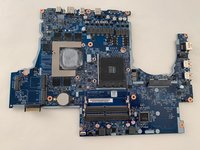
This guide shows how to remove and replace the motherboard of a why! NH57ADS laptop after accessing it. Turn off and unplug the computer, then carefully disconnect the ribbon cables, speakers, and display cables before lifting the motherboard.
What you need
-
-
-
Remove the two screws holding the battery in place.
-
Slip your finger into the finger hole provided at the top of the battery.
-
...and lift to remove it
 Ask FixBot
-
-
-
-
-
Remove the five Phillips screws securing the bottom to the case.
-
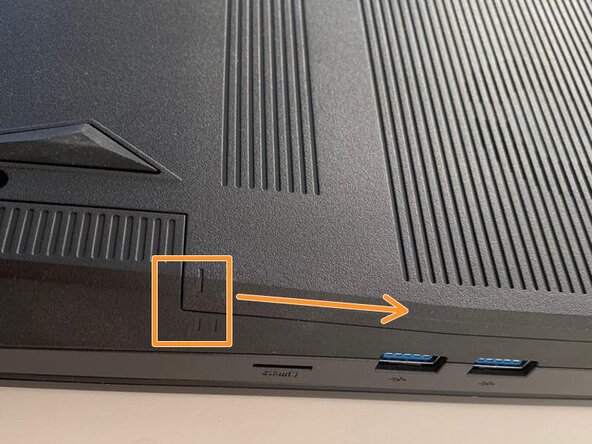
Slide the cover up slightly to release the clips holding it in place. This is the view on the right. The mark on the cover should now line up with the second mark on the case of the computer.
-
-
-
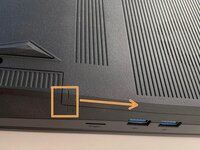
This is the view on the left before and after sliding the cover. The mark on the cover should now line up with the second mark on the case of the computer.
-
Slide the bottom cover to remove it.
-
-
-
-
Tool used on this step:iFixit Opening Picks (Set of 6)$4.95
-
Remove the two Phillips screws with the keypad symbol next to them.
-
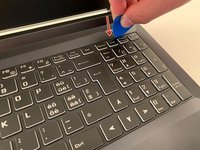
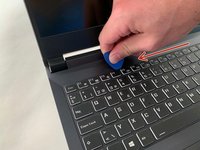
Insert an iFixit opening pick into the upper slot of the keyboard and slide it to the end.
-
-
-
-
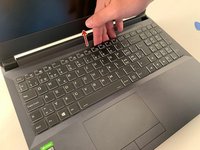
Carefully lift the keyboard.
-
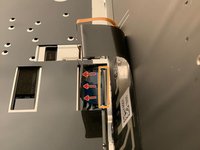
Gently flip up the retaining latch on the black keyboard cable and slide it out of the connector.
-
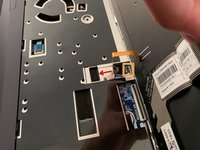
Repeat with the (orange) backlight cable.
-
-
-
-
-
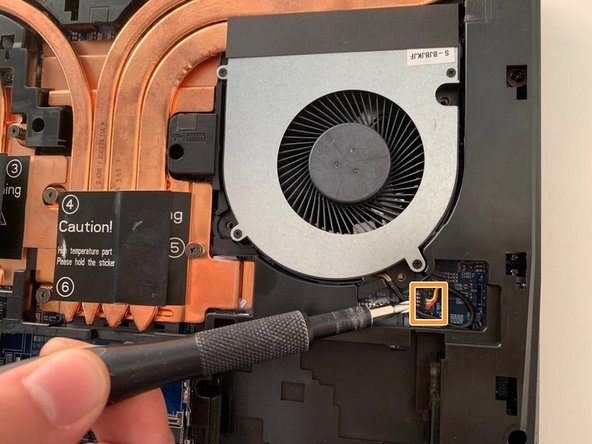
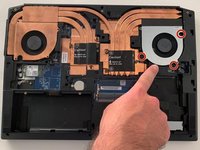
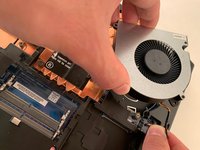
Remove the three Phillips screws securing the fan on the right.
-
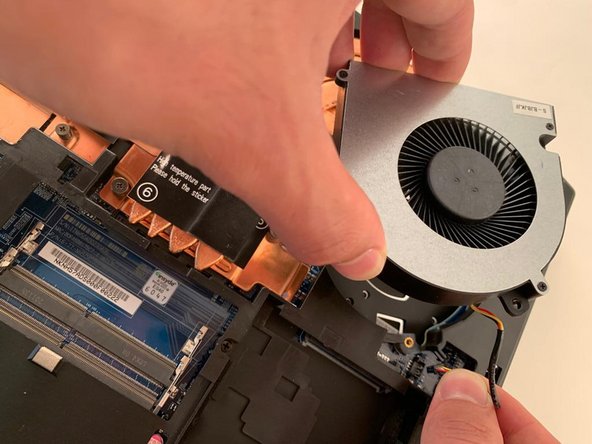
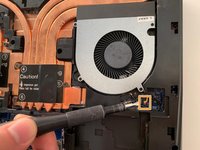
Carefully release the cooling fan cable by hand.
-
Remove the first fan.
-
-
-
Remove the two Phillips screws securing the left hand fan.
-
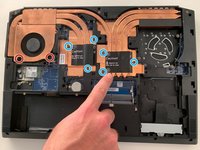
Remove the six Phillips heatsink retaining screws.
-
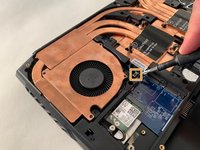
Carefully unplug the fan's power connector.
-
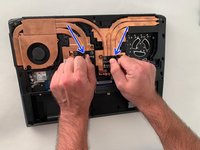
Using the two black tabs as handles, lift and remove the heatsink.
-
-
-
-
-
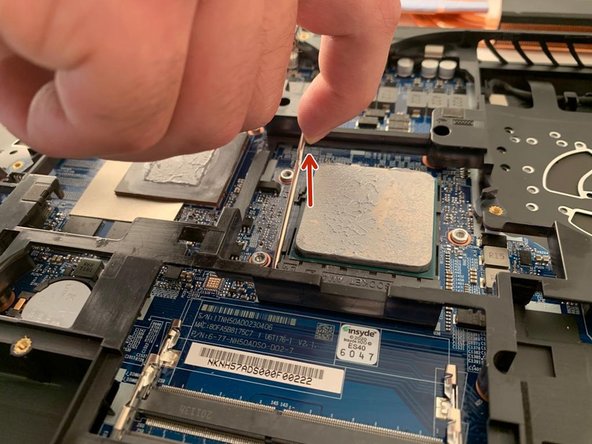
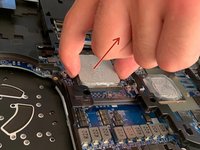
Carefully pull the metal bar away from the processor to free it from under the retaining tab, then lift it to release the processor pins.
-
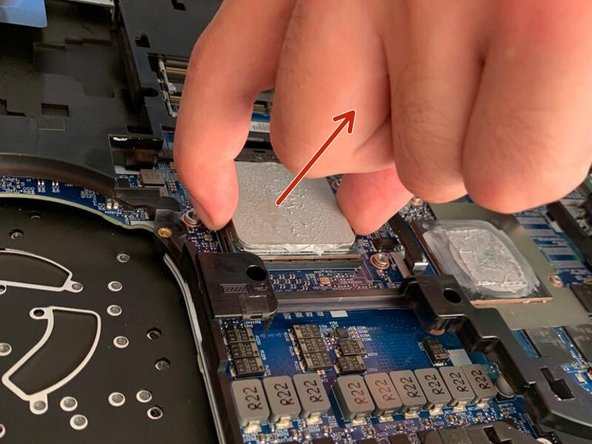
Carefully remove the processor by lifting it straight up.
-
-
-
-
-
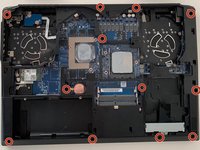
Remove the 12 Phillips screws securing the bottom case.
-
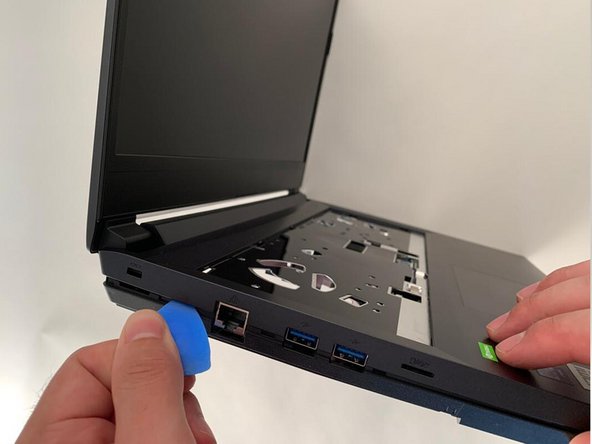
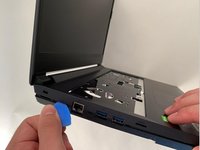
Using an opening pick, detach the lower case.
-
-
-
-
-
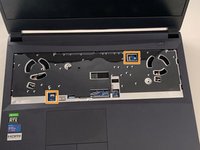
Lift the retaining latches and remove the two ribbon cables located under the keyboard.
-
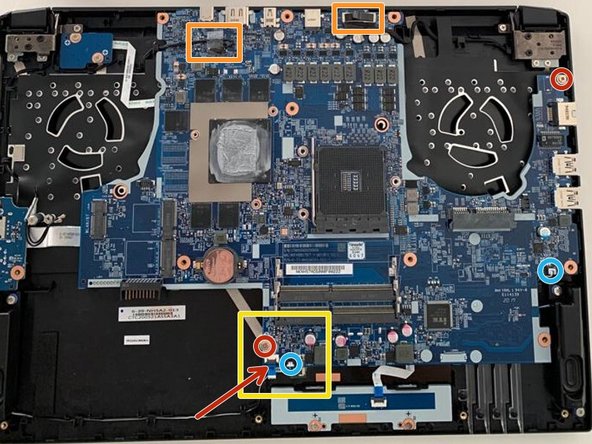
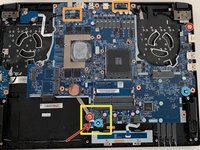
Remove the two remaining Phillips screws securing the motherboard.
-
Carefully unplug the two speaker cables using fingernails of fine tip tweezers. Do not pull on the delicate wires, as they can break easily.
-
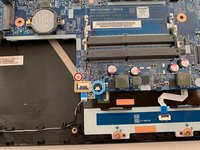
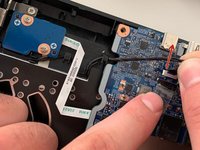
Flip up the retaining latch on the ZIF connector between the speaker connector and the mounting screw. Remove the flex cable from the connector.
-
-
-
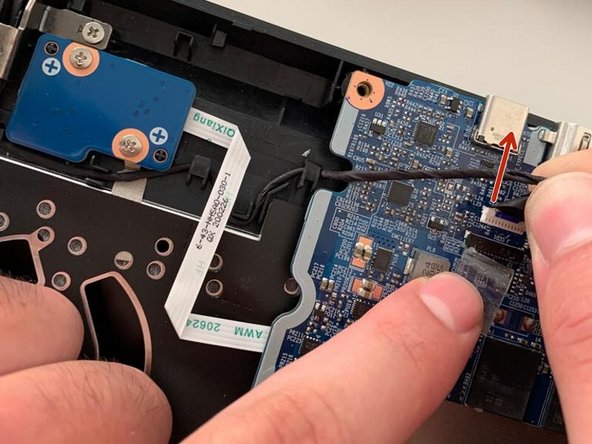
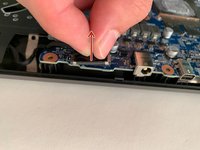
Unplug the LCD cable by grasping the tab and pulling it straight up. Unplug the other display cable by pulling it in the direction of the arrow. Press it out by the connector, not the cable.
-
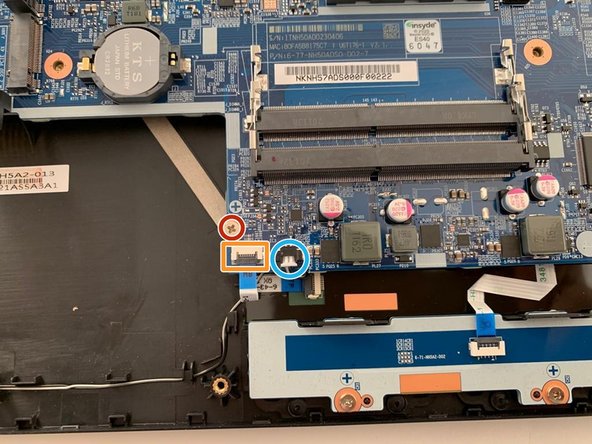
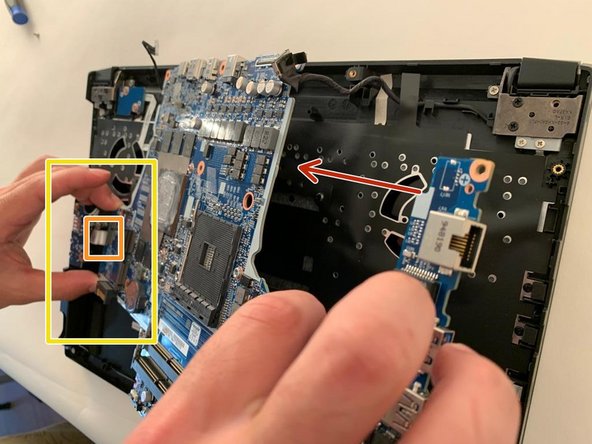
Carefully lift the motherboard to access the remaining cable attached to the bottom side of the board.
-
-
-
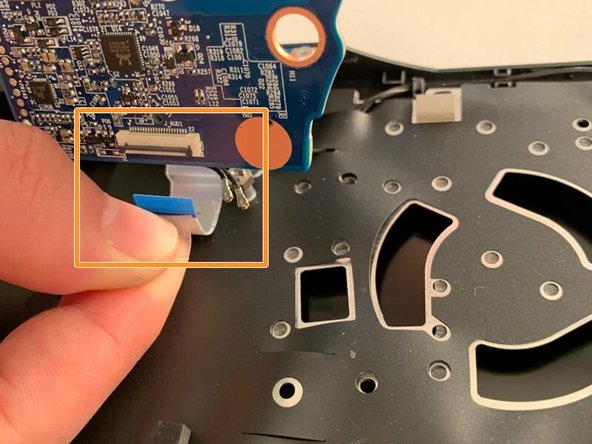
Lift the black retaining latch on the ZIF connector and unplug the flex cable.
-
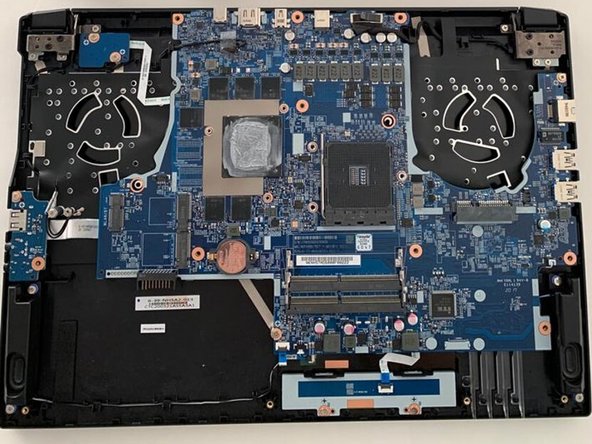
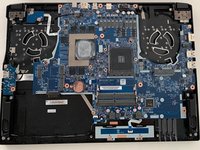
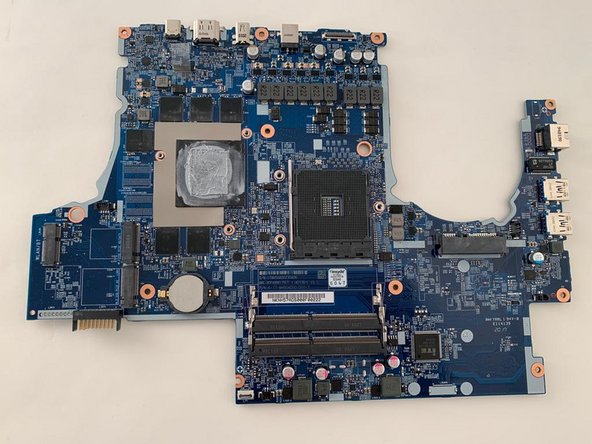
The motherboard has now been removed.
-
-
















To reassemble your device, follow the instructions in reverse order.
Special thanks to these translators:
100%

Jerry Wheeler is helping us fix the world! Want to contribute?
Start translating ›

