
Weiser Smartcode 10 Touchscreen Electronic Lock Battery Replacement

Brandon Brown and 3 other contributors
Last updated on Mar 25, 2024
Views: 12K
View statistics:
- Past 24 Hours:
- 7
- Past 7 Days:
- 45
- Past 30 Days:
- 186
- All Time:
- 11,815
Comments: 0
No one has left comments on this guide. Will you be first?
Go to guide commentsCompleted: 2 3
2 people have marked this guide "completed." Will you be next?
3 people have marked this guide "completed." Including you — great job!
Favorites: 0 1
No one has favorited (and subscribed to) this guide. Will you be the first?
1 person has favorited (and subscribed to) this guide — and that's you!
Introduction
Go to step 1 ↓Do you know when it’s time to change the batteries in your Weiser lock? Here are some hints:
- Your electronic lock flashes red.
- Your keypad doesn’t light up.
- If you have a home security provider, they’ll probably let you know!
In this guide, you will learn how to change the batteries of your Weiser Smartcode 10 Touchscreen Electronic Lock.
(Try saying that ten times fast!)
Before starting this guide, make sure all home security connected to the door lock is disarmed. Let’s begin!
What you need
Tools

-
-
-
Unlock your door and open it.
-
Make sure the bolt/latch is fully inside the door before you continue.
 Ask FixBot
-
-
-
Using the Phillips #1 screwdriver, remove the three 8 mm screws on the left, right and bottom side of the cover.
-
-
-
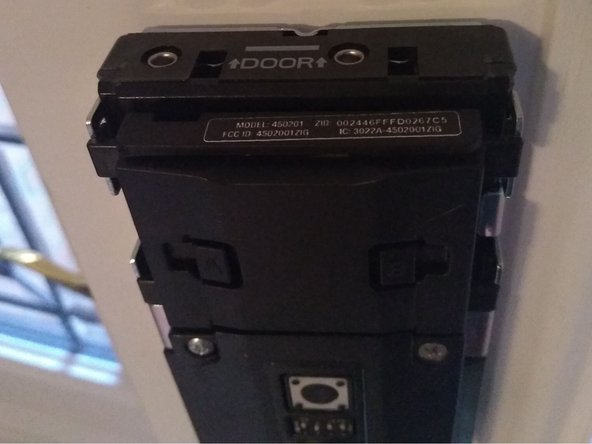
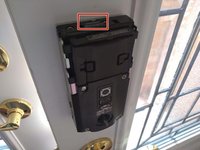
Find the battery pack (marked "DOOR" in between two arrows) at the top of the lock.
-
-
-
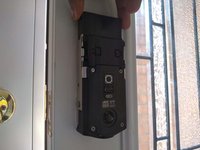
Slide the battery pack upwards.
-
Turn the pack over to reveal the batteries.
-
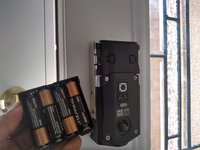
Replace the four AA batteries.
-
-
-
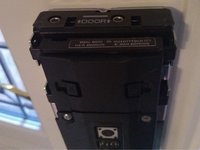
Reinsert the battery pack with the word "DOOR" facing you.
-
Wait until you see a green LED light flashing and/or hear two beeps to indicate working batteries.
-
-
-
-
Check that the bolt/latch is still inside the door.
-
Take the exterior cover and point the narrow end of the knob to the right.
-
Place the cover on the lock and reinsert the screws.
-
-






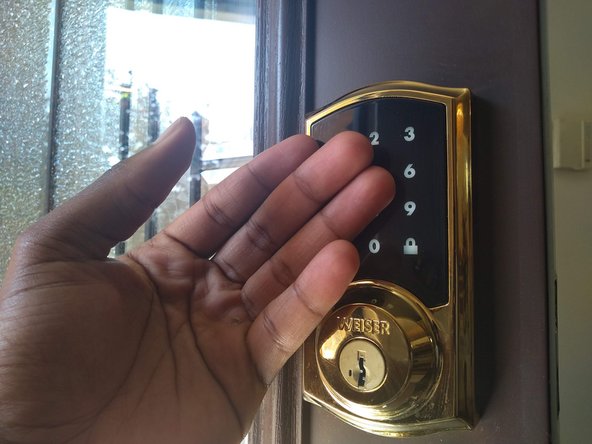
Congratulations! Make sure to redo this process each year to ensure your device continues to work!
Cancel: I did not complete this guide.
2 other people completed this guide.

Team

York University, Team S1-G7, Melo-Thaiss Summer 2021 Member of York University, Team S1-G7, Melo-Thaiss Summer 2021
YORK-MELO-THAISS-SU21S1G7
1 Member
12 Guides authored
