Free Shipping on Domestic Orders $75+

Wacom Cintiq 24HD USB Video Port Replacement

What you need

  1. Wacom Cintiq 24HD USB Video Port Replacement, Stand: step 1, image 1 of 1
    • Unplug any cables from the USB, power, display or DVI-D ports by gripping the cord by the connector and pulling straight out of the port.

    • Unplugging the cables by pulling on the cord or pulling at an angle can damage the cable or connector.

    Ask FixBot

    Add Comment

  2. Wacom Cintiq 24HD USB Video Port Replacement: step 2, image 1 of 3 Wacom Cintiq 24HD USB Video Port Replacement: step 2, image 2 of 3 Wacom Cintiq 24HD USB Video Port Replacement: step 2, image 3 of 3
    • Place the device screen down on a flat surface.

    • Remove eight 10mm Phillips #2 screws (four on each leg of the stand) by turning the screwdriver counterclockwise.

    Ask FixBot

    Add Comment

  3. Wacom Cintiq 24HD USB Video Port Replacement: step 3, image 1 of 1
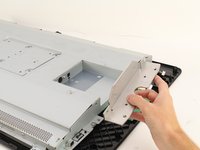
    • Lift the stand up and away from the rest of the device so the legs separate from the mounting plate.

    Ask FixBot

    Add Comment

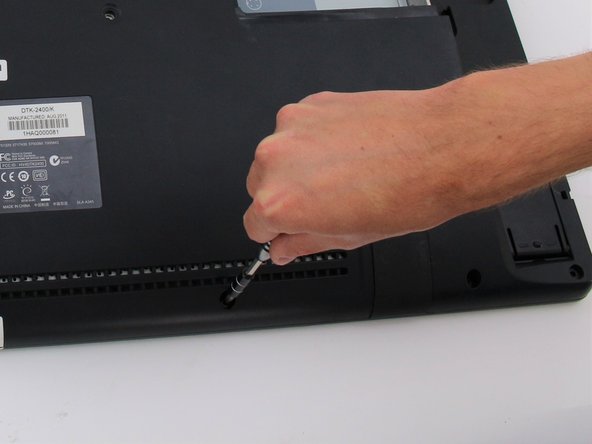
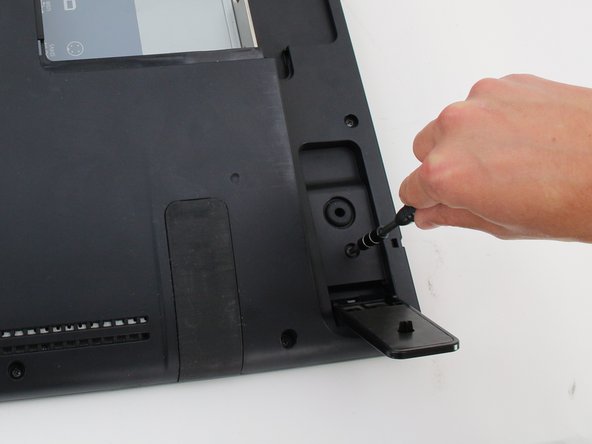
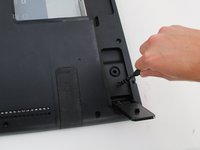
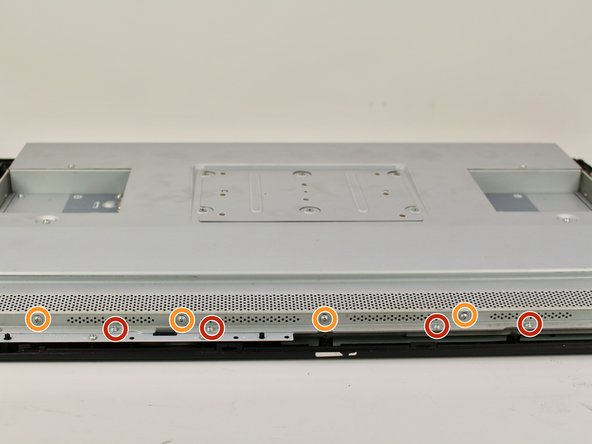
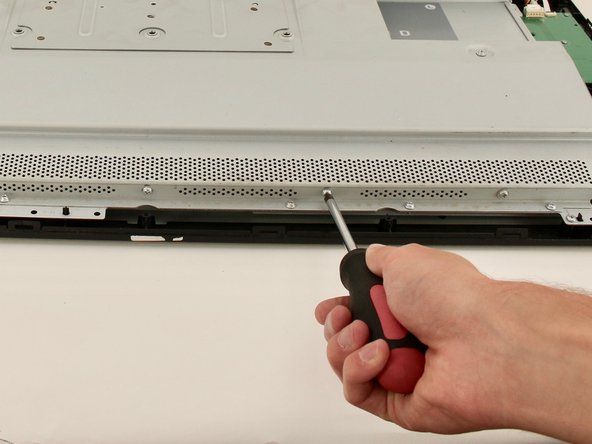
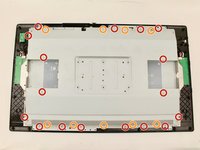
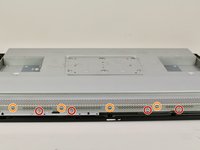
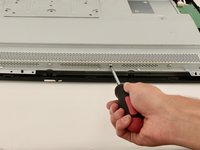
  4. Wacom Cintiq 24HD USB Video Port Replacement, Back Panel: step 4, image 1 of 3 Wacom Cintiq 24HD USB Video Port Replacement, Back Panel: step 4, image 2 of 3 Wacom Cintiq 24HD USB Video Port Replacement, Back Panel: step 4, image 3 of 3
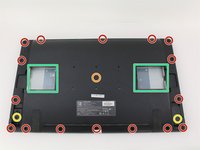
    • Remove eighteen 10.2mm Phillips #1 screws from the perimeter of the back panel by turning the screwdriver counterclockwise.

    • Remove one 11.9mm Phillips #1 screw from the center of the back panel.

    • Remove two 10.2mm Phillips #1 screws from underneath hinged panels in the bottom right and left corners.

    • Our device does not include the cover panels for the USB, DVI-D, and power ports. You must first remove these cover panels shown in green in order to remove the back panel.

    Ask FixBot

    Add Comment

  5. Wacom Cintiq 24HD USB Video Port Replacement: step 5, image 1 of 2 Wacom Cintiq 24HD USB Video Port Replacement: step 5, image 2 of 2
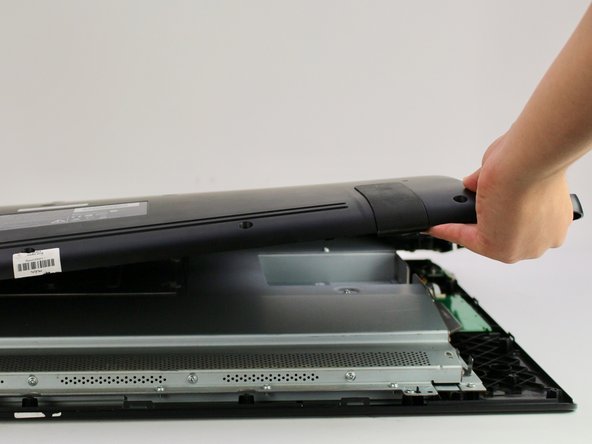
    • Lift the back panel up by a corner and insert a plastic opening tool in the gap.

    • Slide the tool along the gap around the perimeter of the device while lifting to unlatch the back panel.

    • The latches on the back panel will make loud clicking noises when opening.

    • Remove the panel by lifting it up and off of the device.

    Ask FixBot

    Add Comment

  6. Wacom Cintiq 24HD USB Video Port Replacement, Interior Metal Plate: step 6, image 1 of 3 Wacom Cintiq 24HD USB Video Port Replacement, Interior Metal Plate: step 6, image 2 of 3 Wacom Cintiq 24HD USB Video Port Replacement, Interior Metal Plate: step 6, image 3 of 3
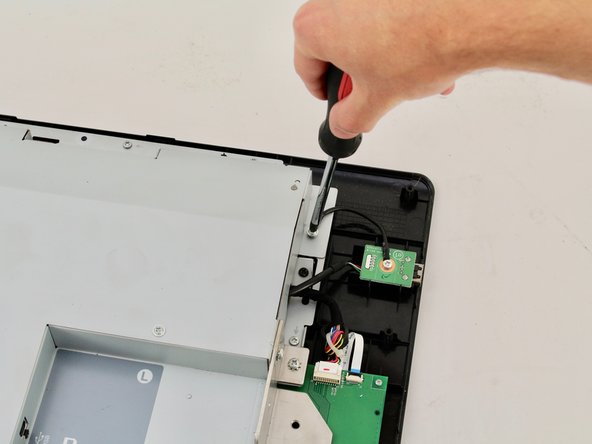
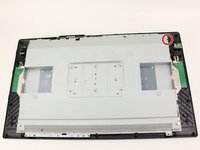
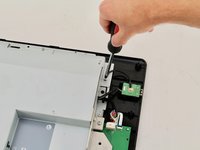
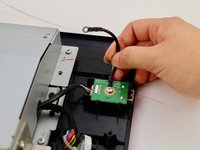
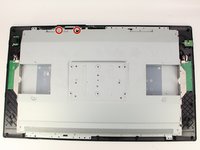
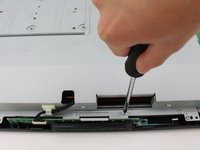
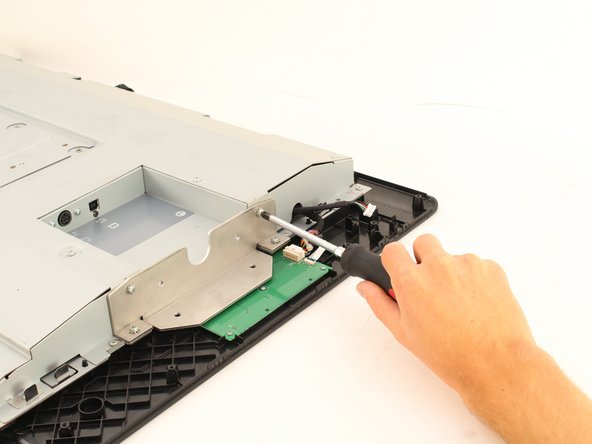
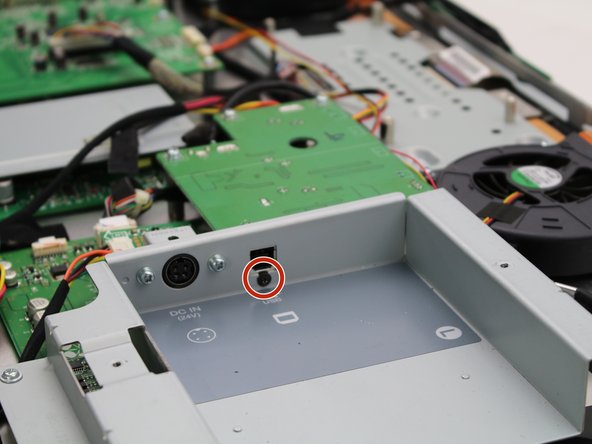
    • Detach the small black wire connecting the back metal plate to the USB video port by removing the one 8 mm Phillips #2 screw from the back metal plate and turning the screwdriver counterclockwise.

    Ask FixBot

    Add Comment

  7. Wacom Cintiq 24HD USB Video Port Replacement: step 7, image 1 of 3 Wacom Cintiq 24HD USB Video Port Replacement: step 7, image 2 of 3 Wacom Cintiq 24HD USB Video Port Replacement: step 7, image 3 of 3
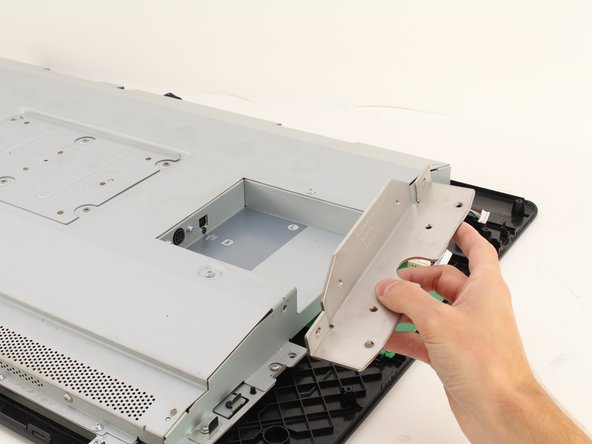
    • Remove the two 8 mm Phillips #2 screws from the metal button plate by rotating the screwdriver counterclockwise.

    • Remove the metal button plate from the back metal plate.

    Ask FixBot

    Add Comment

  8. Wacom Cintiq 24HD USB Video Port Replacement: step 8, image 1 of 3 Wacom Cintiq 24HD USB Video Port Replacement: step 8, image 2 of 3 Wacom Cintiq 24HD USB Video Port Replacement: step 8, image 3 of 3
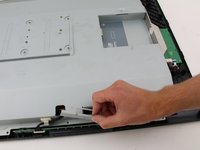
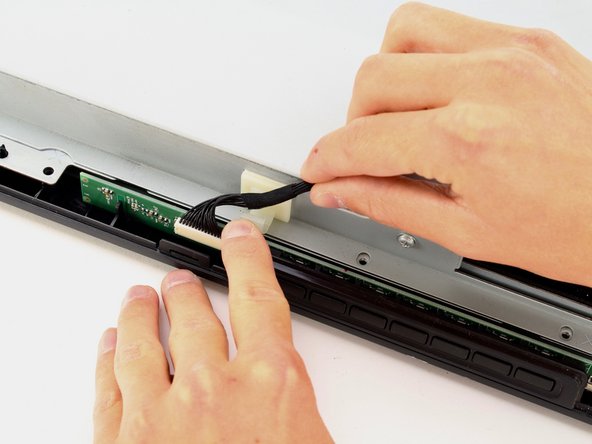
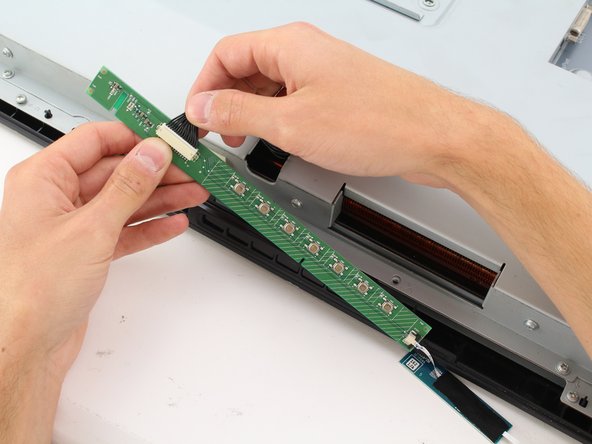
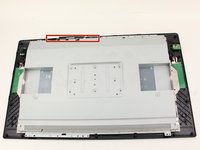
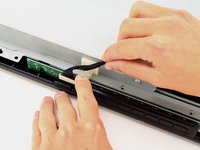
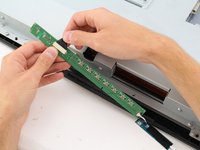
    • Remove the button wires from the support clip by pushing down on the clip.

    • Detach the button wires from the button board by pulling the button wires away from the board.

    • Place the button board back in to the device.

    Ask FixBot

    Add Comment

  9. Wacom Cintiq 24HD USB Video Port Replacement: step 9, image 1 of 3 Wacom Cintiq 24HD USB Video Port Replacement: step 9, image 2 of 3 Wacom Cintiq 24HD USB Video Port Replacement: step 9, image 3 of 3
    • Remove the eight (four on each plate) 10.2mm Phillips #2 screws with locking washers from the metal mounting plates by rotating the screwdriver counterclockwise.

    • Remove the two metal mounting plates.

    Ask FixBot

    Add Comment

  10. Wacom Cintiq 24HD USB Video Port Replacement: step 10, image 1 of 3 Wacom Cintiq 24HD USB Video Port Replacement: step 10, image 2 of 3 Wacom Cintiq 24HD USB Video Port Replacement: step 10, image 3 of 3
    • Remove the sixteen 8 mm Phillips #2 screws with flanges from the horizontal side of the plate by turning the screwdriver counterclockwise.

    • Remove the ten 8 mm Phillips #2 screws with flanges from the vertical sides of the plate by turning the screwdriver counterclockwise.

    Ask FixBot

    Add Comment

  11. Wacom Cintiq 24HD USB Video Port Replacement: step 11, image 1 of 1
    • Remove the back metal plate by lifting up along one edge , then lifting the plate off and away from the device.

    Ask FixBot

    Add Comment

  12. Wacom Cintiq 24HD USB Video Port Replacement, USB Video Port: step 12, image 1 of 2 Wacom Cintiq 24HD USB Video Port Replacement, USB Video Port: step 12, image 2 of 2
    • Remove the one 6.8mm Phillips #1 screw by turning the screwdriver counterclockwise.

    Ask FixBot

    Add Comment

  13. Wacom Cintiq 24HD USB Video Port Replacement: step 13, image 1 of 1
    • Remove the four 8mm Phillips #1 screws with flanges by turning the screwdriver counterclockwise.

    Ask FixBot

    Add Comment

  14. Wacom Cintiq 24HD USB Video Port Replacement: step 14, image 1 of 1
    • Remove the five cables connected to the USB board by pinching near the connector and pulling the cables straight out.

    Ask FixBot

    Add Comment

  15. Wacom Cintiq 24HD USB Video Port Replacement: step 15, image 1 of 1
    • Remove USB video port by desoldering at the connection points on the board.

    • iFixit has a soldering guide that you can find here.

    Ask FixBot

    Add Comment

Conclusion

To reassemble your device, follow these instructions in reverse order.

Cancel: I did not complete this guide.

Jay Sung

Member since: 10/08/18

481 Reputation

4 Guides authored

Team

Cal Poly, Team S15-G3, White Fall 2018 Member of Cal Poly, Team S15-G3, White Fall 2018

CPSU-WHITE-F18S15G3

4 Members

18 Guides authored

0 Guide Comments

Add Comment

View Statistics:

Past 24 Hours: 3

Past 7 Days: 5

Past 30 Days: 24

All Time: 2,031