Introduction
If your Voluas VL001 pet feeder audio recording is distorted or is not playing when your kibble is dispensed, this has to do with your speaker. The speaker plays a voice recording of your voice so your pet recognizes when it is time to eat.
This replacement requires special skills like wire stripping and soldering.
What you need
-
-
Remove the lid to the storage tank by using the latch and lifting off.
-
Grab the food storage tank on both sides. Depress the tabs that say "Push" on them and lift the tank off.
 Ask FixBot
-
-
-
Place your pet feeder upside down.
-
Squeeze the lock and remove the battery cover.
-
Remove the three 1.5V D alkaline batteries.
-
-
-
Insert a metal spudger under the adhesive part of each rubber foot.
-
Pry the foot off.
-
-
-
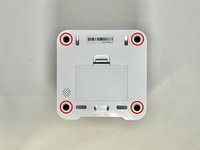
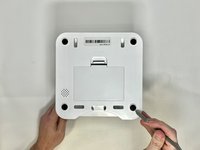
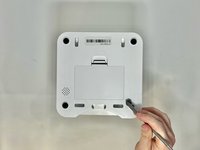
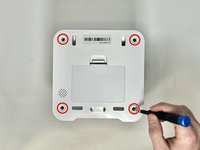
Remove four screws from the corners of the device using a Phillips #2 screwdriver.
-
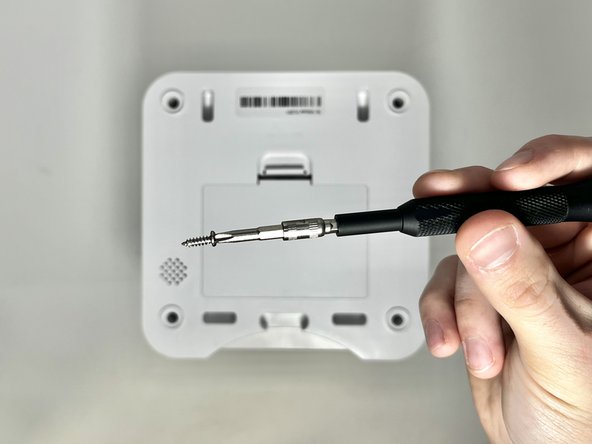
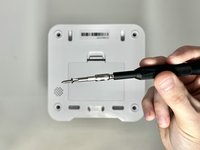
Using the magnetic tip of the screwdriver, carefully lift the screw out of the hole.
-
-
-
-
Turn the device over so it is oriented right-side up.
-
Lift the top part of the feeder off, exposing the mechanisms that run the feeder.
-
-
-
Using a Phillips #2 screwdriver, remove the six 11.2 mm screws that hold the motor housing on to the device.
-
Remove the motor assembly and set it to the side.
-
-
-
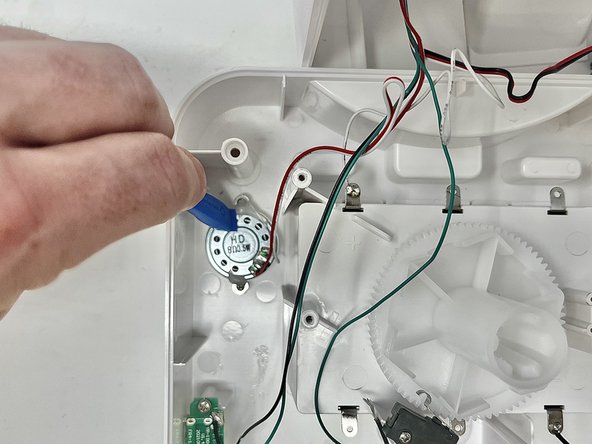
Use a Phillips #2 screwdriver to remove the two 6 mm screws from the speaker.
-
-
-
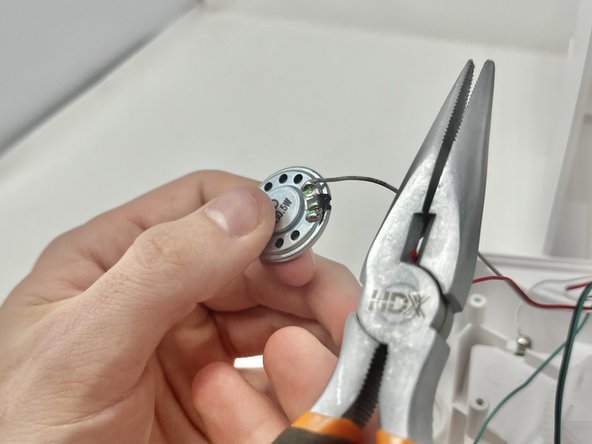
Using your wire strippers/pliers, cut the two wires that are connected to the speaker.
-
-
-
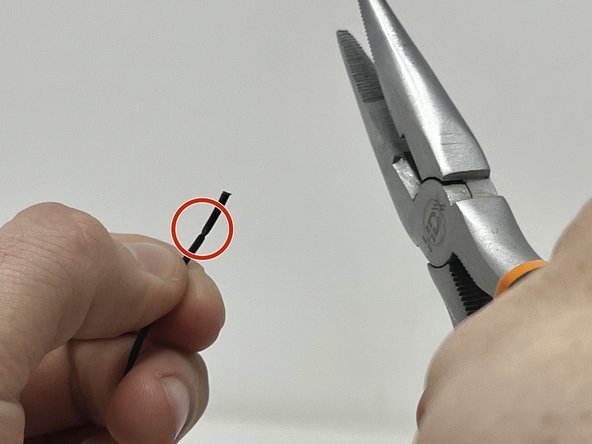
Using your wire strippers/pliers, gently crimp the plastic insulation on the wire. Do this several times around the wire to make sure that you can pull it off.
-
You will want to see a score line in the insulation all around the wire like this.
-
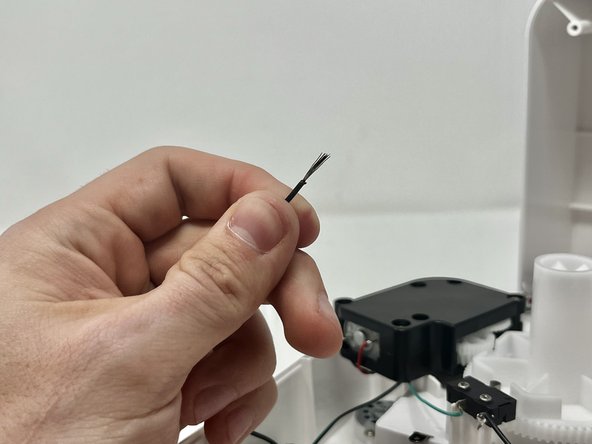
Pull the end of the insulation off, exposing the wire.
-
-
-
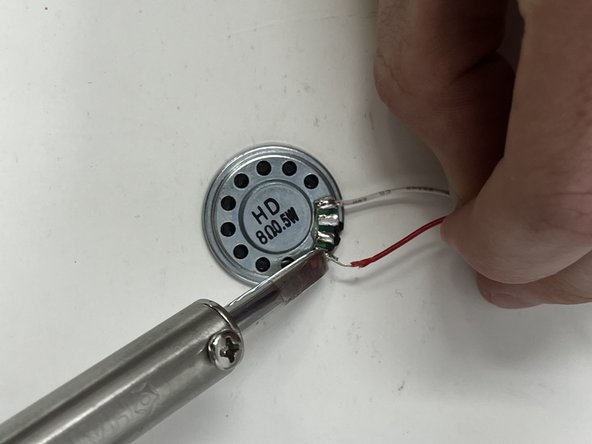
Put the exposed wire on the solder patch, making sure it has good contact with the metal.
-
Solder the wire on to the solder patch.
-
Repeat steps 10 and 11 for the white wire.
-













To reassemble your device, follow these instructions in reverse order.

Team

Utah Tech University, Team 1-3, McMurrin Spring 2024 Member of Utah Tech University, Team 1-3, McMurrin Spring 2024
UTAHTECH-MCMURRIN-S24S1G3
2 Members
11 Guides authored
