Free Shipping on Domestic Orders $75+

Vizio CT15 Keyboard Replacement

What you need

    1. Vizio CT15 Keyboard Replacement, Vizio CT15 Back Panel Removal: step 1, image 1 of 2 Vizio CT15 Keyboard Replacement, Vizio CT15 Back Panel Removal: step 1, image 2 of 2
      • Turn the laptop off and remove all power cables.

      • Remove the six Phillips #0 screws.

      • Pull the back cover off.

      Ask FixBot

      Add Comment

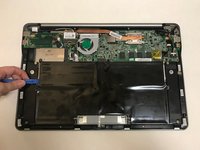
    1. Vizio CT15 Keyboard Replacement, Battery: step 2, image 1 of 1
      • Remove the six Phillips #0 screws.

      Ask FixBot

      Add Comment

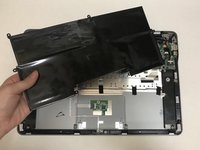
    2. Vizio CT15 Keyboard Replacement: step 3, image 1 of 2 Vizio CT15 Keyboard Replacement: step 3, image 2 of 2
      • Use the plastic opening tool or your fingers to pry the battery up and pull it from the laptop.

      Ask FixBot

      Add Comment

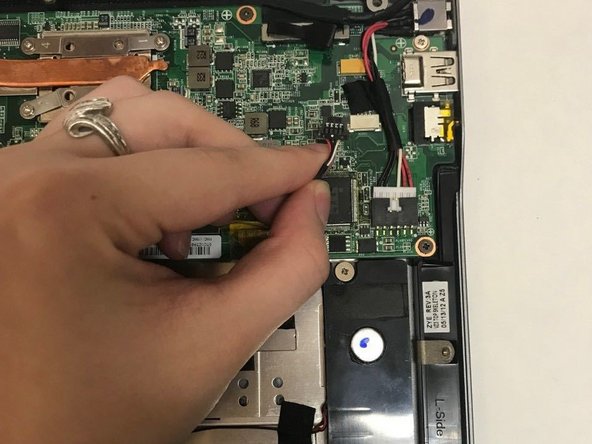
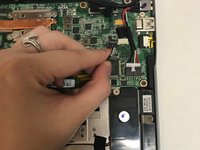
    1. Vizio CT15 Keyboard Replacement, Speakers: step 4, image 1 of 2 Vizio CT15 Keyboard Replacement, Speakers: step 4, image 2 of 2
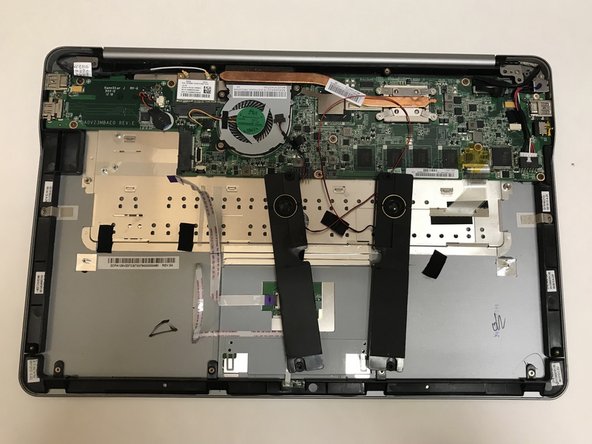
      • Unplug the wire connecting the speakers to the motherboard.

      Ask FixBot

      Add Comment

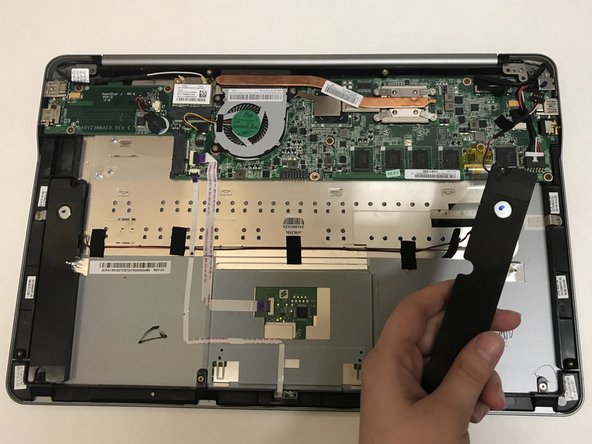
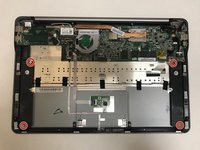
    2. Vizio CT15 Keyboard Replacement: step 5, image 1 of 2 Vizio CT15 Keyboard Replacement: step 5, image 2 of 2
      • Remove the four Phillips #0 screws.

      • Pull the speakers out to remove.

      Ask FixBot

      Add Comment

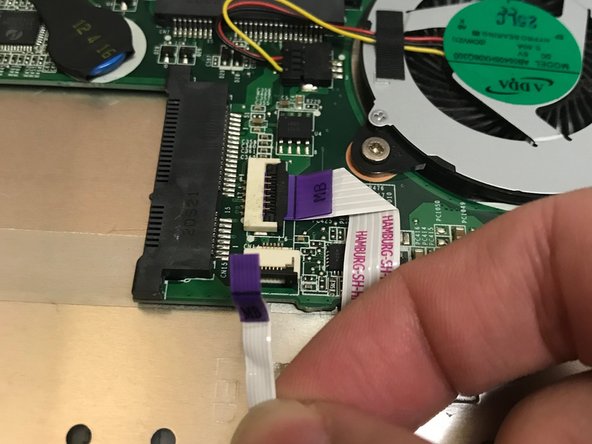
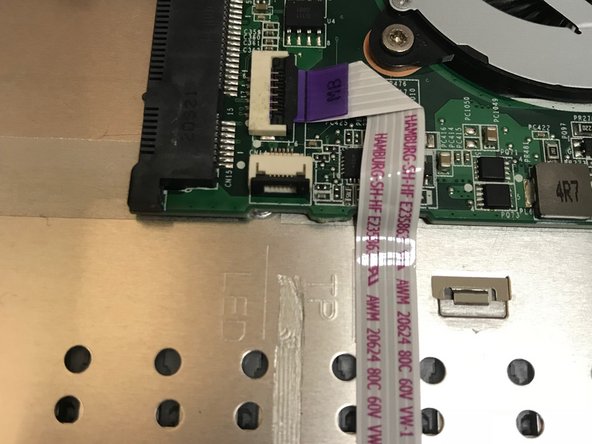
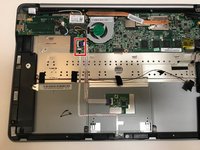
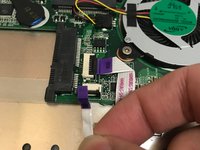
    3. Vizio CT15 Keyboard Replacement: step 6, image 1 of 3 Vizio CT15 Keyboard Replacement: step 6, image 2 of 3 Vizio CT15 Keyboard Replacement: step 6, image 3 of 3
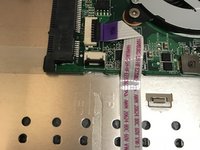
      • Use the flat end of a spudger to lift up the black tab on the ZIF connector.

      • Pull the ribbon cables out of the ZIF connector.

      • These wires are not connected to the speakers. We are only unplugging them to remove the wire underneath.

      Ask FixBot

      Add Comment

    4. Vizio CT15 Keyboard Replacement: step 7, image 1 of 2 Vizio CT15 Keyboard Replacement: step 7, image 2 of 2
      • Pull off the black strips of tape from the speaker wires and remove the speakers from the laptop.

      Ask FixBot

      Add Comment

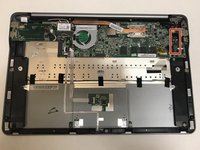
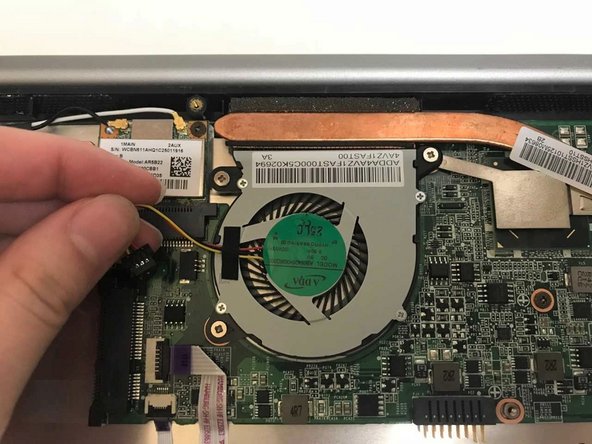
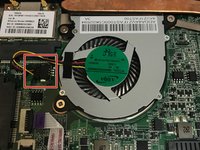
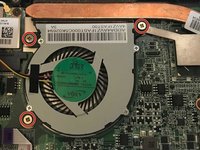
    1. Vizio CT15 Keyboard Replacement, CPU Fan: step 8, image 1 of 2 Vizio CT15 Keyboard Replacement, CPU Fan: step 8, image 2 of 2
      • Unplug the fan from the motherboard.

      Ask FixBot

      Add Comment

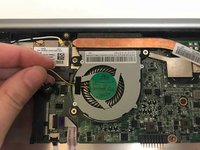
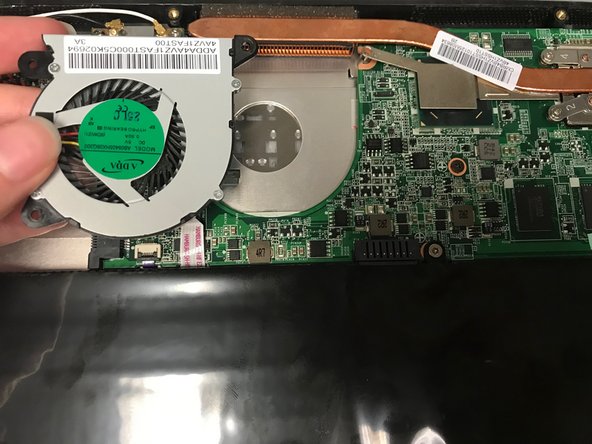
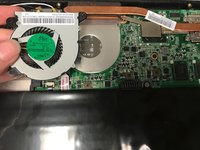
    2. Vizio CT15 Keyboard Replacement: step 9, image 1 of 2 Vizio CT15 Keyboard Replacement: step 9, image 2 of 2
      • Remove the three Phillips #0 screws.

      • Pull the fan out to remove.

      Ask FixBot

      Add Comment

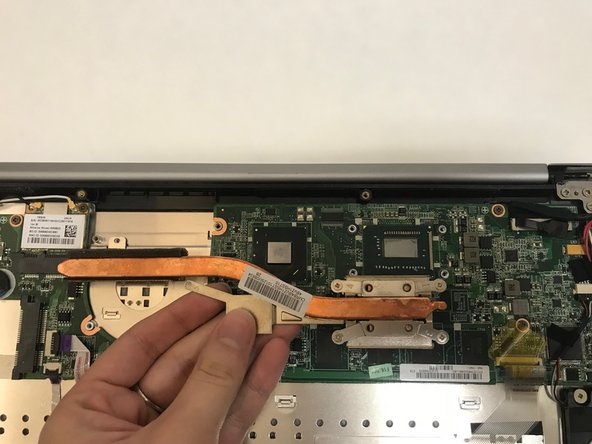
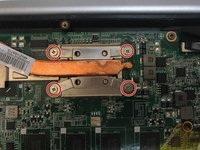
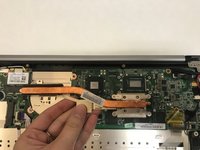
    1. Vizio CT15 Keyboard Replacement, Keyboard: step 10, image 1 of 2 Vizio CT15 Keyboard Replacement, Keyboard: step 10, image 2 of 2
      • Remove the four Philips #0 screws from the heatsink.

      • Pull up and out to remove the heatsink from the laptop.

      Ask FixBot

      Add Comment

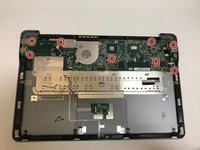
    2. Vizio CT15 Keyboard Replacement: step 11, image 1 of 2 Vizio CT15 Keyboard Replacement: step 11, image 2 of 2
      • Remove the eight Phillips #0 screws from the motherboard.

      • Lift the motherboard up and out to remove it from the laptop.

      Ask FixBot

      Add Comment

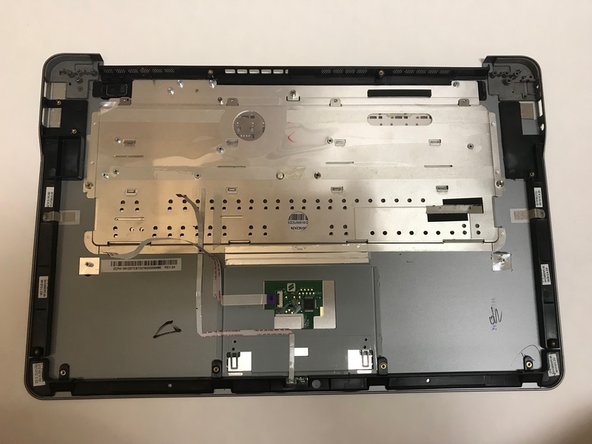
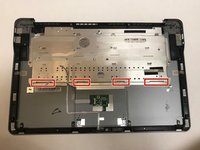
    3. Vizio CT15 Keyboard Replacement: step 12, image 1 of 1
      • Remove the four Phillips #00 screws that hold the keyboard to the laptop case.

      Ask FixBot

      Add Comment

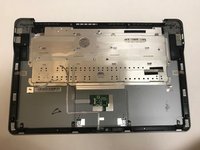
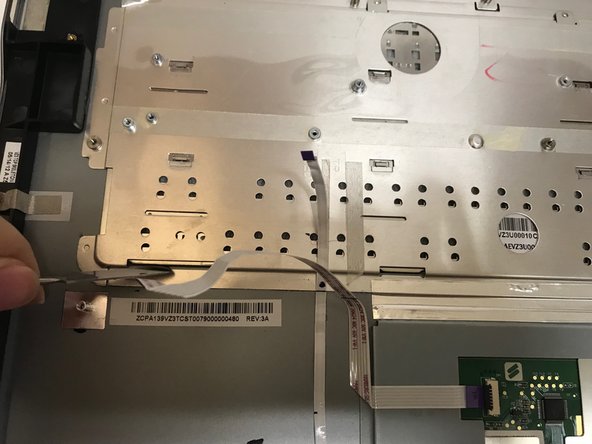
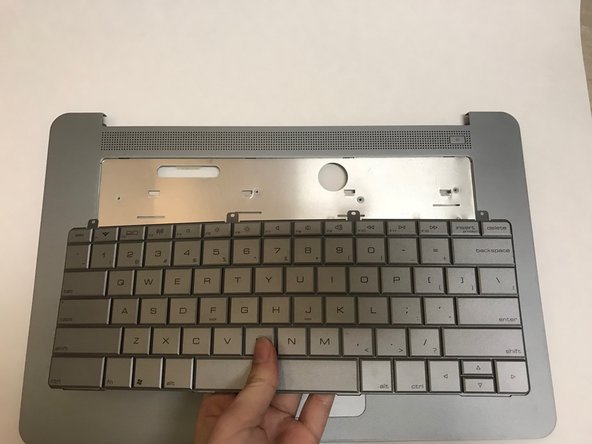
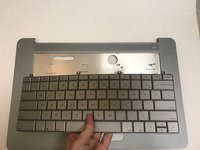
    4. Vizio CT15 Keyboard Replacement: step 13, image 1 of 3 Vizio CT15 Keyboard Replacement: step 13, image 2 of 3 Vizio CT15 Keyboard Replacement: step 13, image 3 of 3
      • Use a metal spudger to carefully push the keyboard out of place.

      • Carefully flip the laptop over and pull the keyboard out.

      Ask FixBot

      Add Comment

Conclusion

To reassemble your device, follow these instructions in reverse order.

Cancel: I did not complete this guide.

3 other people completed this guide.

0 Guide Comments

Add Comment

View Statistics:

Past 24 Hours: 1

Past 7 Days: 5

Past 30 Days: 28

All Time: 1,190