
VTech Write and Learn Creative Center Speaker Replacement

Victoria Hathaway and 3 other contributors
Last updated on May 25, 2016
Views: 1.8K
View statistics:
- Past 24 Hours:
- 3
- Past 7 Days:
- 17
- Past 30 Days:
- 85
- All Time:
- 1,804
Comments: 1
1 guide comment.
Go to guide commentsCompleted: 0 1
No one has marked this guide "completed." Will you be the first?
1 person has marked this guide "completed." It's you — great job!
Favorites: 0 1
No one has favorited (and subscribed to) this guide. Will you be the first?
1 person has favorited (and subscribed to) this guide — and that's you!
Introduction
Go to step 1 ↓The speaker is an important aspect for the VTech Write and Learn Creative Center because the audio is one of the interactive ways to engage children to learn. The following repair guide addresses properly replacing a speaker which will require soldering and the use of a screwdriver.
What you need
Tools


-
-
-
Remove all eleven 9mm PH 2 Phillips screws securing the back of the case.
 Ask FixBot
-
-
-
-
-
In order to remove the speaker, you must desolder the two wires connecting it to the circuit board.
-
When you desolder, apply the tip of the soldering iron to the soldered joint for approximately 5 - 10 seconds.
-
The soldered joint will turn to a liquid consistency. At this moment, remove the wire and soldering iron.
-
Repeat each of the following steps for the second soldered joint.
-
-
-
-
Remove the 2 5mm PH 0 Phillips screws with 10 mm heads that secure the speaker to the front of the case.
-
-


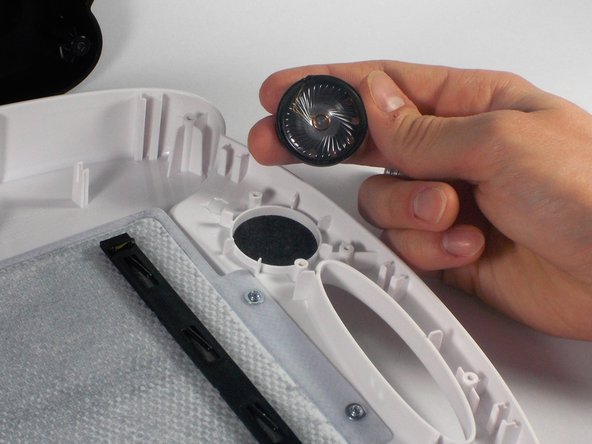
To reassemble your device, follow these instructions in reverse order.

Team

UMass Dartmouth, Team 1-2, Miles Spring 2016 Member of UMass Dartmouth, Team 1-2, Miles Spring 2016
UMASSD-MILES-S16S1G2
3 Members
72 Guides authored
