Free Shipping on Domestic Orders $75+

VTech VM3254 Monitor Circuit Board and Screen Replacement

What you need

  1. VTech VM3254 Monitor Circuit Board and Screen Replacement, Battery: step 1, image 1 of 2 VTech VM3254 Monitor Circuit Board and Screen Replacement, Battery: step 1, image 2 of 2
    • Turn the monitor on its back, and remove the two 8 mm Phillips #0 case screws.

    Ask FixBot
  2. VTech VM3254 Monitor Circuit Board and Screen Replacement: step 2, image 1 of 3 VTech VM3254 Monitor Circuit Board and Screen Replacement: step 2, image 2 of 3 VTech VM3254 Monitor Circuit Board and Screen Replacement: step 2, image 3 of 3
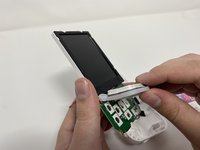
    • Use the iFixit Jimmy tool to begin removing the face of the monitor.

    • You may need to use an opening pick to hold the screen open as you move the Jimmy tool around all the edges of the device.

    • Once the screen has been separated, lift it from the case.

    • Be gentle while removing the screen. There are wires connected to the two pieces that may be damaged.

    Ask FixBot
  3. VTech VM3254 Monitor Circuit Board and Screen Replacement: step 3, image 1 of 2 VTech VM3254 Monitor Circuit Board and Screen Replacement: step 3, image 2 of 2
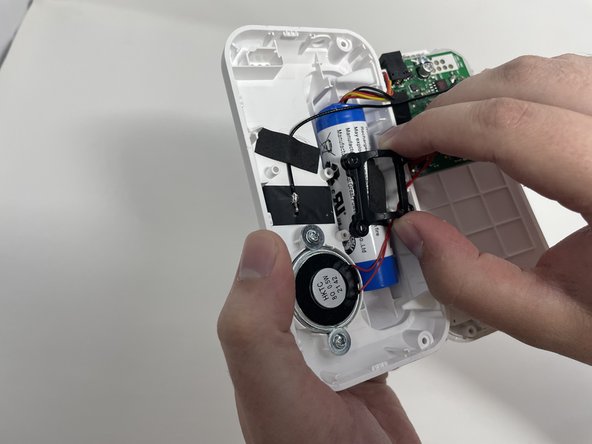
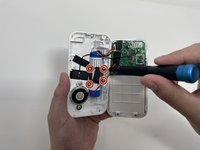
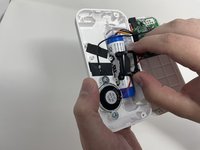
    • Remove the four 8 mm Phillips #00 screws from the bracket that secures the battery.

    • Remove the bracket.

    Ask FixBot
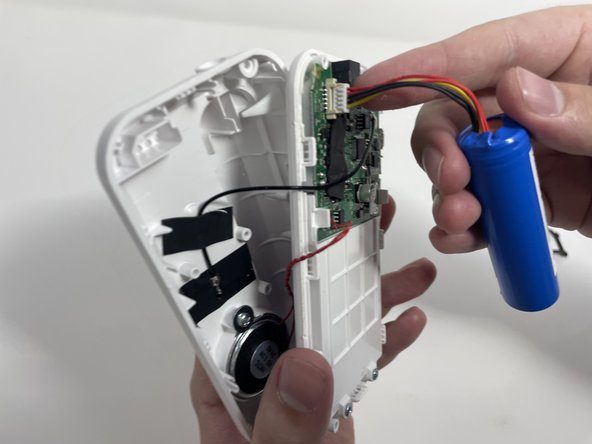
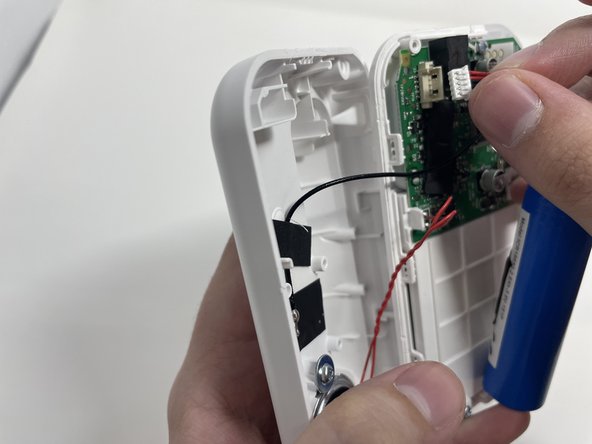
  4. VTech VM3254 Monitor Circuit Board and Screen Replacement: step 4, image 1 of 3 VTech VM3254 Monitor Circuit Board and Screen Replacement: step 4, image 2 of 3 VTech VM3254 Monitor Circuit Board and Screen Replacement: step 4, image 3 of 3
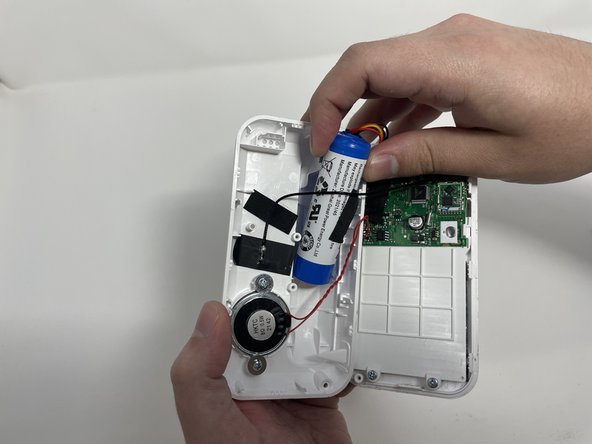
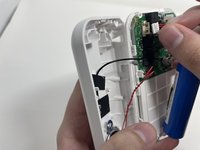
    • Gently remove the battery from its location.

    • Carefully disconnect the bundled cable connector from the circuit board.

    Ask FixBot
  5. VTech VM3254 Monitor Circuit Board and Screen Replacement, Monitor Speaker: step 5, image 1 of 2 VTech VM3254 Monitor Circuit Board and Screen Replacement, Monitor Speaker: step 5, image 2 of 2
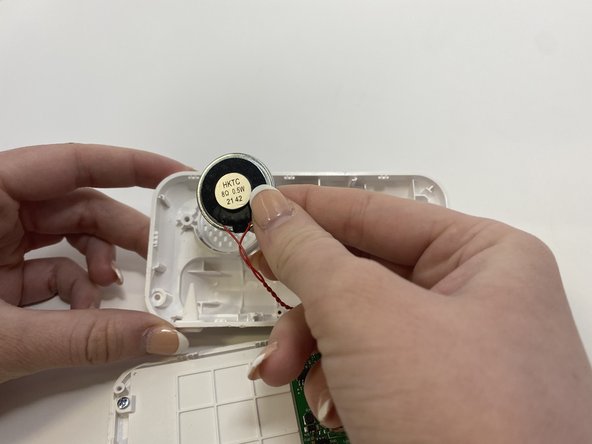
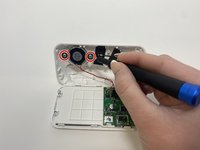
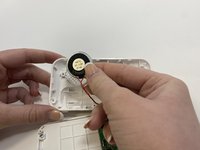
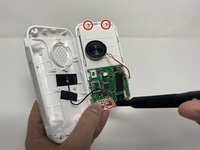
    • Remove the two 7 mm Phillips #00 screws from the speaker.

    • Carefully remove the speaker and its cords from the motherboard.

    • Handle gently to not break the motherboard or any other parts.

    Ask FixBot
  6. VTech VM3254 Monitor Circuit Board and Screen Replacement: step 6, image 1 of 1
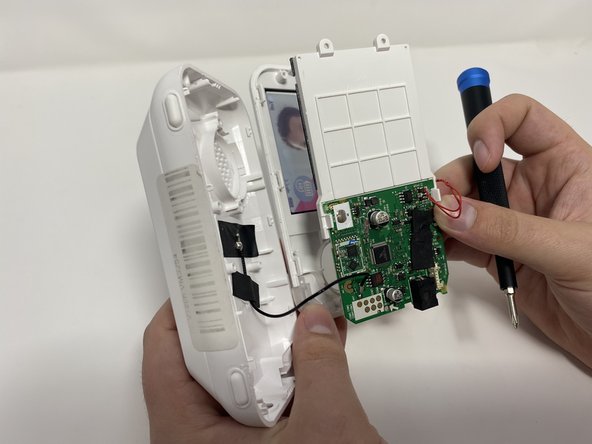
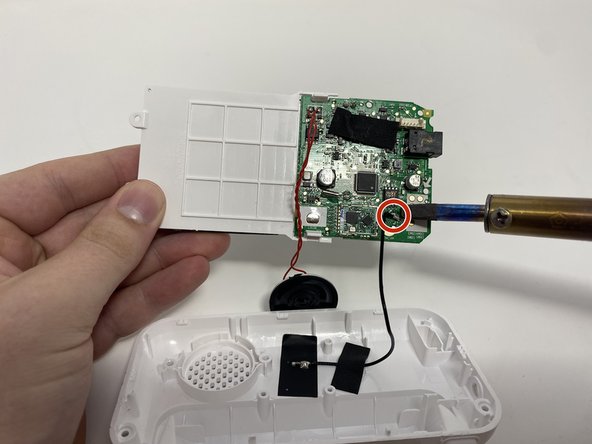
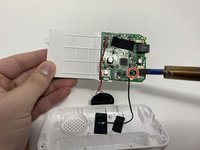
    • Desolder the wire connecting the speaker to the board.

    Ask FixBot
  7. VTech VM3254 Monitor Circuit Board and Screen Replacement, Monitor Circuit Board and Screen: step 7, image 1 of 2 VTech VM3254 Monitor Circuit Board and Screen Replacement, Monitor Circuit Board and Screen: step 7, image 2 of 2
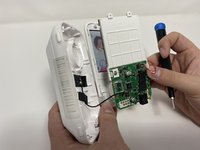
    • Remove the three 8 mm Phillips #00 screws.

    • Gently remove the screen and circuit board from the case.

    Ask FixBot
  8. VTech VM3254 Monitor Circuit Board and Screen Replacement: step 8, image 1 of 2 VTech VM3254 Monitor Circuit Board and Screen Replacement: step 8, image 2 of 2
    • Remove the button assembly from the front of the screen unit.

    • Flip the screen unit back over and desolder the wire holding it to the case.

    Ask FixBot
Conclusion

To reassemble your device, follow these instructions in reverse order.

Christina Block

Member since: 02/09/23

375 Reputation

4 Guides authored

2 Guide Comments

Any source for replacement screens?

Rob Olivieri - Reply Share

Would their be a way to connect the monitor to say a HDMI or VGA cable. To connect to a computer so you could get the video on your computer monitor and possibly be able to record to a hard drive. Just a thought I had. Thank you

Nad Bauch - Reply Share

Add Comment

View Statistics:

Past 24 Hours: 0

Past 7 Days: 11

Past 30 Days: 79

All Time: 1,859