
VTech VM3254 Battery Replacement

Jackson Meacham and 3 other contributors
Last updated on May 18, 2023
Views: 3.2K
View statistics:
- Past 24 Hours:
- 3
- Past 7 Days:
- 27
- Past 30 Days:
- 119
- All Time:
- 3,214
Comments: 2
1 comment on steps, 1 guide comment.
Go to guide commentsCompleted: 0 1
No one has marked this guide "completed." Will you be the first?
1 person has marked this guide "completed." It's you — great job!
Favorites: 0 1
No one has favorited (and subscribed to) this guide. Will you be the first?
1 person has favorited (and subscribed to) this guide — and that's you!
Featured Student Guide
This guide has been the hard work of our awesome students and is found to be exceptionally cool by the iFixit staff.
Introduction
Go to step 1 ↓If the VTech VM3245 will not switch on, the battery may need to be replaced. The information below specifically states how to remove the battery and replace it with a new one. The only tools needed include a Phillips #00 screwdriver, Jimmy, and one opening pick. You will not have any difficult steps, but remove the front cover of the device attentively.
What you need
Tools


-
-
-
Turn the monitor on its back, and remove the two 8 mm Phillips #0 case screws.
 Ask FixBot
-
-
-
Use the iFixit Jimmy tool to begin removing the face of the monitor.
-
Once the screen has been separated, lift it from the case.
-
-
-
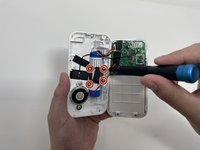
Remove the four 8 mm Phillips #00 screws from the bracket that secures the battery.
-
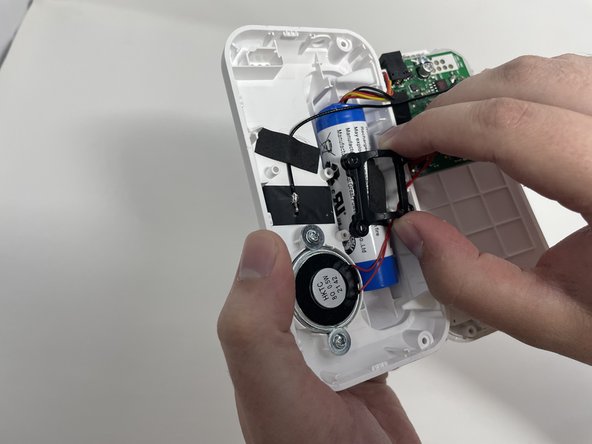
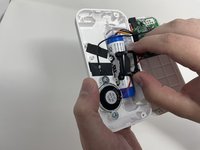
Remove the bracket.
-
-
-
-
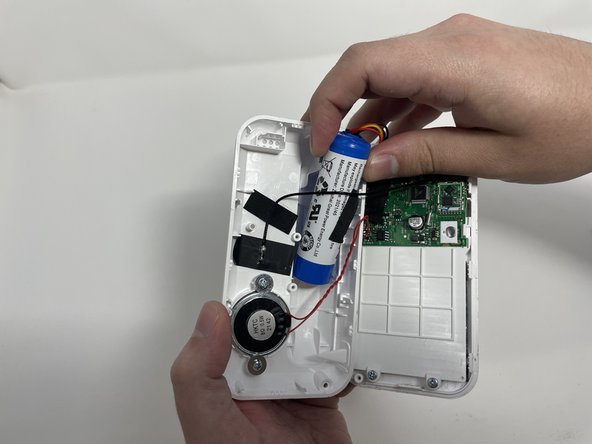
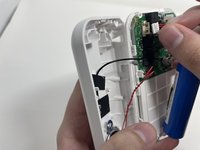
Gently remove the battery from its location.
-
Carefully disconnect the bundled cable connector from the circuit board.
-
-


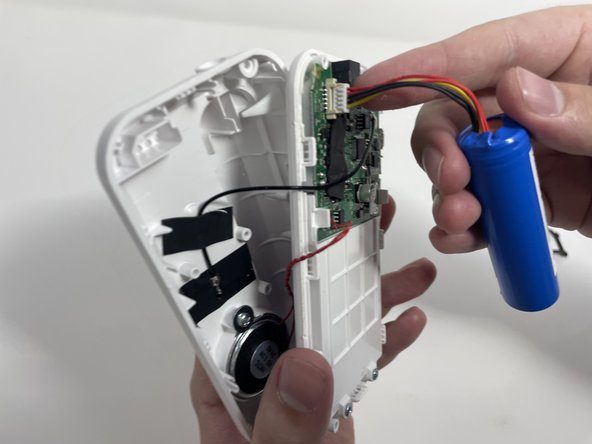
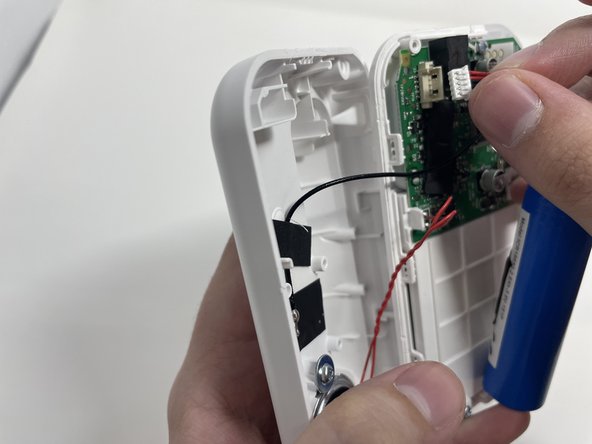
To reassemble your device, follow these instructions in reverse order.

Team

Utah Tech University, Team 1-2, McMurrin Spring 2023 Member of Utah Tech University, Team 1-2, McMurrin Spring 2023
UTAHTECH-MCMURRIN-S23S1G2
4 Members
72 Guides authored
