Free Shipping on Domestic Orders $75+

VTech Kidizoom Camera Connect Power Distribution Circuit Board Replacement

What you need

  1. VTech Kidizoom Camera Connect  Power Distribution Circuit Board Replacement, Front Case: step 1, image 1 of 2 VTech Kidizoom Camera Connect  Power Distribution Circuit Board Replacement, Front Case: step 1, image 2 of 2
    • Remove batteries and SD card before beginning disassembly!

    • Locate the four plastic screw covers denoted by the markers and gently pry them up with the metal spudger.

    Ask FixBot

    Add Comment

  2. VTech Kidizoom Camera Connect  Power Distribution Circuit Board Replacement: step 2, image 1 of 2 VTech Kidizoom Camera Connect  Power Distribution Circuit Board Replacement: step 2, image 2 of 2
    • Remove all four (11mm) screws with the Philips #0 screwdriver.

    Ask FixBot

    Add Comment

  3. VTech Kidizoom Camera Connect  Power Distribution Circuit Board Replacement: step 3, image 1 of 3 VTech Kidizoom Camera Connect  Power Distribution Circuit Board Replacement: step 3, image 2 of 3 VTech Kidizoom Camera Connect  Power Distribution Circuit Board Replacement: step 3, image 3 of 3
    • Remove the two battery cartridges located on the underside of the camera.

    • Once cartridges are removed, use the metal spudger to pry open the top, bottom, and both sides of the camera.

    Ask FixBot

    Add Comment

  4. VTech Kidizoom Camera Connect  Power Distribution Circuit Board Replacement: step 4, image 1 of 1
    • Beware of the two black viewfinder lens falling out as you pry open the device!

    • The device should now be open and ready for further repair and/or replacement parts.

    Ask FixBot

    Add Comment

  5. VTech Kidizoom Camera Connect  Power Distribution Circuit Board Replacement, Motherboard: step 5, image 1 of 1
    • Locate and remove the screws circled in the provided image with a Philips #0 screwdriver.

    Ask FixBot

    Add Comment

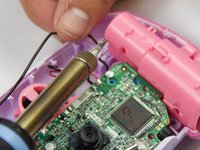
  6. VTech Kidizoom Camera Connect  Power Distribution Circuit Board Replacement: step 6, image 1 of 2 VTech Kidizoom Camera Connect  Power Distribution Circuit Board Replacement: step 6, image 2 of 2
    • Unsolder the connection points on the motherboard.

    Ask FixBot

    Add Comment

  7. VTech Kidizoom Camera Connect  Power Distribution Circuit Board Replacement: step 7, image 1 of 3 VTech Kidizoom Camera Connect  Power Distribution Circuit Board Replacement: step 7, image 2 of 3 VTech Kidizoom Camera Connect  Power Distribution Circuit Board Replacement: step 7, image 3 of 3
    • Unsolder the connections to the right battery terminal. Removing the terminal allows easier access to the motherboard.

    Ask FixBot

    Add Comment

  8. VTech Kidizoom Camera Connect  Power Distribution Circuit Board Replacement: step 8, image 1 of 3 VTech Kidizoom Camera Connect  Power Distribution Circuit Board Replacement: step 8, image 2 of 3 VTech Kidizoom Camera Connect  Power Distribution Circuit Board Replacement: step 8, image 3 of 3
    • Carefully pull up on the motherboard and pink plastic underneath the motherboard. The pink plastic contains the display and is connected to the motherboard.

    Ask FixBot

    Add Comment

  9. VTech Kidizoom Camera Connect  Power Distribution Circuit Board Replacement, Power Distribution Circuit Board: step 9, image 1 of 1
    • Unsolder the wires connected to the power distribution circuit board.

    Ask FixBot

    Add Comment

  10. VTech Kidizoom Camera Connect  Power Distribution Circuit Board Replacement: step 10, image 1 of 1
    • Locate and remove the two screws that hold in the power distribution circuit board using a Philips #0 screwdriver.

    Ask FixBot

    Add Comment

  11. VTech Kidizoom Camera Connect  Power Distribution Circuit Board Replacement: step 11, image 1 of 1
    • Gently pull up on power distribution circuit board and remove it from the device.

    Ask FixBot

    Add Comment

Conclusion

To reassemble your device, follow these instructions in reverse order.

Cancel: I did not complete this guide.

One other person completed this guide.

Justin Sanchez

Member since: 02/08/16

544 Reputation

4 Guides authored

Team

USF Tampa, Team 6-4, Eyestone Spring 2016 Member of USF Tampa, Team 6-4, Eyestone Spring 2016

USFT-EYESTONE-S16S6G4

4 Members

5 Guides authored

1 Guide Comment

The Camera is not working anymore. We can`t switch it on, so it could be that the distribution circiut is damaged.

What kind of disitrubution circiut is it? I want to order a spare part.

Babyface - Reply Share

Add Comment

View Statistics:

Past 24 Hours: 1

Past 7 Days: 6

Past 30 Days: 56

All Time: 1,879