Free Shipping on Domestic Orders $75+

VTech Baby's Learning Laptop Volume Switch Replacement

Views: 1.4K

View statistics:

Past 24 Hours:
3
Past 7 Days:
19
Past 30 Days:
113
All Time:
1,411
Comments: 1

1 comment on steps.

Completed: 0

No one has marked this guide "completed." Will you be the first?

Favorites: 0

No one has favorited (and subscribed to) this guide. Will you be the first?

Time Required: 5 minutes
Difficulty: Easy
VTech Baby's Learning Laptop Volume Switch  Replacement

Introduction

Go to step 1 ↓

Has the sound for your device suddenly stopped working? Unable to adjust the volume? This guide may be the solution to your problem.

What you need

Tools

    1. VTech Baby's Learning Laptop Volume Switch  Replacement, Battery and Rear Panel: step 1, image 1 of 1
      • To remove the battery door, loosen the screw shown using a Phillips #2 screwdriver.

      • A coin can also be used to loosen the screw.

      Ask FixBot

      Add Comment

    2. VTech Baby's Learning Laptop Volume Switch  Replacement: step 2, image 1 of 1
      • Remove the battery door.

      • Take out the batteries.

      Ask FixBot

      Add Comment

    3. VTech Baby's Learning Laptop Volume Switch  Replacement: step 3, image 1 of 1
      • Remove the rear panel screws using a Phillips #2 screwdriver.

      • Two 21.6mm (Long)

      • One 9.8mm (Short)

      • Five 13.8mm (Medium)

      Ask FixBot

      Add Comment

    4. VTech Baby's Learning Laptop Volume Switch  Replacement: step 4, image 1 of 2 VTech Baby's Learning Laptop Volume Switch  Replacement: step 4, image 2 of 2
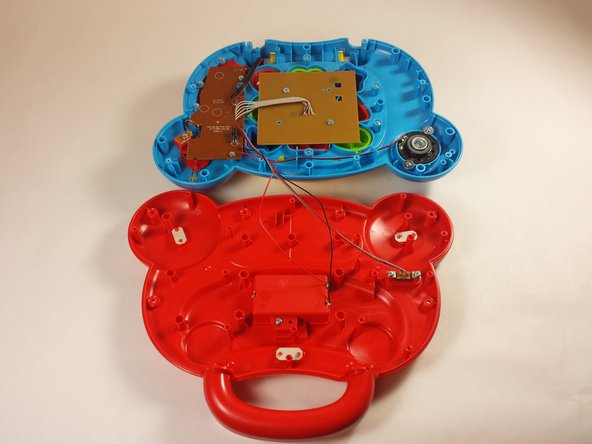
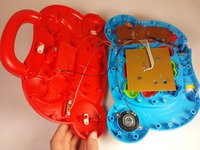
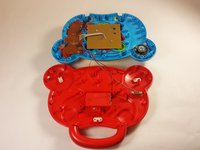
      • Gently pull up on the rear panel.

      • Be careful not to pull on the wire connections.

      • Rest the laptop open on the table.

      Ask FixBot

      Add Comment

    1. VTech Baby's Learning Laptop Volume Switch  Replacement, Volume Switch: step 5, image 1 of 1
      • Flip your device so the bottom panel is facing up.

      Ask FixBot

      Add Comment

    2. VTech Baby's Learning Laptop Volume Switch  Replacement: step 6, image 1 of 2 VTech Baby's Learning Laptop Volume Switch  Replacement: step 6, image 2 of 2
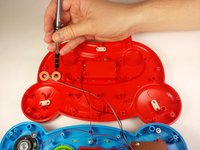
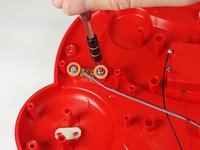
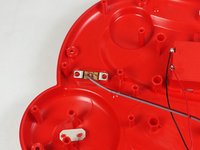
      • Use a Phillips #2 screwdriver to remove the two 7.7mm screws on the volume switch.

      Ask FixBot

      Add Comment

    3. VTech Baby's Learning Laptop Volume Switch  Replacement: step 7, image 1 of 2 VTech Baby's Learning Laptop Volume Switch  Replacement: step 7, image 2 of 2
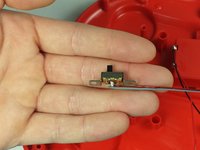
      • Remove the volume switch.

      • Be careful not damage the wiring.

      Ask FixBot

      Add Comment

Conclusion

To reassemble your device, follow these instructions in reverse order.

Cancel: I did not complete this guide.

Jordan Smith

Member since: 09/03/15

210 Reputation

2 Guides authored

Team

USF Tampa, Team 12-2, Blackwell Fall 2015 Member of USF Tampa, Team 12-2, Blackwell Fall 2015

USFT-BLACKWELL-F15S12G2

4 Members

84 Guides authored

0 Guide Comments

Add Comment

View Statistics:

Past 24 Hours: 3

Past 7 Days: 19

Past 30 Days: 113

All Time: 1,411