Free Shipping on Domestic Orders $75+

VENSTAR Taco Speaker Replacement Replacement

Views: 826

View statistics:

Past 24 Hours:
3
Past 7 Days:
13
Past 30 Days:
74
All Time:
826
Comments: 0

No one has left comments on this guide. Will you be first?

Go to guide comments
Completed: 2

2 people have marked this guide "completed." Will you be next?

Favorites: 0

No one has favorited (and subscribed to) this guide. Will you be the first?

Time Required: 45 minutes
Difficulty: Difficult
VENSTAR Taco Speaker Replacement Replacement

Introduction

Go to step 1 ↓

If your speakers keep cutting out or are no longer working at all, you will follow this guide to replace them. Beyond just being screwed down the speakers are also glued into place and must be torn/pulled off in order to access. Soldering is also required to remove from motherboard, so use caution.

What you need

Tools

    1. VENSTAR Taco Speaker Replacement Replacement, VENSTAR Taco Disassembly: step 1, image 1 of 3 VENSTAR Taco Speaker Replacement Replacement, VENSTAR Taco Disassembly: step 1, image 2 of 3 VENSTAR Taco Speaker Replacement Replacement, VENSTAR Taco Disassembly: step 1, image 3 of 3
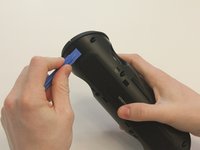
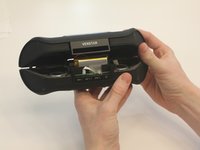
      • Starting with the Taco on its side, use the plastic opening tool to pop off the outer casing near the base.

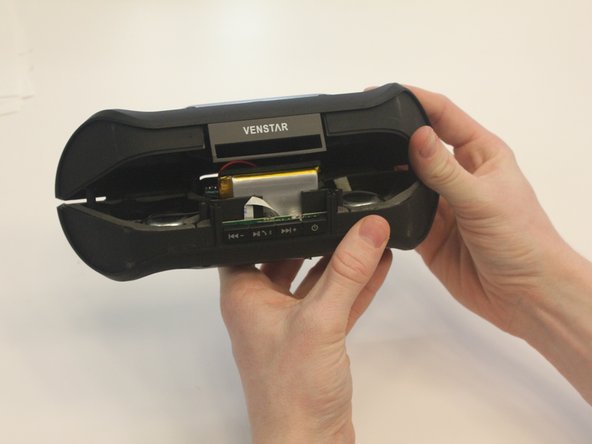
      • The base labeled "VENSTAR TACO" is glued. Be careful separating the two sides of the device.

      Ask FixBot

      Add Comment

    2. VENSTAR Taco Speaker Replacement Replacement: step 2, image 1 of 2 VENSTAR Taco Speaker Replacement Replacement: step 2, image 2 of 2
      • Repeat the previous step on the opposite side to remove the other outer casing.

      Ask FixBot

      Add Comment

    3. VENSTAR Taco Speaker Replacement Replacement: step 3, image 1 of 2 VENSTAR Taco Speaker Replacement Replacement: step 3, image 2 of 2
      Tool used on this step:
      Phillips #0 Screwdriver
      $5.49
      Buy
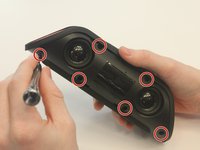
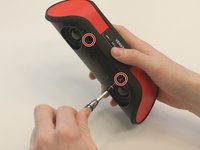
      • Using a Phillips PH0 3 mm-bit screwdriver, remove the six screws on the inner layer of the Taco.

      • The screws are small and can get stuck. Use tweezers to pull them out if you are having trouble.

      Ask FixBot

      Add Comment

    4. VENSTAR Taco Speaker Replacement Replacement: step 4, image 1 of 2 VENSTAR Taco Speaker Replacement Replacement: step 4, image 2 of 2
      • From the same side you just unscrewed, use a plastic opening tool to unwedge the inner cover on both sides of the base.

      Ask FixBot

      Add Comment

    5. VENSTAR Taco Speaker Replacement Replacement: step 5, image 1 of 2 VENSTAR Taco Speaker Replacement Replacement: step 5, image 2 of 2
      • Slide off the inner cover. It pulls apart and is held on by a small amount of glue.

      Ask FixBot

      Add Comment

    1. VENSTAR Taco Speaker Replacement Replacement, Logic Board Replacement: step 6, image 1 of 1
      • Remove the rubber covering from the buttons.

      Ask FixBot

      Add Comment

    2. VENSTAR Taco Speaker Replacement Replacement: step 7, image 1 of 3 VENSTAR Taco Speaker Replacement Replacement: step 7, image 2 of 3 VENSTAR Taco Speaker Replacement Replacement: step 7, image 3 of 3
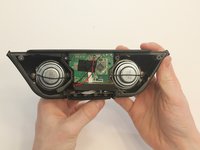
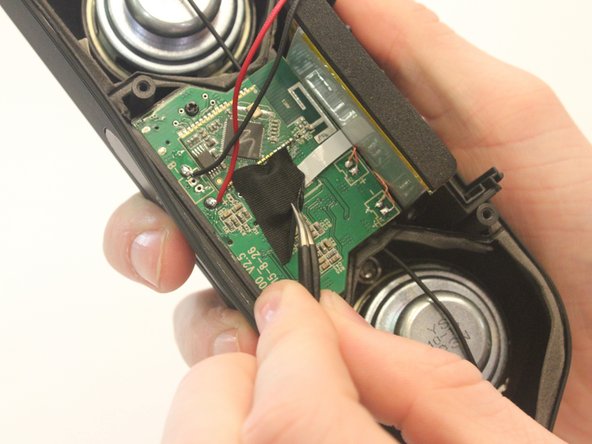
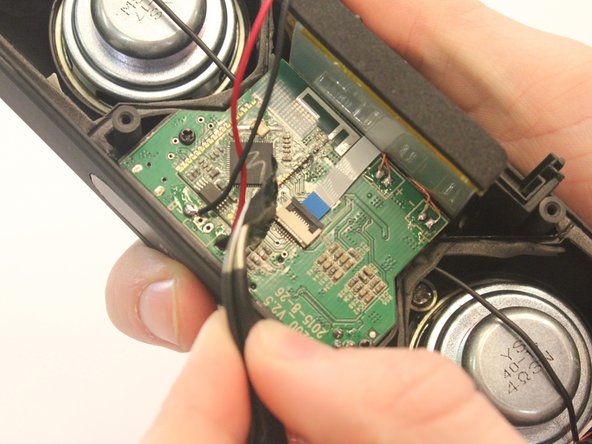
      • Remove the black fabric covering the logic board.

      Ask FixBot

      Add Comment

    3. VENSTAR Taco Speaker Replacement Replacement: step 8, image 1 of 2 VENSTAR Taco Speaker Replacement Replacement: step 8, image 2 of 2
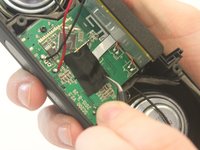
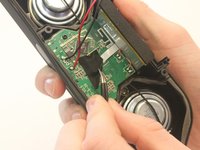
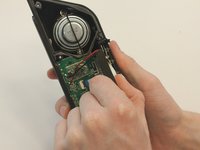
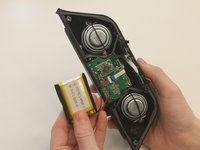
      • Move the battery out of the way of the connector.

      Ask FixBot

      Add Comment

    4. VENSTAR Taco Speaker Replacement Replacement: step 9, image 1 of 2 VENSTAR Taco Speaker Replacement Replacement: step 9, image 2 of 2
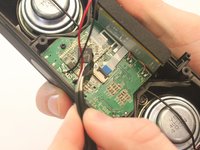
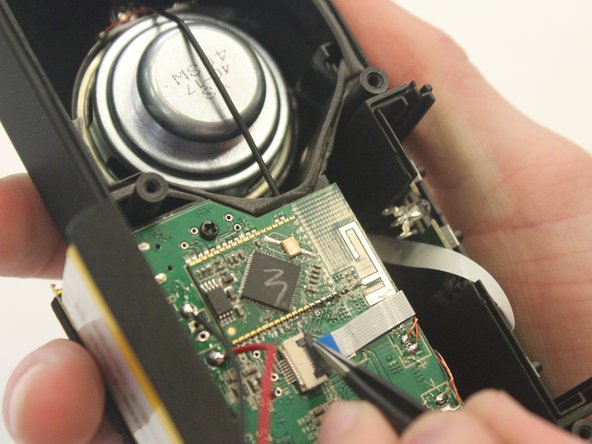
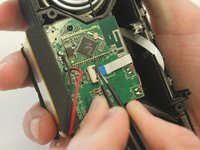
      • Undo the connector of the flat white ribbon between the switches and the logic board.

      Ask FixBot

      Add Comment

    5. VENSTAR Taco Speaker Replacement Replacement: step 10, image 1 of 1
      • Undo the two black 3mm screws on the logic board using the PH0 screwdriver.

      Ask FixBot

      Add Comment

    6. VENSTAR Taco Speaker Replacement Replacement: step 11, image 1 of 3 VENSTAR Taco Speaker Replacement Replacement: step 11, image 2 of 3 VENSTAR Taco Speaker Replacement Replacement: step 11, image 3 of 3
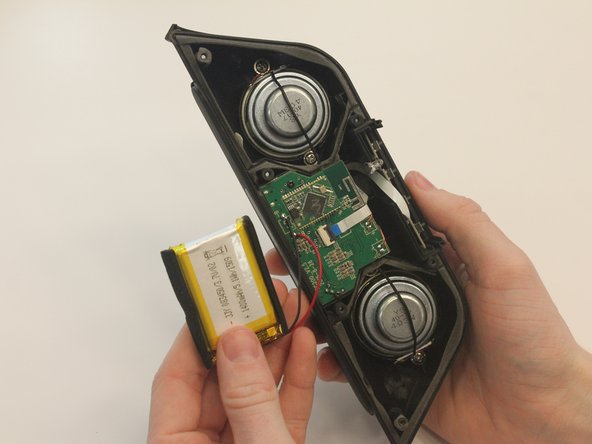
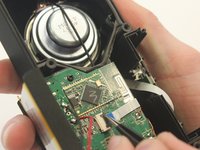
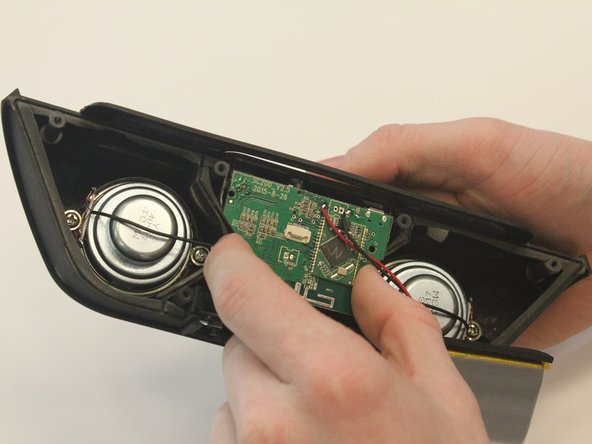
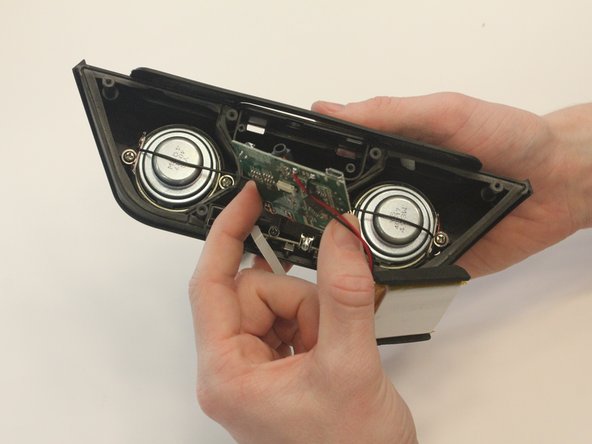
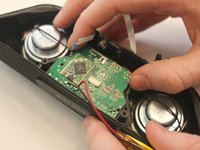
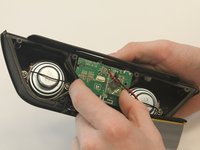
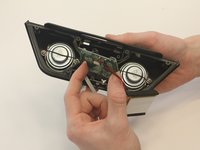
      • Gently pull out the logic board.

      • Note that the battery and the logic board are connected and must be removed together.

      Ask FixBot

      Add Comment

    1. VENSTAR Taco Speaker Replacement Replacement, Speaker Replacement: step 12, image 1 of 2 VENSTAR Taco Speaker Replacement Replacement, Speaker Replacement: step 12, image 2 of 2
      Tool used on this step:
      Tweezers
      $4.99
      Buy
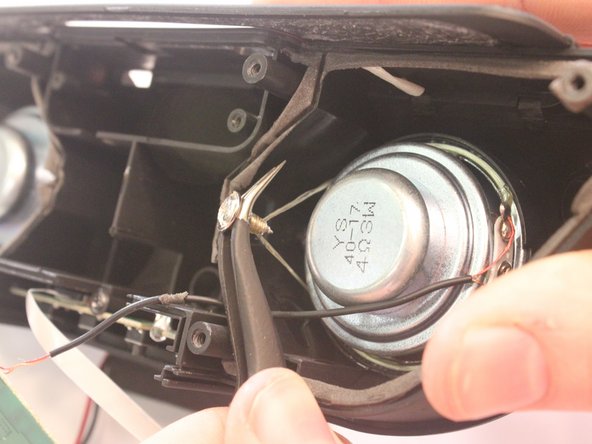
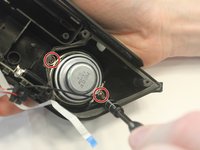
      • Using the Ph1 screwdriver, unscrew both of the 2.5mm screws on either side of the speakers.

      • The screws are glued in and may require the curved tweezers to pull all the way out.

      Ask FixBot

      Add Comment

    2. VENSTAR Taco Speaker Replacement Replacement: step 13, image 1 of 1
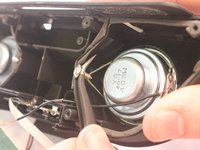
      • Using a metal spudger, carefully wedge out the speakers from the casing.

      • Repeat this step for the removal of the other speaker.

      • Speakers are glued into the casing beyond being screwed and require some care to remove.

      Ask FixBot

      Add Comment

    3. VENSTAR Taco Speaker Replacement Replacement: step 14, image 1 of 1
      • Using a portable soldering iron, melt the solder on the black speaker wires on the logic board.

      • Soldering uses hot metal and can burn you!

      Ask FixBot

      Add Comment

Conclusion

Solder your replacement speakers back to mother board, then to reassemble your device, follow these instructions in reverse order.

Cancel: I did not complete this guide.

2 other people completed this guide.

0 Guide Comments

Add Comment

View Statistics:

Past 24 Hours: 3

Past 7 Days: 13

Past 30 Days: 74

All Time: 826