Introduction
If your V-Moda Crossfade II Wireless has no audio or muffled audio you will need to replace your Audio jack.
However before disassembling your V-Moda Crossfade II Wireless take a look at this trouble shooting guide V-Moda Crossfade II Wireless Audio is Distorted or Intermittent to see if it fixes your issues
Just follow these simple steps and you'll be able to do it yourself. For this guide you will need a Phillips #00 screwdriver head, some experience in soldering, and the soldering equipment that is listed on the right-hand side.
This guide requires soldering. If you're unfamiliar with soldering, review the How to Solder and Desolder Connections guide and take appropriate precautions before beginning.
What you need
-
-
-
Search for the left/right side of the V-moda Crossfade II Wireless.
-
Pinch the bottom of the ear pad and lift it up to remove it.
 Ask FixBot
-
-
-
-
-
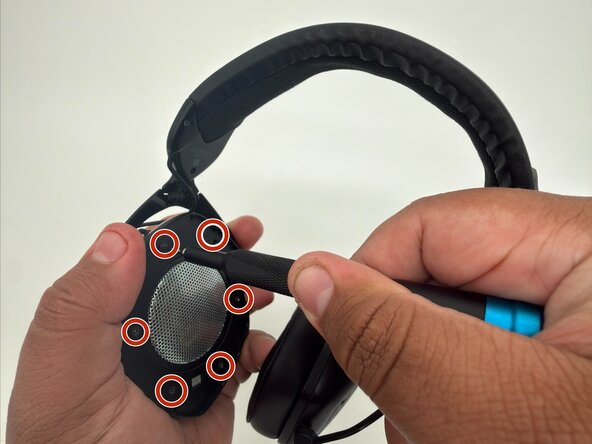
Remove all six 10.1 mm screws that secure the right driver assembly to the frame with a Phillips screwdriver.
-
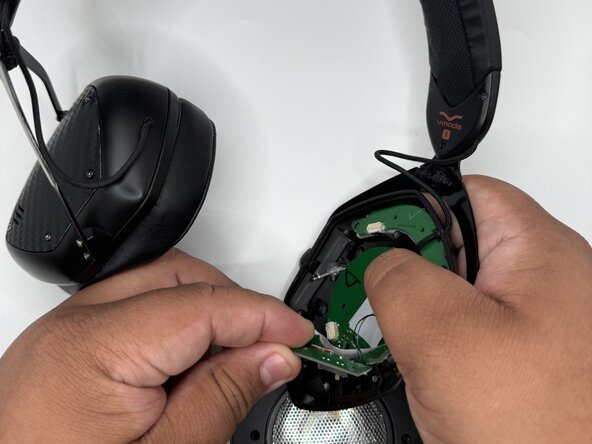
Lift off the driver assembly with care not to strain the connected wire.
-
-
-
-
Remove the two 5.9 mm screws that secure the aux port board with a Phillips screwdriver.
-
Desolder all of the aux port board connections.
-
Push up on the black locking tabs securing the aux port ribbon cable.
-
Disconnect the ribbon cable.
-
-



To reassemble your device, follow the above steps in reverse order.
Take your e-waste to an R2 or e-Stewards certified recycler.
Repair didn’t go as planned? Try some basic troubleshooting or ask our Answers community for help.

Team

University of North Texas, Team 1-4, Rea Spring 2026 Member of University of North Texas, Team 1-4, Rea Spring 2026
UNT-REA-S26S1G4
4 Members
60 Guides authored
