Free Shipping on Domestic Orders $75+

UE BOOM 2 Speaker Replacement

What you need

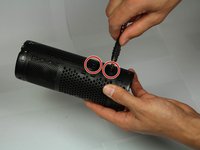
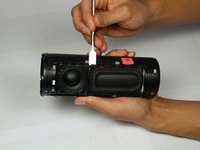
    1. UE BOOM 2 Speaker Replacement, Speaker: step 1, image 1 of 3 UE BOOM 2 Speaker Replacement, Speaker: step 1, image 2 of 3 UE BOOM 2 Speaker Replacement, Speaker: step 1, image 3 of 3
      • Remove the D-ring located at the bottom of the device, opposite end of the power button.

      • Remove by twisting in a counter-clockwise motion.

      • Removing the D-ring will allow you to be able to remove the rubber port cover revealing the headphone jack and charging port.

      Ask FixBot

      Add Comment

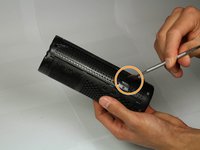
    2. UE BOOM 2 Speaker Replacement: step 2, image 1 of 3 UE BOOM 2 Speaker Replacement: step 2, image 2 of 3 UE BOOM 2 Speaker Replacement: step 2, image 3 of 3
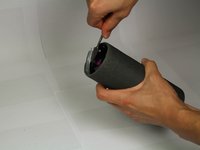
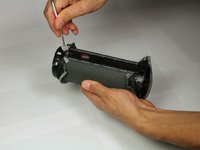
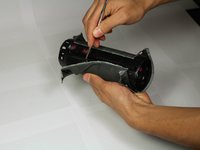
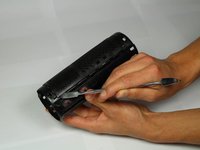
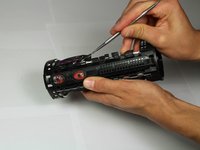
      • Remove the rubber stripping using a metal spudger.

      • Work around the edge of the rubber stripping slowly prying up the edge.

      Ask FixBot

      Add Comment

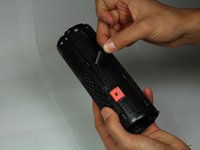
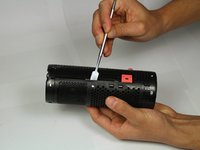
    3. UE BOOM 2 Speaker Replacement: step 3, image 1 of 1
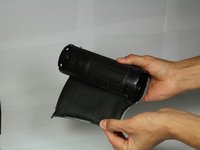
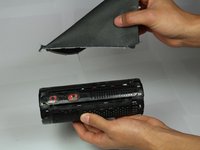
      • Continue removing the rubber stripping down the side.

      Ask FixBot

      Add Comment

    4. UE BOOM 2 Speaker Replacement: step 4, image 1 of 3 UE BOOM 2 Speaker Replacement: step 4, image 2 of 3 UE BOOM 2 Speaker Replacement: step 4, image 3 of 3
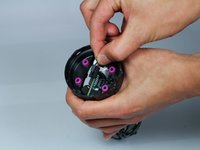
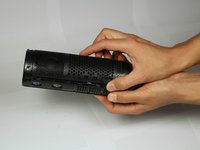
      • On the bottom, unscrew the four 15mm Phillips Head #2 screws, using the Phillips Head #2 screwdriver.

      • Pry up at the location marked, and remove the plastic end cap.

      • Repeat these steps on the top of the speaker.

      Ask FixBot

      Add Comment

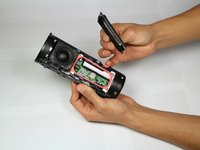
    5. UE BOOM 2 Speaker Replacement: step 5, image 1 of 3 UE BOOM 2 Speaker Replacement: step 5, image 2 of 3 UE BOOM 2 Speaker Replacement: step 5, image 3 of 3
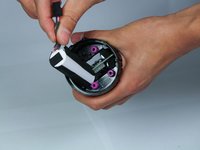
      • Carefully un-loop the cable and unplug from motherboard.

      • Pull out the battery, and handle with care.

      Ask FixBot

      Add Comment

    6. UE BOOM 2 Speaker Replacement: step 6, image 1 of 3 UE BOOM 2 Speaker Replacement: step 6, image 2 of 3 UE BOOM 2 Speaker Replacement: step 6, image 3 of 3
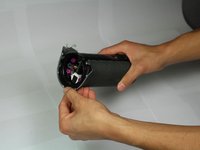
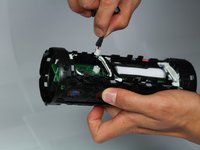
      • Using the metal spudger, pry up the plastic tab on the inside.

      • Pry up around the entire inside circumference.

      • Repeat on the other end.

      Ask FixBot

      Add Comment

    7. UE BOOM 2 Speaker Replacement: step 7, image 1 of 3 UE BOOM 2 Speaker Replacement: step 7, image 2 of 3 UE BOOM 2 Speaker Replacement: step 7, image 3 of 3
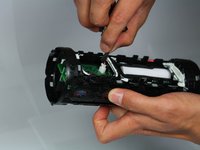
      • Using the metal spudger tool, pry up the inside edge of the mesh lining.

      • Working down the strip on both sides. Careful as to not rip the mesh.

      Ask FixBot

      Add Comment

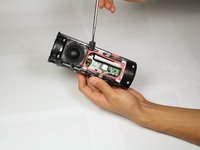
    8. UE BOOM 2 Speaker Replacement: step 8, image 1 of 3 UE BOOM 2 Speaker Replacement: step 8, image 2 of 3 UE BOOM 2 Speaker Replacement: step 8, image 3 of 3
      • Unscrew the two 5mm Phillips Head #1 screws, using a Phillips Head #1 screwdriver.

      • Using the metal spudger, pry open the edge of the cover.

      Ask FixBot

      Add Comment

    9. UE BOOM 2 Speaker Replacement: step 9, image 1 of 3 UE BOOM 2 Speaker Replacement: step 9, image 2 of 3 UE BOOM 2 Speaker Replacement: step 9, image 3 of 3
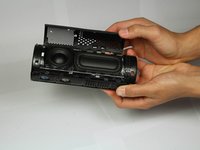
      • Using the metal spudger, pry the plastic casing up.

      • Repeat on the other side of the speaker.

      Ask FixBot

      Add Comment

    10. UE BOOM 2 Speaker Replacement: step 10, image 1 of 2 UE BOOM 2 Speaker Replacement: step 10, image 2 of 2
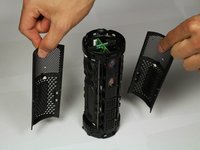
      • Pull each cover off.

      Ask FixBot

      Add Comment

    11. UE BOOM 2 Speaker Replacement: step 11, image 1 of 3 UE BOOM 2 Speaker Replacement: step 11, image 2 of 3 UE BOOM 2 Speaker Replacement: step 11, image 3 of 3
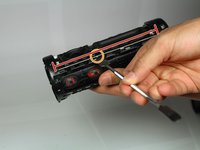
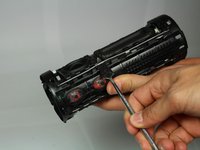
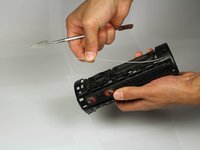
      • Using the metal spudger, specifically the pointy end, find the gap between the speaker and billow (the large speaker-like object next to the speaker).

      • Pry the metal wire up and out at exactly this gap, then slide down wire towards one end to pop it out completely.

      • Once one end is out, use fingers to gently pull off completely, so as not to bend the wire to aggressively.

      Ask FixBot

      Add Comment

    12. UE BOOM 2 Speaker Replacement: step 12, image 1 of 1
      • Repeat previous process for other side of the speaker and billow.

      Ask FixBot

      Add Comment

    13. UE BOOM 2 Speaker Replacement: step 13, image 1 of 2 UE BOOM 2 Speaker Replacement: step 13, image 2 of 2
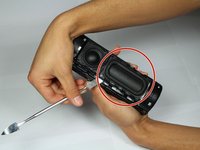
      • Using the metal spudger, work it under the billow (circled).

      • Work the billow up around all edges, and pull out of casing.

      Ask FixBot

      Add Comment

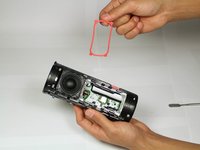
    14. UE BOOM 2 Speaker Replacement: step 14, image 1 of 3 UE BOOM 2 Speaker Replacement: step 14, image 2 of 3 UE BOOM 2 Speaker Replacement: step 14, image 3 of 3
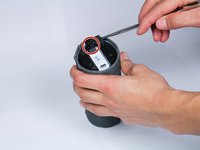
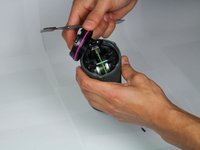
      • With the billow removed, pry up the pink rubber seal with the metal spudger, and remove.

      • Do not use excessive force with the metal spudger, doing so may damage the seal.

      Ask FixBot

      Add Comment

    15. UE BOOM 2 Speaker Replacement: step 15, image 1 of 3 UE BOOM 2 Speaker Replacement: step 15, image 2 of 3 UE BOOM 2 Speaker Replacement: step 15, image 3 of 3
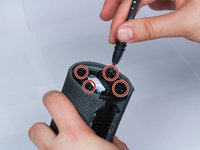
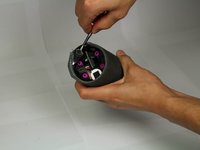
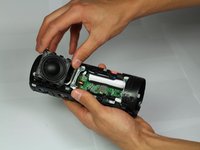
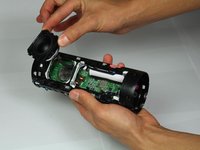
      • Now, begin to use the same technique for the speaker.

      • Be sure to remove the speaker slowly, as there is a cable attaching the speaker to the motherboard.

      Ask FixBot

      Add Comment

    16. UE BOOM 2 Speaker Replacement: step 16, image 1 of 2 UE BOOM 2 Speaker Replacement: step 16, image 2 of 2
      • Once speaker is detached from casing, remove cable from motherboard.

      • Connect new speaker by attaching the cable to the same place where the old speaker was just taken out of.

      • If both speakers are blown out, repeat steps 14-16 on the other side.

      Ask FixBot

      Add Comment

Conclusion

To reassemble your device, follow these instructions in reverse order.

Cancel: I did not complete this guide.

14 other people completed this guide.

Keegan Divine

Member since: 01/18/18

649 Reputation

1 Guide authored

Team

Cal Poly, Team S12-G5, Banghart Winter 2018 Member of Cal Poly, Team S12-G5, Banghart Winter 2018

CPSU-BANGHART-W18S12G5

2 Members

84 Guides authored

11 Guide Comments

Hi, very good tutorial, you got your 30 points ! ;)

But the main question remains to me : where to get a new speaker as UE doen’t sell spare parts and I don’t find any replacement on internet … any help more than welcome …

Cheers!

Francois ORSERO - Reply Share

did you managed to source a replacement speaker? im having the same problem

marleybetteridge - Reply Share

Still did not find replacement … what about you guys ?

Francois ORSERO - Reply Share

Check my update you may not have to buy a replacement

Kyle White - Reply Share

Check with a multimeter if the speakers are actually faulty. Mine were fine, turns out another component broke off and so I soldered it back on. Now it works fine.

Stig - Reply Share

Add Comment

View Statistics:

Past 24 Hours: 4

Past 7 Days: 47

Past 30 Days: 167

All Time: 18,698