Introduction
Follow this guide if you need to replace the action buttons for your Turtle Beach Recon Cloud controller. The action buttons are used for input to the motherboard of the controller. This is a useful guide if the action buttons have been damaged or are stuck.
What you need
-
-
-
Use a Phillips #00 screwdriver to remove 7 screws from the back casing.
 Ask FixBot
-
-
-
Use the iFixit opening tool to wedge it between the inner grip and the casing to pry it off.
-
Do the same to the other inner grip.
-
-
-
-
-
-
Insert a spudger between the controller and the battery pack.
-
Use the spudger to loosen the battery from the motherboard.
-
Gently lift the battery pack until just out so as to not pull on the wire attached.
-
-
-
Use the point of a spudger to push on alternating sides of the battery connector to "walk" it out of its socket.
-
If that doesn't work, use a pair of tweezers to firmly grip the sides of the connector and pull straight away from the socket. Hold the tweezers closer to the connector to get a better grip.
-
-
-
-
-
Use a Phillips #00 screwdriver to remove the four screws securing the board.
-
-
-
Lift out the motherboard at an angle to detach it from the clips securing it to the case.
-
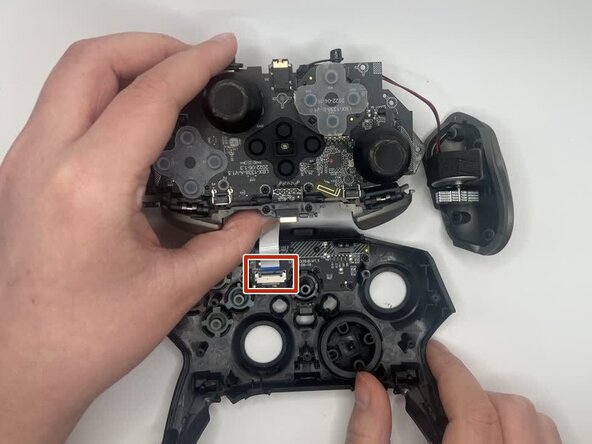
Use a spudger or a clean fingernail to flip up the locking flap of the ZIF connector—this is the unlocked position.
-
Use tweezers or your fingers to gently pull the cable out of its socket.
-
-
-




To reassemble your device, follow these instructions in reverse order. Take your e-waste to an R2 or e-Stewards certified recycler.

Team

University of North Texas, Team 1-5, Kilpatrick Fall 2025 Member of University of North Texas, Team 1-5, Kilpatrick Fall 2025
UNT-KILPATRICK-F25S1G5
3 Members
84 Guides authored
