Free Shipping on Domestic Orders $75+

Toshiba Tecra M2 CPU Replacement

What you need

  1. Toshiba Tecra M2 CPU Replacement, Battery: step 1, image 1 of 1
    • Flip the laptop upside down so the back compartment is facing up.

    • Place left thumb on the battery lock tab.

    • Place right thumb on the battery release latch.

    Ask FixBot

    Add Comment

  2. Toshiba Tecra M2 CPU Replacement: step 2, image 1 of 2 Toshiba Tecra M2 CPU Replacement: step 2, image 2 of 2
    • Slide both tabs outward at the same time to release battery pack.

    Ask FixBot

    Add Comment

  3. Toshiba Tecra M2 CPU Replacement: step 3, image 1 of 1
    • Pull out the battery after it has popped out and set aside.

    • The battery and the battery cover are in one piece

    Ask FixBot

    Add Comment

  4. Toshiba Tecra M2 CPU Replacement, CPU: step 4, image 1 of 1
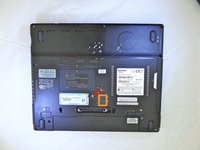
    • Use a #00 phillips head screwdriver to remove the 8mm screw for the keyboard strip located under the battery.

    Ask FixBot

    Add Comment

  5. Toshiba Tecra M2 CPU Replacement: step 5, image 1 of 1
    • Turn the device over and open it up to the display.

    • Gently lift a corner of the keyboard strip until it pops out of its position.

    Ask FixBot

    Add Comment

  6. Toshiba Tecra M2 CPU Replacement: step 6, image 1 of 1
    • Using a #00 phillips head screwdriver, remove the two 4mm screws found underneath the keyboard strip.

    Ask FixBot

    Add Comment

  7. Toshiba Tecra M2 CPU Replacement: step 7, image 1 of 2 Toshiba Tecra M2 CPU Replacement: step 7, image 2 of 2
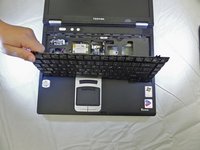
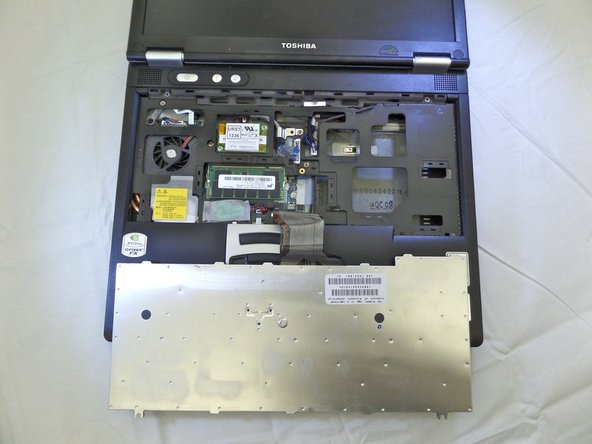
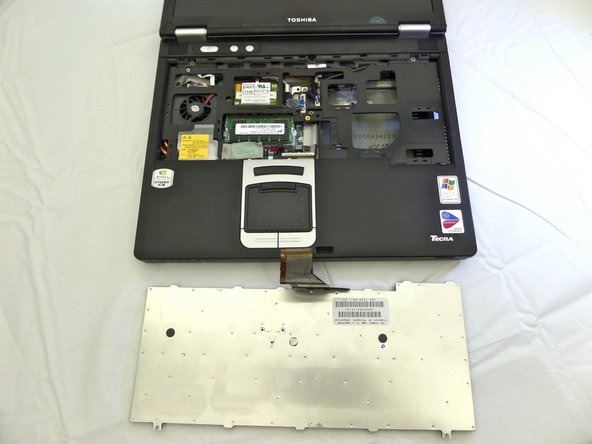
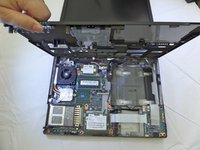
    • Pop the keyboard up gently and rest on top of the touch pad

    • The keyboard is attached underneath by a thin film. Do not rip the keyboard off. Gently lay it down without ripping the film.

    Ask FixBot

    Add Comment

  8. Toshiba Tecra M2 CPU Replacement: step 8, image 1 of 2 Toshiba Tecra M2 CPU Replacement: step 8, image 2 of 2
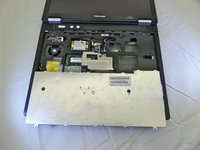
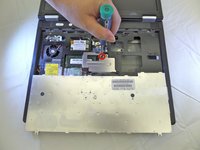
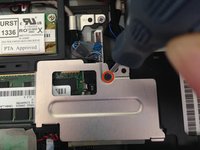
    • Using a #00 phillips head screwdriver, remove the 6mm screw holding the metal plate down.

    Ask FixBot

    Add Comment

  9. Toshiba Tecra M2 CPU Replacement: step 9, image 1 of 2 Toshiba Tecra M2 CPU Replacement: step 9, image 2 of 2
    • Gently remove the keyboard connector film from the motherboard with fingers by lifting upwards.

    • Set aside the keyboard.

    Ask FixBot

    Add Comment

  10. Toshiba Tecra M2 CPU Replacement: step 10, image 1 of 1
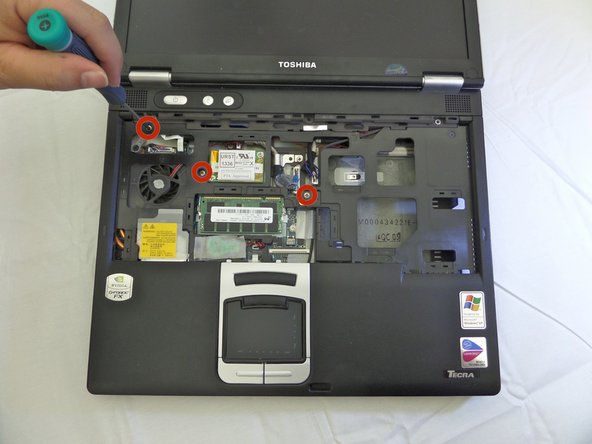
    • Using a #00 phillips head screwdriver, remove the three 13mm screws holding down the touch pad's frame from underneath the keyboard.

    Ask FixBot

    Add Comment

  11. Toshiba Tecra M2 CPU Replacement: step 11, image 1 of 3 Toshiba Tecra M2 CPU Replacement: step 11, image 2 of 3 Toshiba Tecra M2 CPU Replacement: step 11, image 3 of 3
    • Flip laptop back upside down.

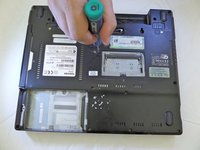
    • Remove the 5mm lock screw, using a #00 phillips head screwdriver.

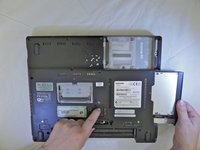
    • Slide bay latch toward the battery compartment.

    • Remove CD-RW/DVD-ROM drive.

    Ask FixBot

    Add Comment

  12. Toshiba Tecra M2 CPU Replacement: step 12, image 1 of 1
    • Remove the 4.5mm screw located under the CD-RW/DVD-ROM drive compartment, using a #00 phillips head screwdriver.

    Ask FixBot

    Add Comment

  13. Toshiba Tecra M2 CPU Replacement: step 13, image 1 of 1
    • Remove the three 17mm screws found on the backside of the laptop using a #00 phillips head screwdriver.

    • Remove the ten 8mm screws using a #00 phillips head screwdriver.

    Ask FixBot

    Add Comment

  14. Toshiba Tecra M2 CPU Replacement: step 14, image 1 of 2 Toshiba Tecra M2 CPU Replacement: step 14, image 2 of 2
    Tool used on this step:
    Tweezers
    $4.99
    Buy
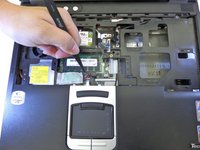
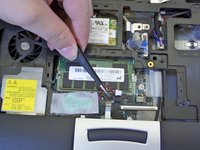
    • Flip the laptop back over and unplug the touch pad's power cord from the motherboard gently using a pair of tweezers.

    Ask FixBot

    Add Comment

  15. Toshiba Tecra M2 CPU Replacement: step 15, image 1 of 2 Toshiba Tecra M2 CPU Replacement: step 15, image 2 of 2
    • Lift off the plastic cover and set it aside.

    Ask FixBot

    Add Comment

  16. Toshiba Tecra M2 CPU Replacement: step 16, image 1 of 2 Toshiba Tecra M2 CPU Replacement: step 16, image 2 of 2
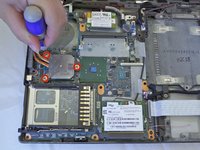
    • Using a #00 phillips head screwdriver, unscrew the three 5mm screws holding down the heat sink securing bracket.

    • Lift off the securing bracket and set aside.

    Ask FixBot

    Add Comment

  17. Toshiba Tecra M2 CPU Replacement: step 17, image 1 of 1
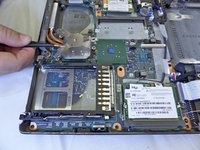
    • Wiggle the heat sink until it lifts off the top of your CPU. There is thermal paste underneath and it may stick.

    Ask FixBot

    Add Comment

  18. Toshiba Tecra M2 CPU Replacement: step 18, image 1 of 3 Toshiba Tecra M2 CPU Replacement: step 18, image 2 of 3 Toshiba Tecra M2 CPU Replacement: step 18, image 3 of 3
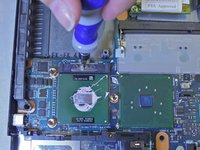
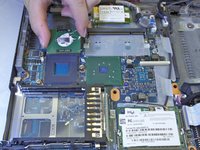
    • Turn a flathead #3 screwdriver counter-clockwise to unlock the CPU socket.

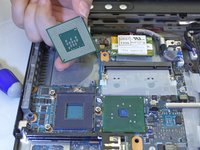
    • Grab the CPU with your index finger and thumb and pull directly upwards.

    • Apply a new coat of thermal paste before reassembling.

    • How to Apply Thermal Paste

    Ask FixBot

    Add Comment

Conclusion

To reassemble your device, follow these instructions in reverse order.

Cancel: I did not complete this guide.

2 other people completed this guide.

Cindy Nguyen

Member since: 09/08/14

398 Reputation

3 Guides authored

Team

CSU Fullerton, Team 1-6, Bruce Fall 2014 Member of CSU Fullerton, Team 1-6, Bruce Fall 2014

CSUF-BRUCE-F14S1G6

3 Members

9 Guides authored

1 Guide Comment

"Step 4 - CPU" THAT IS NOT A 8MM SCREW! THERE IS NOW A HOLE IN MY COMPUTER!!
[deleted] - Reply Share
Add Comment

View Statistics:

Past 24 Hours: 1

Past 7 Days: 9

Past 30 Days: 40

All Time: 2,054