Free Shipping on Domestic Orders $75+

Toshiba NB305 Wifi Card Replacement

What you need

    1. Toshiba NB305 Wifi Card Replacement, Battery: step 1, image 1 of 1
      • Place the laptop upside down with the battery facing you.

      Ask FixBot

      Add Comment

    2. Toshiba NB305 Wifi Card Replacement: step 2, image 1 of 1
      • Use your right hand to move latch 1 to the right to unlock the battery.

      Ask FixBot

      Add Comment

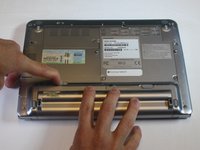
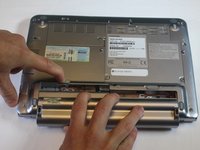
    3. Toshiba NB305 Wifi Card Replacement: step 3, image 1 of 2 Toshiba NB305 Wifi Card Replacement: step 3, image 2 of 2
      • Use your left hand to hold latch 2 to the left.

      • Simultaneously take the battery out with your right hand.

      Ask FixBot

      Add Comment

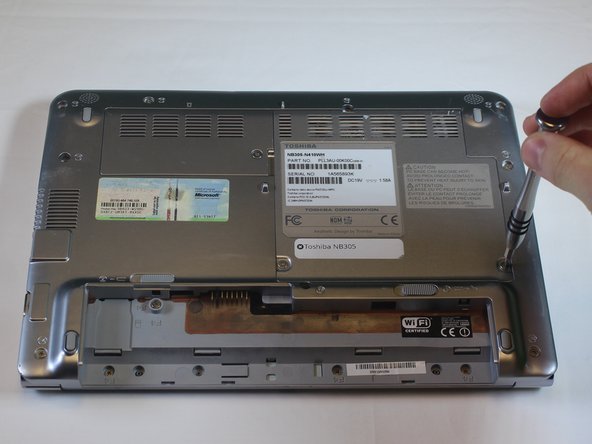
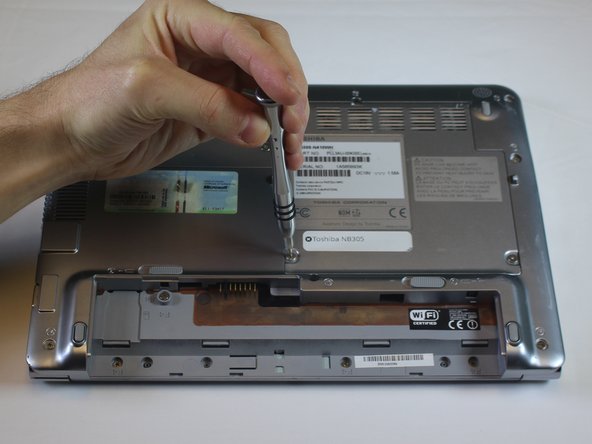
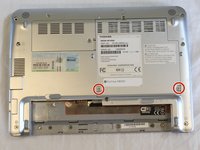
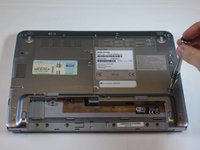
    1. Toshiba NB305 Wifi Card Replacement, Wifi Card: step 4, image 1 of 3 Toshiba NB305 Wifi Card Replacement, Wifi Card: step 4, image 2 of 3 Toshiba NB305 Wifi Card Replacement, Wifi Card: step 4, image 3 of 3
      • Locate the two torx T-6 screws on the back of the laptop and remove them.

      • 6mm Torx T-6 Screws

      Ask FixBot

      Add Comment

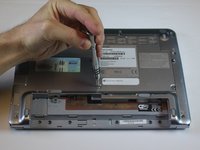
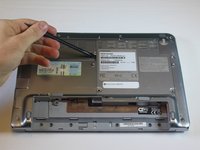
    2. Toshiba NB305 Wifi Card Replacement: step 5, image 1 of 2 Toshiba NB305 Wifi Card Replacement: step 5, image 2 of 2
      • Using a spudger pry the panel up.

      Ask FixBot

      Add Comment

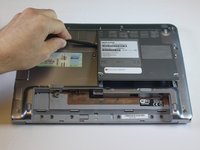
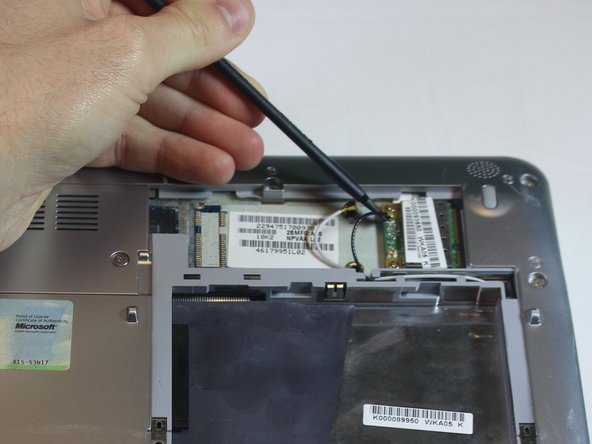
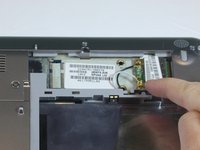
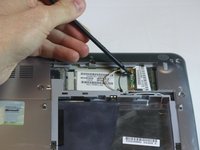
    3. Toshiba NB305 Wifi Card Replacement: step 6, image 1 of 2 Toshiba NB305 Wifi Card Replacement: step 6, image 2 of 2
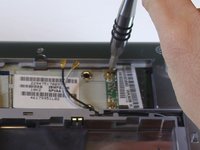
      • Using a spudger pry up and off the two wire connections.

      • Note that the black wire is on the top of the card and the white is the bottom.

      Ask FixBot

      Add Comment

    4. Toshiba NB305 Wifi Card Replacement: step 7, image 1 of 2 Toshiba NB305 Wifi Card Replacement: step 7, image 2 of 2
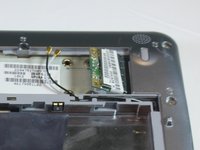
      • Remove the two Phillips 0 size screws on WIFI card.

      • Once the screws are removed the WIFI card will raise up

      Ask FixBot

      Add Comment

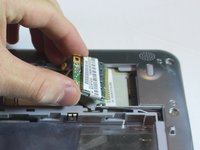
    5. Toshiba NB305 Wifi Card Replacement: step 8, image 1 of 2 Toshiba NB305 Wifi Card Replacement: step 8, image 2 of 2
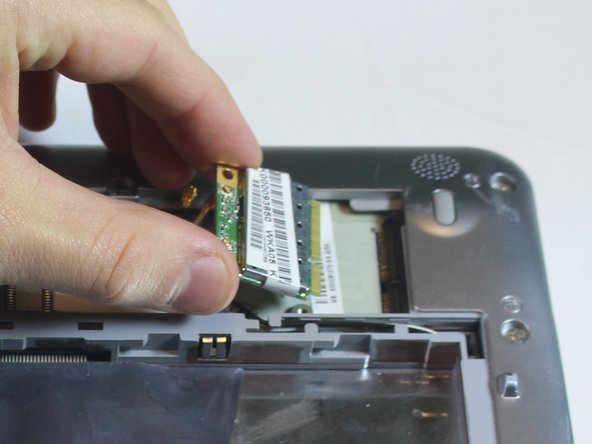
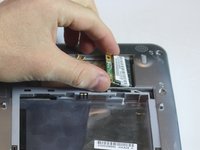
      • Grip both sides of the wifi card with your hand.

      • Lift up on the card and pull the card out of the slot

      Ask FixBot
      Add Comment

Conclusion

To reassemble your device, follow these instructions in reverse order.

Cancel: I did not complete this guide.

Mateo Fontana

Member since: 09/14/16

307 Reputation

2 Guides authored

Team

USF Tampa, Team 5-5, Lacy Fall 2016 Member of USF Tampa, Team 5-5, Lacy Fall 2016

USFT-LACY-F16S5G5

3 Members

60 Guides authored

0 Guide Comments

Add Comment

View Statistics:

Past 24 Hours: 0

Past 7 Days: 6

Past 30 Days: 28

All Time: 804