
TomTom VIA 1605TM Battery Replacement

Mathew Fleurent and 4 other contributors
Last updated on Jan 18, 2016
Views: 1.6K
View statistics:
- Past 24 Hours:
- 4
- Past 7 Days:
- 19
- Past 30 Days:
- 91
- All Time:
- 1,635
Comments: 1
1 comment on steps.
Completed: 0 1
No one has marked this guide "completed." Will you be the first?
1 person has marked this guide "completed." It's you — great job!
Favorites: 0 1
No one has favorited (and subscribed to) this guide. Will you be the first?
1 person has favorited (and subscribed to) this guide — and that's you!
Missing Details
Some of this guide's details are missing. Help users by adding tools, difficulty, or time.
Introduction
Go to step 1 ↓GPS is not charging anymore. Replacement of the battery is needed in order for the device to charge. When prying do not use metal tools as this can cause static damage. The device can be identified by its model number which is located under the small panel on the bottom of the device.
What you need
Tools
-
Spudger4.9


-
-
-
Locate the round suction cup on the back of the device.
-
Twist the suction cup clockwise or counterclockwise while pulling back away from the device closer to your body until removed.
 Ask FixBot
-
-
-
Location of screw is where the suction cup was.
-
Insert 8mm Hex #T6 screw driver into screw.
-
Unscrew in counter clockwise direction.
-
-
-
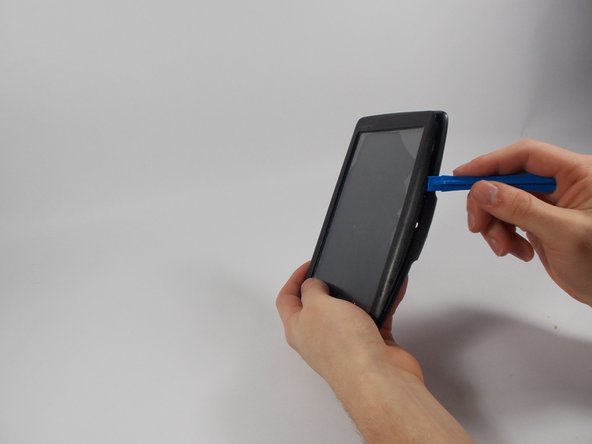
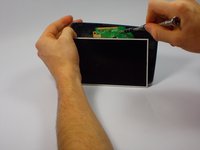
Pry along the edges with the plastic opening tool to separate the back and front panel.
-
-
-
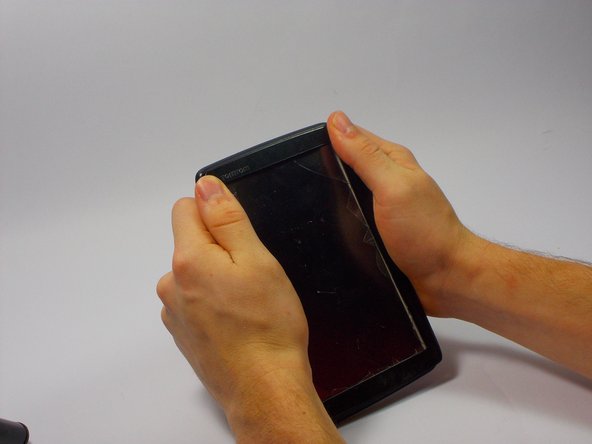
Place the new front panel (with new screen) on to the back panel. Press firmly along the edges to attach.
-
-
-
-
-
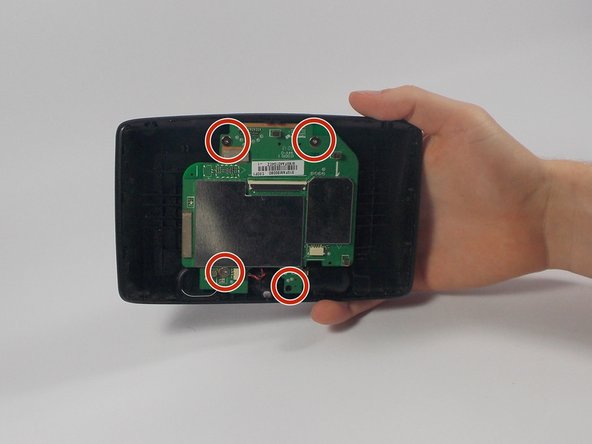
Keep the TOMTOM oriented so the curve is on the bottom. Locate the four 1mm Philips #J1 head screws attached to the motherboard.
-
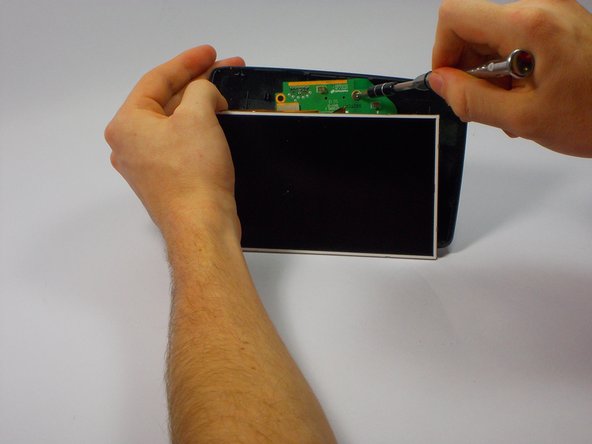
Unscrew each of these in a counter clockwise direction.
-
-
-
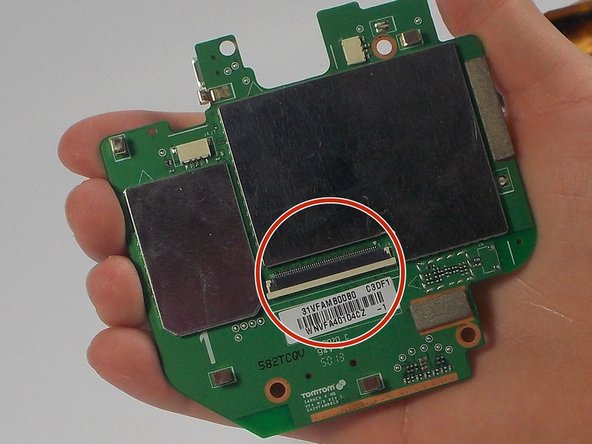
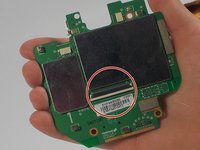
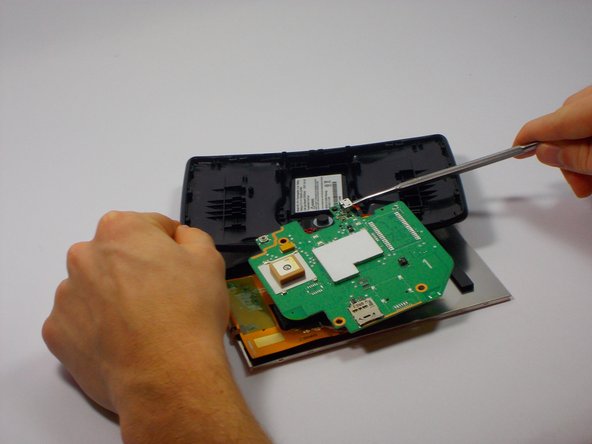
Remove the Blue Ribbon Cable by pushing each side of the plastic holder with the nylon spudger.
-
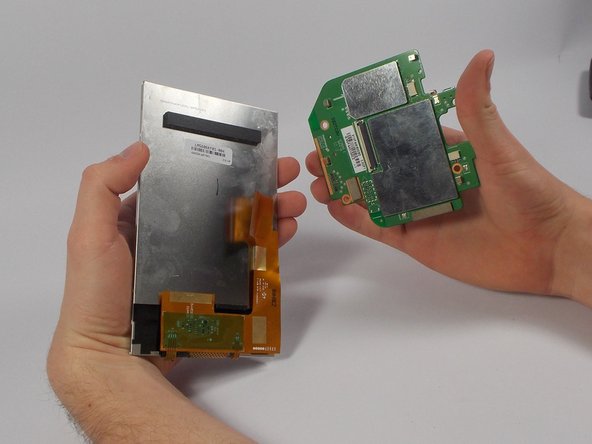
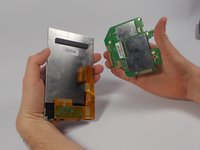
This will remove the LCD screen from the motherboard.
-
-
-
-
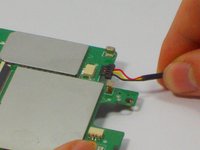
Unplug the wire connecting to the battery by pinching the sides connected to the front screen.
-
Pull back away (in the opposite direction) from the connector.
-
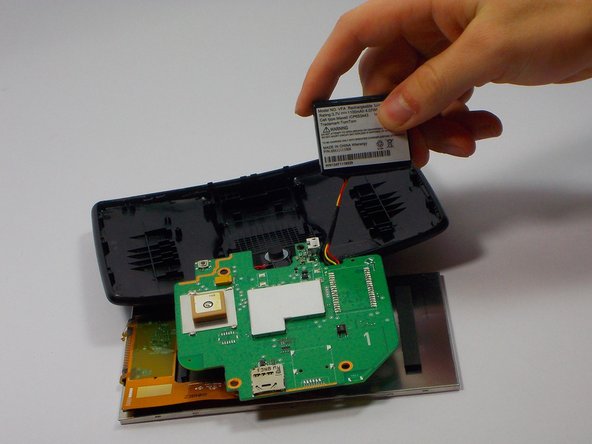
Lift the circuit board to reveal the battery beneath.
-
-
-
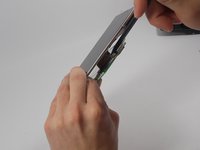
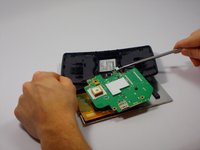
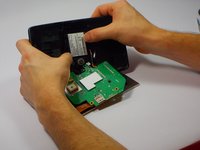
Carefully pry loose using the plastic opening tool and remove the original battery.
-
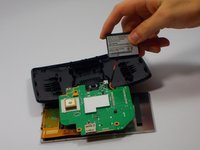
Place the new battery where the old battery was located.
-
-



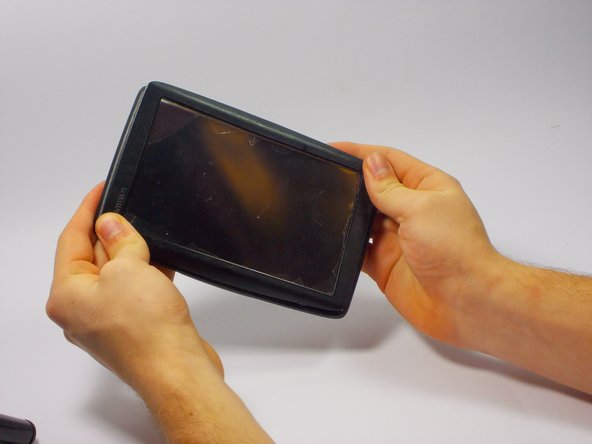




To reassemble your device, follow these instructions in reverse order.

Team

UMass Dartmouth, Team 4-4, Catania Fall 2015 Member of UMass Dartmouth, Team 4-4, Catania Fall 2015
UMASSD-CATANIA-F15S4G4
4 Members
60 Guides authored
