Free Shipping on Domestic Orders $75+

ThinkPad Yoga 12 SSD Replacement

What you need

  1. ThinkPad Yoga 12 SSD Replacement, Screws: step 1, image 1 of 3 ThinkPad Yoga 12 SSD Replacement, Screws: step 1, image 2 of 3 ThinkPad Yoga 12 SSD Replacement, Screws: step 1, image 3 of 3
    • Remove the ten Phillips screws using a Philips 00 screwdriver

    Ask FixBot

    Add Comment

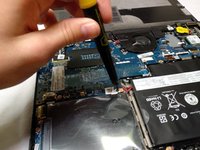
  2. ThinkPad Yoga 12 SSD Replacement, Prying: step 2, image 1 of 2 ThinkPad Yoga 12 SSD Replacement, Prying: step 2, image 2 of 2
    • Pry up the case carefully using a spudger.

    • Make sure to not push the spudger in too far, as this could result in internal damage

    Ask FixBot

    Add Comment

  3. ThinkPad Yoga 12 SSD Replacement, Lift off cover: step 3, image 1 of 1
    • Lift off the cover, and you're done!

    Ask FixBot

    Add Comment

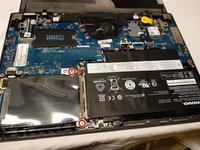
  4. ThinkPad Yoga 12 SSD Replacement, Remove SSD from the laptop: step 4, image 1 of 2 ThinkPad Yoga 12 SSD Replacement, Remove SSD from the laptop: step 4, image 2 of 2
    • Carefully remove two Phillips screws with a Phillips 0 screwdriver

    • Static sensitive components!

    Ask FixBot

    Add Comment

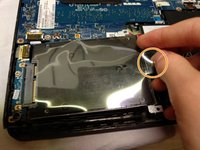
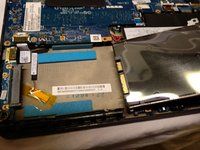
  5. ThinkPad Yoga 12 SSD Replacement: step 5, image 1 of 2 ThinkPad Yoga 12 SSD Replacement: step 5, image 2 of 2
    • Gently grab the plastic tab. Lift and pull the SSD assembly out of the computer

    Ask FixBot

    Add Comment

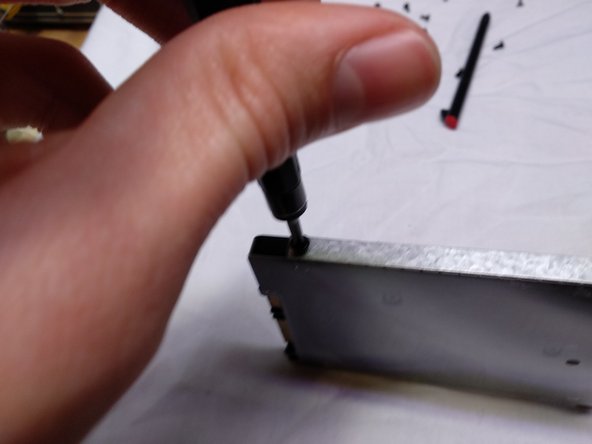
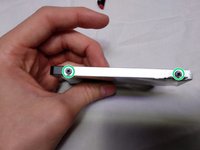
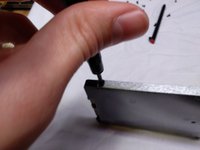
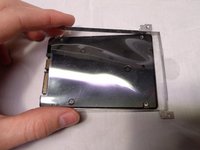
  6. ThinkPad Yoga 12 SSD Replacement, Remove enclosure: step 6, image 1 of 2 ThinkPad Yoga 12 SSD Replacement, Remove enclosure: step 6, image 2 of 2
    • Remove the 4 identical Phillips screws with a Phillips 00 screw driver (they are on both sides).

    Ask FixBot

    Add Comment

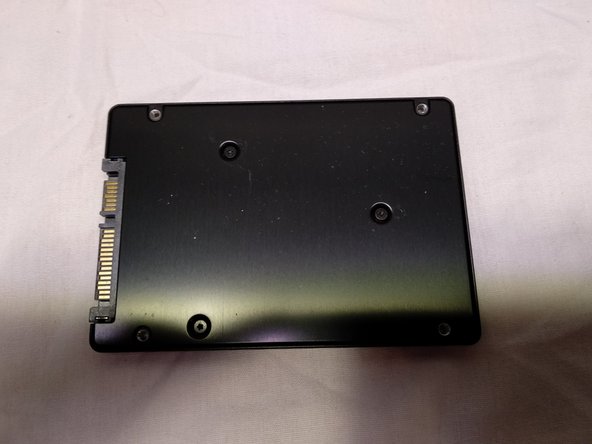
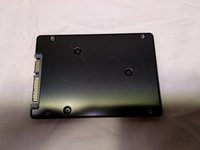
  7. ThinkPad Yoga 12 SSD Replacement, Done!: step 7, image 1 of 2 ThinkPad Yoga 12 SSD Replacement, Done!: step 7, image 2 of 2
    • Carefully remove the SSD enclosure.

    • Note: The SSD enclosure is made of thin metal. It can be easily deformed. Be careful when removing from the SSD.

    Ask FixBot

    Add Comment

Conclusion

To reassemble your device, follow these instructions in reverse order.

Cancel: I did not complete this guide.

6 other people completed this guide.

[deleted]

Member since: 03/18/18

1,338 Reputation

3 Guides authored

1 Guide Comment

Almost perfect instructions. I do recommend removing the active pen first. Also it's a good idea to remind people that the active pen holder is screwed to the case cover from the inside and will come out as part of the cover.

Dani Deitch - Reply Share

Add Comment

View Statistics:

Past 24 Hours: 2

Past 7 Days: 9

Past 30 Days: 40

All Time: 5,651