
Thermaltake Theron Plus Button Fix

Steven Kontra and 2 other contributors
Last updated on Jul 3, 2018
Views: 824
View statistics:
- Past 24 Hours:
- 1
- Past 7 Days:
- 12
- Past 30 Days:
- 73
- All Time:
- 824
Comments: 0
No one has left comments on this guide. Will you be first?
Go to guide commentsCompleted: 0 1
No one has marked this guide "completed." Will you be the first?
1 person has marked this guide "completed." It's you — great job!
Favorites: 0 1
No one has favorited (and subscribed to) this guide. Will you be the first?
1 person has favorited (and subscribed to) this guide — and that's you!
Introduction
Go to step 1 ↓This guide will provide step by step instructions to show how to fix a button that is no longer clicking properly.
What you need


-
-
Tool used on this step:Tweezers$4.99
-
Remove the plastic cover and pack of weights.
-
Remove the two 1.0 mm foam covers with tweezers.
-
Peel away the plastic screw cover with tweezers.
 Ask FixBot
-
-
-
Remove the four 1.0 mm screws with a Ph #1 screwdriver.
-
Gently remove the top of the mouse.
-
-
-
-
-
-
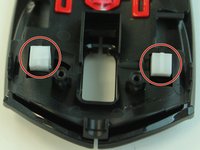
Flip the cover of the mouse over.
-
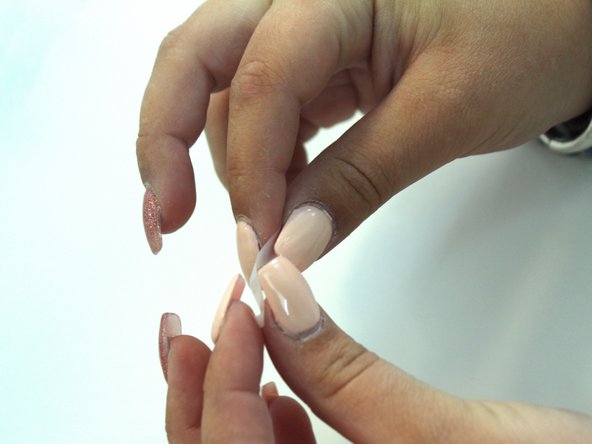
Fold a piece of tape over on itself. This should make both sides sticky.
-
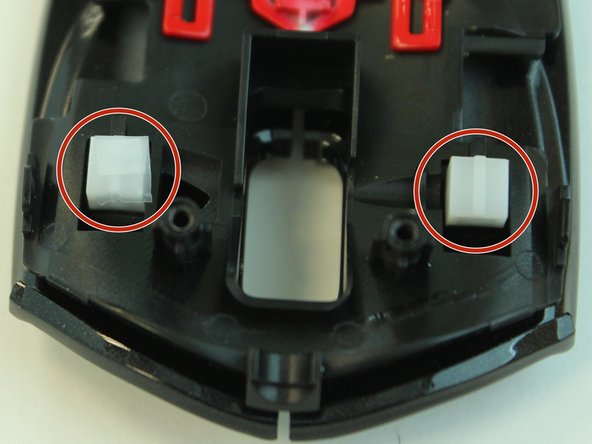
Cover both buttons with tape to increase the surface area of each click.
-
-


To reassemble your device, follow these instructions in reverse order.

Team

Linn Benton Community College, Team S2-G3, Johnson Spring 2018 Member of Linn Benton Community College, Team S2-G3, Johnson Spring 2018
LBCC-JOHNSON-S18S2G3
4 Members
60 Guides authored
