Free Shipping on Domestic Orders $75+

The Sharper Image Literati Tablet Keyboard Replacement

What you need

    1. The Sharper Image Literati Tablet Keyboard Replacement, Battery: step 1, image 1 of 1
      • Wedge plastic spudger tool between the back panel and the body of device.

      • Pry apart the back panel and the device.

      Ask FixBot

      Add Comment

    2. The Sharper Image Literati Tablet Keyboard Replacement: step 2, image 1 of 1
      • Desolder the battery wires from the circuit board.

      Ask FixBot

      Add Comment

    3. The Sharper Image Literati Tablet Keyboard Replacement: step 3, image 1 of 1
      • Warm the battery with a hair dryer.

      • Be carful not to over-heat the battery, this could cause the battery to ignite.

      Ask FixBot

      Add Comment

    4. The Sharper Image Literati Tablet Keyboard Replacement: step 4, image 1 of 1
      Tool used on this step:
      Plastic Cards
      $2.99
      Buy
      • Gently wedge a spudger or thin plastic card between the battery and the body of device. Work the spudger or card along the length of the battery to free it from the adhesive.

      • Do not bend or puncture the battery. Work slowly and carefully.

      Ask FixBot

      Add Comment

    1. The Sharper Image Literati Tablet Keyboard Replacement, SD Port: step 5, image 1 of 1
      • Use a Phillips #00 screwdriver to remove the fifteen 4mm screws from the silver peripheral edging.

      Ask FixBot

      Add Comment

    2. The Sharper Image Literati Tablet Keyboard Replacement: step 6, image 1 of 1
      • Use a Phillips #00 screwdriver to remove three 4 mm screws from the circuit board containing the headphone jack and power jack.

      Ask FixBot

      Add Comment

    3. The Sharper Image Literati Tablet Keyboard Replacement: step 7, image 1 of 1
      • Remove the circuit board.

      Ask FixBot

      Add Comment

    4. The Sharper Image Literati Tablet Keyboard Replacement: step 8, image 1 of 1
      • Unclip ZIF clip from the chip and unplug ribbon cable.

      Ask FixBot

      Add Comment

    5. The Sharper Image Literati Tablet Keyboard Replacement: step 9, image 1 of 1
      • Detach the peripheral edge with plastic wedge.

      • This may require a little hard pulling.

      Ask FixBot

      Add Comment

    6. The Sharper Image Literati Tablet Keyboard Replacement: step 10, image 1 of 1
      • Remove peripheral silver edge.

      Ask FixBot

      Add Comment

    7. The Sharper Image Literati Tablet Keyboard Replacement: step 11, image 1 of 1
      • Remove screws from the large metal shielding.

      Ask FixBot

      Add Comment

    8. The Sharper Image Literati Tablet Keyboard Replacement: step 12, image 1 of 1
      • Remove the silver backing plate and the adhered SD port chip.

      Ask FixBot

      Add Comment

    1. The Sharper Image Literati Tablet Keyboard Replacement, Keyboard: step 13, image 1 of 1
      • Remove the 10 Phillips head 4.2 mm screws using PH#00 screwdriver from the key board chip.

      Ask FixBot

      Add Comment

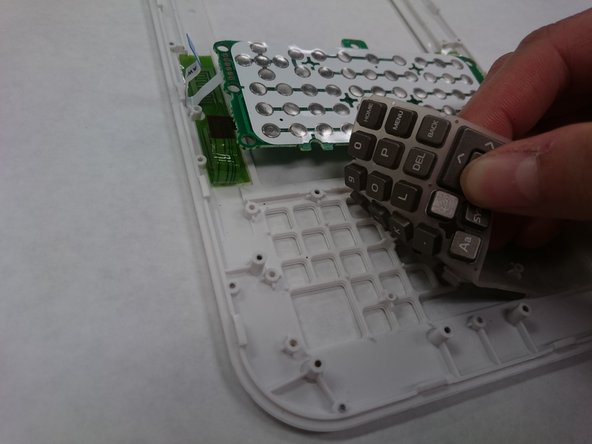
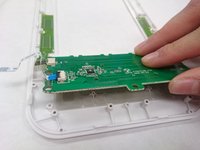
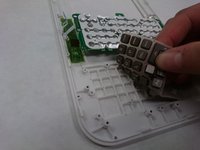
    2. The Sharper Image Literati Tablet Keyboard Replacement: step 14, image 1 of 2 The Sharper Image Literati Tablet Keyboard Replacement: step 14, image 2 of 2
      • Peal back the sensor array and keypad.

      Ask FixBot

      Add Comment

Conclusion

To reassemble your device, follow these instructions in reverse order.

Cancel: I did not complete this guide.

Spencer Dodder

Member since: 03/21/18

560 Reputation

4 Guides authored

Team

IUPUI, Team S5-G4, Baechle Spring 2018 Member of IUPUI, Team S5-G4, Baechle Spring 2018

IUPUI-BAECHLE-S18S5G4

3 Members

48 Guides authored

1 Guide Comment

This is NOT how you open them!!! I broke one of mine doing this. The white part SLIDES UP! DO not ply it open!!! Slide it up ( it needs a LITTLE ply around the silver part. ) It comes off then there are TWO SCREWS holding the brown part down. Once you remove the two screws ( they are under the white part ) then you can slide up the brown part too.

Phynix Heart - Reply Share

Add Comment

View Statistics:

Past 24 Hours: 1

Past 7 Days: 13

Past 30 Days: 36

All Time: 629